00197197-02-IM SetupCenter 5.1.pdf - 第76页
Installation Steps to Perform After Installation SIPLACE Setup Center Databas e and Windows XP SP2 or highe r 76 Installation Manual SIPLACE Setup Center 5.1 4.4 Steps to Perform After Installation 4.4.1 SIPLACE Setup Ce…
Installation
Setup Center Software Installation
Installation Manual SIPLACE Setup Center 5.1 75
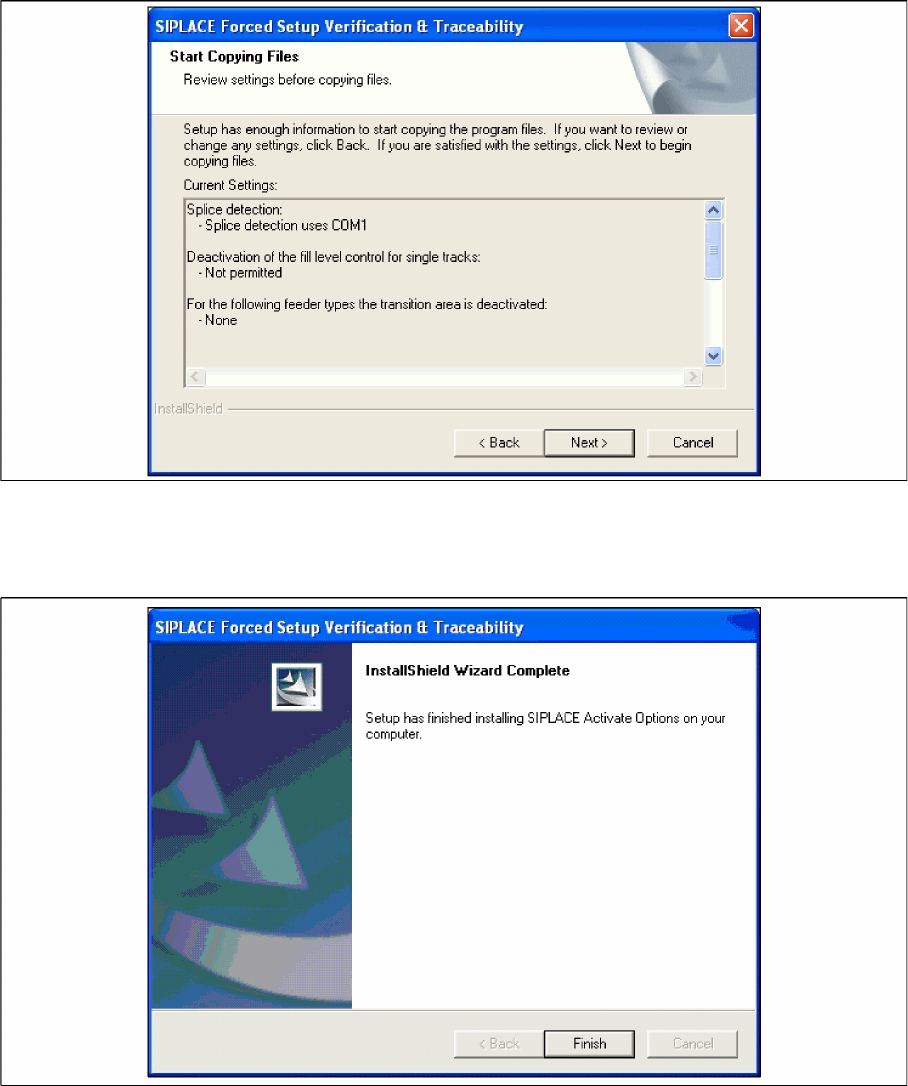
Step 8 Overview of the settings
► Here you will see the overview of the settings.
► Click Back to review or change the settings.
► Click Next to continue the installation.
Step 9 Finishing the installation
► Click Finish to end the installation.
Installation
Steps to Perform After Installation SIPLACE Setup Center Database and Windows XP SP2 or higher
76 Installation Manual SIPLACE Setup Center 5.1
4.4 Steps to Perform After Installation
4.4.1 SIPLACE Setup Center Database and Windows XP SP2 or higher
When installing Windows XP Service Pack 2 (SP2), the Windows Firewall, formerly ICF (Internet Con
-
nection Firewall), is enabled by default. The default configuration in SP2 blocks incoming traffic for the
most TCP ports.
If you are running the SIPLACE Setup Center GUI on a Windows XP SP2 host and the SIPLACE Setup
Center database on another host, you have to open the port 1433 and 1434 for the database connection.
Furthermore, you have to open the port 445, because blocking will cause errors when using mans MMC
snap-ins like Event Viewer, Local Users & Groups, Services, Computer Management, Disk Manage
-
ment, Device Manager, Group Policy, and others.
Please refer to Windows help to get further information how to open TCP ports.
4.4.2 Settings in the Station Software
In order to use Setup Center you should make settings in the station software. For detailed information,
please refer to SIPLACE Setup Center 5.1 User Guide.
4.4.3 Datalogic Scanner Configuration
4.4.3.1 Verify the Firmware Status for the Datalogic Scanner
In case of problems with the Datalogic scanner, please check the Firmware version. If necessary, install
the current version with the "Datalogic Aladdin" tool.
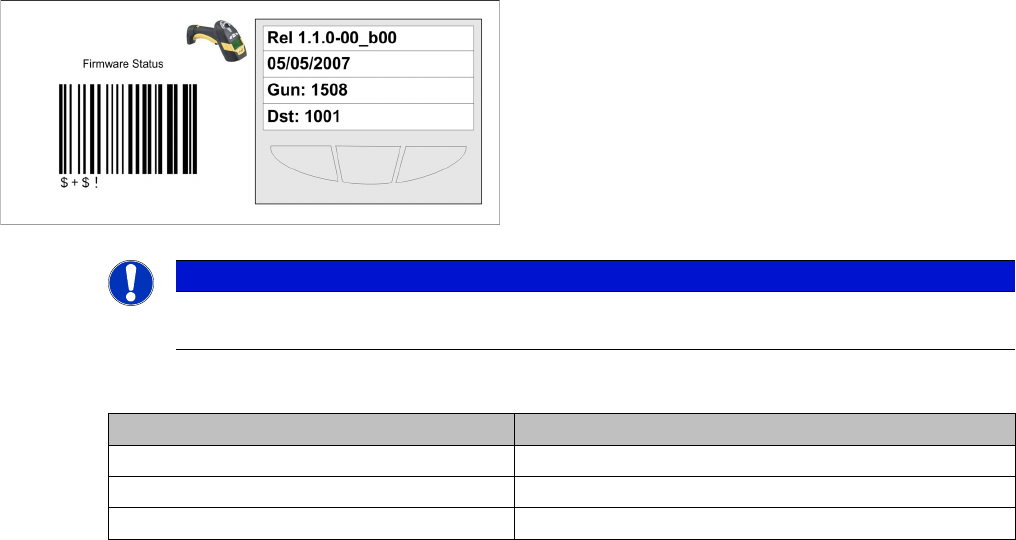
The actual firmware versions are:
Key:
1. Line: Firmware version
2. Line: Release Date of firmware
3. Line: Address of the Scanner
4. Line: Address of the cradle
NOTICE
Please verify whether the actual firmware version is displayed on the Barcode Scanner. If not,
you should upgrade the firmware version for the Barcode Scanner.
Barcode Scanner Actual Firmware
Datalogic M131 1.1.0-00_b00
Datalogic M8300 2.0.1.00
Datalogic M8500 1.03.000
Installation
Datalogic Scanner Configuration Steps to Perform After Installation
Installation Manual SIPLACE Setup Center 5.1 77
4.4.3.2 Firmware Upgrade of Datalogic Scanner
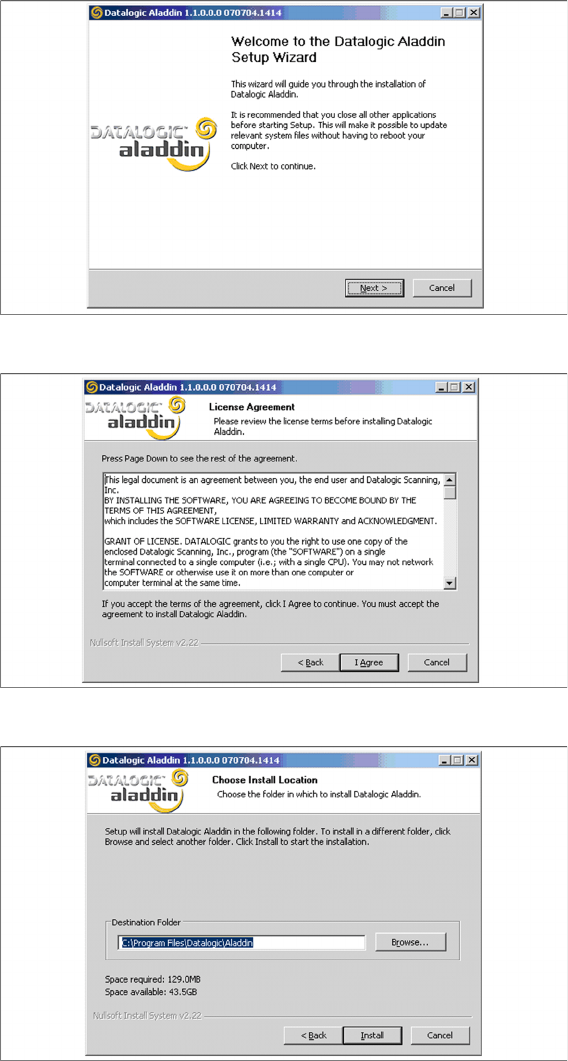
Installation of Datalogic Aladdin
In order to update a firmware version on a scanner the software "Datalogic Aladdin" need to be installed
on the computer, which is physically connected to the Datalogic OM30X0 cradle.
► Start the installation from the Support Media DVD : "\Updates\Firmware\Datalogic Aladdin".
► Click on Next to continue.
► The installation routine continues if you click on the "I Agree" button to accept the license agreement.
► Choose the destination folder in which the software should be installed.