00197197-02-IM SetupCenter 5.1.pdf - 第91页
Installation SIPLACE Setup Center Configuration Steps to Perform After Installation Installation Manual SIPLACE Setup Center 5.1 91 ► Select the barcode and press Edit to open the addition al barcode setting s. ► Press O…
Installation
Steps to Perform After Installation Motorola / Symbol MC70/MC75 Scanner Configuration
90 Installation Manual SIPLACE Setup Center 5.1
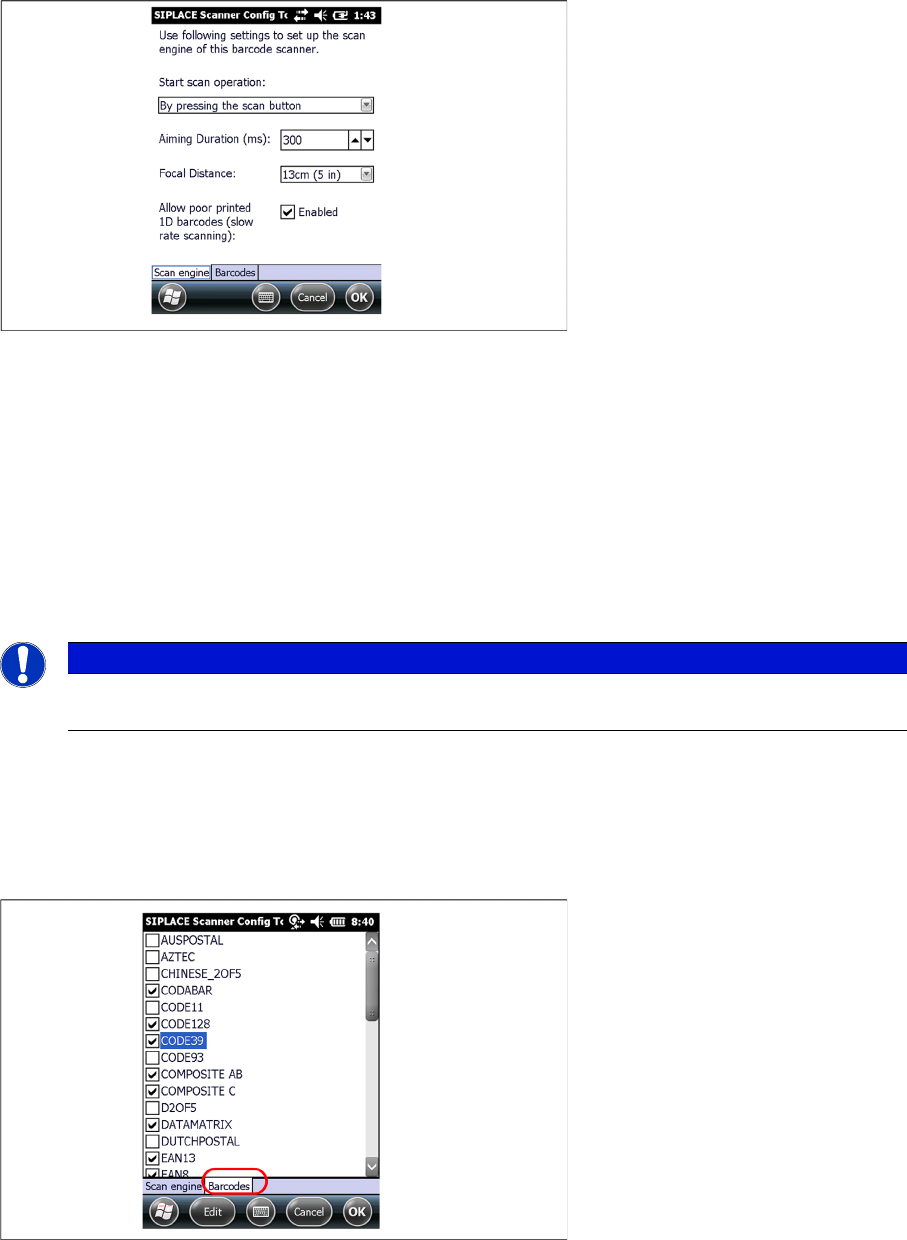
You can change the following scan parameters here:
▪ Start scan operation:
– By pressing the scan button
– By releasing the scan button (recommended)
▪ Aiming Duration (ms):
Sets the time, how long a user is able to target a barcode with target laser.
▪ Focus Position:
– Far: You have to focus a barcode in scan range of about 23 cm (9 inches).
– Near: You have to focus a barcode in scan range of about 13 cm (5 inches).
▪ Allow poor printed 1D barcodes (slow rate scanning):
Use this setting, if most of your barcodes cannot be read in case of light damage.
► Press Ok or Apply to save the settings.
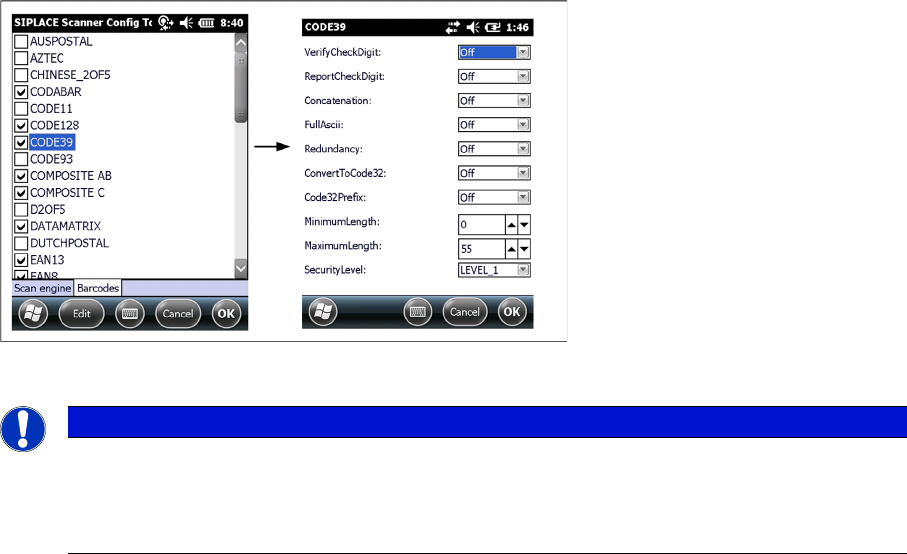
Setting 1D or 2D barcodes for MC70 Scanner
► Select the Barcode tab
► Choose the allowed 1D or 2D barcodes for your MC70 Scanner here.
NOTICE
This setting is depending on barcode size. If you have problems to read your 1D barcodes with
small size, change the setting to “Near”.
Installation
SIPLACE Setup Center Configuration Steps to Perform After Installation
Installation Manual SIPLACE Setup Center 5.1 91
► Select the barcode and press Edit to open the additional barcode settings.
► Press Ok to save the settings.
4.4.6 SIPLACE Setup Center Configuration
Setup Center GUI requires to be configured before it can be used. The configuration can be found via
the main menu Extras → Settings. For detailed information, please refer to User Guide SIPLACE Setup
Center 5.1.
4.4.7 Settings on the SIPLACE Pro
In order to use Setup Center you should make settings on the programming system SIPLACE Pro. For
detailed information, please refer to User Guide SIPLACE Setup Center 5.1.
4.4.8 Barcode Label Wizard
The Barcode Label Wizard enables you to print out barcodes needed for the operation of the SIPLACE
Setup Center. For detailed information, please refer to User Guide SIPLACE Setup Center 5.1.
NOTICE
Context menu
Click and hold on a barcode to open the context menu:
All Off: Select none of the barcodes in the list
All On: Select all the barcodes in the list
Installation
Troubleshooting Relevant Files to Analyze Installation Problems
92 Installation Manual SIPLACE Setup Center 5.1
4.5 Troubleshooting
If it is not possible to solve a problem during installation of SIPLACE Setup Center, please send the file
SIPLACESetupCenterSetupLog.html and all similar "log" named files to the SIPLACE Service.
4.5.1 Relevant Files to Analyze Installation Problems
Error description
Whenever problems arise during setup, please inspect the file SIPLACESetupCenterSetupLog.html,
which is written during each installation.
Cause
Setup problems.
Solution
The log file is found either in C:\ (prior to the "move data phase") or in the selected program folder.
Old versions of the log file are located in the program folder. A timestamp is added to the filename. Dialog
boxes appear during the file copying phase of installation which only contain
► Yes and No options.
Hint
► If you need SIPLACE support regarding installation problems, please provide all installation log files.
4.5.2 Conflicting old SIPLACE Setup Center Installations
Error Description:
InstallShield reports a conflicting old installation of SIPLACE Setup Center.
Cause:
The new SIPLACE Setup Center installation conflicts with old SIPLACE Setup Center installations.
Solution:
If SIPLACE Setup Center setup detects old installations and if you are absolutely sure you have unin
-
stalled the old version of SIPLACE Setup Center, please proceed as follow:
Make sure that you have manually removed any remnants of this old installation from the program folder
except for the database.