xp141-241-341-5.0E.pdf - 第15页
FK-9F98- 29 XP Series Training Text for Service Engineers Edition 5.0 XP141 – Chapter 1 Initial Adjustment Page 5 of 6 Fuji Machine Mfg. Co., Ltd.Okazaki SMT Equipment Quality Assurance Dept. 1 – 5 CS Section example XP2…

FK-9F98-29 XP Series Training Text for Service Engineers
Edition 5.0 XP141 – Chapter 1 Initial Adjustment Page 4 of 6
Fuji Machine Mfg. Co., Ltd.Okazaki
SMT Equipment Quality Assurance Dept.
1 – 4 CS Section
1.5 Computer Connection
MCS/X
1. Connect the LAN cable to the PC.
2. Remove the bottom left cover at the front of the machine, and connect the LAN cable to
the dedicated LAN port.
3. At the PC select [Start] – [Programs] – [MCSX] – [MCSX].
4. Click on the [File Manager] tab to bring up the "File Exchange" window.
5. To add a line, click on [Add Line], then enter a new line name, and click on [OK].
6. To add a machine, click on [Add M/C]:
Line Name: Choose an available line.
Machine nick name: For example XP241A
Machine type: Input the machine type.
IP Address: Input an IP address.
When finished click on [OK].
7. At the machine select [Maintenance B] – [Start Up Settings]:
Target: Input the "Machine nick name" registered in MCSX.
Ethernet Address: Input the same IP address as the one registered in MCSX.
Subnet Mask: If necessary input the subnet mask.
8. Click on the [Update] tab to save the new settings, then reboot the machine in order for
them to take effect.
9. Finally confirm that the PC and machine are communicating.
F4G
1. At the PC select [Start] – [Programs] – [Windows NT Explorer] – [Winnt] – [System
32] – [drivers] – [etc] – [Hosts] and open the hosts file with notepad, a text file similar to
the one below will then open:
127.0.0.1 localhost
192.168.33.190 italy
192.168.39.2 pascal
192.168.39.10 uk
192.168.33.154 XP241A
Make a new entry, and in the first column input the machine's IP address, then a "host
name" in the next column. Close and save the file.
2. Select [Start] – [Programs] – [F4G] – [F4G] – [Line Config] and a text file will open. In
the MC Name column input the same host name as that registered in the hosts file, then
in the HOSTNAME column also input the same host name as that registered in the hosts
file, in this case XP241A. Under the MCTYPE column input the machine type, for

FK-9F98-29 XP Series Training Text for Service Engineers
Edition 5.0 XP141 – Chapter 1 Initial Adjustment Page 5 of 6
Fuji Machine Mfg. Co., Ltd.Okazaki
SMT Equipment Quality Assurance Dept.
1 – 5 CS Section
example XP241. Close and the save the file.
3. At the PC select [Start] – [Programs] – [Windows NT Explorer] – [F4G] – [CC] –
[Passwd] and open the passwd file with notepad, a text file similar to the one below will
then open:
# C/C OS User-ID PassWord
#cc1, OS9, super, user
italy, WINDOWSNT, Administrator,
XP241A, WINDOWSNT, anonymous,
Make a new entry, and in the first column of the new entry input the same host name as
that registered in the hosts file. In the OS column input WINDOWSNT, and in the User-
ID column input, anonymous. Close and save the file.
4. The settings are now complete, restart the computer in order for them to take effect.
5. To confirm that the machine and PC are communicating, enter the F4G Operator Module
and open up the Transmit Engine and then the Transmitter.
FujiCam
1. At the PC select [Start] – [Programs] – [Windows NT Explorer] – [Winnt] – [System
32] – [drivers] – [etc] – [Hosts] and open the hosts file with notepad, a text file similar to
the one below will then open:
127.0.0.1 localhost
192.168.33.190 italy
192.168.39.2 pascal
192.168.39.10 uk
192.168.33.154 XP241A
Make a new entry, and in the first column input the machine's IP address, then a "host
name" in the next column. Close and save the file.
2. At the PC select [Start] - [Programs] - [FujiCam] - [Line Editor] - [Edit] - [Add
Machine], then fill out the new machine information as described below:
Machine Nickname: input the same host name as that registered in the hosts file.
Machine Type: Select the appropriate machine type from the pull down list.
GEM Not Use: No.
Get Production Data: No.
Recipe Name, Top: input the top recipe name for the machine.
Recipe Name, Bottom: input the bottom recipe name for the machine.
Host Name: Input the name of the FujiCam license holding server.
PPS Exist: No.
Use HELPS: No.
Cell Status: Unit.
Termination Type: Manual.
Use KIT: No.
C/C: No need to fill out this information as the XP uses F.T.P.
SECS/GEM: No need to fill out this information as the XP uses F.T.P.
2. Finally confirm that the PC and machine are communicating.
FK-9F98-29 XP Series Training Text for Service Engineers
Edition 5.0 XP141 – Chapter 1 Initial Adjustment Page 6 of 6
Fuji Machine Mfg. Co., Ltd.Okazaki
SMT Equipment Quality Assurance Dept.
1 – 6 CS Section
1.6 Error handling
1. In the event of an error occurring due to software or servo problems, please save the
trace data to a floppy disc, and contact FUJI with detailed information regarding the
condition of the machine at the time the error occurred.
2. When the machine is not able to shutdown using the onscreen shutdown command, shut
down the machine using one of the following procedures:
Condition Procedure
Green LED (Run) in the CPU
flashing.
Hold down the [Ready On] and [Cycle Stop]
keys simultaneously until the buzzer comes ON
Green LED (Run) in the CPU
not flashing.
Turn OFF the breaker.
1.7 CPU Board Dip Switch Setting
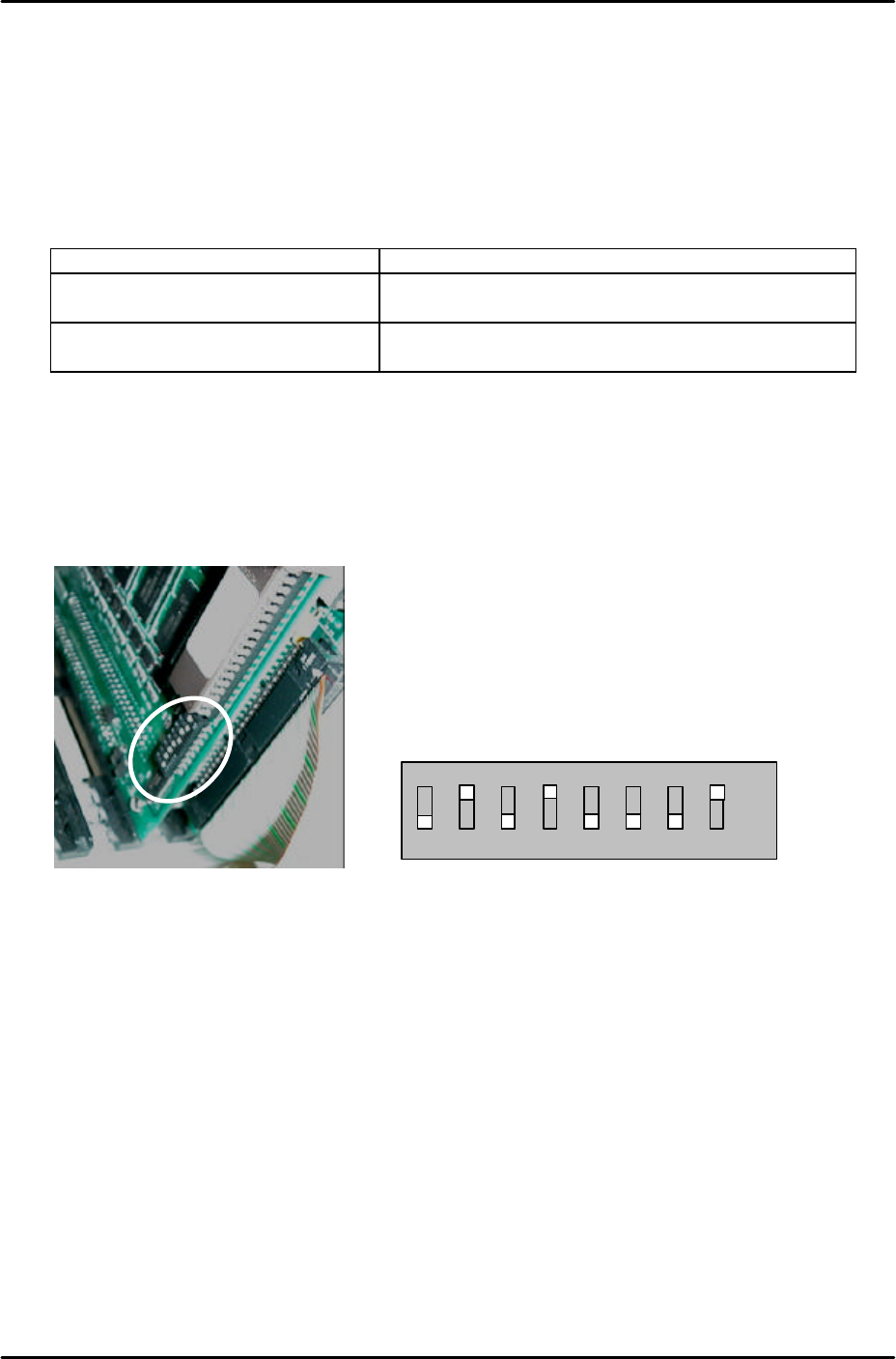
1. When using software T1.21g and later versions confirm that the CPU board dip switches
are set as follows:
2. As shown the number 2, 4 and 8 dip switches should be set to ON. The remaining dip
switches should be set to OFF.
1 2 3 4 5 6 7 8
ON
OFF