ts9800-user-guide-7511-0360_A.pdf - 第40页
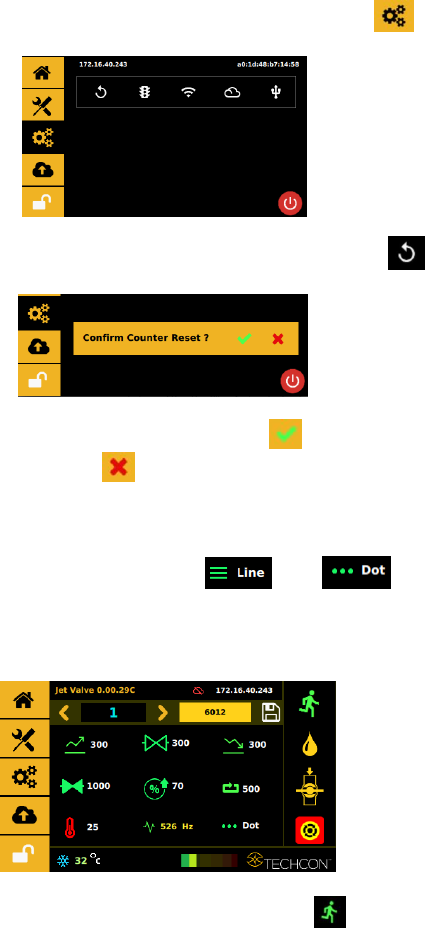
40 1. Touch the ‘ Se tti ng s ’ ico n to enter the setup screen 2. Tou ch the ‘ Co unter Reset ’ ic on to reset the counter 3. Touch the ‘ Accept ’ icon to confirm or touch the ‘ Cancel ’ icon to exit without resetting c…
39
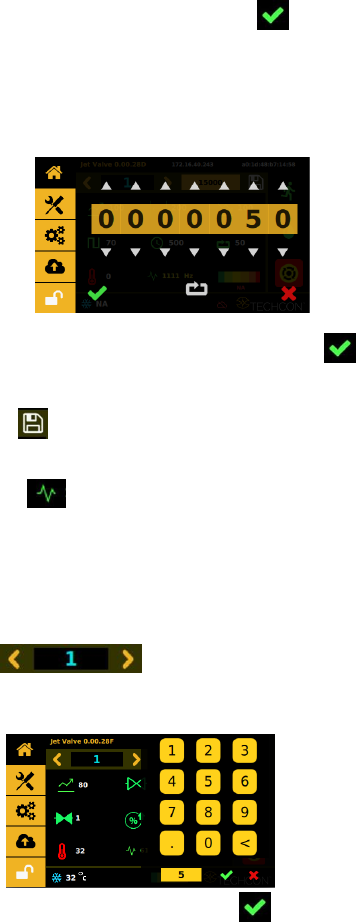
15. Touch the ‘Accept’ icon to exit
16. Touch the ‘Pulse’ icon to enter the setup screen
17. Touch the up and down arrows to set the desired number
strokes per dispensing cycle.
18. Touch the ‘Accept’ icon to save and exit
19. Enter all desired dispensing parameters, then touch ‘Save’ icon
Note: The system will automatically calculate and display the operating
frequency based on the entered dispensing parameters.
9.5.6 Calling up Dispensing Parameters
The controller has 50 memory cells store all dispensing parameters.
1. Touch the forward or backward arrow to select
the desired memory cell or touch the value to type in a specific
location.
2. Touch the ‘Accept’ icon to exit
9.5.7 Reset Cycle Counter
The cycle counter records the number of dispense cycle being activated.
Up to 999,999,999 cycles can be recorded for each of the program saved
in memory. To reset the counter for the current program, follow the
steps below:
40
1. Touch the ‘Settings’ icon to enter the setup screen
2. Touch the ‘Counter Reset’ icon to reset the counter
3. Touch the ‘Accept’ icon to confirm or touch the
‘Cancel’icon to exit without resetting counter.
9.5.8 To Run in Dot or Line Mode
1. Touch to toggle between the line or dot icons
to switch mode. Note: switching from Line to Dot mode may
required a re-entry of a specific number of pulses desired to run
the parameter or setup.
1.
2. Touch ‘Run’ icon to start the dispensing cycle
3. If Line Mode is selected an external triggering devise is required
to trigger a start.
Caution: Line mode, the controller must be activated by secondary
source such as PLC or XYZ Table connected through 15-Pin I/O port.
41
9.5.9 Service Mode
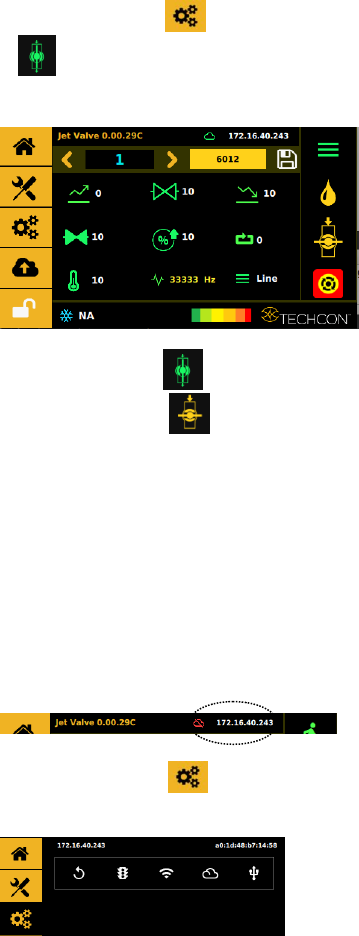
1. Touch the valve Close icon it will toggle to the valve Open
icon to open the valve for de-airing or purging (stay
open).
2. Touch the valve Open icon to close the valve and it will
toggle to a valve Close icon close position is a normal
operation mode.
Caution: The valve does not jet the material in this mode, the
material flows under regulated pressure only.
9.5.10 Connect to Wi-Fi Network (not available)
9.5.11 IOT (Remote Communication)
Note: Ethernet must be connected and it should already have
an IP address
1. Touch the Setting icon it will toggle to the menu
bellow.