Nordson_EFD_OptiSure_Operating_Manual - 第24页
OptiSure Automated Optical Inspection 24 www.nordsonefd.com info@nordsonefd.com +1-401-431-7000 Sales and service of Nordson EFD dispensing systems are available worldwide. # Click Step Reference Image 5 • Use the mouse …
OptiSure Automated Optical Inspection
23www.nordsonefd.com info@nordsonefd.com +1-401-431-7000 Sales and service of Nordson EFD dispensing systems are available worldwide.
Circle Center Example
Circle Center is an OptiSureAOI feature that allows you to add details to a mark image of a circular area that has
poor definition, thus allowing the system to find the mark image faster and more accurately.
PREREQUISITES
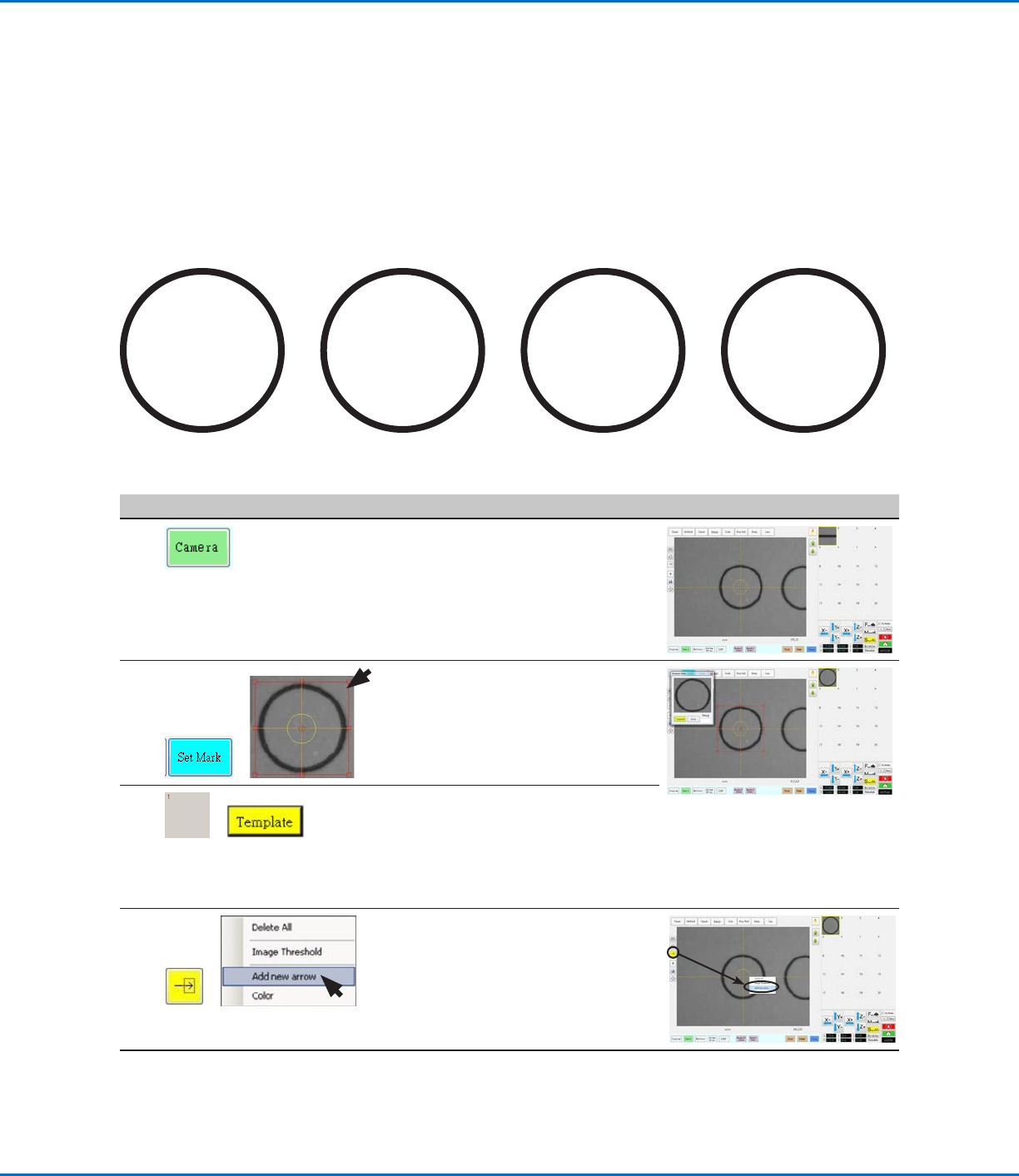
To learn how to use this feature, draw four large circles on a sheet of white paper and use it as a workpiece
template.
To Create a Circle Center Mark Image
# Click Step Reference Image
1
• Click CAMERA to go to the camera
screen.
• Position the workpiece template on
the fixture plate and bring the circle
you want to use for the mark into
view.
2
>
• Click SET MARK, then drag to
position the red box around a circle.
3
>
• Click a socket in the Mark Library to
save the mark, then click TEMPLATE
when the Template Match window
appears.
The system saves the image in the
Mark Library.
4
>
• Click the ARROW icon.
• In the Primary View screen, right-
click and select ADD NEW ARROW.
The system adds an arrow to the
screen.
Continued on next page
Using the Arrow Types (continued)
OptiSure Automated Optical Inspection
24 www.nordsonefd.com info@nordsonefd.com +1-401-431-7000 Sales and service of Nordson EFD dispensing systems are available worldwide.
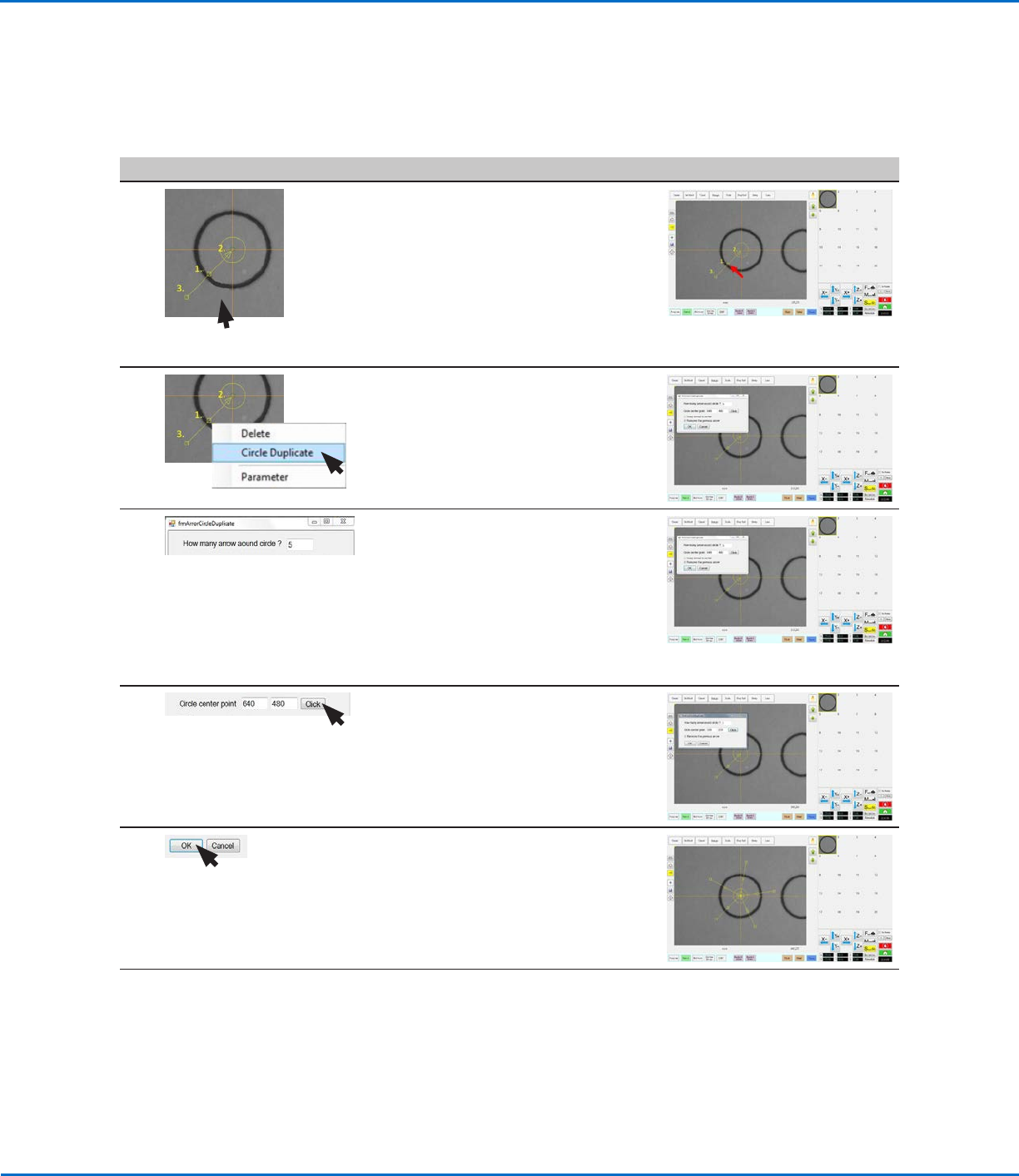
# Click Step Reference Image
5
• Use the mouse to manipulate the
arrow so that it extends from the
center of the circle to outside of the
circle:
- To move the entire arrow, click
and drag the middle box (item1).
- To elongate or shorten the arrow,
click and drag the triangle (item2)
or the lower box (item 3).
6 • Right-click the upper box on
the arrow and select CIRCLE
DUPLICATE.
The Arrow Circle Duplicate window
opens.
7 • In the Arrow Circle Duplicate
window, increase the number of
arrows around the circle. In this
example, the number of arrows is
increased to 5.
NOTE: When SNAP ARROW TO
CENTER is checked, the system
snaps the arrows to a calculated
center point.
8 • Click the CLICK button next to
Circle Center Point, then click on the
center of the circle.
The system automatically enters the
Circle Center Point coordinates.
9 • Click OK.
Five arrows appear on the image.
Continued on next page
Circle Center Example (continued)
To Create a Circle Center Mark Image (continued)
Using the Arrow Types (continued)
OptiSure Automated Optical Inspection
25www.nordsonefd.com info@nordsonefd.com +1-401-431-7000 Sales and service of Nordson EFD dispensing systems are available worldwide.
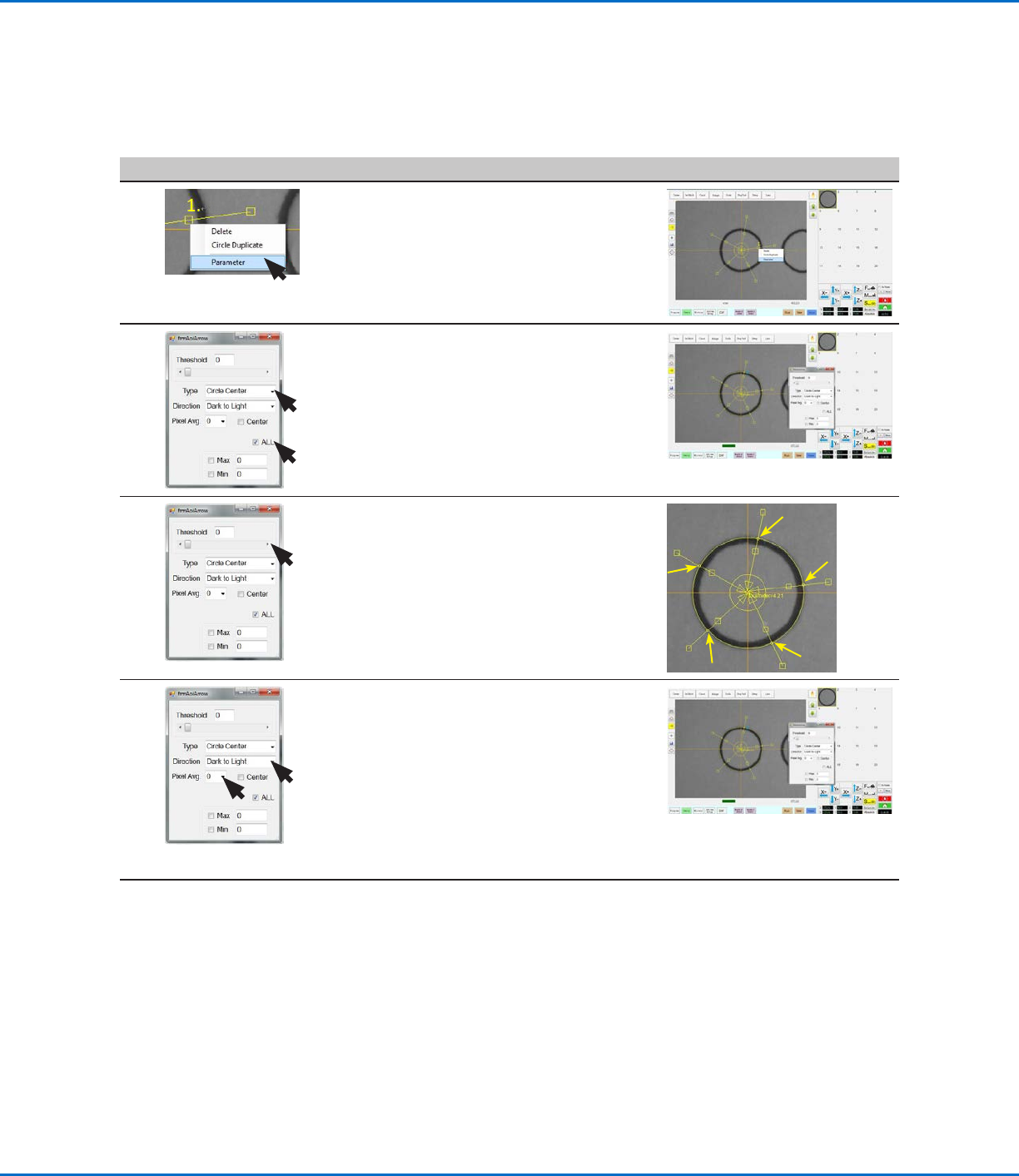
# Click Step Reference Image
10
• Right-click on any middle box
(item 1) of an arrow and then select
PARAMETER.
The AOI Arrow window opens.
11 • Select the ALL checkbox (to cause
the system to enter the same
settings for all arrows).
NOTE: If you want to enter settings
for each arrow individually, deselect
ALL.
• For Type, select CIRCLE CENTER.
12 • Adjust THRESHOLD until the all the
yellow circles are located on the
circumference of the circle.
13 • Select LIGHT TO DARK.
• Adjust PIXEL AVG to make the mark
image easier for the system to find.
NOTES:
- Check CENTER if you want to
center the image based on the
image in the mark library.
- MAX and MIN are not used in this
example.
Continued on next page
Using the Arrow Types (continued)
Circle Center Example (continued)
To Create a Circle Center Mark Image (continued)