Nordson_EFD_OptiSure_Operating_Manual - 第26页
OptiSure Automated Optical Inspection 26 www.nordsonefd.com info@nordsonefd.com +1-401-431-7000 Sales and service of Nordson EFD dispensing systems are available worldwide. Example program that contains a Find Mark comma…
OptiSure Automated Optical Inspection
25www.nordsonefd.com info@nordsonefd.com +1-401-431-7000 Sales and service of Nordson EFD dispensing systems are available worldwide.
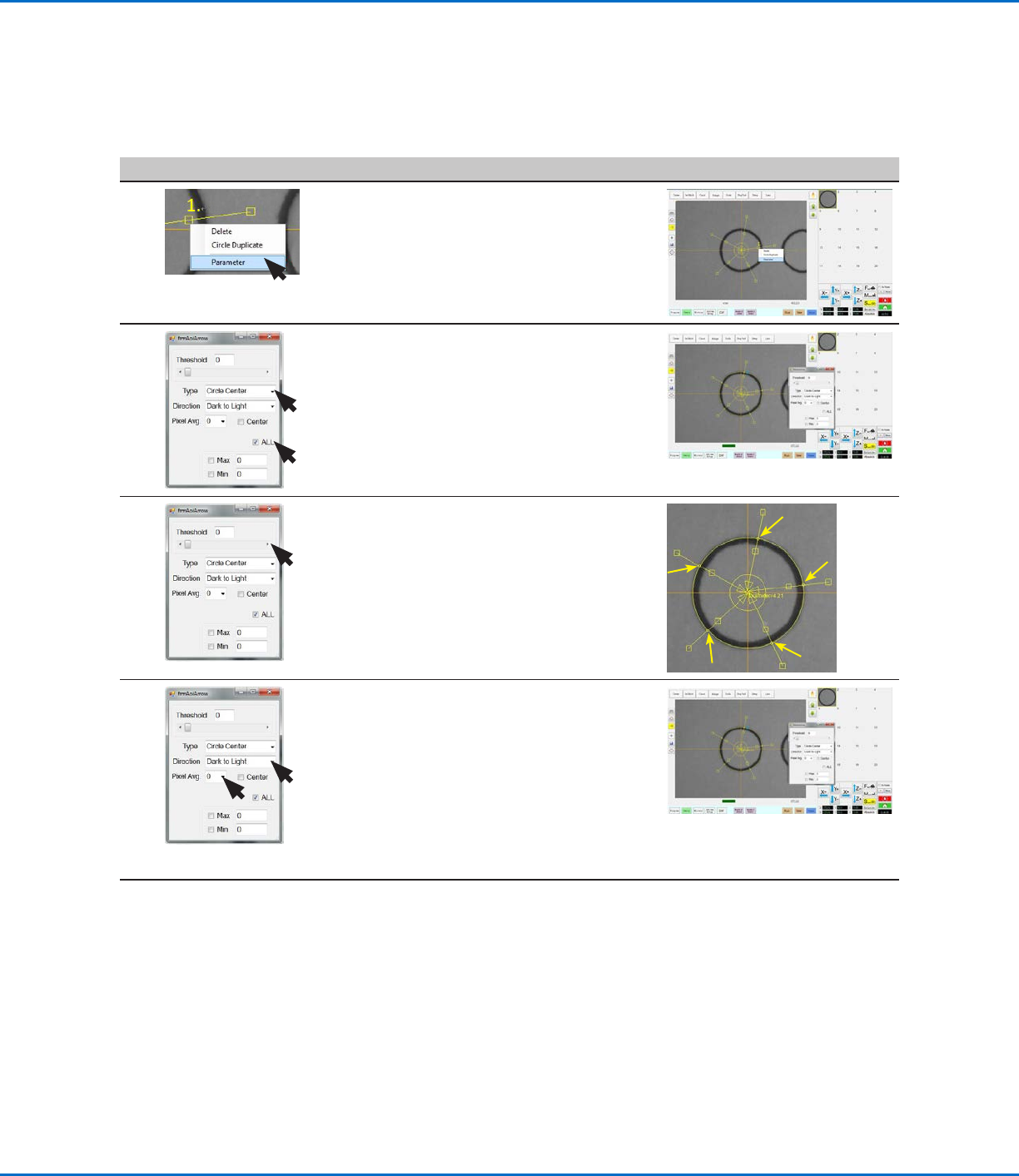
# Click Step Reference Image
10
• Right-click on any middle box
(item 1) of an arrow and then select
PARAMETER.
The AOI Arrow window opens.
11 • Select the ALL checkbox (to cause
the system to enter the same
settings for all arrows).
NOTE: If you want to enter settings
for each arrow individually, deselect
ALL.
• For Type, select CIRCLE CENTER.
12 • Adjust THRESHOLD until the all the
yellow circles are located on the
circumference of the circle.
13 • Select LIGHT TO DARK.
• Adjust PIXEL AVG to make the mark
image easier for the system to find.
NOTES:
- Check CENTER if you want to
center the image based on the
image in the mark library.
- MAX and MIN are not used in this
example.
Continued on next page
Using the Arrow Types (continued)
Circle Center Example (continued)
To Create a Circle Center Mark Image (continued)
OptiSure Automated Optical Inspection
26 www.nordsonefd.com info@nordsonefd.com +1-401-431-7000 Sales and service of Nordson EFD dispensing systems are available worldwide.
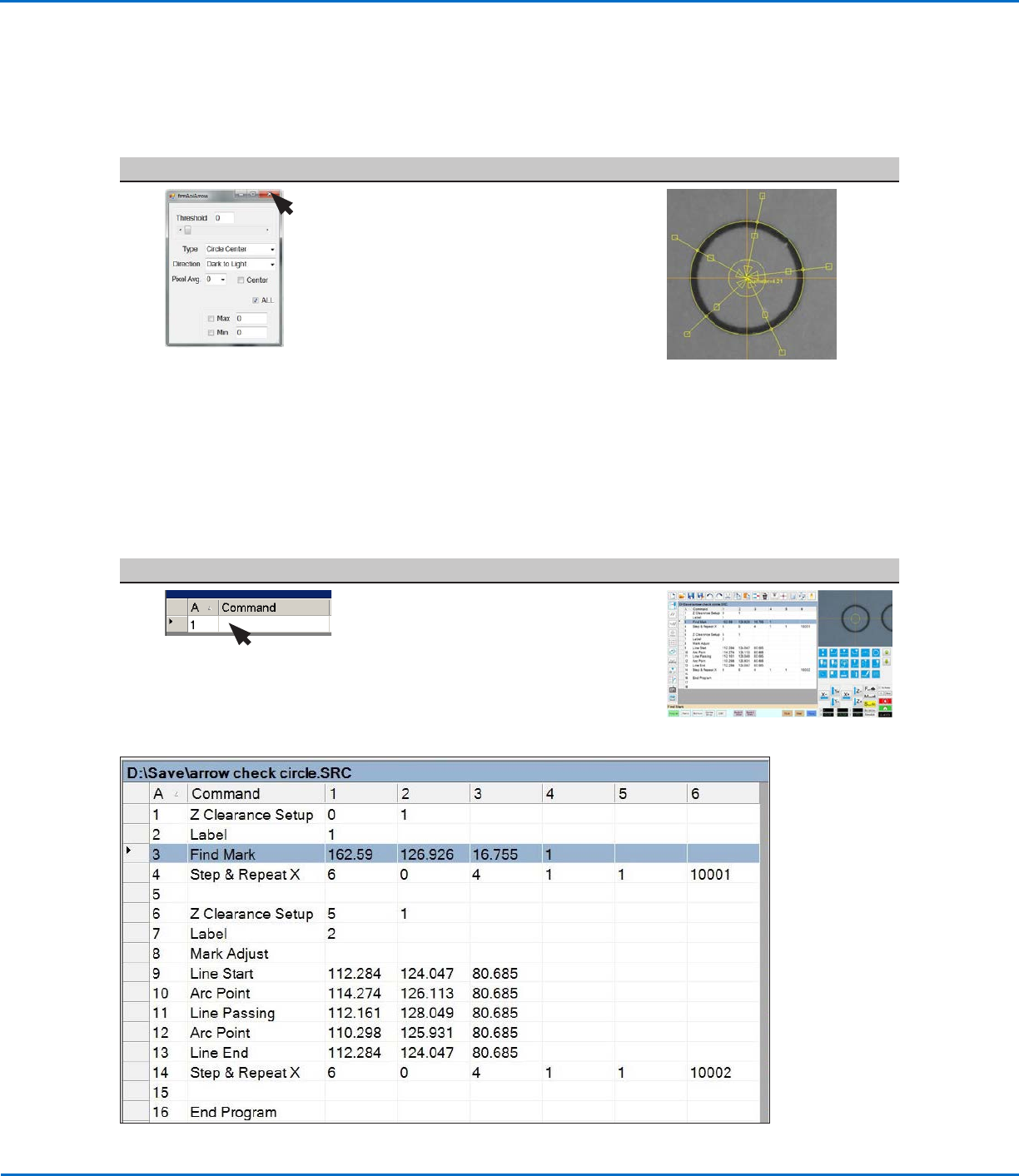
Example program that contains a Find Mark command for a Circle Center mark
Using the Arrow Types (continued)
# Click Step Reference Image
14
• Close the dialog box to save the
settings.
The system adds the circle diameter
(item 8) and its value (item 9) to the
mark image of the circle.
The saved mark image now contains
additional data that will allow the
system to accurately find it upon
reaching its corresponding Find
Mark command in a program.
• Continue to “To Use a Circle Center
Mark Image in a Program” below to
use the Circle Center mark.
9.
8.
Circle Center Example (continued)
To Create a Circle Center Mark Image (continued)
To Use a Circle Center Mark Image in a Program
# Click Step Reference Image
1
• In the dispense program, insert a
Find Mark command and specify
the Mark No. for the Circle Center
mark you created in the previous
procedure.
NOTE: The complete example
program is provided below.
OptiSure Automated Optical Inspection
27www.nordsonefd.com info@nordsonefd.com +1-401-431-7000 Sales and service of Nordson EFD dispensing systems are available worldwide.
Positional Checking Example
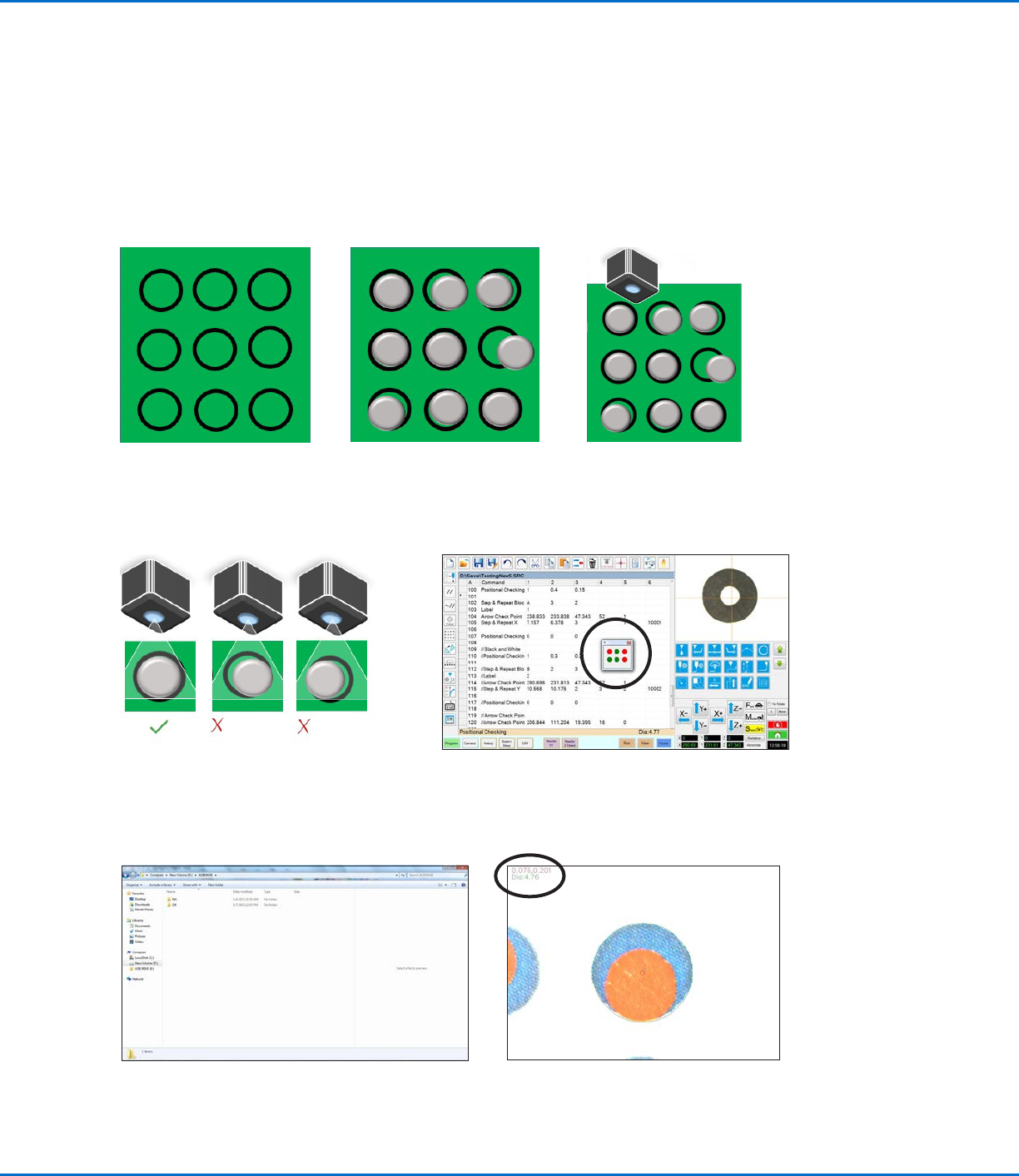
Positional Checking is an OptiSureAOI feature that allows you to determine the exact X and Y offsets of a
dispensed dot that deviates from a designated dispense location. Positional Checking is accomplished by using the
Circle Center arrow type and the Positional Checking and Step & Repeat commands. The overview below shows
how this feature works.
Overview of the Positional Checking Feature
1. A workpiece with defined
dispense locations.
2. Dispensed dots on the
workpiece.
3. Using a Step & Repeat
program, the camera examines
each dispensed dot.
4. If a dispensed dot fits within the specified
X and Y offset range, it passes; if not, it
fails.
5a. Pass / fail status is displayed in a Positional Checking
window. The system also captures and saves image
files for all pass / fail results.
Using the Arrow Types (continued)
6. Open an image to view details, including
diameter and XY offset.
5b. Pass / fail images are saved in the D:\ directory into
two folders: NG (not good) and OK.