Nordson_EFD_OptiSure_Operating_Manual - 第41页
OptiSure Automated Optical Inspection 41 www.nordsonefd.com info@nordsonefd.com +1-401-431-7000 Sales and service of Nordson EFD dispensing systems are available worldwide. Intersect Line Example (continued) T o Cr eate …
OptiSure Automated Optical Inspection
40 www.nordsonefd.com info@nordsonefd.com +1-401-431-7000 Sales and service of Nordson EFD dispensing systems are available worldwide.
# Click Step Reference Image
14
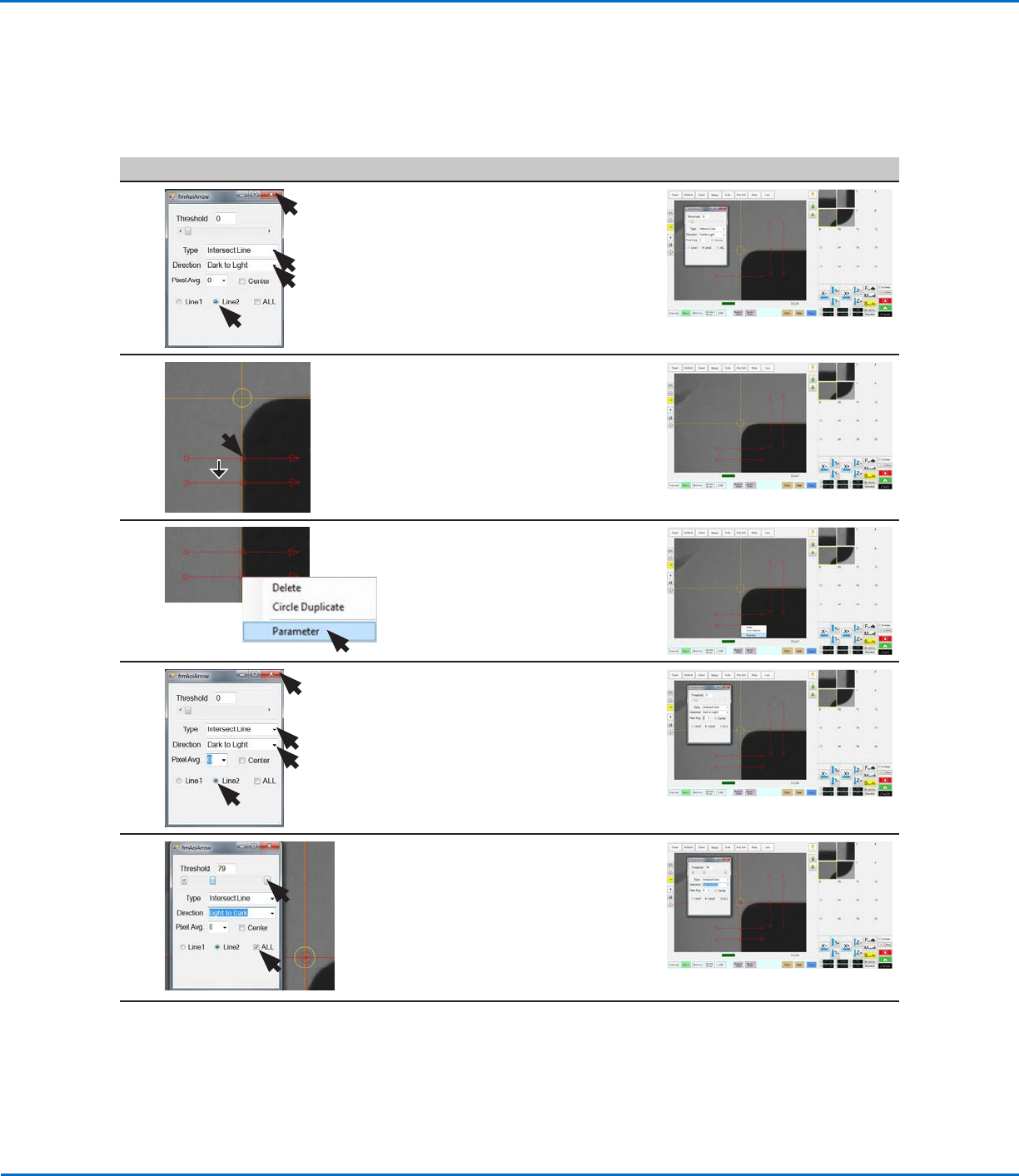
• Select the following for Arrow C:
- Type: INTERSECT LINE.
- Directon: DARK TO LIGHT.
- LINE2.
• Close the dialog box to save the
settings.
15
7.
SHIFT +
C
D
• Copy Arrow C and drag the copy
down to create Arrow D.
16
C
D
8.
• Right-click the middle box (item8)
of the new Arrow D and then select
PARAMETER.
17 • Verify the following for Arrow D:
- Type: INTERSECT LINE.
- Directon: DARK TO LIGHT.
- LINE2.
NOTE: Do not close this dialog
box. The next steps will make
adjustments to all the arrows.
18
9.
• Select the ALL checkbox (to cause
the system to enter the same
settings for all arrows).
• Change Direction to LIGHT TO
DARK.
• Adjust THRESHOLD until the
crosshairs (item 9) appear on the
camera screen.
Continued on next page
Using the Arrow Types (continued)
Intersect Line Example (continued)
To Create an Intersect Line Mark Image (continued)
OptiSure Automated Optical Inspection
41www.nordsonefd.com info@nordsonefd.com +1-401-431-7000 Sales and service of Nordson EFD dispensing systems are available worldwide.
Intersect Line Example (continued)
To Create an Intersect Line Mark Image (continued)
Using the Arrow Types (continued)
# Click Step Reference Image
19
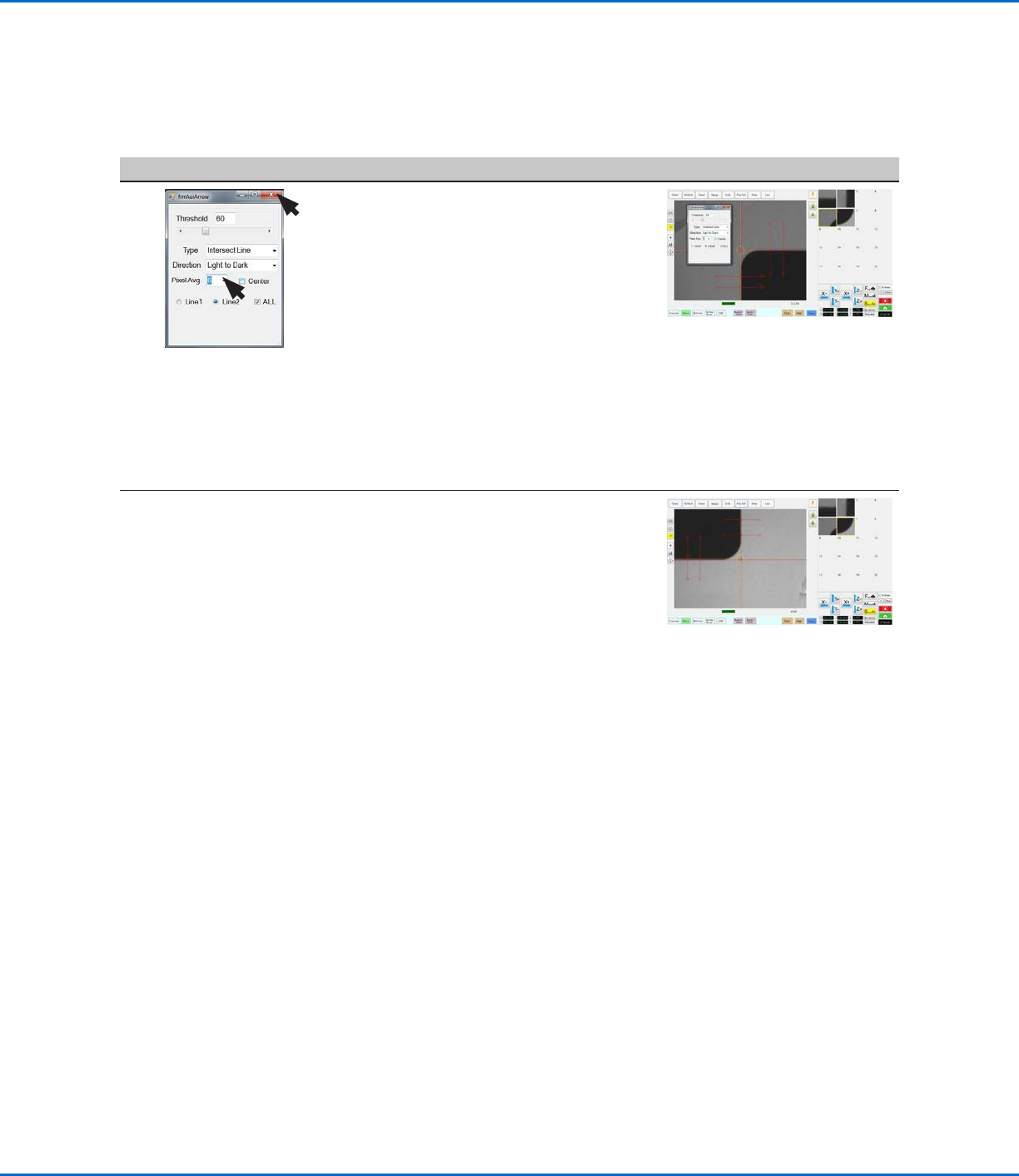
• Adjust PIXEL AVG to make the mark
image easier for the system to find.
• Close the dialog box to save the
settings.
The first mark image (No. 5 in this
example) is now complete.
• If you have not already done so,
start creating your program and
add a Fiducial Mark command that
references this mark image (No.5 in
this example).
NOTE: Refer to “To Use Intersect
Line Mark Images in a Program” on
page42 for the complete example
program.
20 • Repeat the applicable steps in this
procedure to create a mark image
and set of arrows for the bottom
right corner of the workpiece
template.
This set of arrows will be the second
mark image (No. 6 in this example).
• In your program, add a second
Fiducial Mark command that
references this mark image (No.6 in
this example).
NOTE: Refer to “To Use Intersect
Line Mark Images in a Program” on
page42 for the complete example
program.
OptiSure Automated Optical Inspection
42 www.nordsonefd.com info@nordsonefd.com +1-401-431-7000 Sales and service of Nordson EFD dispensing systems are available worldwide.
To Use Intersect Line Mark Images in a Program
# Click Step Reference Image
1
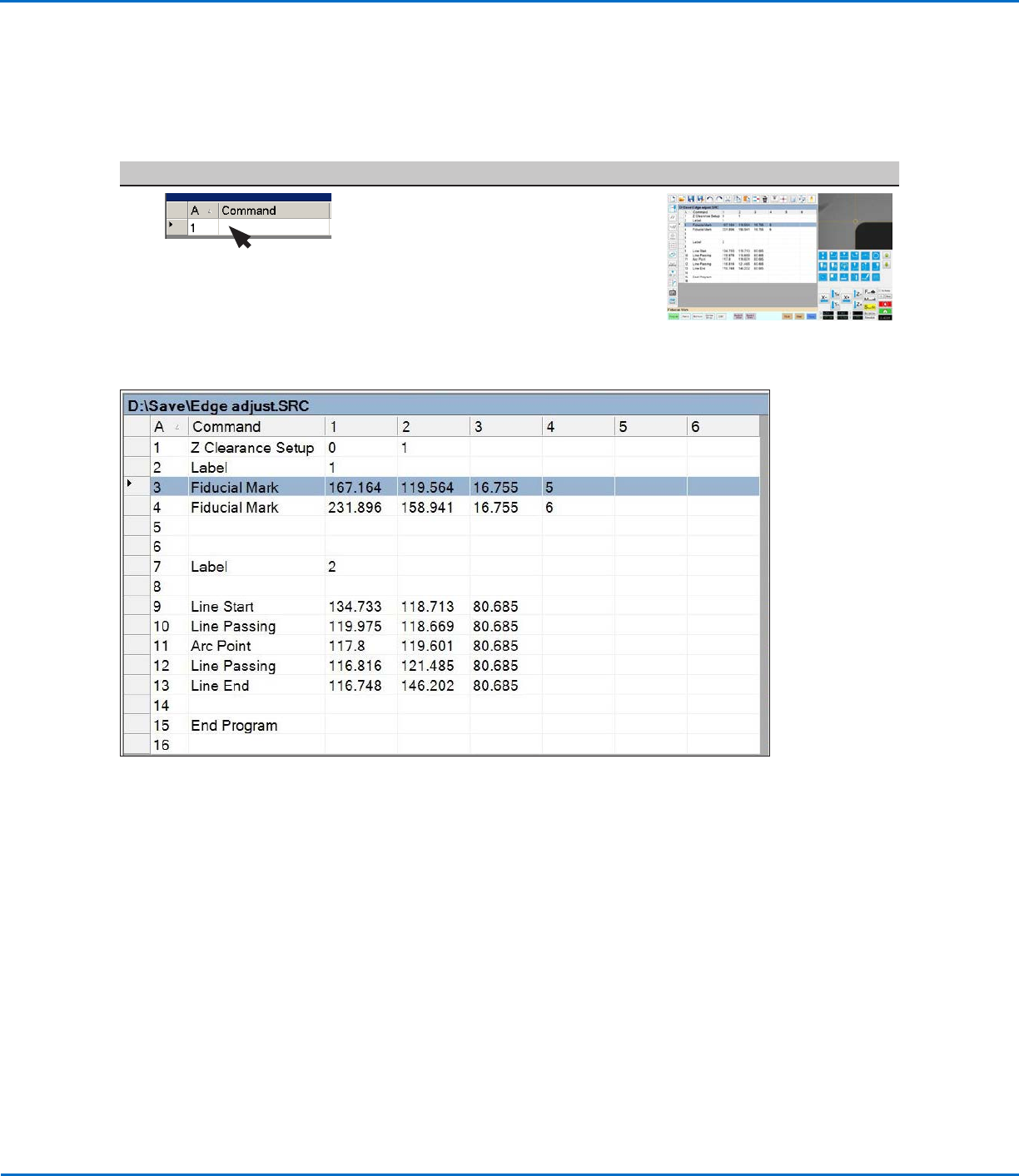
• In the dispense program, ensure
that Fiducial Mark commands are
inserted as noted in the previous
procedure: One for the top left
corner mark image and one for the
bottom right corner mark image that
you created. The complete example
program is provided below.
Example program that contains Fiducial Mark commands (lines 3–4) for Intersect Line marks
Using the Arrow Types (continued)
Intersect Line Example (continued)