1OM-1505-004_w.pdf - 第124页
1OM-1505 3. PCB Replenishment : Chap.3 3-19 3.1 Preparation for PCB's In the case of normal automatic operation, conrm that PCB's are prepared in the input machine. When this machine is operated singly (a prin…

1OM-1505
3-18
3. PCB Replenishment : Chap.3
3. PCB Replenishment
When the machine gets short of PCBs during automatic operation, the input
machine produces an error alarm or the machine stops automatically.
(1) When the input machine has issued an error alarm, follow the step
below.
Replenish the input machine with PCBs and re-start the automatic operation.
(2) When the machine has stopped automatically, follow the step below
The input machine has stopped automatically in a normal condition.
In normal cases, it means that the production is completed.
0906-001
1OM-1505
3. PCB Replenishment : Chap.3
3-19
3.1 Preparation for PCB's
In the case of normal automatic operation, conrm that PCB's are prepared in the
input machine.
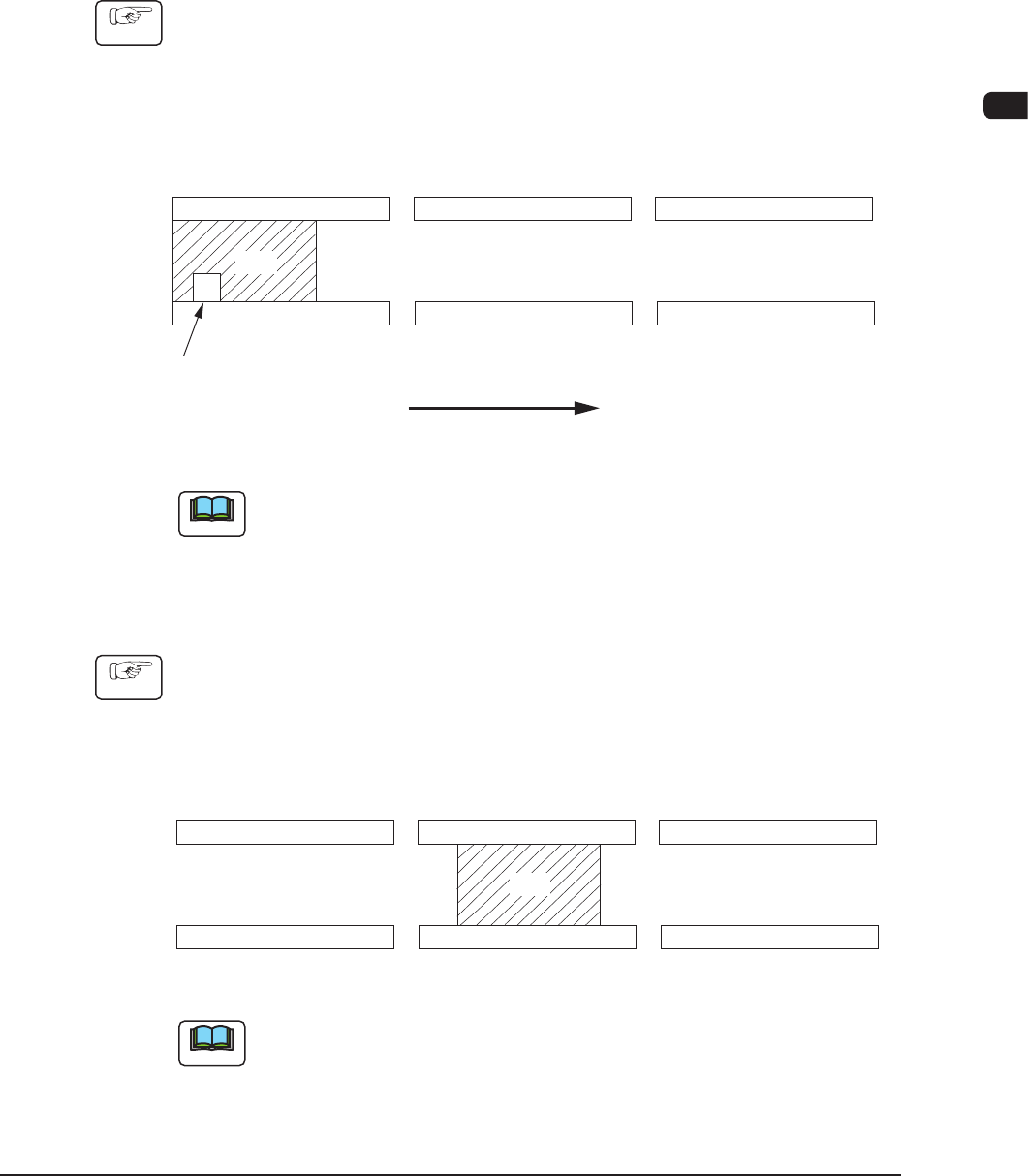
When this machine is operated singly (a printing test, etc.), follow the
steps below.
•
PCB Size of 330 mm or less
Procedure
(1) Press the cover lock switch and open the transparent covers.
(2) Set a PCB on the L conveyor (input conveyor) such that the PCB detection
sensor is turned on (the red LED of the sensor illuminates).
PCB
L Conveyer
(Input Conveyor) (PCB Positioning Section)
R Conveyer
(Output Conveyor)
L Conveyor PCB Detection L Sensor
PCB Flow Direction
F1C19
Note
The gure shows that the PCB flows from left to right, based on "Front
Reference".
•
PCB Size of more than 330 mm
Procedure
(1) Press the cover lock switch and open the transparent covers.
(2) Set the PCB on the PCB positioning section as shown in the following gure.
PCB
L Conveyer
(Input Conveyor) (PCB Positioning Section)
R Conveyer
(Output Conveyor)
F1C20
Note
The PCB flow direction ("Left to Right" and "Right to Left") is common to both
cases.
0906-001
1OM-1505
3-20
4. Automatic Operation Stop, Interruption and Re-Start : Chap.3
4. Automatic Operation Stop, Interruption and Re-Start
4.1 Automatic Operation Stop
4.1.1 Temporary Stop (Pause) with [STOP] Button
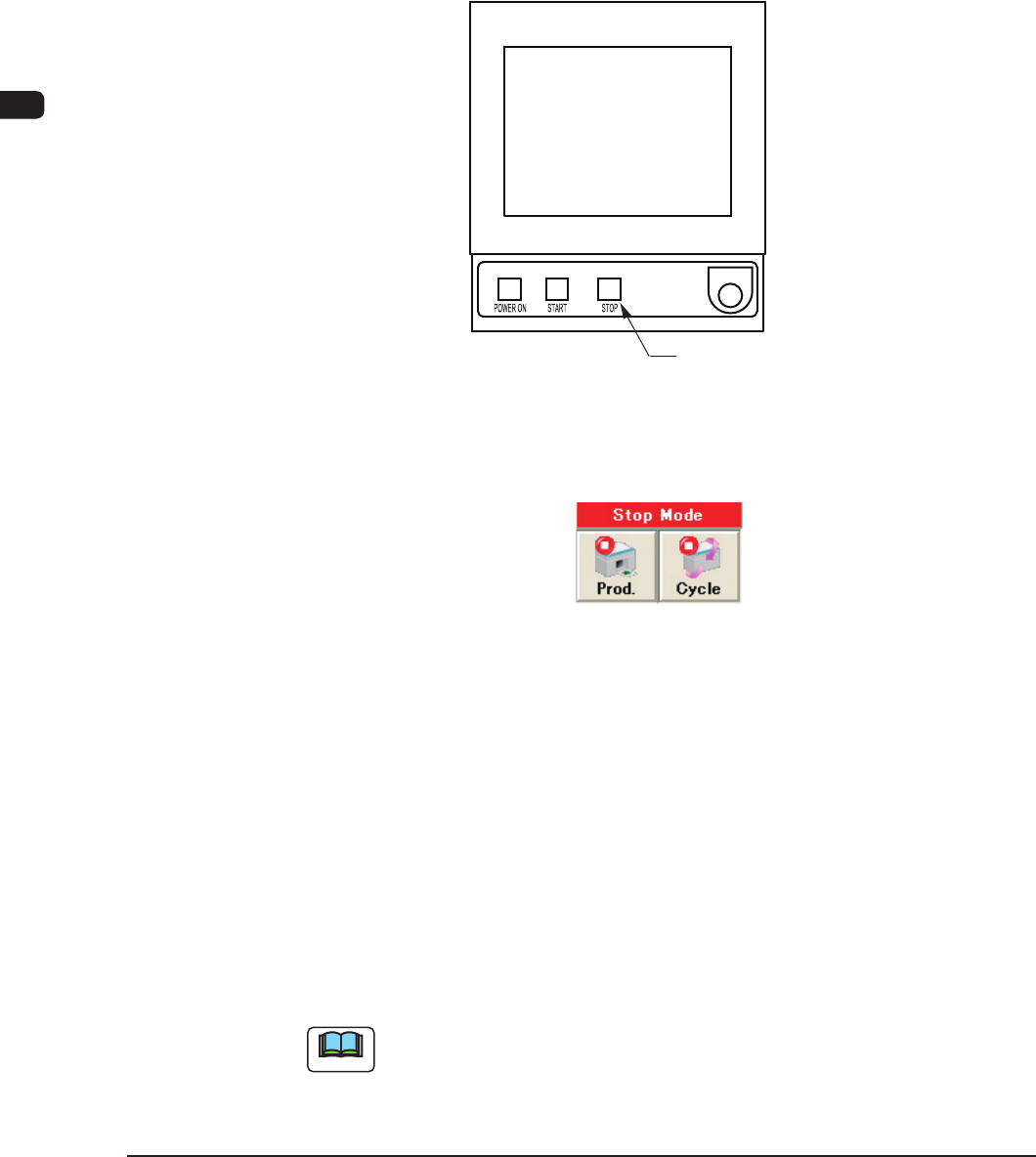
When the machine is to be stopped after the automatic operation start, press the
[STOP] button on the operation panel to stop the machine.
The automatic operation is stopped after the PCB printing mid-way is completed.
[STOP] Button
F1C21
4.1.2 Stop using the Stop Mode
F1C22
Stop with [Prod.] Button
When the [Prod.] button in the operation window is pressed, the machine
discharges the PCB after the production of the unnished PCB is completed.
After that, the automatic operation stops. At this time, the green lamps of the
[START] button on the operation panel and the light tower extinguish.
Stop with [Cycle] Button
When the [Cycle] button in the operation window is pressed, the green lamps of
the [START] button and the light tower, are turned OFF after the PCB printing
mid-way is completed, and the automatic operation is stopped.
Note
Both of the [STOP] button on the operation panel and [Cycle] button in the
"Stop Mode" in the operation window, can stop the machine after the completion
of the PCB printing.
Select the button depending on the processing condition.
1002-002