1OM-1505-004_w.pdf - 第66页
1OM-1505 2. Names and Functions of Each Section : Chap.1 1-1 1 1002-002 [4] [STOP] Button When this button is pressed, the machine stops running temporarily. When the machine is running automatically, it stops temporaril…
1OM-1505
1-10
2. Names and Functions of Each Section : Chap.1
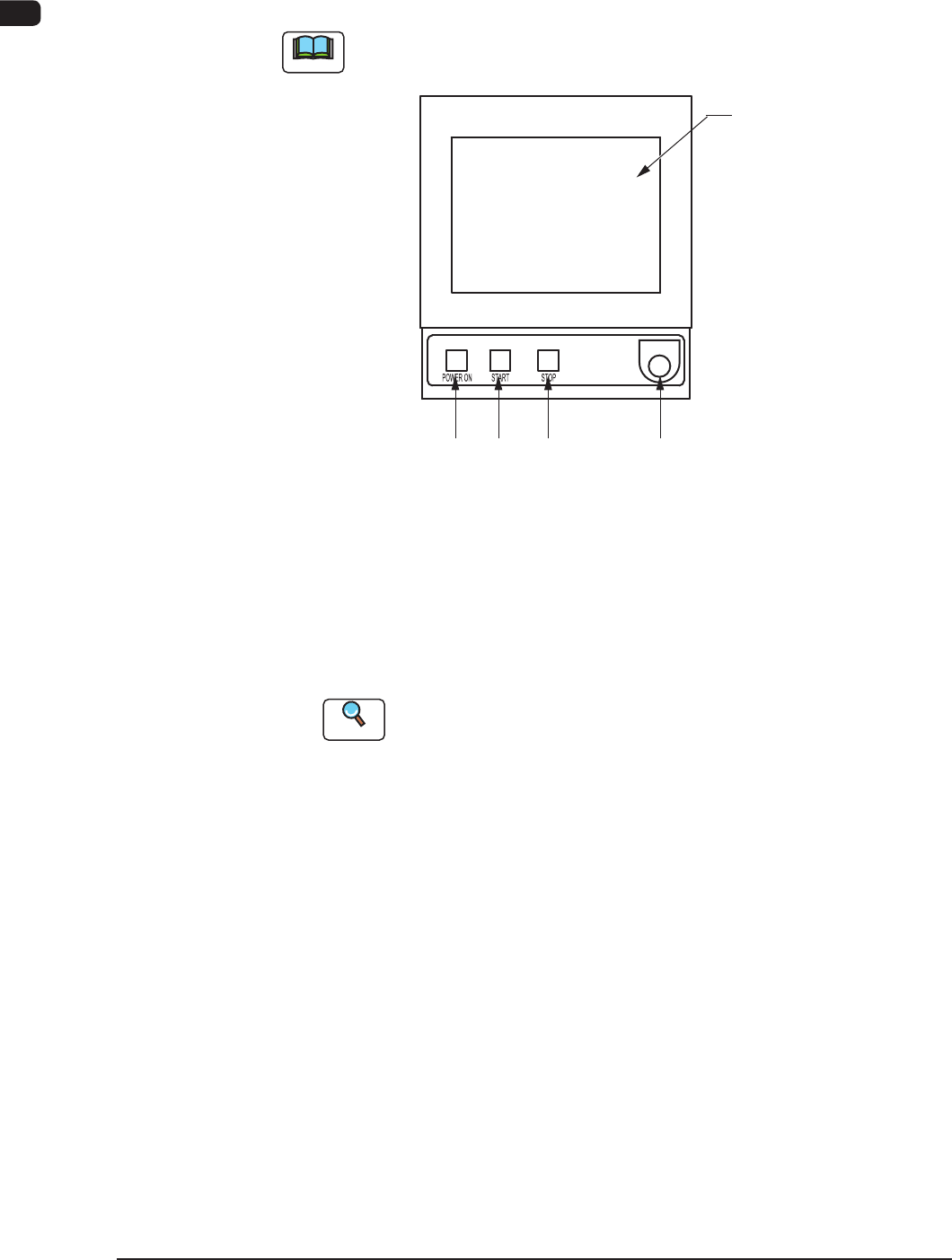
2.7 Operation Section
The touch screen and operation panel that are required to operate the machine, are
arranged on the main machine.
Note
The following operation buttons and switches are arranged in the operation
panel.
[2] [3] [4] [5]
[1]
Operation panel F1A11
[1] Touch Screen
The windows for operations are displayed on the touch screen.
Various operations can be performed by nger-touching the buttons that
appear on the screen.
Reference
Refer to "Short Appendix: Operation Panels and Touch Screens" for how
to handle the touch screens.
[2] [POWER ON] Button
Turning ON or OFF this button supplies or intercepts the power for
operations.
When the [POWER ON] button is pressed and the power for operations is
supplied, the LED of the [START] button flickers.
[3] [START] Button
When the [START] button is pressed while the lamp is fl
ickering after the
machine is powered, the automatic operation starts and the LED of the button
turns green.
While the LED is ON, it indicates that the automatic operation is being
performed.
When the [STOP] button is pressed during the automatic operation, the
automatic operation stops temporarily and the lamp of the [START] button
extinguishes.
While each device is being zeroed, the LED is kept ON.
1002-002

1OM-1505
2. Names and Functions of Each Section : Chap.1
1-111002-002
[4] [STOP] Button
When this button is pressed, the machine stops running temporarily.
When the machine is running automatically, it stops temporarily after all the
picked components are placed.
When the [STOP] button is pressed during the zeroing operation, the zeroing
operation of each device is interrupted.
[5] [EMERGENCY STOP] Switch
Press this switch to immediately stop the machine in an emergency.
When this switch is pressed, the machine stops running immediately and the
[POWER ON] button on the operation panel illuminates in red.
1OM-1505
1-12
2. Names and Functions of Each Section : Chap.1
Short Appendix: Notes on Handling Touch Screen
•
Since the touch screen uses the molecules in liquid crystals, handle it like glass.
Do not apply any strong pressure or shock to the surface.
Notice
Do not apply any strong pressure or shock to the touch screens.
Otherwise, they will be damaged.
Do not press the touch screens with a force of 0.79N (80 g) or more.
•
When the machine is powered under low temperature, the brightness of the
back light drops. It turns out to be normal in a few minutes and the deteriora-
tion is not abnormal.
When the back light is turned on or off repeatedly at low temperature, the life
will be shortened.
•
Before cleaning the touch screen, be sure to turn off the [POWER ON] button.
Otherwise, the touch screen will react to your touch during cleaning, resulting
in data corruption.
If the surface of the touch screen gets dirty, wipe it softly with a soft cloth
soaked in ethanol to remove dirt and dust.
Notice
Never use an organic solvent such as acetone, thinner, benzine to clean
the touch screens.
If the surface is wiped with an organic solvent, it may melt or get cloudy.
0906-001