1OM-1505-004_w.pdf - 第67页
1OM-1505 1-12 2. Names and Functions of Each Section : Chap.1 Short Appendix: Notes on Handling T ouch Screen • Since the touch screen uses the molecules in liquid crystals, handle it like glass. Do not apply any strong …

1OM-1505
2. Names and Functions of Each Section : Chap.1
1-111002-002
[4] [STOP] Button
When this button is pressed, the machine stops running temporarily.
When the machine is running automatically, it stops temporarily after all the
picked components are placed.
When the [STOP] button is pressed during the zeroing operation, the zeroing
operation of each device is interrupted.
[5] [EMERGENCY STOP] Switch
Press this switch to immediately stop the machine in an emergency.
When this switch is pressed, the machine stops running immediately and the
[POWER ON] button on the operation panel illuminates in red.
1OM-1505
1-12
2. Names and Functions of Each Section : Chap.1
Short Appendix: Notes on Handling Touch Screen
•
Since the touch screen uses the molecules in liquid crystals, handle it like glass.
Do not apply any strong pressure or shock to the surface.
Notice
Do not apply any strong pressure or shock to the touch screens.
Otherwise, they will be damaged.
Do not press the touch screens with a force of 0.79N (80 g) or more.
•
When the machine is powered under low temperature, the brightness of the
back light drops. It turns out to be normal in a few minutes and the deteriora-
tion is not abnormal.
When the back light is turned on or off repeatedly at low temperature, the life
will be shortened.
•
Before cleaning the touch screen, be sure to turn off the [POWER ON] button.
Otherwise, the touch screen will react to your touch during cleaning, resulting
in data corruption.
If the surface of the touch screen gets dirty, wipe it softly with a soft cloth
soaked in ethanol to remove dirt and dust.
Notice
Never use an organic solvent such as acetone, thinner, benzine to clean
the touch screens.
If the surface is wiped with an organic solvent, it may melt or get cloudy.
0906-001
1OM-1505
2. Names and Functions of Each Section : Chap.1
1-13
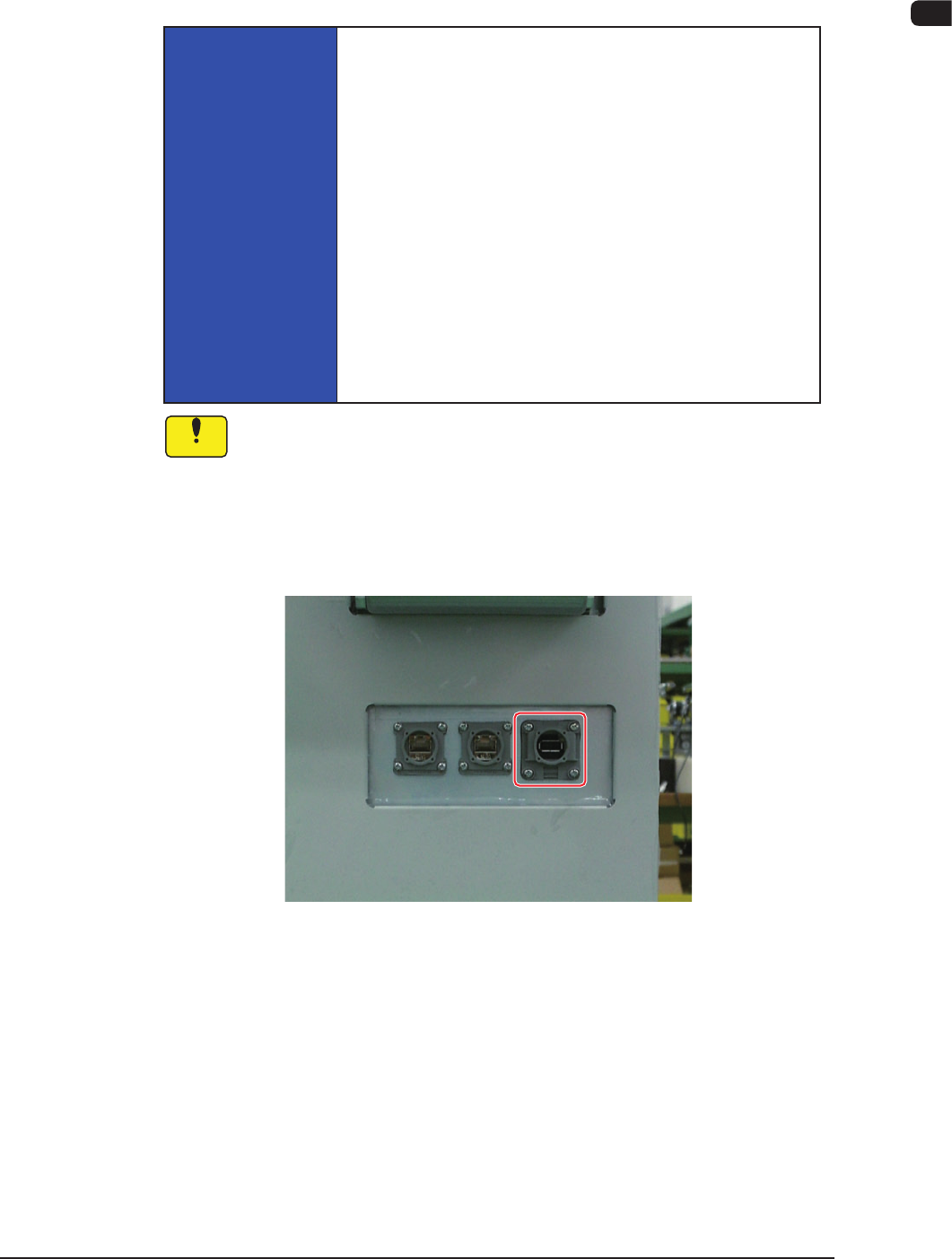
2.8 USB Port
When a USB memory stick on the market is inserted into this port, it can be used
as an external device.
NOTICE
·
Do not use a USB memory stick for any purposes
other than the specied ones.
Otherwise, the programs in the hard disk drive of the
machine may be infected with a virus, changing the
contents and causing the machine to break down.
·
When the USB memory stick is to be pulled out,
press the [USB memory removal] button on the
control menu window.
If you pull out the memory stick, the data being written
may be corrupted.
·
Depending on the shape of USB memory sticks,
some may not be inserted.
Notice
(a) This USB port (2.0) is prepared exclusively for USB memory sticks.
The other USB devices may not work properly.
(b) If a USB memory stick is too thick and wide, it may interfere with
the surrounding walls. The thickness must be less than 18.0 mm in
thickness and width.
Otherwise, it cannot be inserted into the USB port.
USB Port F1A13
0906-001