1OM-1505-004_w.pdf - 第89页
1OM-1505 2-4 1. Startup : Chap.2 0906-001 1.2.1 Login Procedure Procedure (1) Press the [OPERA TOR #1], the [OPERA TOR #2], or the [ENGENEER] (Select Login User) button according to the given authority . When a password …
1OM-1505
1. Startup : Chap.2
2-31002-002
1.2 Select Login User
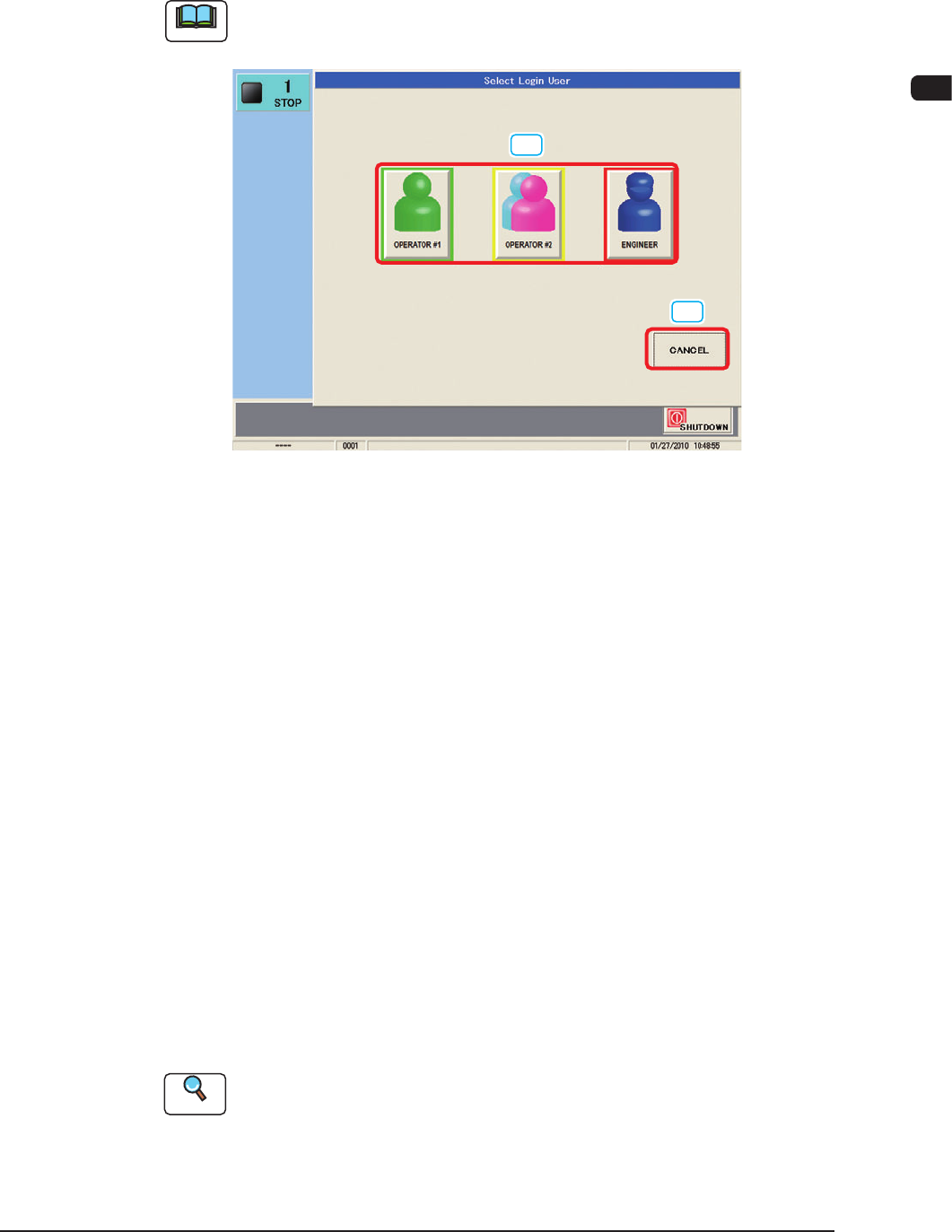
When the [MAINTENANCE] button is pressed in the "TOP" window, the
following window appears.
Note
When the [PRODUCT] button or [SET-UP] button is pressed, the login is
allowed for the operator as "Operator 2".
[1]
[2]
F1B3
[1] Select Login User
The machine is provided with a function with which a password for each
user and available function range can be set, which keeps any unauthorized
user (third party) from operation the machine or prevent various types of data
groups from being deleted by mistake.
[OPERATOR #1] Button
Access can be gained by only the person identi ed as "Operator #1".
For example, the operator is given a permission to edit the data and operate
the machine.
[OPERATOR #2] Button
Access can be gained by only the person identi ed as "Operator #2".
For example, the operator is limited to the operations related to the automatic
operation of the machine.
[ENGNEER] Button
This button is for the manager or supervisor of the machine. The operator is
given a permission to use all functions.
Reference
Refer to "6. Password Setting" in "Chapter 2 (Vol. 3)" for how to set a password
and the range of available functions.
[2] [CANCEL] Button
When this button is pressed, the "Select Login User" is cancelled and the
"Top" window is returned.
1OM-1505
2-4
1. Startup : Chap.2
0906-001
1.2.1 Login Procedure
Procedure
(1) Press the [OPERATOR #1], the [OPERATOR #2], or the [ENGENEER]
(Select Login User) button according to the given authority.
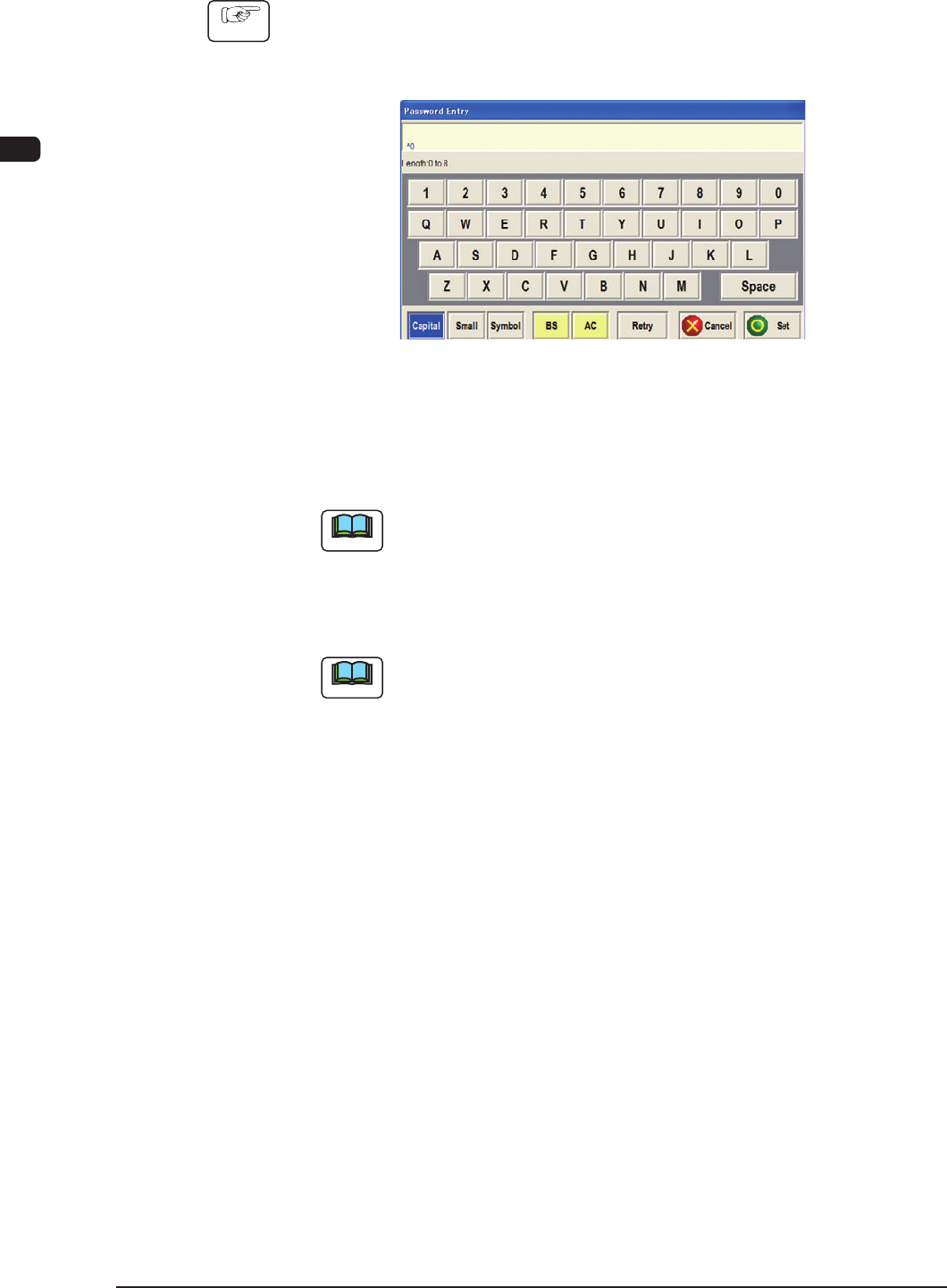
When a password is set, the "Password Entry" window opens.
F1B4
(2) Enter the speci ed password.
The entered password is signied by asterisk "*" and will not be disclosed to
anyone.
Note
If no password is entered for 10 seconds after the "Password Entry"
window is opened, the window closes automatically.
(3) Press the [Set] button.
An operation window appears on the touch screen.
Note
(a) When no password is set, press the [
ENGENEER
], the [OPERATOR
#1], or the [OPERATOR #2] button according to the given authority.
A "MAINTENECE" window appears on the touch screen.
(b) The available range of the function in the "MAINTENECE" window
varies depending on the selected login type.
1OM-1505
2. Operation Window : Chap.2
2-5
2. Operation Window
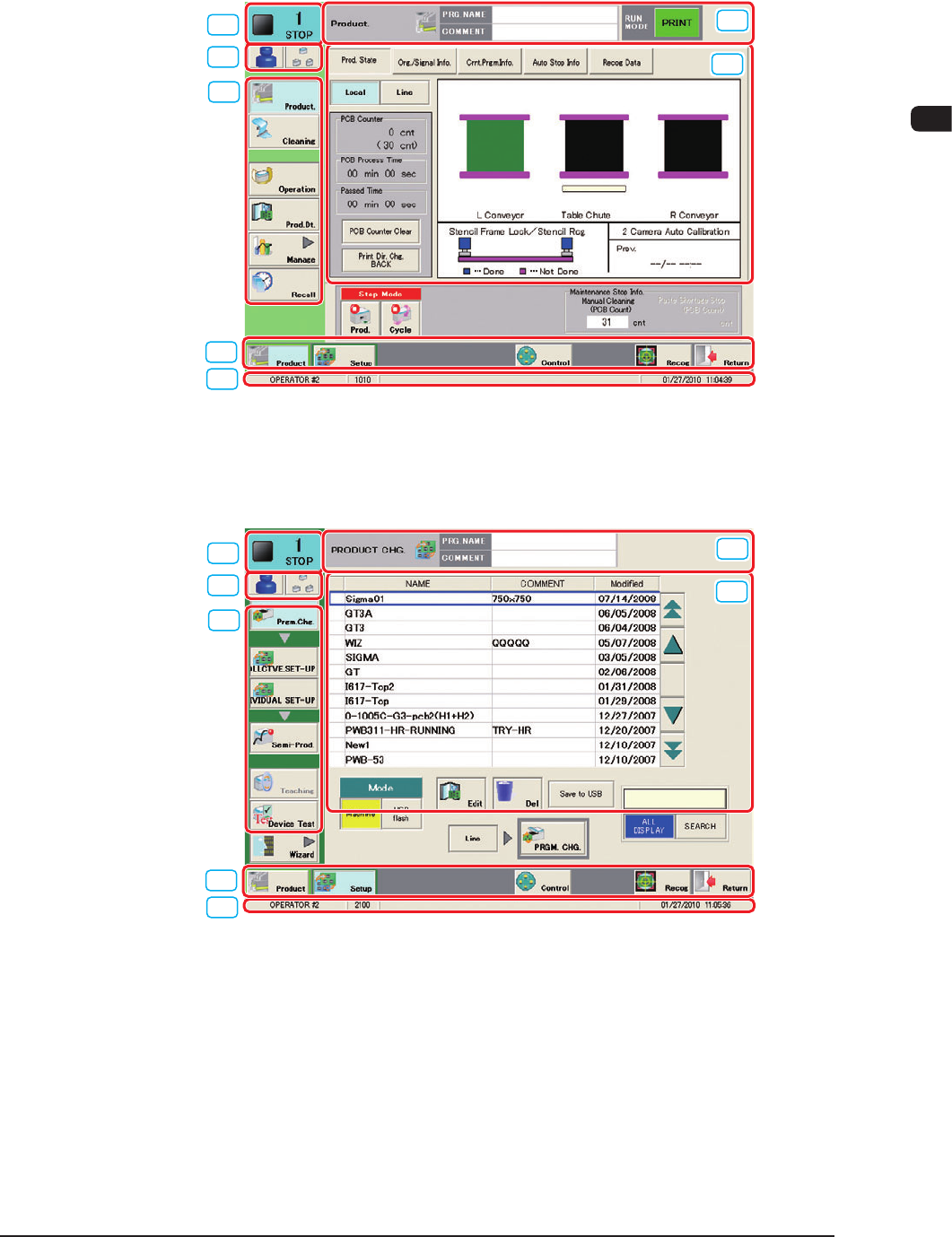
The basic layout of the operation window is as follows.
[1]
[8]
[3]
[7]
[2]
[4]
[5]
F1B5
[1]
[8]
[3]
[6]
[2]
[4]
[5]
F1B5-1
1002-002