1OM-1505-004_w.pdf - 第90页
1OM-1505 2. Operation Window : Chap.2 2-5 2. Operation Window The basic layout of the operation window is as follows. [1] [8] [3] [7] [2] [4] [5] F1B5 [1] [8] [3] [6] [2] [4] [5] F1B5-1 1002-002
1OM-1505
2-4
1. Startup : Chap.2
0906-001
1.2.1 Login Procedure
Procedure
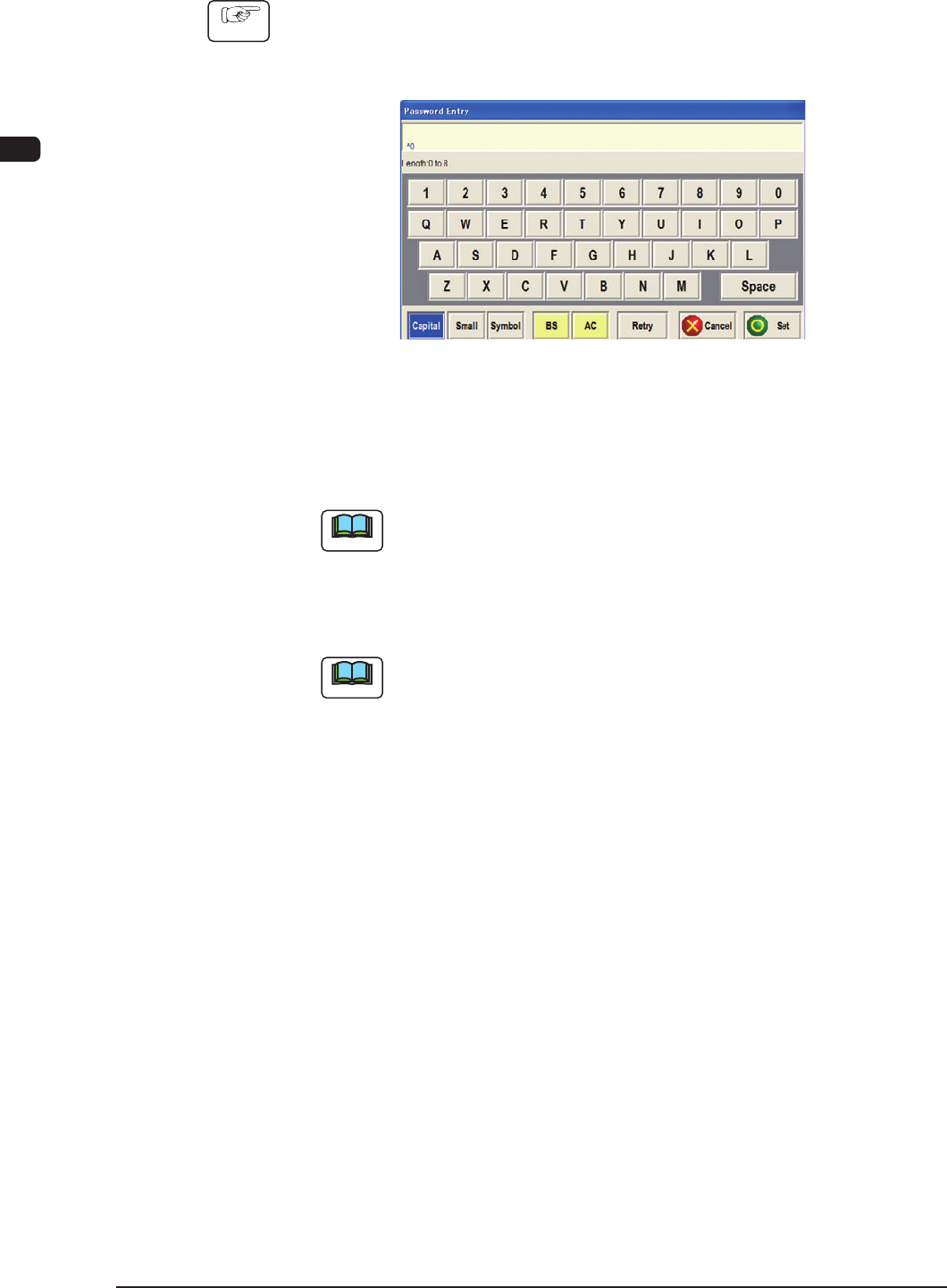
(1) Press the [OPERATOR #1], the [OPERATOR #2], or the [ENGENEER]
(Select Login User) button according to the given authority.
When a password is set, the "Password Entry" window opens.
F1B4
(2) Enter the speci ed password.
The entered password is signied by asterisk "*" and will not be disclosed to
anyone.
Note
If no password is entered for 10 seconds after the "Password Entry"
window is opened, the window closes automatically.
(3) Press the [Set] button.
An operation window appears on the touch screen.
Note
(a) When no password is set, press the [
ENGENEER
], the [OPERATOR
#1], or the [OPERATOR #2] button according to the given authority.
A "MAINTENECE" window appears on the touch screen.
(b) The available range of the function in the "MAINTENECE" window
varies depending on the selected login type.
1OM-1505
2. Operation Window : Chap.2
2-5
2. Operation Window
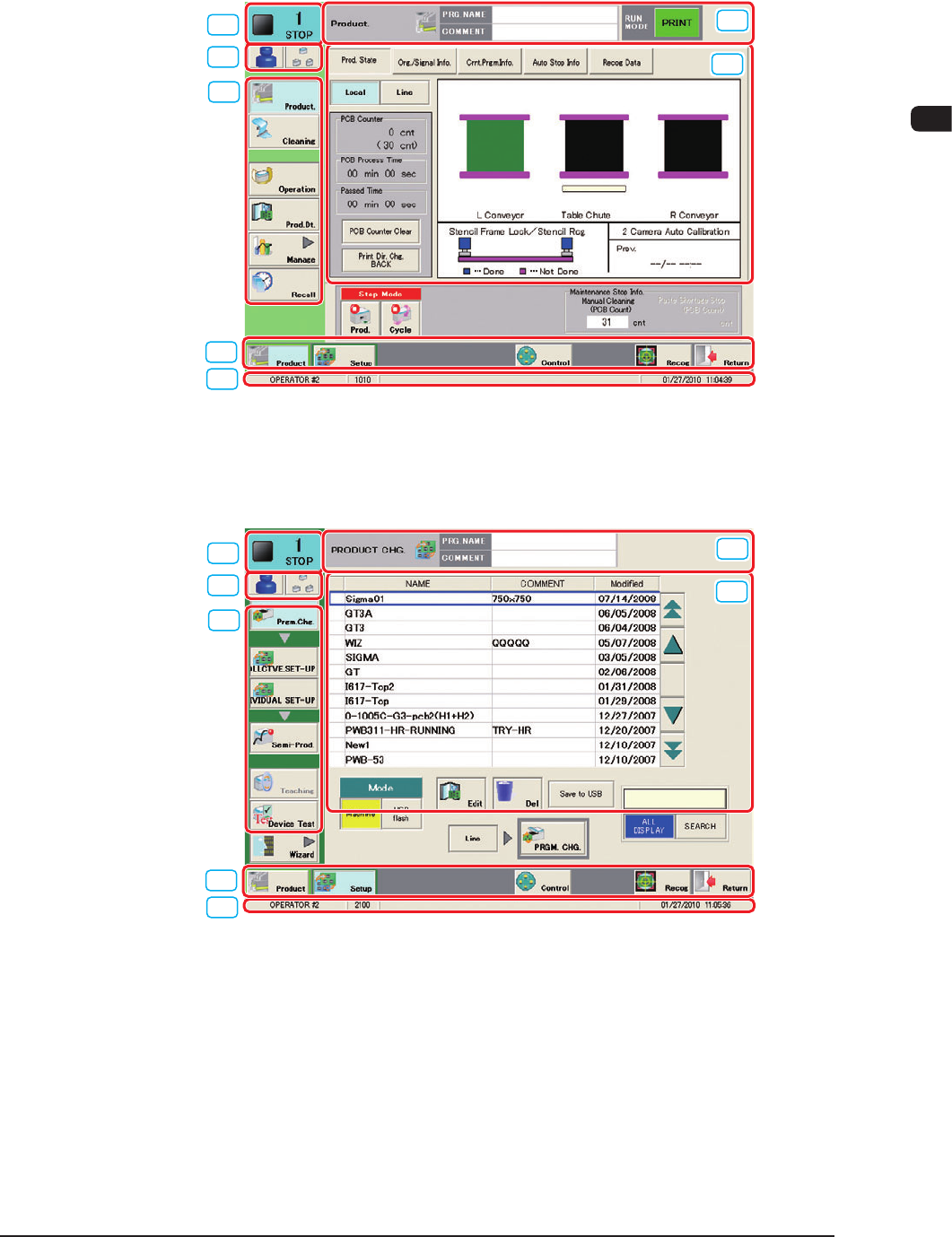
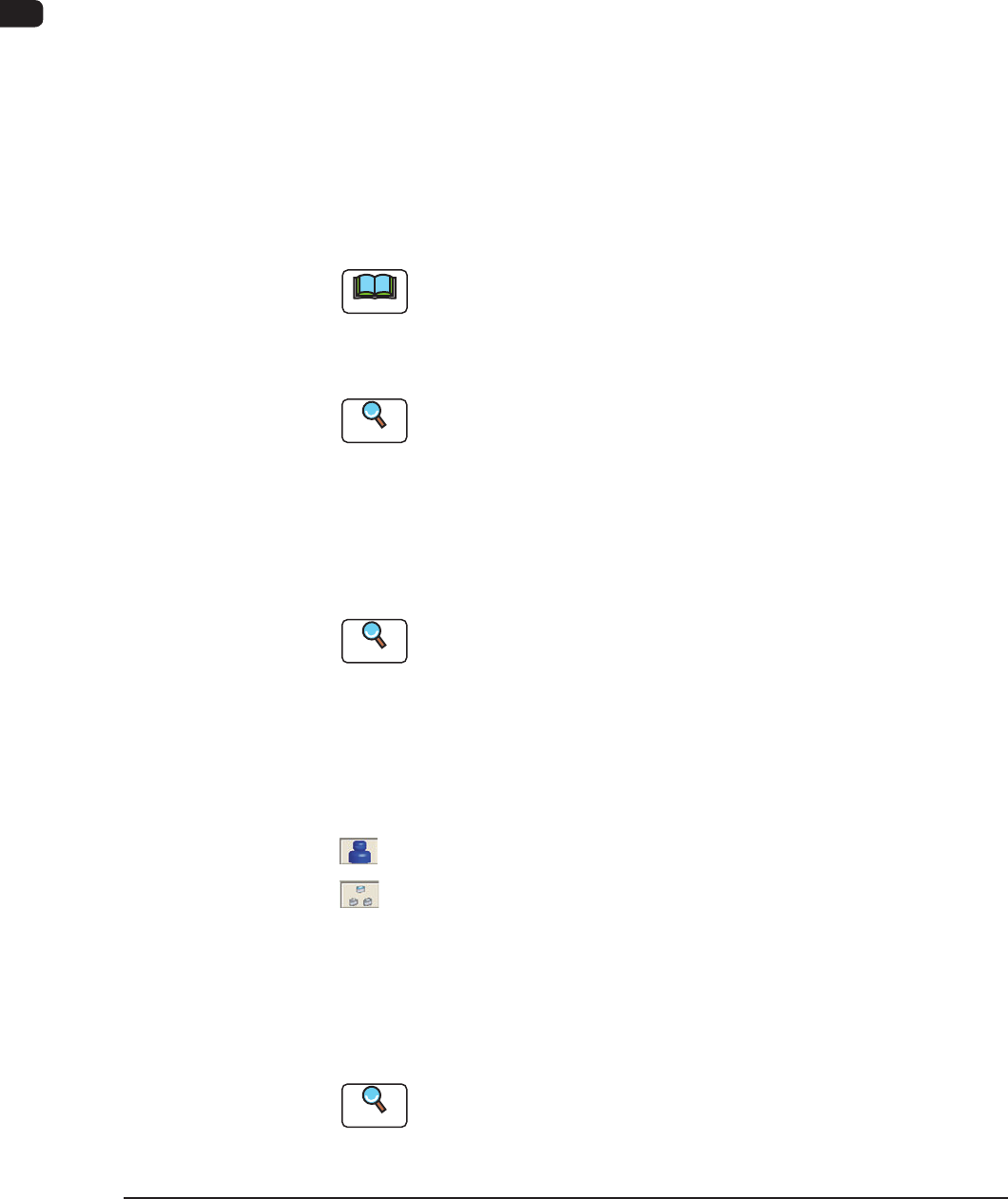
The basic layout of the operation window is as follows.
[1]
[8]
[3]
[7]
[2]
[4]
[5]
F1B5
[1]
[8]
[3]
[6]
[2]
[4]
[5]
F1B5-1
1002-002
1OM-1505
2-6
2. Operation Window : Chap.2
1002-002
[1] Current Machine Mode
The Nos. of the machines that make up the production line and their current
machine mode are displayed in real time.
RUN
: This indicates that the machine is running.
MOVE
: The machine operation, such as zeroing operation, is being
performed.
STOP
: This indicates that the machine is stopped.
WAIT
: This indicates that the machine is in the standby mode.
[2] Mode Indication
Current Operation Mode, Product Name (Pattern Program Name), Operation
Window Hierarchical Position (Host Window) and Name are displayed.
PRINT
:
This mode is used to perform the automatic printing operation.
PASS
: This mode is used to perform the "PASS" operation.
TEST
: This mode is used to perform the test run including running-in.
Note
(a) This button is displayed only in the "AUTO OPN" window.
(b) When this button is pressed, the "Test Opn Mode" tab sheet appears
in the "OPN MODE" window in the "AUTO OPN" window. The
operation mode can be changed on this tab sheet.
Reference
Refer to "Volume 2: Chapter 1 5.1 TEST Opn. Mode" for the "Operation
Mode" window.
[3] [Login User] Button
The current login user is indicated using an icon.
When the [Login User] button is pressed, the "Login User Selection" window
appears and the login user change is available.
Reference
Refer to "1.2 Login User Selection" for the login user change.
[Line] Button
Using this button, the connection to the machine in the line is executed.
Each pressing the [Line] button connects or disconnects the machine in the
line alternatively.
: This shows that the machine in the line is connected.
: This shows that the machine in the line is disconnected.
[4] Main Menu Bar
The main menu buttons are arranged on the menu bar.
When any of the buttons is pressed, the corresponding menu operation
window appears.
Reference
Refer to "2. Automatic Operation" in Chapter 1, Volume 2, for the details
of the main menu bar.