1OM-1505-004_w.pdf - 第93页
1OM-1505 2-8 2. Operation Window : Chap.2 1002-002 [6] Operation / Display Section Device Image, Operation Buttons and Related Data are displayed. The displayed data is different in each the operation window. [7] T ab an…
1OM-1505
2. Operation Window : Chap.2
2-71002-002
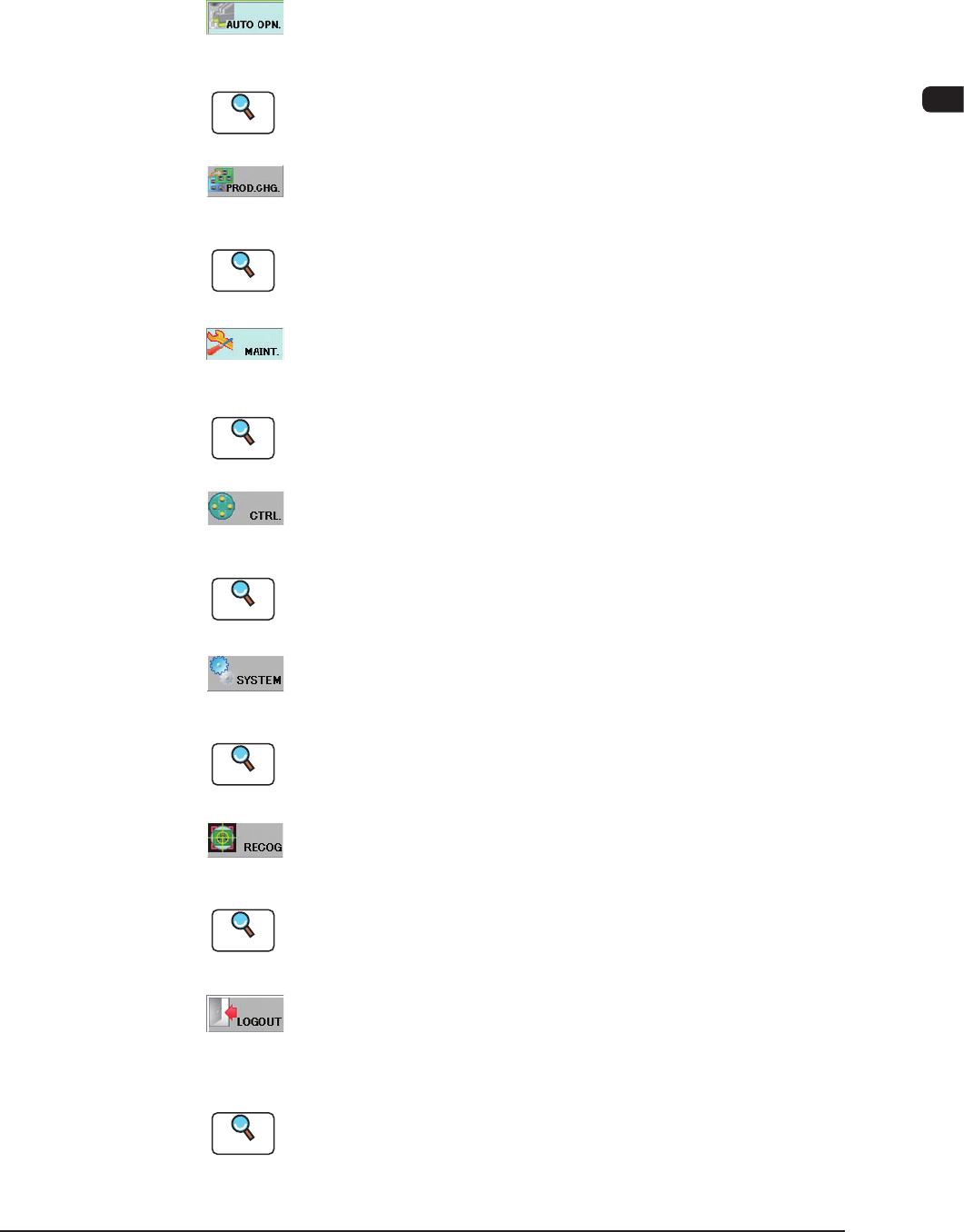
[5] Common Menu Bar
The common menu buttons are arranged on the bottom of the touch screen.
When each of the common menu buttons is pressed, the corresponding
operation window appears.
[AUTO OPN.] Button
Pressing this button opens the "AUTO OPN" window.
Reference
Refer to "Volume 2: Chapter 1 Automatic Operation" for the "Automatic
Operation" window.
[PROD.CHG.] Button
Pressing this button opens the "PRODUCT CHG." window.
Reference
Refer to "Volume 2: Chapter 3 PROG.CHG." for the "PROG.CHG."
window.
[MAINT.] Button
Pressing this button opens the "MAINT" window.
Reference
Refer to "Volume 3: Chapter 1 MAINTENANCE" for the "MAINT."
window.
[CTRL.] Button
Pressing this button opens the "CTRL MENU" window.
Reference
Refer to "2.4 Control Menu" for the "
CTRL MENU
" window.
[SYSTEM] Button
Pressing this button opens the "SYSTEM" window.
Reference
Refer to "Volume 3: Chapter 2 SYSTEM" for the "SYSTEM window.
[RECOG.] Button
When this button is pressed, the recognition image window is displayed.
Reference
Refer to "2.5 RECOG" for the "Recognition" window.
[LOGOUT] Button
When this button is pressed, the operation window is closed and the "Top"
window is returned.
Reference
Refer to "4.1 LOGOUT" for the "LOGOUT" window.

1OM-1505
2-8
2. Operation Window : Chap.2
1002-002
[6] Operation / Display Section
Device Image, Operation Buttons and Related Data are displayed. The
displayed data is different in each the operation window.
[7] Tab and Tab sheet
When the window consists of two or more tab sheets, there are tabs or
buttons on the upper sections of the window. On the tab, the name of the
sheet is indicated. When the tab is pressed, the sheet (tab sheet) appears.
[8] Status Bar
The Login Type, Window No. Current Date and Time are displayed on the
status bar.
1OM-1505
2. Operation Window : Chap.2
2-9
2.1 Control Menu
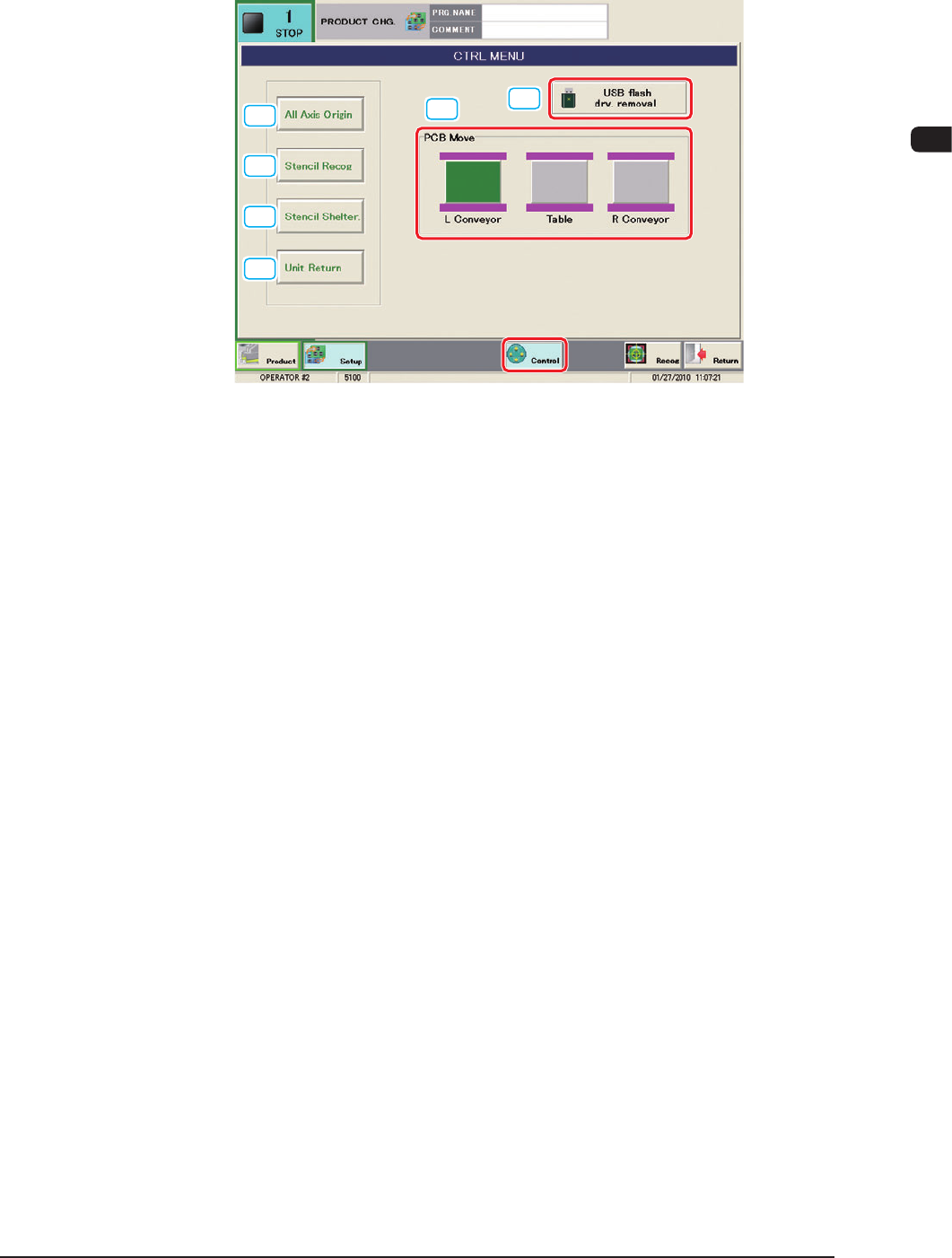
When the [CTRL] button is pressed, the "CTRL MENU" window appears.
[1]
[2]
[3]
[5]
[6]
[4]
F1B8
In the "CTRL MENU" window, the buttons for basic operations are arranged in a
group.
[1] [All Axis Origin] Button
When this button is pressed, this button and the [START] button on the
operation panel flash for 10 seconds.
When the [START] button on the operation panel is pressed while the button
is flashing, all axes except for that for the conveyor width, are zeroed.
[2] [Stencil Recog] Button
When this button is pressed, this button and the [START] button on the
operation panel fl
ash for 10 seconds.
When the [START] button on the operation panel is pressed while the button
is flashing, the stencil recognition is executed.
[3] [Stencil Shelter] Button
When this button is pressed, this button and the [START] button on the
operation panel fl
ash for 10 seconds.
When the [START] button on the operation panel is pressed while the button
is flashing, the stencil sheltering operation is executed.
1002-002