1OM-1505-004_w.pdf - 第99页
1OM-1505 2-14 3. Data Input : Chap.2 3.2 Character Data Input Procedure (1) When the button for the item where character data is to be input, is pressed, the character data input window including a virtual keyboard appea…
1OM-1505
3. Data Input : Chap.2
2-130906-001
3. Data Input
This section describes the procedure for the data input on the operation window.
3.1 Numerical Data Input
Procedure
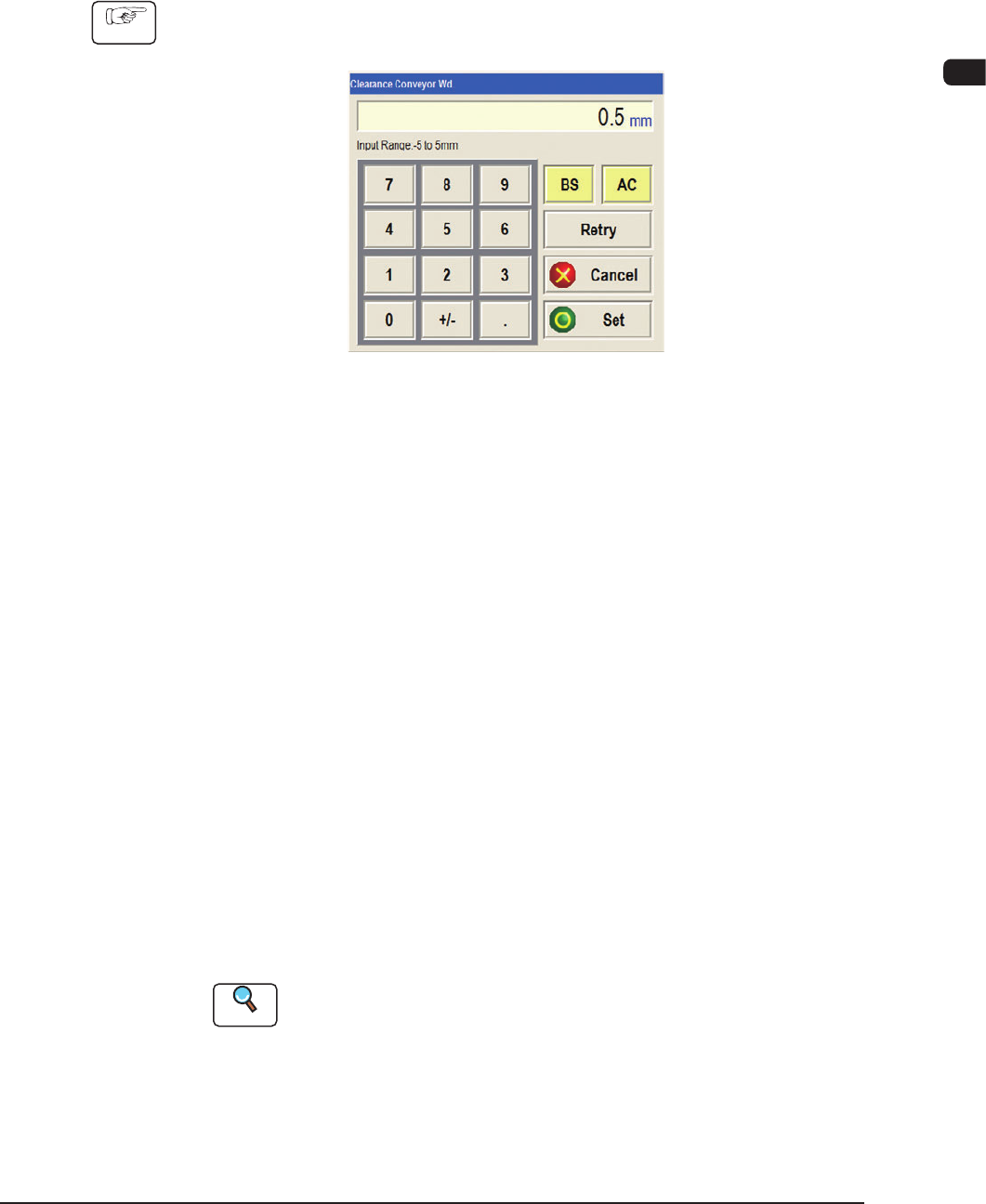
(1) When the button indicating the data input window is pressed on the operation
window, the data input window including the "Ten-key" pad appears.
F1B13
(2) Press the numerical value buttons referring to the "Input Range" indicated in
the window.
The input data will be displayed in the data box on the upper section of the
input window.
(3) Conrm the input data and press the [Set] button.
The data input window will be closed and the entered data will be indicated
in the data box in the operation window.
When the input data is to be modied or the input operation is to be
cancelled, the following buttons are used.
[BS] Button
: When this button is pressed, one gure from the
numerical data string is deleted.
[AC] Button
: When this button is pressed, the data indicated in the data
box is deleted.
[Retry] Button
: When this button is pressed, the data input operation is
retried.
[Cancel] Button
: When this button is pressed, the data input operation is
cancelled.
Reference
Refer to "3.2 Character Data Input" for the input of the character data such
as a password.

1OM-1505
2-14
3. Data Input : Chap.2
3.2 Character Data Input
Procedure
(1) When the button for the item where character data is to be input, is pressed,
the character data input window including a virtual keyboard appears.
F1B14
(2) Input the data using the keyboard in the input window.
The input data will be displayed in the data box on the upper section of the
input window.
For the input of Capital letters, small letter or symbols, use the following
buttons.
[Capital] Button
: When this button is pressed for the input of Capital
letters, the color of the button turns blue and keyboard is
changed for Capital letter input.
[Small] Button
: When this button is pressed for the input of Small
letters, the color of the button turns blue and keyboard is
changed for Small letter input.
[Symbol] Button
: When this button is pressed for the input of Symbol
letters, the color of the button turns blue and keyboard is
changed for Symbol letter input.
(3) Conrm the input data and press the [Set] button.
The data input window will be closed and the entered data will be indicated
in the data box in the operation window.
When the input data is to be modied or the input operation is to be
cancelled, the following buttons are used.
[BS] Button
: When this button is pressed, one gure from the
numerical data string is deleted.
[AC] Button
: When this button is pressed, the data indicated in the data
box is deleted.
[Retry] Button
: When this button is pressed, the data input operation is
retried.
[Cancel] Button
: When this button is pressed, the data input operation is
cancelled.
0906-001
1OM-1505
4. Shutdown : Chap.2
2-15
4. Shutdown
4.1 Logout
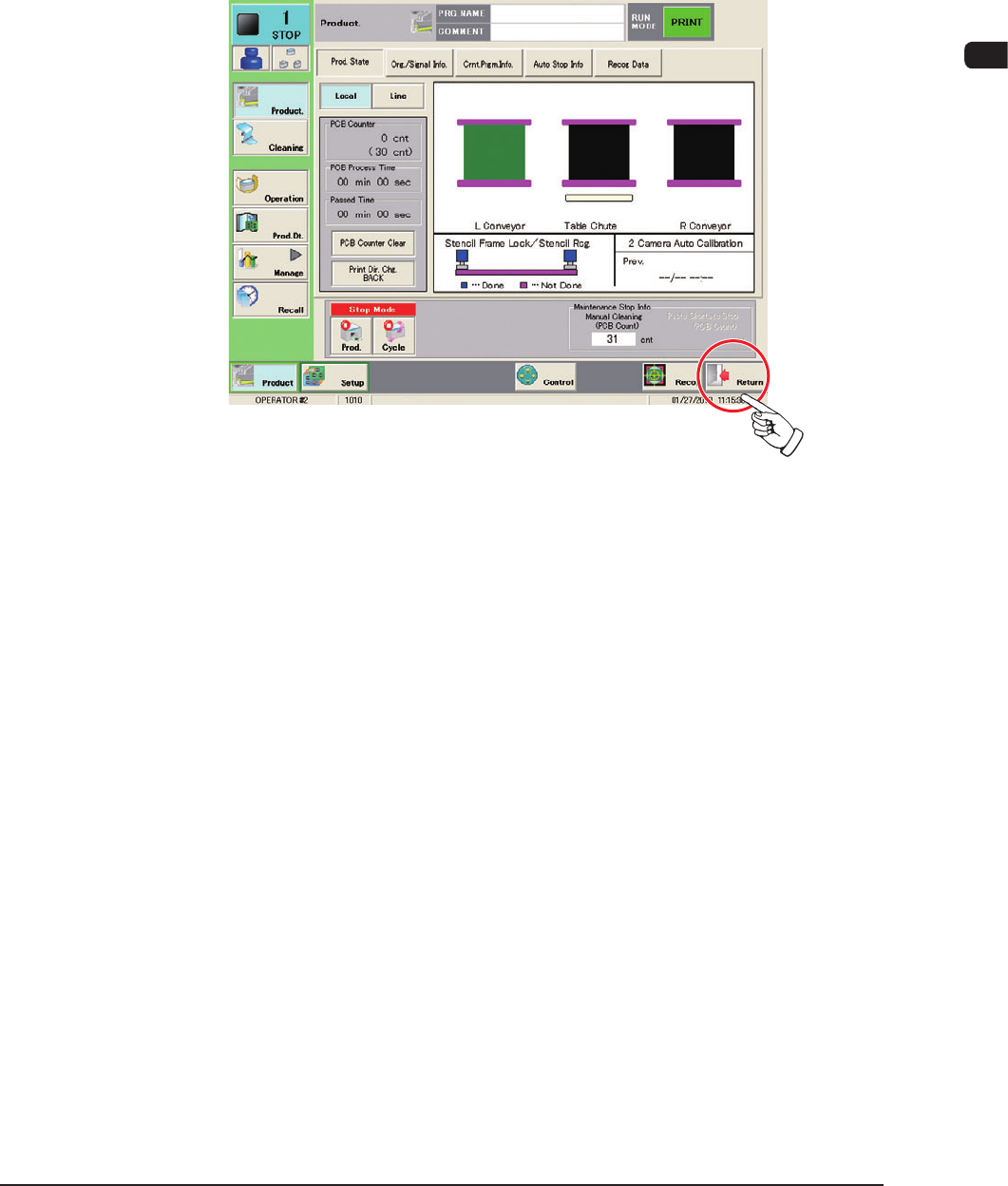
When the operation window is to be closed, press the [Return] button on the menu
bar in each operation window.
The operation window will be closed and "Top" window will appear.
F1B15
1002-002