DECAN_S2_Admin(Eng_Ver4.5).pdf - 第152页
6-39 Board Definition 6.6. 2D Barcode 6.6.1. Configuration Allows a user to know the model informati on of the PCB loaded into the machine by recognizing the barcode on the PCB and manage t he production history by PCB b…
6-38
Advanced Chip Shooter DECAN S2 Administrator’s Guide
mark data is correct. When the test is successful, the following message box is
displayed..
Caution If you move to another screen while editing the “Board”
dialog box, the edited data is saved automatically
<Update> button
Save the Accept Mark data and close the “Accept Mark Position” dialog box.
<Cancel> button
Close the “Accept Mark Position” dialog box without saving the Accept Mark data.
6-39
Board Definition
6.6. 2D Barcode
6.6.1. Configuration
Allows a user to know the model information of the PCB loaded into the machine by
recognizing the barcode on the PCB and manage the production history by PCB being
interlocked with the Lot Tracking System (LTS).
When using the 2D barcode
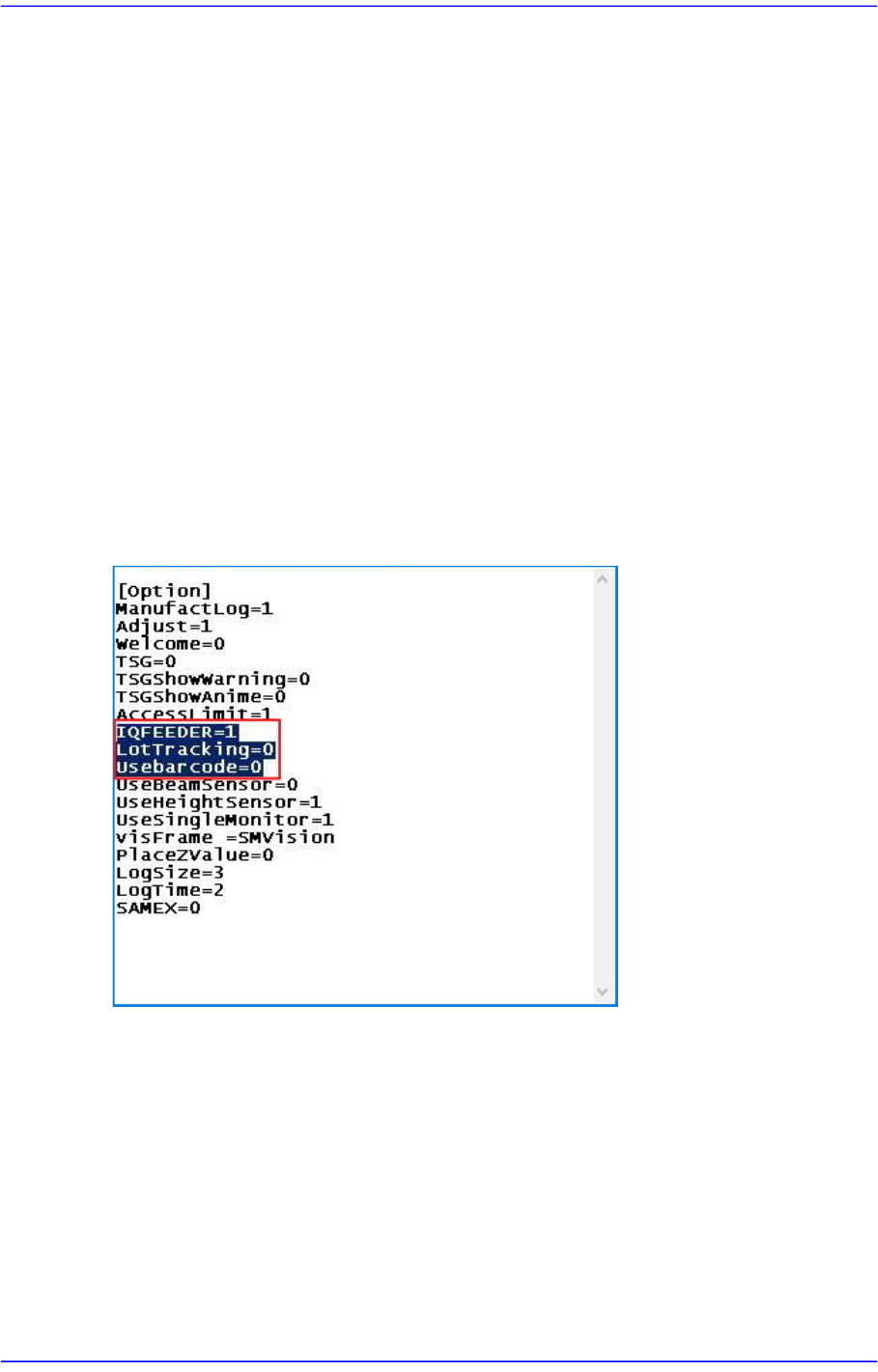
In the [Option] item of the “C:\SmartSM\bin\SmartSM.ini” file, set the IQFEEDER to
1 and the LotTracking to 2, Usebarcode to 1. Then press the ‘Barcode Position’ button
in the “Board Definition’ dialog box.
When using 1D barcode
In the [Option] item of the “C:\SmartSM\bin\SmartSM.ini” file, set the IQFEEDER to
1 and LotTracking to 1, Usebarcode to 0.
When using no barcode (When using IT Only)
In the [Option] item of the “C:\SmartSM\bin\SmartSM.ini” file, set the IQFEEDER to
1 and LotTracking to 0, Usebarcode to 0.
After finishing the modification of the configuration file, execute the “SmartSM.exe”.
6-40
Advanced Chip Shooter DECAN S2 Administrator’s Guide
6.6.2. Barcode Position
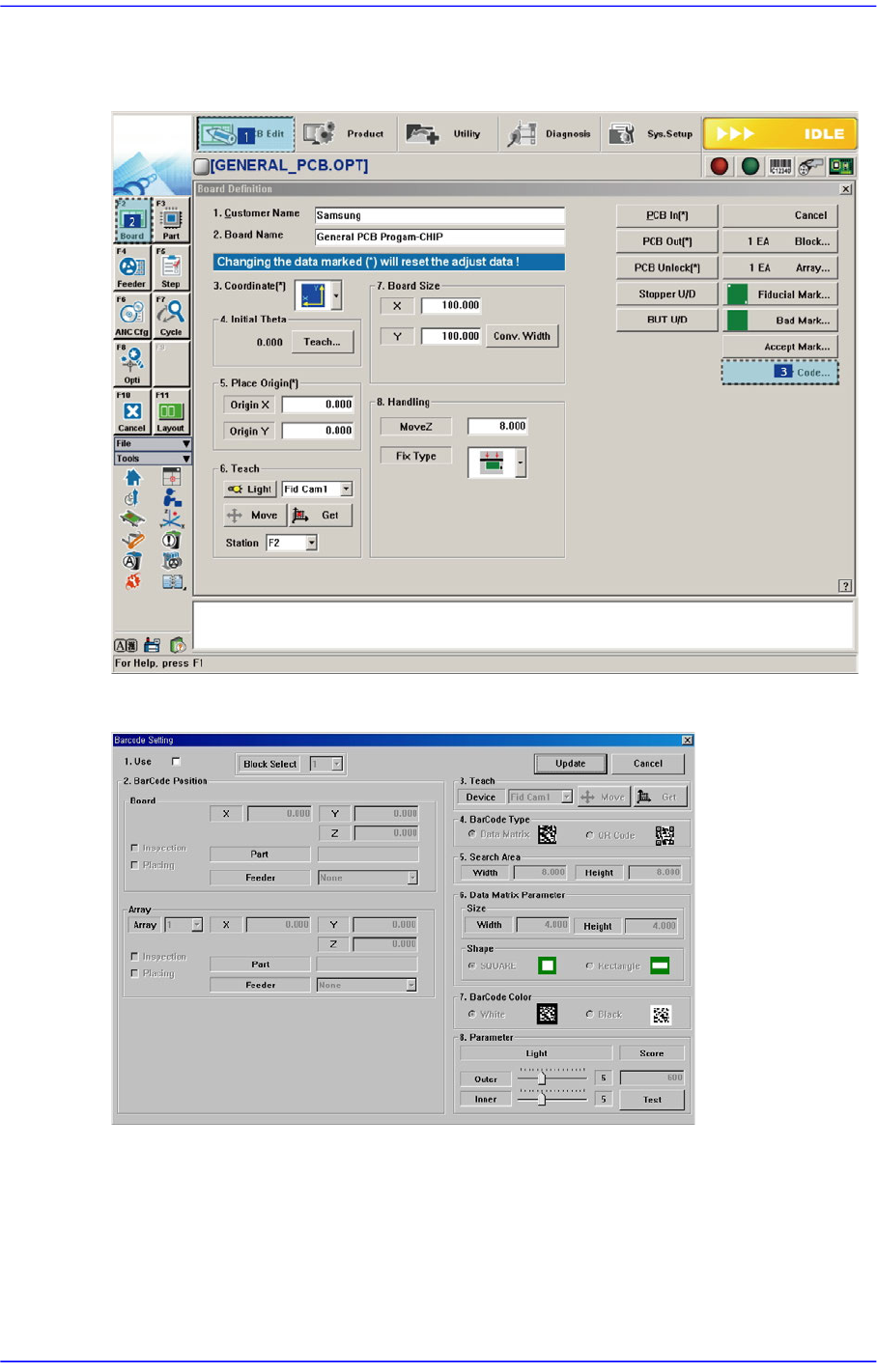
Figure6.9 Order of ‘Barcode Position’ Dialog Box Execution
Figure6.10 Barcode Position’ Dialog Box
<1.Use> check box
Check the 2D barcode function to use it.
<2. Bar Code Position> group
Indicates the position of the 2D barcode.