DECAN_S2_Admin(Eng_Ver4.5).pdf - 第32页
Preface xvii Spin button Pressing this button will increase or decrease the value by a certain amount. Other buttons These buttons perform various prescribed o perations when pressed. Control box This is a box for …
Advanced Chip Shooter DECAN S2 Administrator’s Guide
xvi
Items in a dialog box or message box.
Terms used in explaining the screen of MMI are shown below.
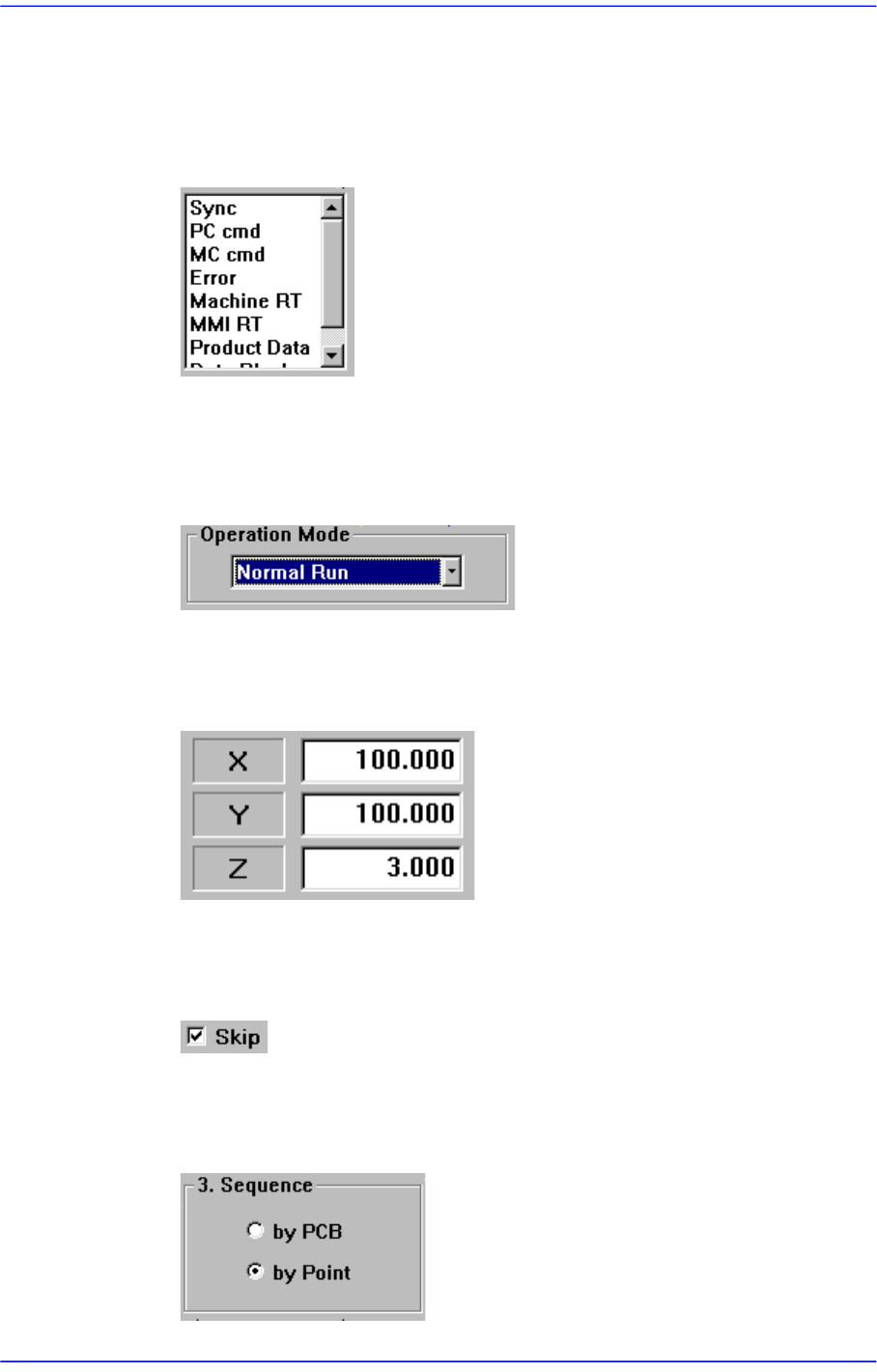
List box
This box selects one value from among several previously inputted values.
Combo box
This has the same function as the list box in that one of many inputted values can
be selected from this box. contrary to the list box, however, the entire values are
displayed by pressing an arrow button at lower right.
Edit box
Values can be inputted into this box. If a white portion is clicked on with a mouse,
it enters the state ready for inputting values.
Check box
This button enables determination of whether to use a function presented or to
select from multiple.
Option button
This button is used when selecting only one from among many options. If one
button is clicked on, selection of another button is disabled.
Preface
xvii
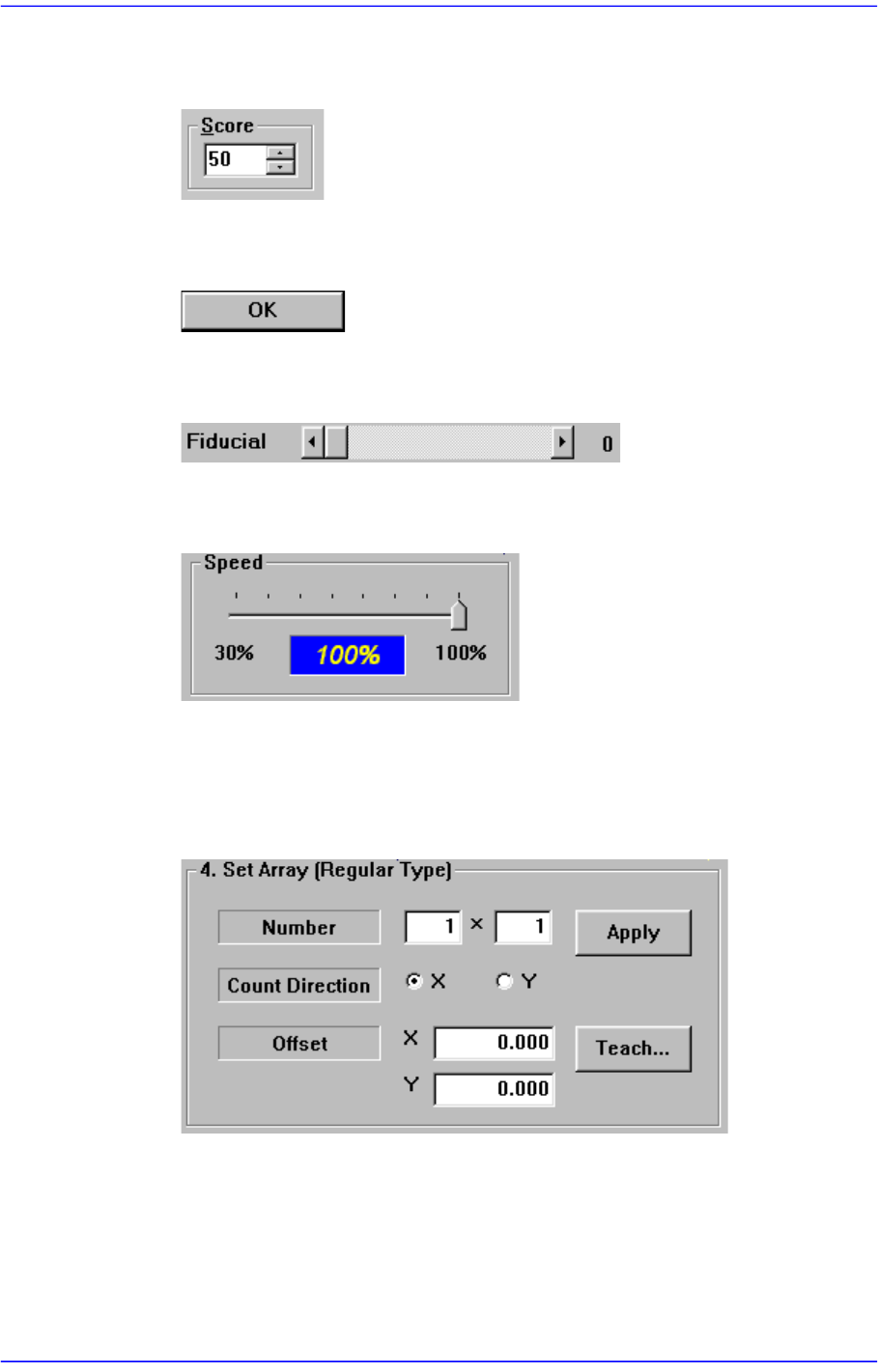
Spin button
Pressing this button will increase or decrease the value by a certain amount.
Other buttons
These buttons perform various prescribed operations when pressed.
Control box
This is a box for adjusting the set values by using a scroll bar.
Slide bar
This is a box for adjusting the set values by using a slide bar.
Group
The above items are gathered into this area. In this manual, it is called “<XX>
group” based on the name XX above the group.
Example: <Set Array [Regular Type].> group
Mouse manipulation
The following terms are related to manipulating the mouse.
Click or select
Press once the corresponding item with the left button of the mouse by moving the
pointer of the mouse.
Advanced Chip Shooter DECAN S2 Administrator’s Guide
xviii
Double click
Press twice in rapid succession the corresponding item with the left button of the
mouse by moving the pointer of the mouse.
Screen display
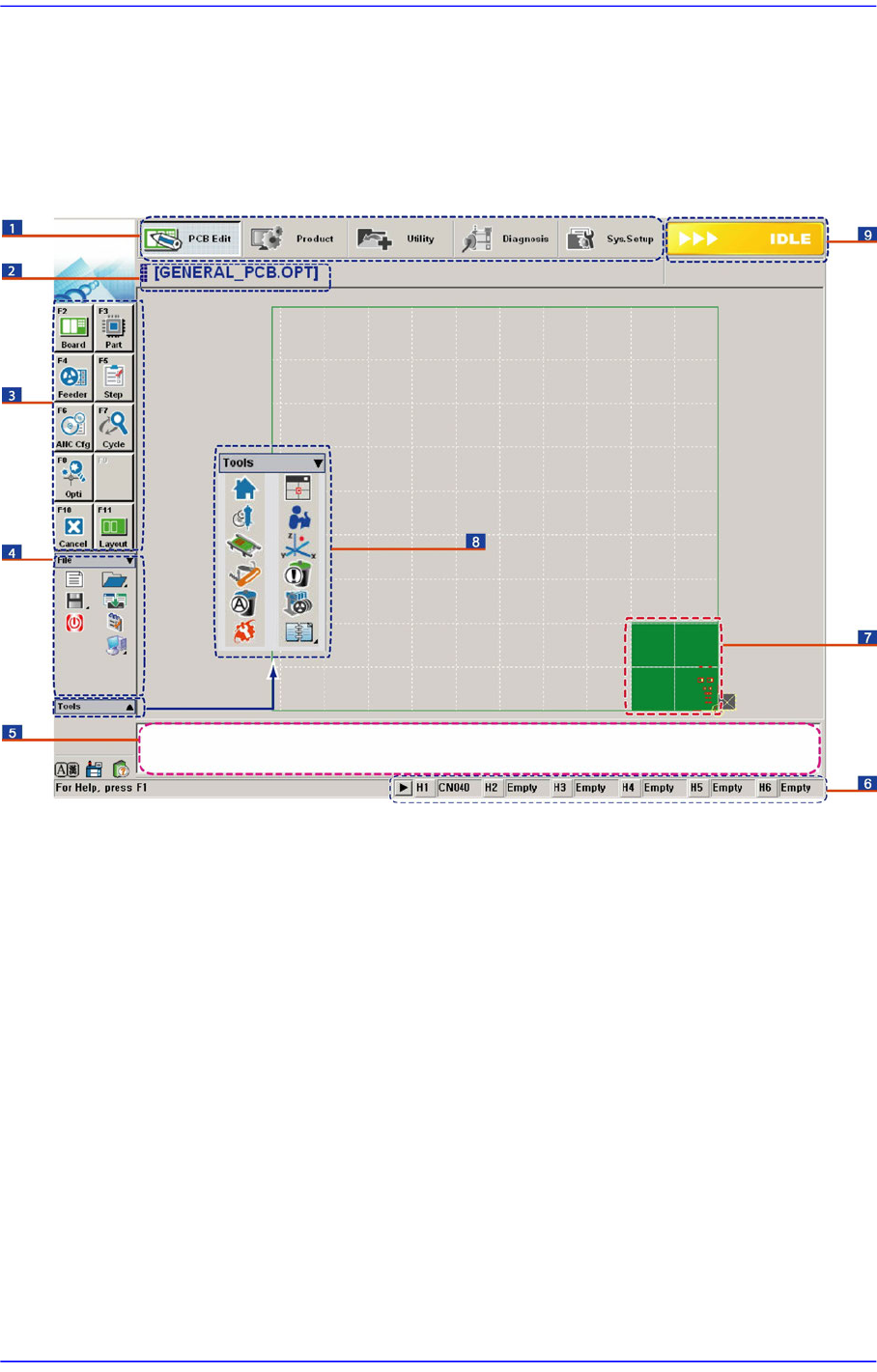
The main screen of MMI of this equipment is shown below.
1: A main menu tool-bar is shown.
2: The PCB file name being worked on is indicated.
3: A sub menu tool-bar is shown.
4: A File menu tool-bar is shown. (New, Open, Save, Merge, Error Message, Window Tool).
5: Events occurring during the operation are displayed.
6: The name of the nozzle, which is inserted in the nozzle-holder of the corresponding head, is displayed.
7: The shape of the part to be placed is indicated.
8: A Short Cut Bar is displayed. (Home, SM Vision, ANC, Operation Mode, Conveyor, Position Manual
Tool, Dump Information, PM Manager, Telemetry)
9: A help message applicable to the present state as well as the state of the machine (IDLE, RUN, FREEZE,
ADJUST, WAIT, PAUSE, EMER, MPU-STOP) is indicated.