DECAN_S2_Admin(Eng_Ver4.5).pdf - 第365页
13-18 Advanced Chip Shooter DECAN S2 Admi nistra t or’s Guide 13.5. Finish [F5] This submenu transmits to the equipment the com m and to completely stop the placement related to the downloaded PCB data. 13.6. T/F Cnt [F6…
13-17
Production Setup
13.2. Start [F2]
When the “PCB Download” operation has been completed, this button is activated while
the placement is not in progress, and it is inactivated while the placement is in progress.
This submenu transmits the command to start the placement related to the downloaded
PCB data to the equipment.
Caution Pressing the Start switch without checking the presence of
worker nearby could cause injury.
Be sure to check if there is any worker near the equipment
before pressing the Start switch.
13.3. Stop [F3]
When the “PCB Download” operation has been completed, this button is activated while
the placement is in progress, and it is inactivated while the placement is not in progress.
This submenu transmits the command to stop the placement related to the downloaded
PCB data to the equipment.
Caution Inserting a part of body while the equipment is in operation
or in temporary stop could result in severe injury.
Do not insert a part of body while the equipment is in
operation or in temporary stop.
13.4. Cont. [F4]
When the “PCB Download” operation has been completed, this button is activated while
the placement is not in progress, and it is inactivated while the placement is in progress.
This command transmits the command to continue the placement related to the
downloaded PCB data at the position where the operation was stopped previously to the
equipment.
The cases that “Cont.” command is not available are as follows:
When a new PCB file is downloaded
When the number of Cycle is changed
When the number of Cycle is changed
“Cont.” command is available is for the following case
When the step data related to head or feeder or nozzle or skip is changed
13-18
Advanced Chip Shooter DECAN S2 Administrator’s Guide
13.5. Finish [F5]
This submenu transmits to the equipment the command to completely stop the placement
related to the downloaded PCB data.
13.6. T/F Cnt [F6]
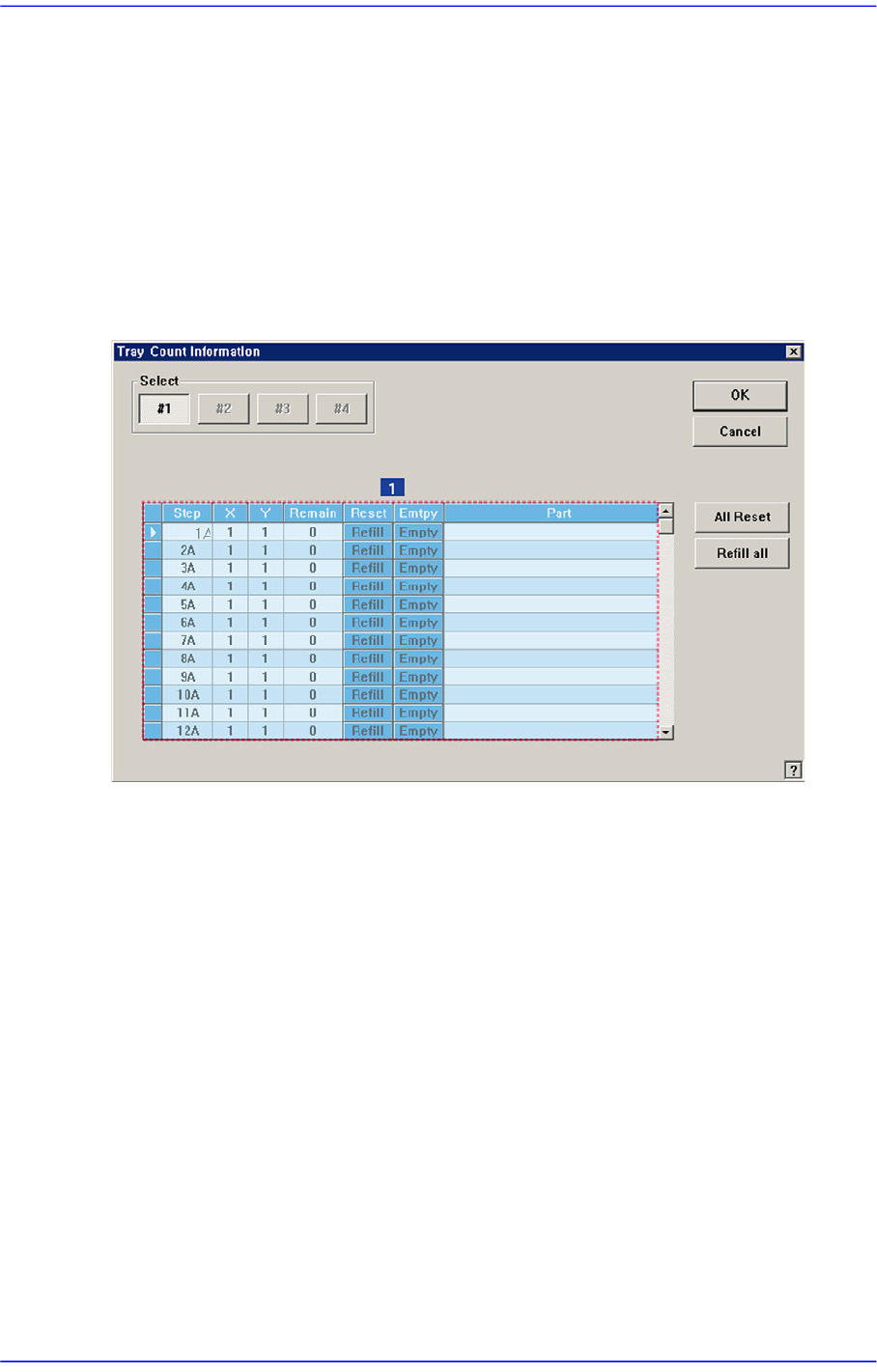
Set the start position of the pocket on the tray feeder to pick up the component. When this
button is clicked on, the following dialog box is displayed.
Figure13.7 “Tray Count Information” dialog box
1: Grid group
<Select> option button
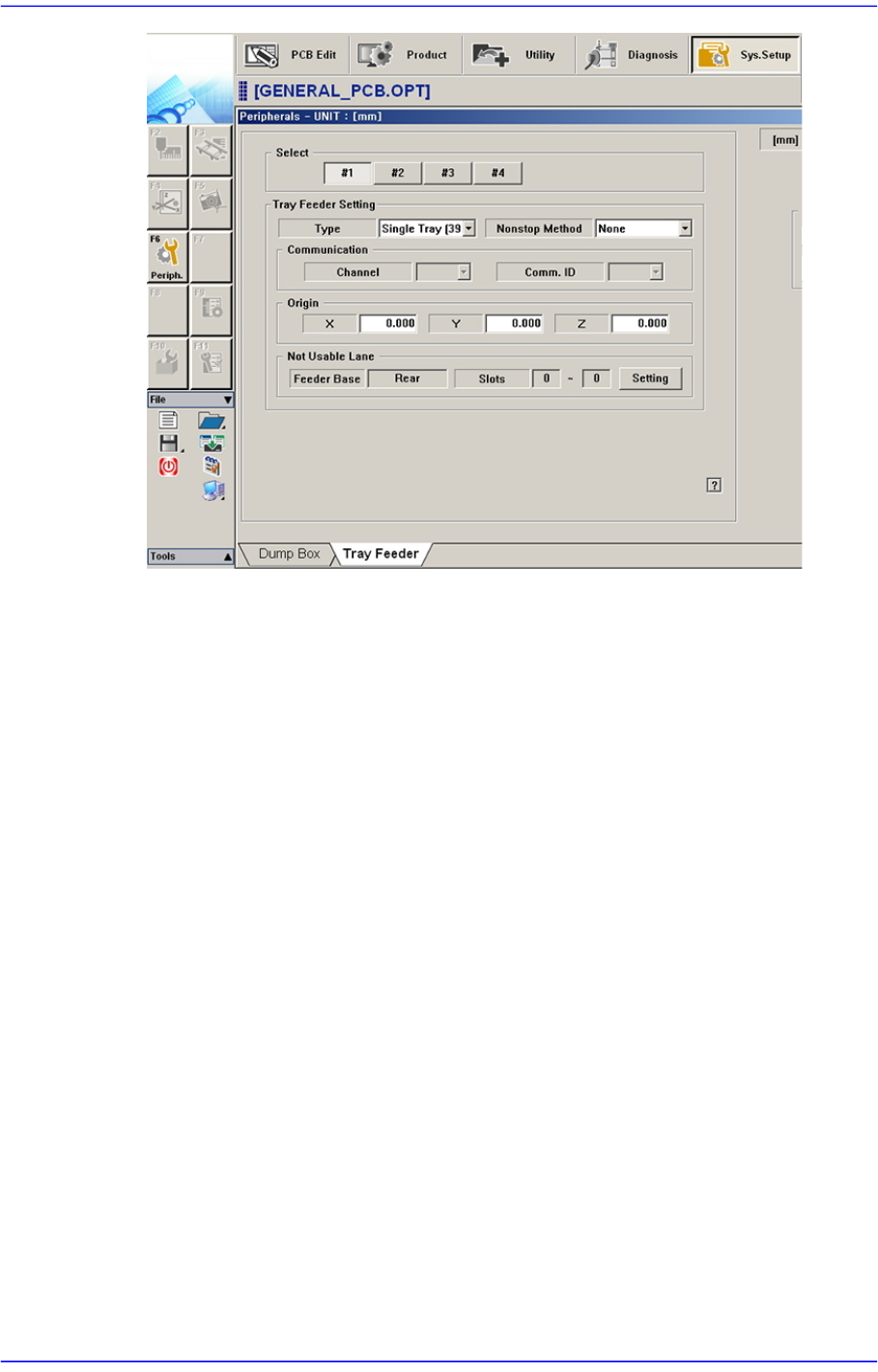
Select the tray feeder unit to set. The tray feeder unit follows the setup of the tray
feeder registered in the Tray dialog box of the System Setup menu.
13-19
Production Setup
<Grid> group
Set the position of the pocket to start.
<Step> column
Displays the number of tray step.
<X> column
Set the X position of the pocket.
<Y> column
Set the Y position of the pocket.
<Remain> column
Indicates the number of parts remaining in the corresponding pallet.
<Reset> column
<Refill> button
After refilling components for empty pallets, Clicking this button initializes
the pocket position to start (X=1, Y=1) on each pallet.
<Empty> column
<Empty> button
The number of parts displayed in the <Remain> column changes to ‘0’.
<Part> column
Displays the name of the component supplied the Tray
<All Reset> button