2OM-1751-003w_G5S.pdf - 第115页
2OM-1751 1-63 1303-001 4.4 "Altn Mode" T ab Sheet When the [Altn Mode] button is pressed, the "Altn Mode" tab sheet appears. Note (a) It is required that the feeder "Alternate" function is s…

2OM-1751
1-62
[2] [Pattern #1], [Pattern #2], and [Pattern #3] Buttons
Select one of the buttons to specify the desired pattern for designation of the
test mode.
Notice
Wrong selections (test run in wrong modes) will cause various
deciencies such as component picks by vacuum nozzles,
scattering of components, or collision with the chute, etc.
4.3 "Test Mode" Tab Sheet
1303-001
2OM-1751
1-631303-001
4.4 "Altn Mode" Tab Sheet
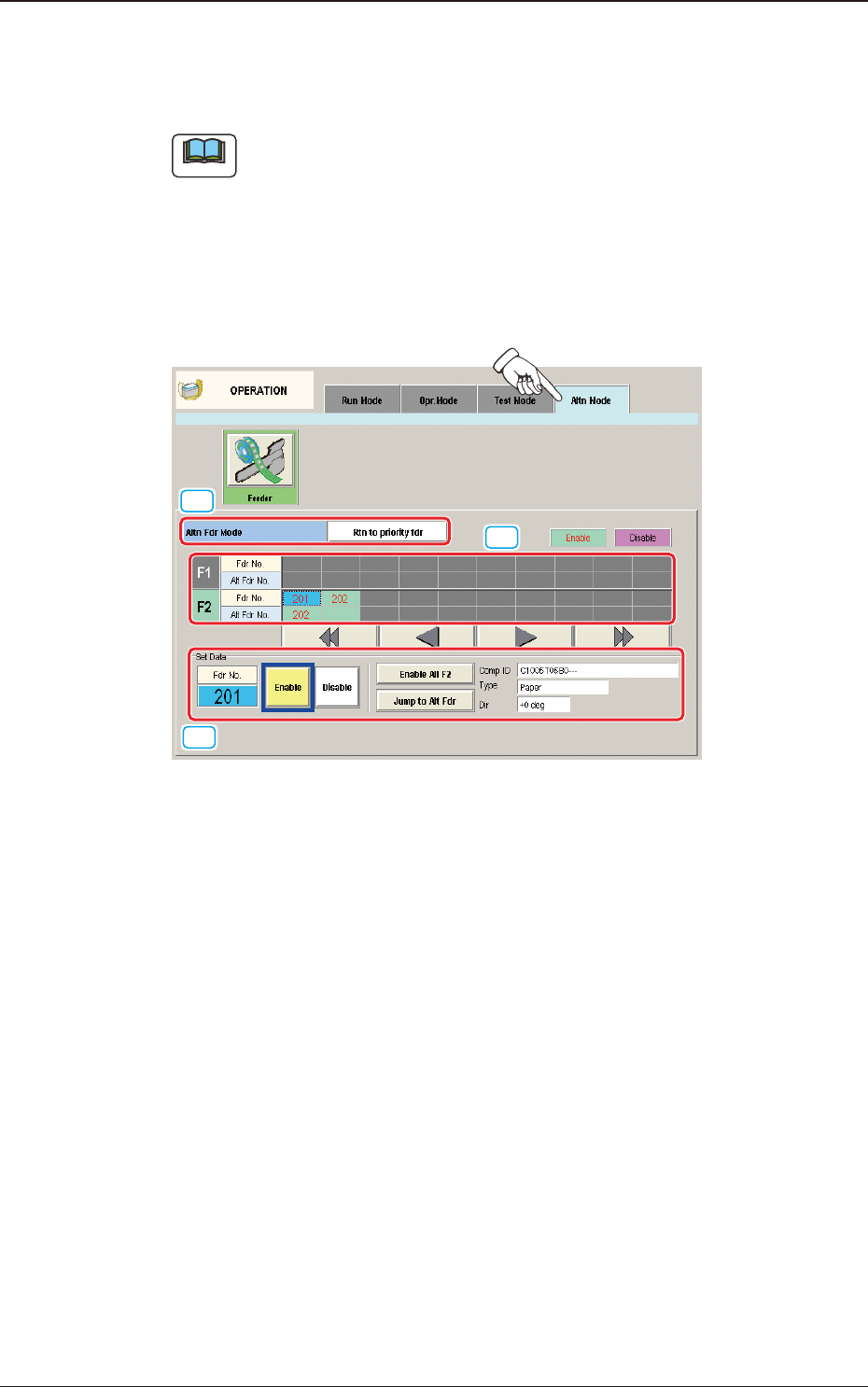
When the [Altn Mode] button is pressed, the "Altn Mode" tab sheet appears.
Note
(a) It is required that the feeder "Alternate" function is setup in the pattern
program, in advance.
(b) The parameters specied here become valid prior to the other alternate-
related ones that are designated in the pattern program.
Even when "Enable" is set in the pattern program, this alternate feeder
mode can be used to temporarily set "Disable" in relation to preparation for
the feeders.
[1]
[2]
[3]
"
Altn Mode
"
Tab Sheet F2A44
[1] Altn Fdr Mode
[Disable] Button
When pressed, this button invalidates the alternate feeder mode.
In this case, the contents of the window are changed.
[Rtn to priority fdr] Button
When selected, the "Feeder Alternate" function is disabled.
In this case, the displayed indications in the window are changed.
4.4 "Altn Mode" Tab Sheet

2OM-1751
1-641303-001
4.4 "Altn Mode" Tab Sheet
[Keep current fdr] Button
When selected, the "Feeder Alternate" function is enabled.
After the components on the specied feeder No., are used up, when there
is any other feeder with the same components, such feeder is used until the
components on the feeder are used up.
Note
(a) The feeders on the opposite block are to be used in this "Feeder
Alternate" operation.
(b) The use of the high-speed head or multi-functional head is available.
(c) The multi-layered tray or vibration stick feeder is not available.
(d) Same Component: Component with the same Component ID
[2] F1 and F2
The feeder Nos. and the destination feeder Nos. are colored, indicating
whether the alternate feeder mode is enabled or disabled.
Light Blue :
Enable
Pink :
Disable
"Disable" is automatically set for the feeder No. where a component shortage
error is detected.
When a feeder is set after component replenishment, "Enable" is
automatically set.
[3] "Set Data" Group Box
The Feeder No. selected in [2] appears in the "Fdr No." text box.
[Enable] and [Disable] Buttons
When the feeder whose parameter "Enable" or "Disable" for the feeder
alternate function must be changed is selected and the [Enable] or the
[Disable] button is pressed, the parameter can be changed manually.
[Enable All F1] Button, [Enable All F2] Button
"Enable" is set for all feeders on the feeder base selected in [2] (Feeder Base
#1 in the window).
[Jump to Alt Fdr] Button
The feeder Nos. selected in [2] are specied as the destination ones for the
alternate feeder mode.