2OM-1751-003w_G5S.pdf - 第200页
2OM-1751 3-6 1303-001 1.2.2 Deleting the Component ID Procedure (1) Select the component ID to be deleted. (The selected component ID turns blue, indicating that it is selected.) F2C3 (2) Press the [Delete...] button. (T…
2OM-1751
3-5
1.2 Basic Operations in "Selection of component ID" Window
1.2.1 Type Addition
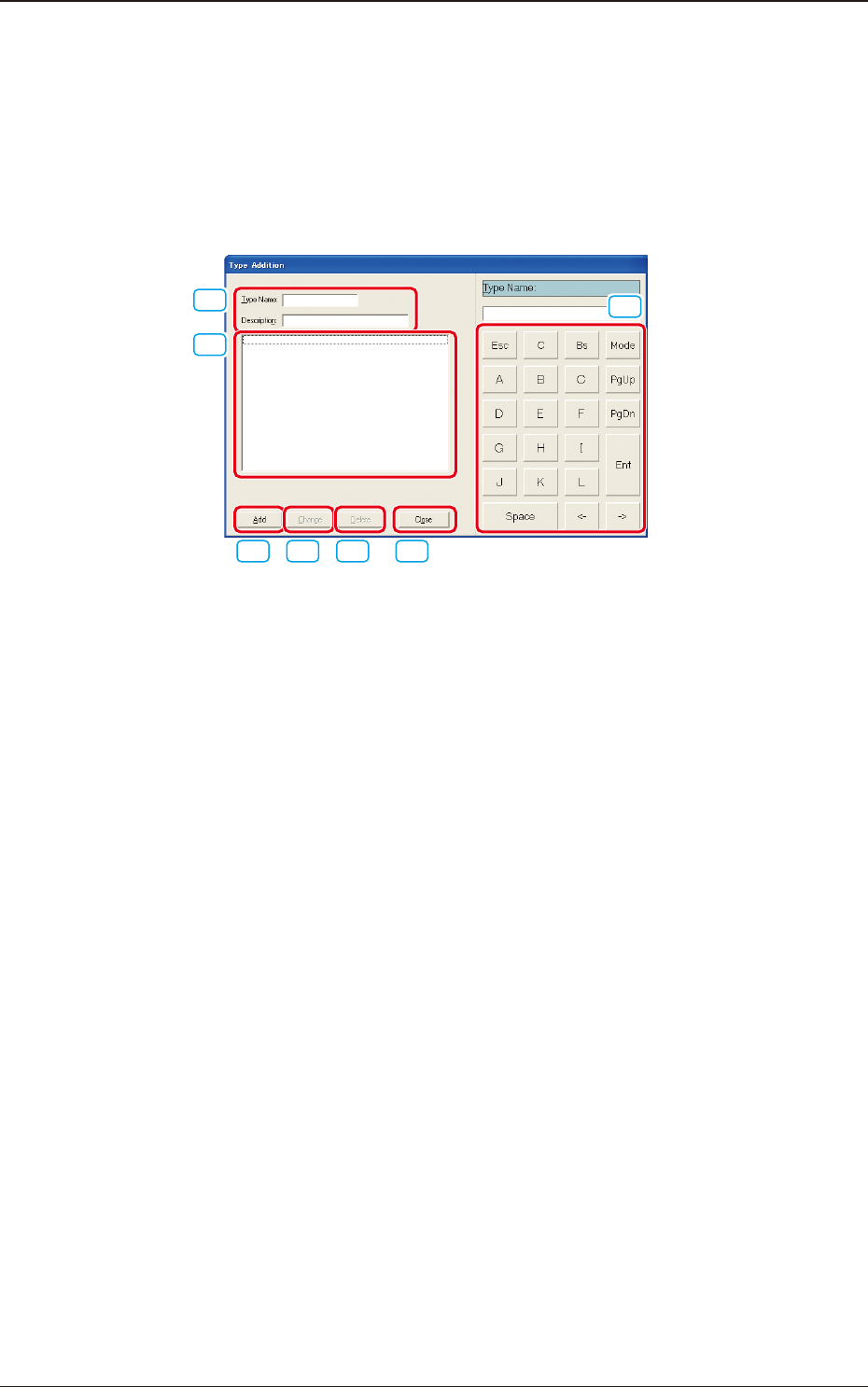
When the [Type Addition] button is pressed, the following "Type Addition"
dialog box opens. By adding a type, the list of component IDs is displayed after
being ltered.
[1]
[2]
[3] [4] [5] [6]
[7]
F2C2
[1] "Type Name" and "Description"
Enter parameters in these text boxes.
[2] "List of Component Types" Pane
Newly created component types are displayed in this pane.
[3] [Add] Button
When this button is pressed, a type entered in the "Type Name" text box is
added as a new type.
[4] [Change] Button
When this button is pressed, a component type is changed to the contents
entered in the "Type Name" and "Description" text boxes.
[5] [Delete] Button
When this button is pressed, the component type selected in "[2]" is deleted.
[6] [Close] Button
When this button is pressed, the "Type Addition" dialog box closes.
[7] Touch Panel for Data Editing
Data can be entered from the touch panel or the mouse.
1303-001
1.2 Basic Operations in "Selection of component ID" Window
2OM-1751
3-61303-001
1.2.2 Deleting the Component ID
Procedure
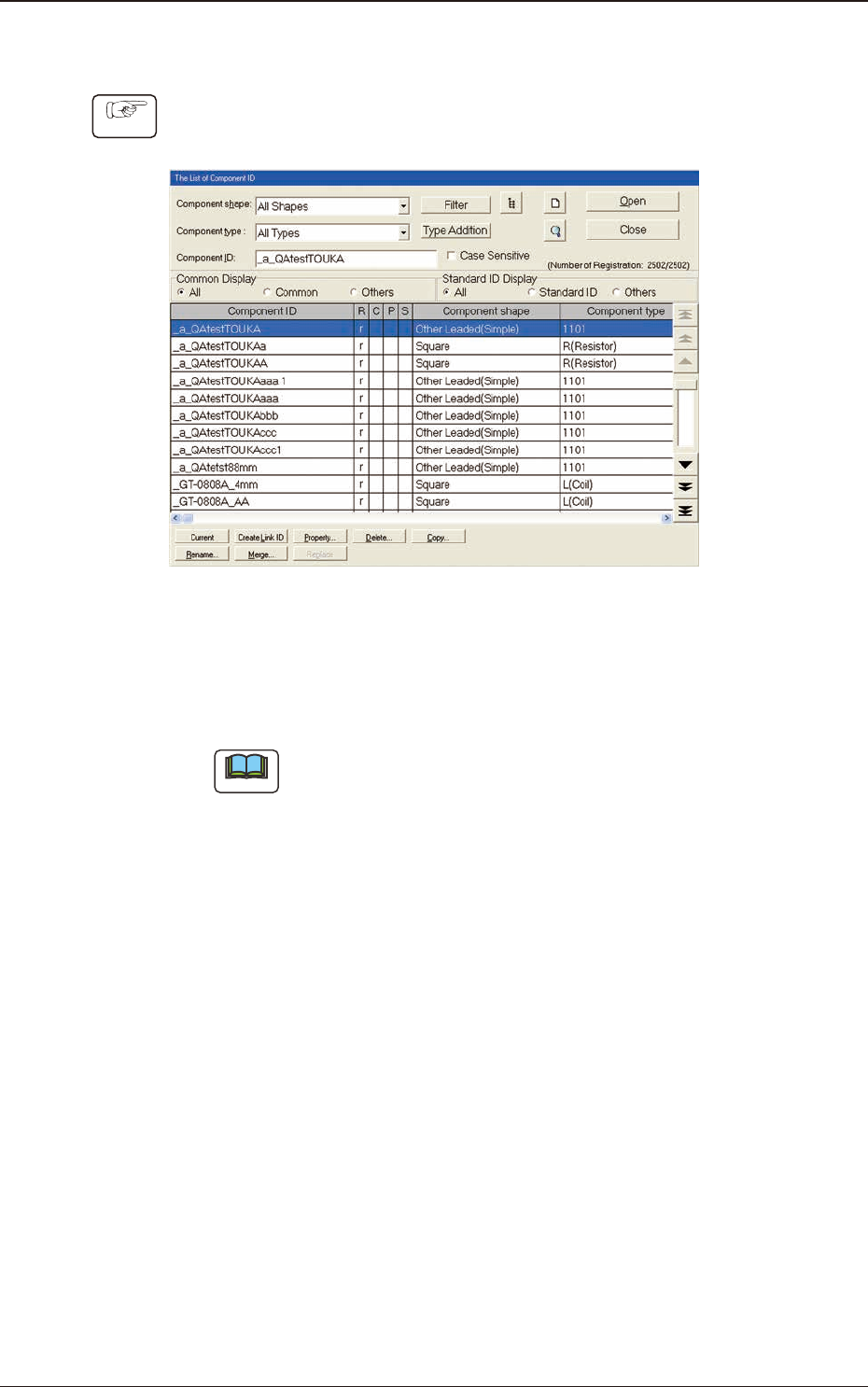
(1) Select the component ID to be deleted.
(The selected component ID turns blue, indicating that it is selected.)
F2C3
(2) Press the [Delete...] button.
(The "Conrmation" dialog box opens. When the [YES] button is pressed,
the component ID is deleted.)
Note
Pressing the [NO] button cancels the deletion of the component ID.
1.2 Basic Operations in "Selection of component ID" Window
2OM-1751
3-71303-001
1.2.3 Copying the Component ID
Procedure
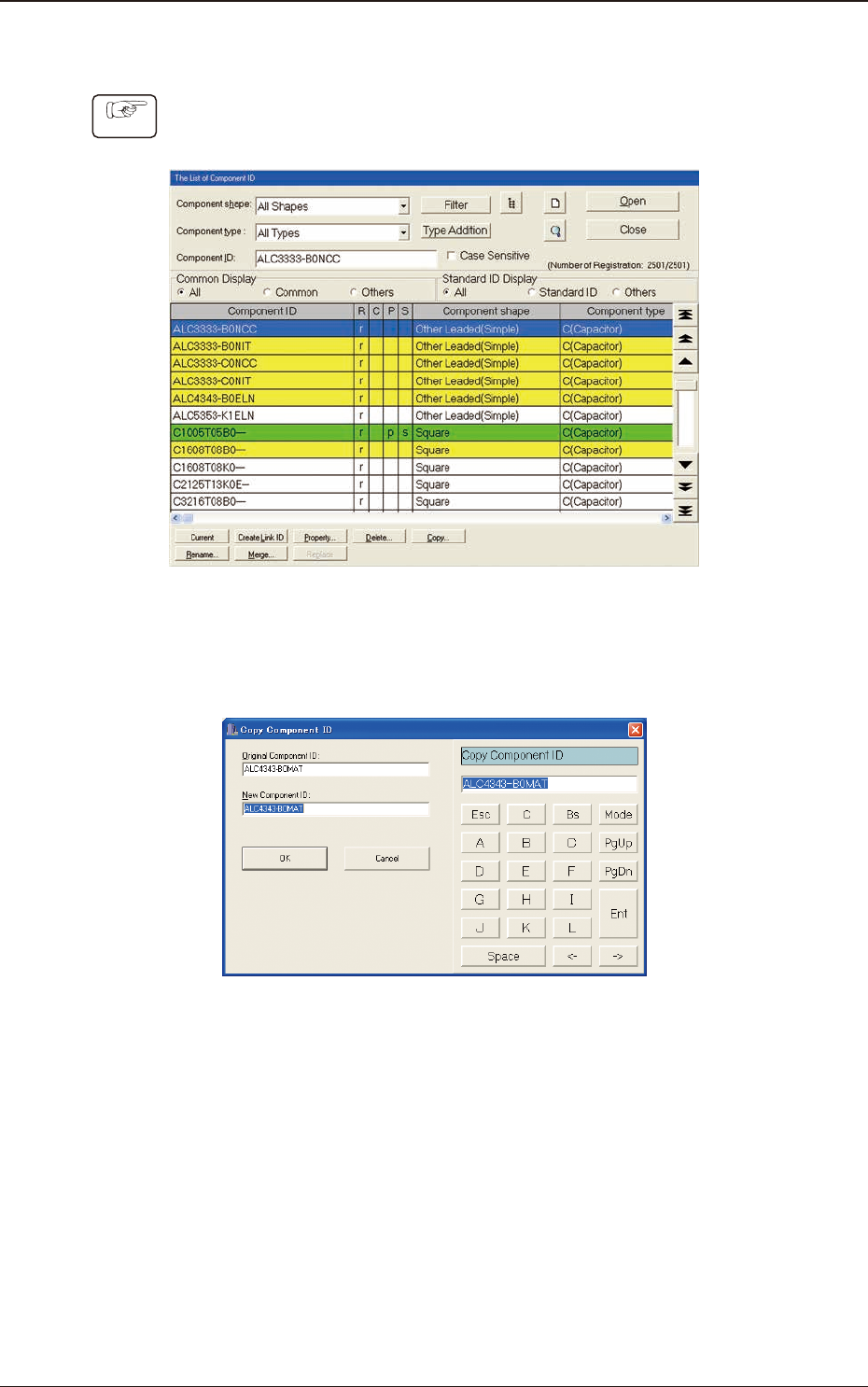
(1) Select the component ID to be copied.
(The selected component ID turns blue, indicating that it is selected.)
F2C4
(2) Press the [Copy...] button.
(The "Copy Component ID" dialog box opens.)
F2C5
(3) Enter a new component ID name in the "New Component ID" text box and
press the [OK] button.
(A Component ID is created.)
1.2 Basic Operations in "Selection of component ID" Window