2OM-1751-003w_G5S.pdf - 第202页
2OM-1751 3-8 1303-001 1.2.4 Renaming the Component ID Procedure (1) Select the component ID to be renamed. (The selected component ID turns blue, indicating that it is selected.) F2C6 (2) Press the [Rename...] button. (T…
2OM-1751
3-71303-001
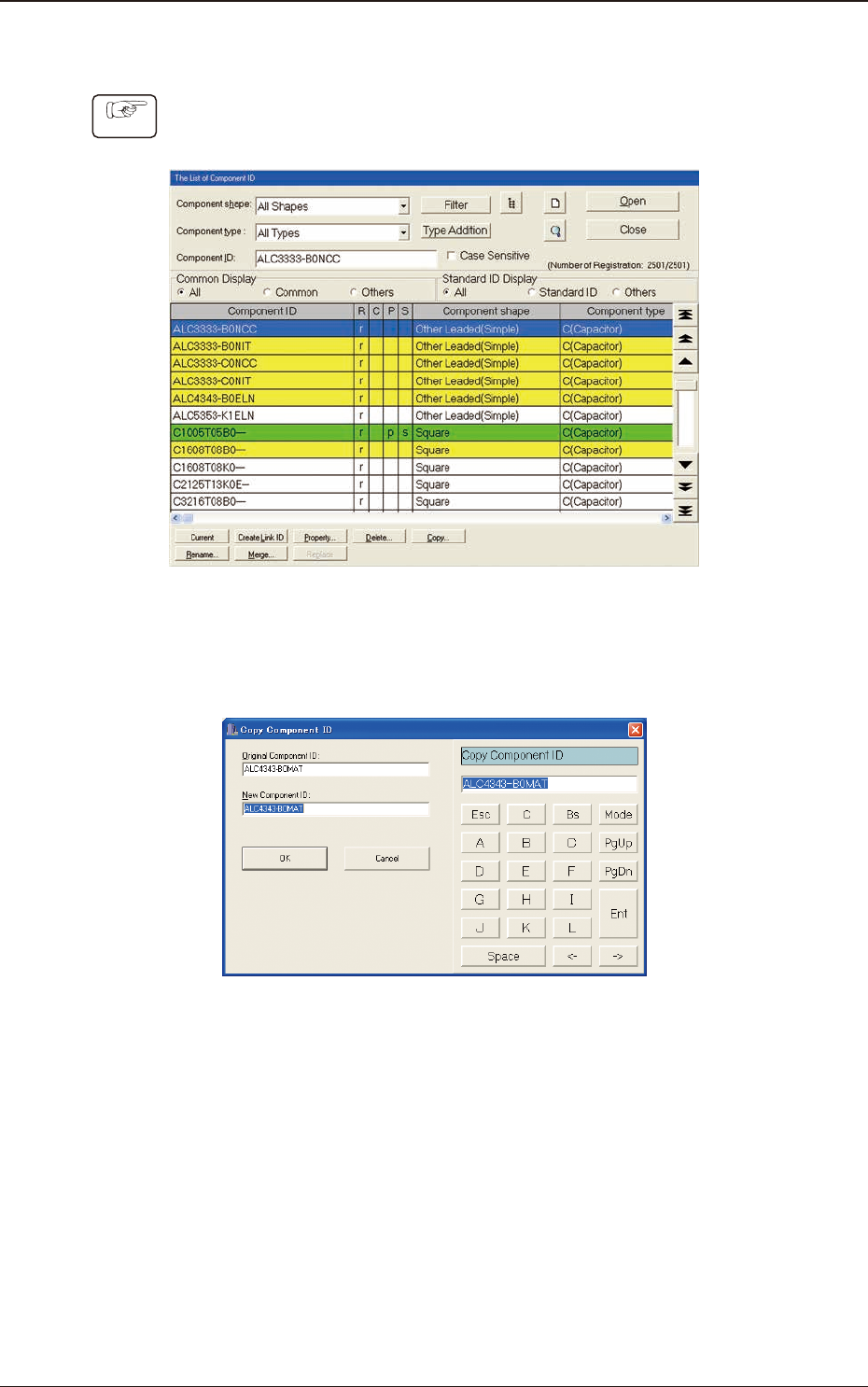
1.2.3 Copying the Component ID
Procedure
(1) Select the component ID to be copied.
(The selected component ID turns blue, indicating that it is selected.)
F2C4
(2) Press the [Copy...] button.
(The "Copy Component ID" dialog box opens.)
F2C5
(3) Enter a new component ID name in the "New Component ID" text box and
press the [OK] button.
(A Component ID is created.)
1.2 Basic Operations in "Selection of component ID" Window
2OM-1751
3-81303-001
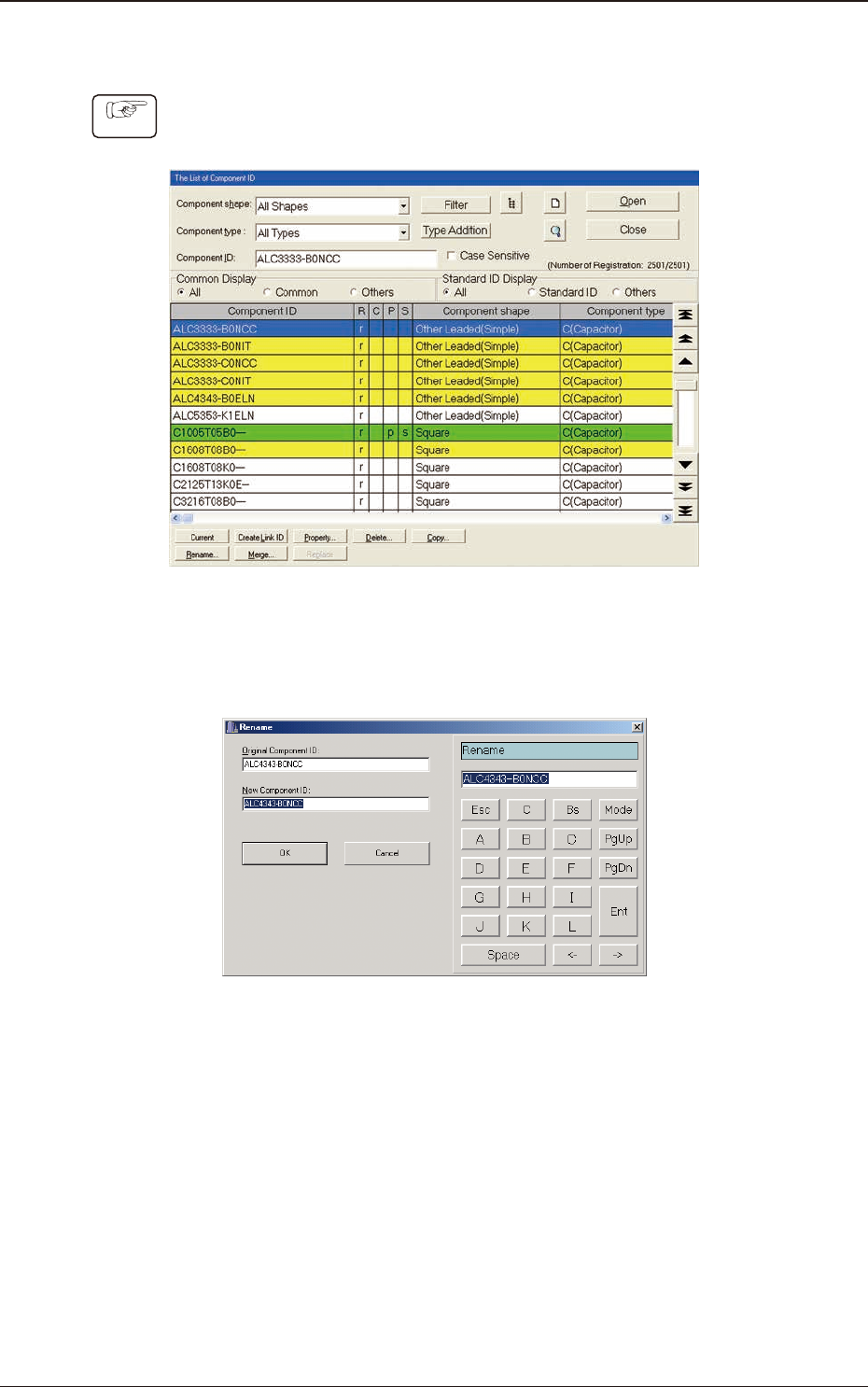
1.2.4 Renaming the Component ID
Procedure
(1) Select the component ID to be renamed.
(The selected component ID turns blue, indicating that it is selected.)
F2C6
(2) Press the [Rename...] button.
(The "Rename" dialog box opens.)
F2C7
(3) Enter a new component ID name in the "New Component ID" text box and
press the [OK] button.
(The name of the original component ID is changed to the new one.)
1.2 Basic Operations in "Selection of component ID" Window
2OM-1751
3-91303-001
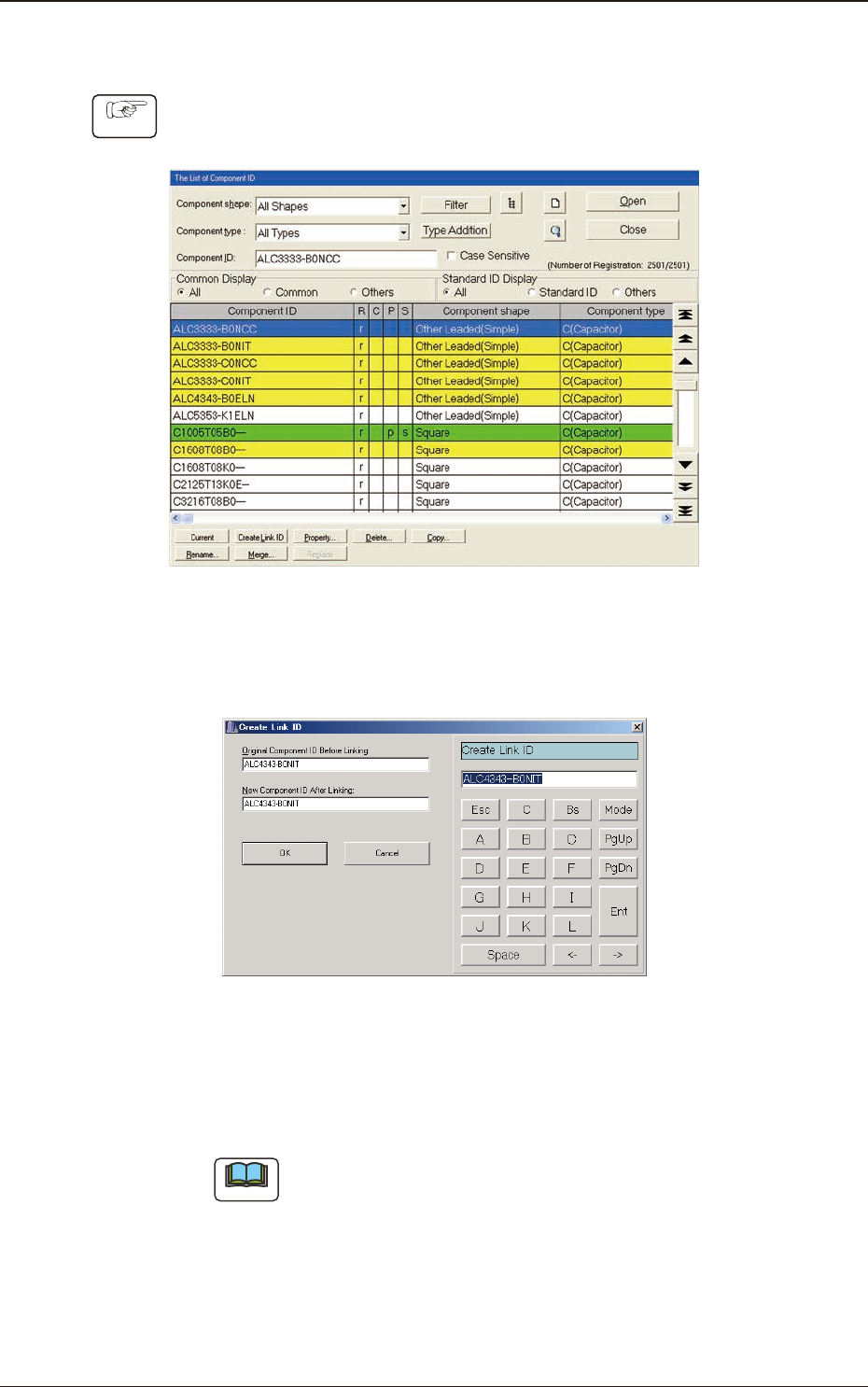
1.2.5 Creating the Link ID
Procedure
(1) Select the component ID as an original component ID before linking.
(The selected component ID turns blue, indicating that it is selected.)
F2C8
(2) Press the [Create Link ID] button.
(The "Create Link ID" dialog box opens.)
F2C9
(3) Enter a new link ID name in the "New Component ID After Linking" text
box and press the [OK] button.
(A new link ID is created.)
Note
Creating Link ID means giving a new name to the original component ID
before linking while keeping the data of the original component ID as it is.
For application, it can be used for a capacitor of the same shape as other
one but of different capacity.
1.2 Basic Operations in "Selection of component ID" Window