2OM-1751-003w_G5S.pdf - 第280页
2OM-1751 6-8 1303-001 4. "CNVR Set-up" Window • For Support Pin Manual Change • When the [ST ART] button is pressed in10 seconds after this button, the head retracts and the conveyor width becomes the maximum o…
2OM-1751
6-71303-001
4. "CNVR Set-up" Window
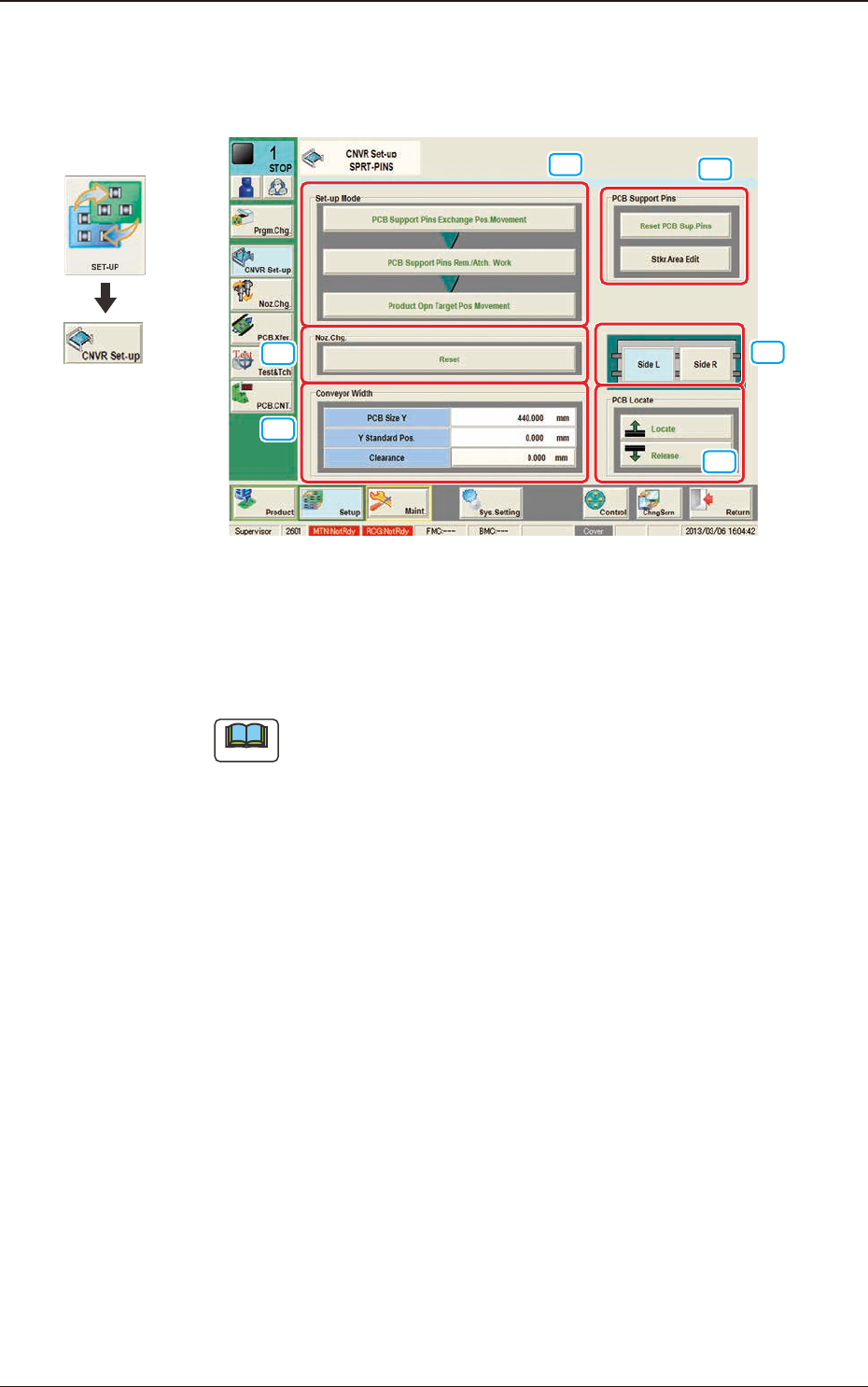
The "CNVR Set-up" window appears.
[1]
[2]
[5]
[4]
[3]
[6]
F2F7
[1] "Set-up Mode" Group Box
Each function in this group box can be used for the replacement work of the
support pins.
Note
The window changes depending on manual or automatic operation.
Graphic
Development
4. "CNVR Set-up" Window
2OM-1751
6-81303-001
4. "CNVR Set-up" Window
•
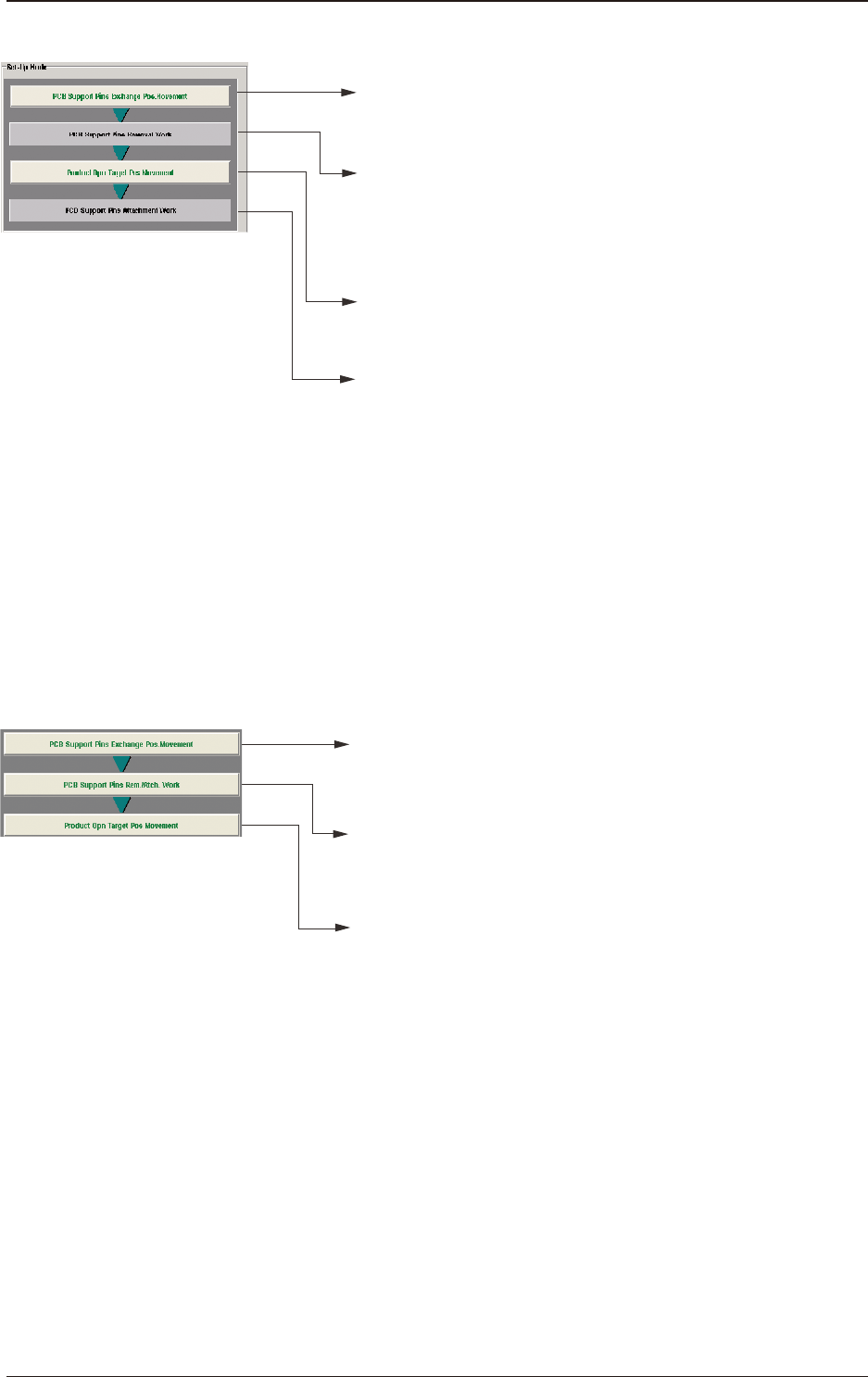
For Support Pin Manual Change
• When the [START] button is pressed in10 seconds
after this button, the head retracts and the conveyor
width becomes the maximum one.
• When the [START] button is pressed in 10 seconds
after this button, the conveyor width is set up and
the movement to the Y arrange position is performed.
• When the [START] button is pressed in 10 seconds
after the [Locate] button in the "PCB Locate" group box,
the support base starts moving up.
• Turn off the lamp of the [COVER READY] button,
open the transparent cover, then set the support pins.
•
After the setting, close the transparent cover and turn on the
lamp of the [COVER READY] button.
• Press the [START] button in 10 seconds after the
[Release] button in the "PCB Locate" group box.
The backup base starts moving down.
PCB Support Pins Rem. Work
• Turn off the lamp of the [COVER READY] button,
open the transparent cover, then collect the support pins.
After the collection, close the transparent cover and turn on
the lamp of the [COVER READY] button.
PCB Support Pins Atch. Work
F2F8
•
For Support Pin Automatic Change
• When the [START] button is pressed in10 seconds
after this button, the head retracts and the conveyor
width becomes the maximum one.
• When the [START] button is pressed within 10 seconds
after this button, the support pin automatic setup is
performed according to the pattern program.
• When the [START] button is pressed within 10 seconds
after this button, the conveyor width is moved to
the production position.
F2F9
[2] "Noz Chg." Group Box
[Reset] Button
When this button is pressed and within 10 seconds, the [START] button on
the operation panel is pressed, the support pins are housed in the nozzle area.

2OM-1751
6-9
[3] "PCB Support Pins" Group Box
[Reset PCB Sup.Pins] Button
When the [START] button is pressed in 10 seconds after this button, the
support pins are housed in the stock area.
[Stkr.Area Edit] Button
In the case that the PCB support pins are to be moved manually or an error
occurs, the stock area parameters are edited.
When the [Stkr.Area Edit] button is pressed, the "Stkr.Area Edit" window
appears.
Reference
Refer to "4.4.1 Stkr.Area Edit Procedure" for the details of the
"Stkr.Area Edit" window.
[4] PCB Locate Section Select Buttons
When pressed, the PCB positioning section on the side where the setup
operation is to be performed, is selected.
[Side L] Button :
PCB Locate L Section
[Side R] Button :
PCB Locate R Section
[5] "PCB Locate" Group Box
[Locate] Button
: When pressed, this button moves up the Z clamp and
the backup base and locates the PCB.
[Release] Button
: When pressed, this button moves down the Z clamp and
the backup base and releases the PCB locating.
[6] "Conveyor Width" Group Box
PCB Size Y, Y Standard Pos.
The "PCB size Y" and "Y Standard Pos." set on the pattern program data for
the product model, are shown in these data boxes.
[Clearance] Button
When this button is pressed, the "Clearance" window opens. Enter the value
as a leeway between the conveyor width and the PCB. The entered value
appears in the text box beside this button.
The actual conveyor width becomes "PCB Size Y + Clearance (Recommended
Value: 0.5 mm)".
1303-001
4. "CNVR Set-up" Window