2OM-1751-003w_G5S.pdf - 第304页
2OM-1751 6-32 1303-001 (6) Press the [Eye Match] button. (Start the manual alignment operation from the position shown using an arrow). F2F35 (7) Press the [ ] button if necessary . (Check the nozzle pick-up position). F…
2OM-1751
6-311303-001
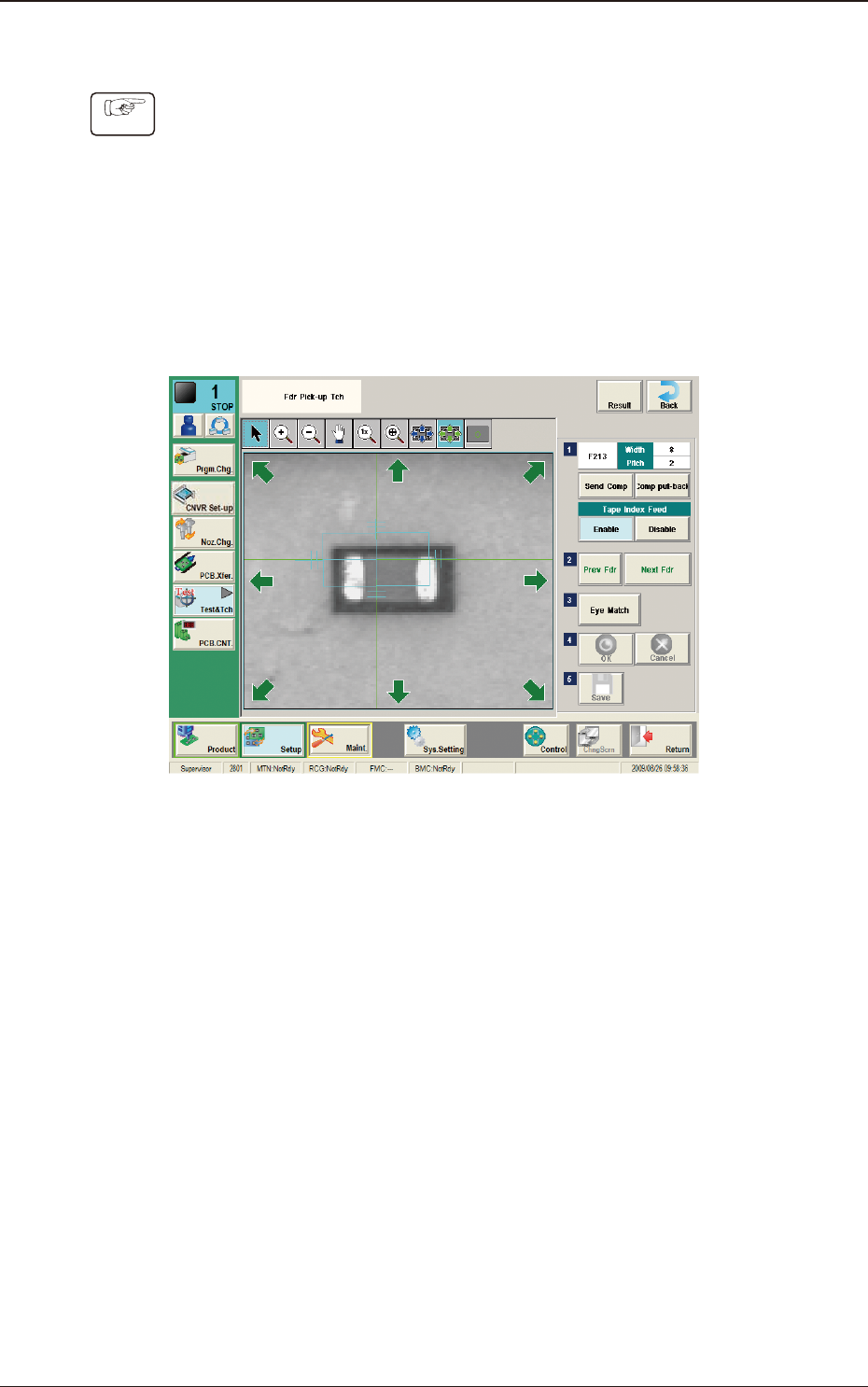
7.1.1 Fdr Pick-up Tch
Procedure
(1) Press the head selection button.
(2) Press the [Block Sel] button.
(Select the appropriate block and select the tape feeder where the teaching is
performed).
(3) Press the [Activate] button.
(The window is changed to the manual alignment window for the selected
tape feeder.)
F2F34
(4) Press the [Send Comp] button.
(Find the place necessary on the tape).
(5)
When the manual alignment is not required :
Press the [Prev Fdr.] or [Next Fdr.] button to perform the manual alignment
for the other tape feeder.
When the manual alignment is required :
Follow the steps (5) and later.
7.1 "Fdr Pick-up Tch" Window
2OM-1751
6-321303-001
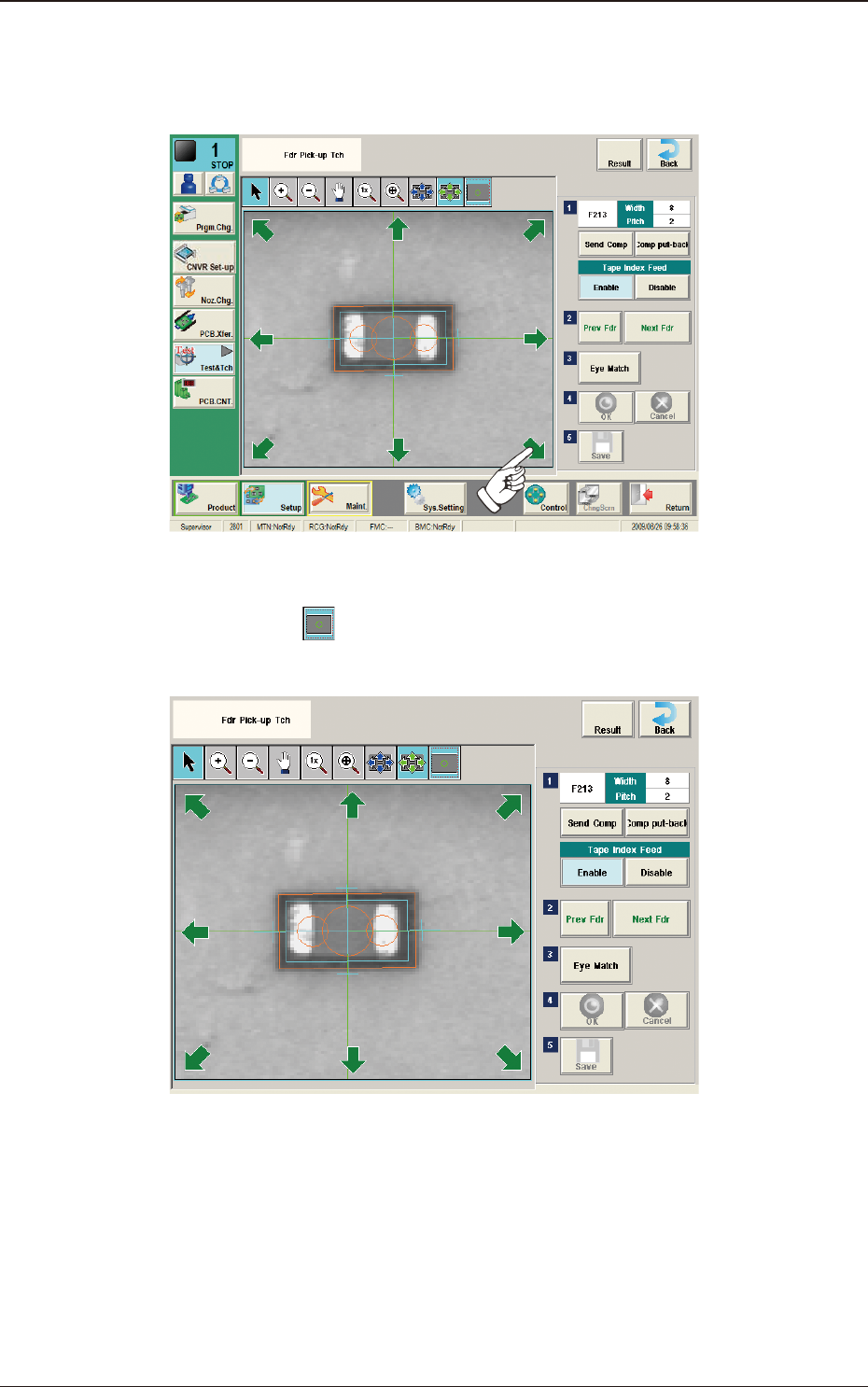
(6) Press the [Eye Match] button.
(Start the manual alignment operation from the position shown using an
arrow).
F2F35
(7) Press the [ ] button if necessary.
(Check the nozzle pick-up position).
F2F36
(8) When the manual alignment operation is completed, press the [OK] button.
(In the case that the performed manual alignment is cancelled, press the
[Cancel] button.)
(9) Press the [Save] button to save the manual alignment results.
7.1 "Fdr Pick-up Tch" Window
2OM-1751
6-33
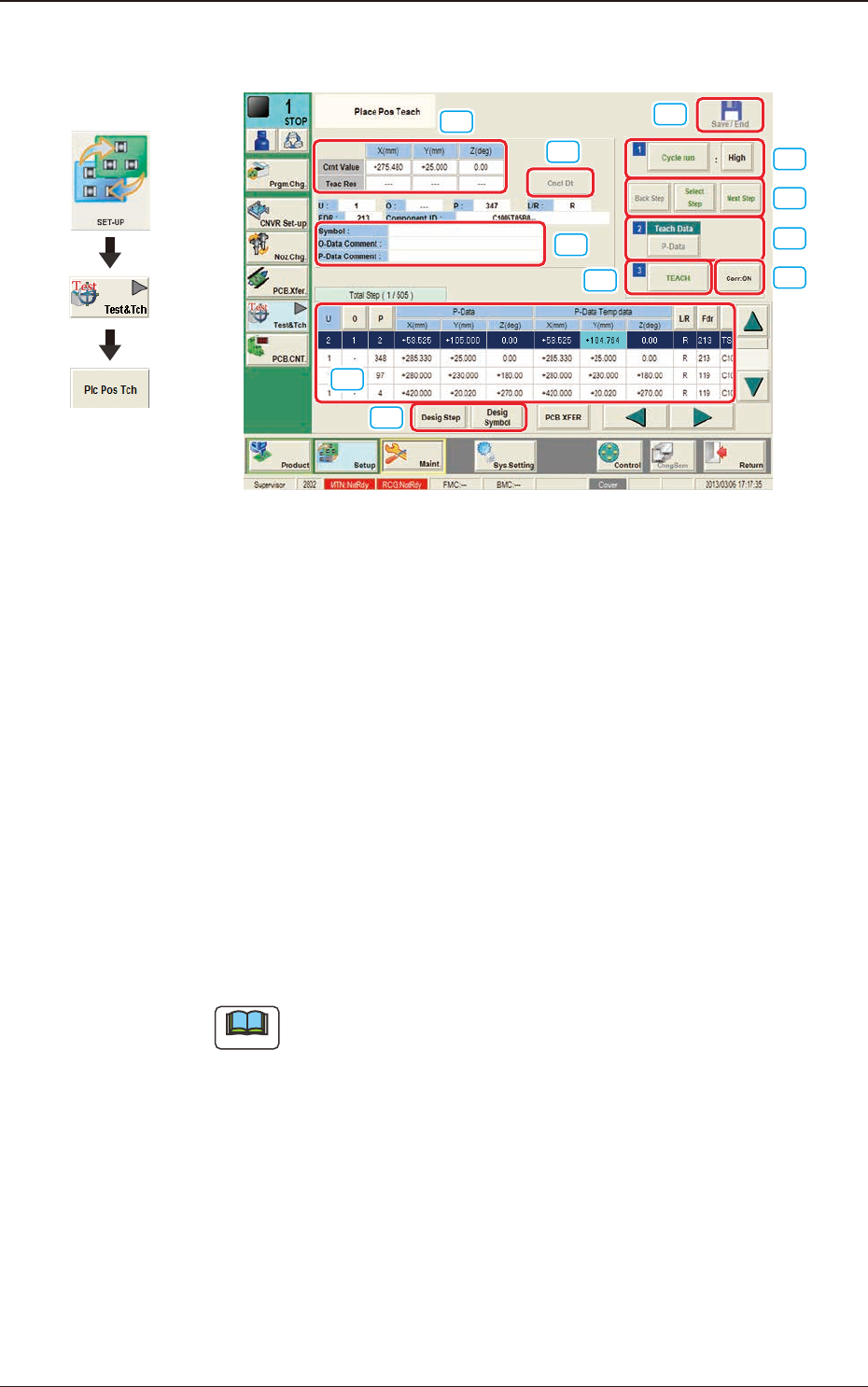
7.2 "Place Pos Teach" Window
[ 1 ]
[ 2 ]
[ 4 ]
[ 3 ]
[10]
[ 5 ]
[ 6 ]
[ 7 ]
[ 8 ]
[ 9 ]
[11]
F2F37
[1] "Step No."Display Section
The step data selected in the "Desig Step"(Designate Step) operation, is
displayed.
[2] [Desig Step] snd [Desig Symbol] Button
[Desig Step] Button
Using this button, the starting step No. is selected in the case that the
placement position teaching is started from any step No. in the pattern
program.
The background color for the selected Step No., turns pale blue.
The serial setup of the "Starting Step No.", "U", "O", and "P" Nos. is
available in the input window displayed when the [Desig Step] button is
pressed.
Note
Normally, the Item are displayed in the order of component placement.
However, pressing the [O] or [P] button can arrange them in ascending
order.
Graphic
Development
1303-001
7.2 "Place Pos Teach" Window