2OM-1751-003w_G5S.pdf - 第325页
2OM-1751 6-53 1303-001 7.3.4 "Component Recognition T est Execution" Window When the test ID is selected in the "COMP RCG" test window and the [Fr.] button is pressed, the component recognition test e…
2OM-1751
6-521303-001
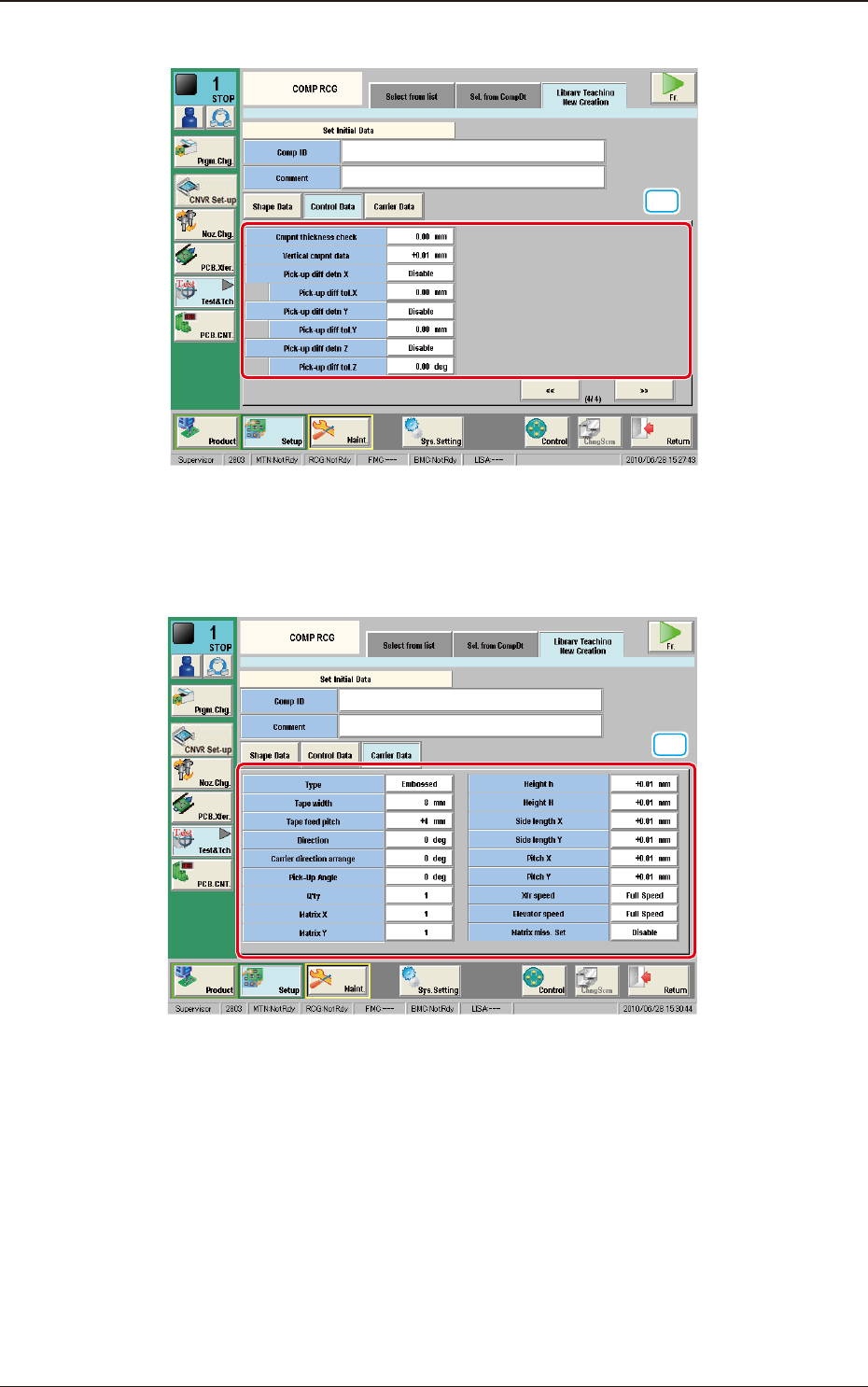
[10] Control Data Entry Window (4/4)
[10]
"Control Data" Entry Window (4/4) for the "Initial Data Setting" F2F51
[11] Carrier Data Entry Window
In this window, the carrier data parameters are set.
[11]
"Carrier Data" Entry Window for the "Initial Setting" F2F52
7.3 "COMP RCG" Test Window
2OM-1751
6-531303-001
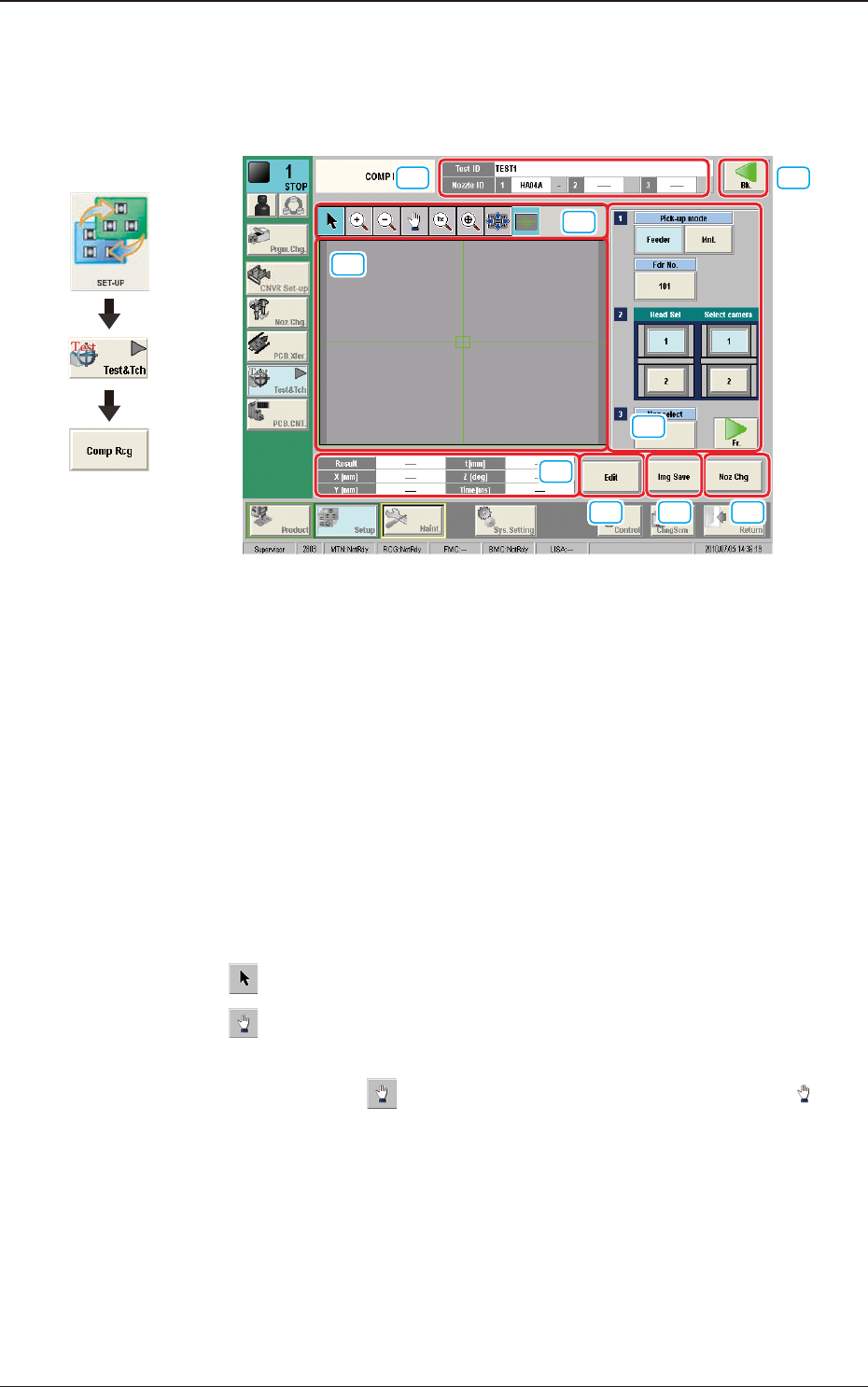
7.3.4 "Component Recognition Test Execution" Window
When the test ID is selected in the "COMP RCG" test window and the [Fr.] button
is pressed, the component recognition test execution window appears.
[1] [9]
[4]
[5]
[6] [7] [8]
[2]
[3]
F2F53
[1] Test ID
The text ID selected in the "COMP RCG" test window is displayed in this
pane.
Nozzle ID
The nozzle ID (type) specied in the test ID is displayed in this pane.
[2] Displayed Image Operation Buttons
Using the following buttons, the mode is changed to perform the enlargement
or movement operation of the image displayed in the recognized image
display pane [3].
[
]
Button
: Normal Operation Mode
[
]
Button
: Image Movement Mode
After changing to the image movement mode using the
[
] button (the shape of the pointer is changed to
mark), drag the image to be moved (with the left button on
the mouse pressed) to move.
Graphic
Development
7.3 "COMP RCG" Test Window
2OM-1751
6-541303-001
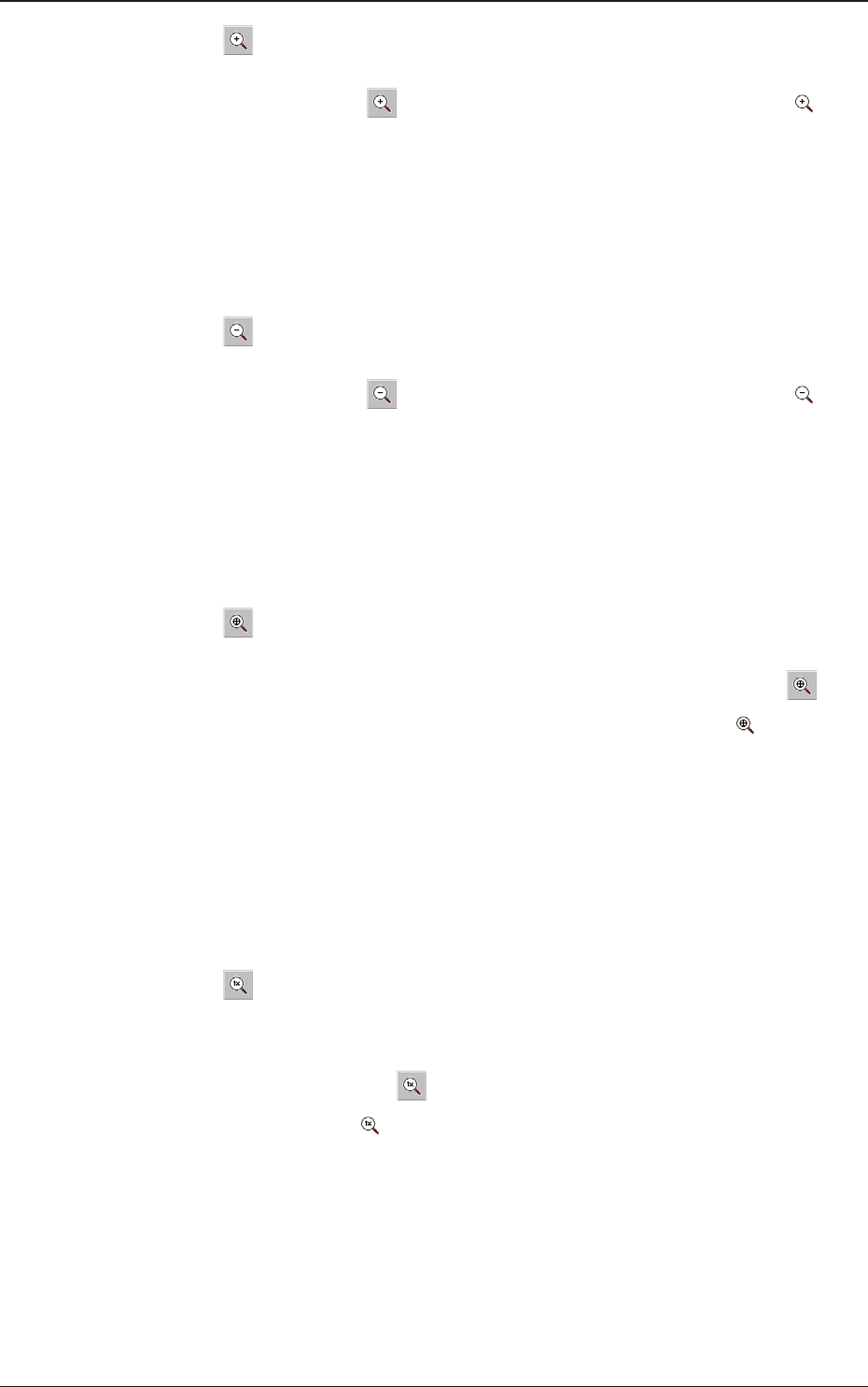
[
] button :
Image Enlargement Mode
After changing to the image enlargement mode using the
[
] button (the shape of the pointer is changed to ),
when the image to be enlarged is touched, or the left button
of the mouse is clicked on the image, the image is enlarged
from the pointer position as the center.
When the image is to be enlarged with its position xed,
place the pointer on the center of the image before the
enlargement operation.
[
] Button :
Image Reduction Mode
After changing to the image reduction mode using the
[
] button (the shape of the pointer is changed to )
when the image to be reduced is touched, or the left button
of the mouse is clicked on the image, the image is reduced
from the pointer position as the center.
When the image is to be reduced with its position xed,
place the pointer on the center of the image before the
reduction operation.
[
] Button :
Image Fitting Mode (the image is displayed fully using the
recognition image display domain).
After changing to the image tting mode using the [
]
button (the shape of the pointer is changed to
), when
the image to be t is touched, or the left button of the
mouse is clicked on the image, the image is displayed
fully using the recognition image display domain, from the
pointer position as the center.
When the image is to be displayed in the image tting mode
with its position xed, place the pointer on the center of the
image before the image tting operation.
[
] Button :
Image Real-Size Display Mode (Captured image is
displayed in real-size).
After changing to the image real-size display mode using
the [
] button (the shape of the pointer is changed to
), when the image to be displayed in real-size is
touched, or the left button of the mouse is clicked on the
image, the image is displayed in real-size from the pointer
position as the center.
When the image is to be displayed in real-size with its
position xed, place the pointer on the center of the image
before the image real-size display operation.
7.3 "COMP RCG" Test Window