2OM-1751-003w_G5S.pdf - 第329页
2OM-1751 6-57 1303-001 [Recog] Button When this button is pressed the within 10 seconds, the [START] button on the operation panel is pressed, the head in the block selected using the "[4] Head Sel" button, is …
2OM-1751
6-56
[7] [Img Save] Button
When this button is pressed, the "Img Save" window appears.
This window is used to save the test results.
[8] [Noz Chg] Button
When this button is pressed, the "NOZ.CHG." window appears.
Reference
Refer to "5. "NOZ.CHG." Window" for the details of the "NOZ.CHG."
window.
[9] [Bk.] Button
When this button is pressed, the "COMP RCG" test window is returned.
•
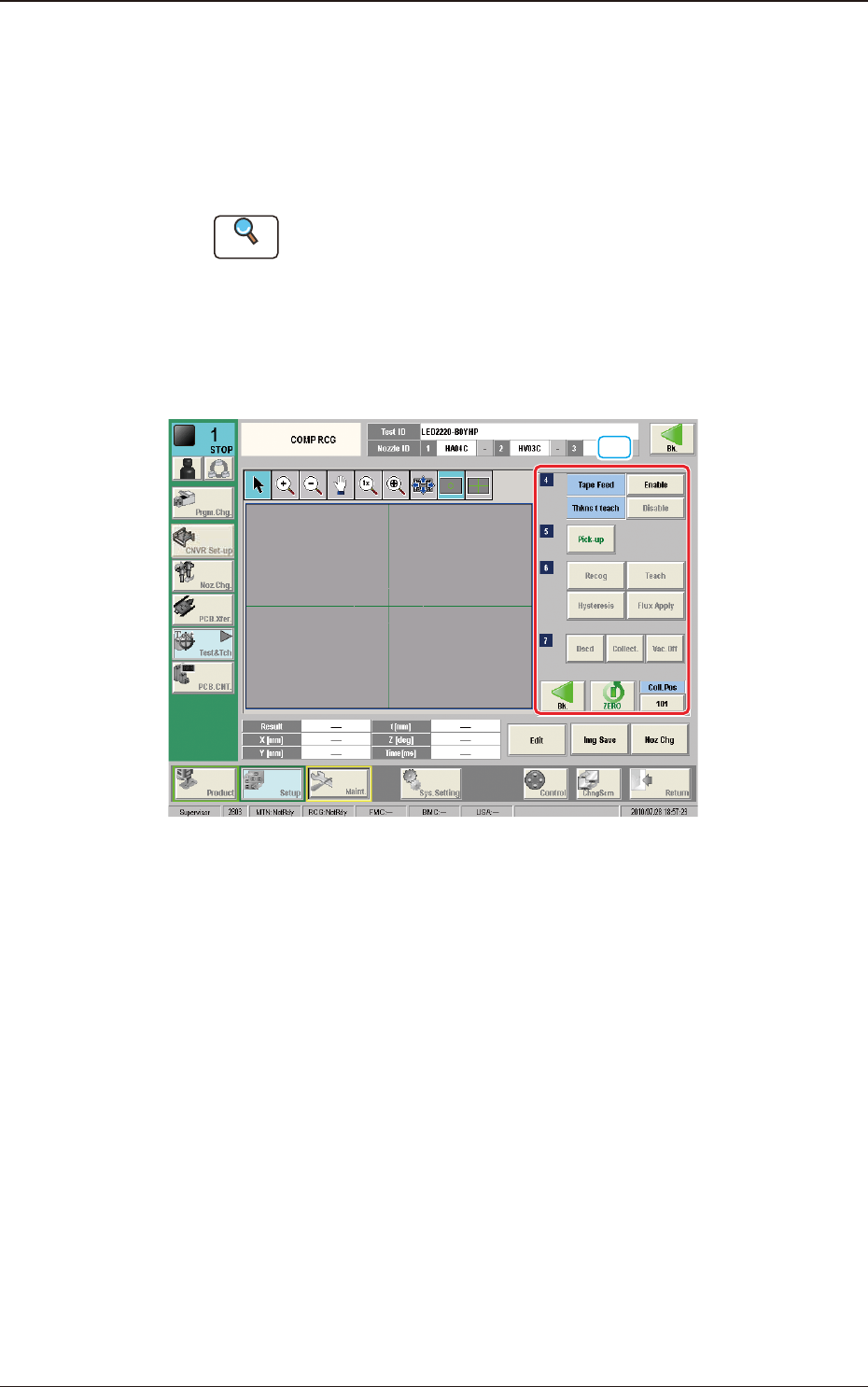
Component Recognition Test Execution Window (Second Page)
[10]
F2F54
[10] Operation Buttons (Second Page)
Tape Feed
[Enable] Button :
When this button is pressed, the tape is fed when the test
component is picked up from the feeder.
[Disable] Button :
When this button is pressed, the page is not fed when
the test component is picked up from the feeder.
[Pick-up] Button
This button is used to take out the component automatically from the feeder.
When this button is pressed and within 10 seconds, the [START] button on
the operation panel is pressed, the head in the block selected using the "[4]
Head Sel" button, is moved to the position of the feeder of which No. has
been selected using the [4] Feeder No." button and the component is picked
up.
1303-001
7.3 "COMP RCG" Test Window
2OM-1751
6-571303-001
[Recog] Button
When this button is pressed the within 10 seconds, the [START] button on
the operation panel is pressed, the head in the block selected using the "[4]
Head Sel" button, is moved to the component recognition camera position
and the component recognition is executed.
[Teach] Button
This button is selected when new component library registration is
performed.
Reference
Refer to ""Execution Teach" Window" in chapter 6, Vol.2, in the
Instruction Manual for the Main Machine for the details.
[Hysteresis] Button
The component deviation in the pick-up operation can be tested using this
"Hysteresis test" button, When this button is pressed, the "Hysteresis Test"
window appears.
[Dscd] Button
When this button is pressed, the component is discharged according to the
component library data.
[Collect.] Button
When this button is pressed and within 10 seconds, the [START] button on
the operation panel is pressed, the head is move to the lane No. specied
using the "Coll. Pos" button.
[Vac. Off] Button
Using this button, the vacuum ON/OFF for the nozzle is changed over.
Depending on the current vacuum condition, the left indication of the "Vac.
Off" button is changed to "Vac Pick-up OFF/Vac Pick-up ON".
[Bk.] Button
When this button is pressed, the previous page appears.
[ZERO] Button
When this button is pressed, all the axes of the selected XY beam are zeroed.
Coll.Pos
Using this button, the test component collection position is specied.
7.3 "COMP RCG" Test Window
2OM-1751
6-581303-001
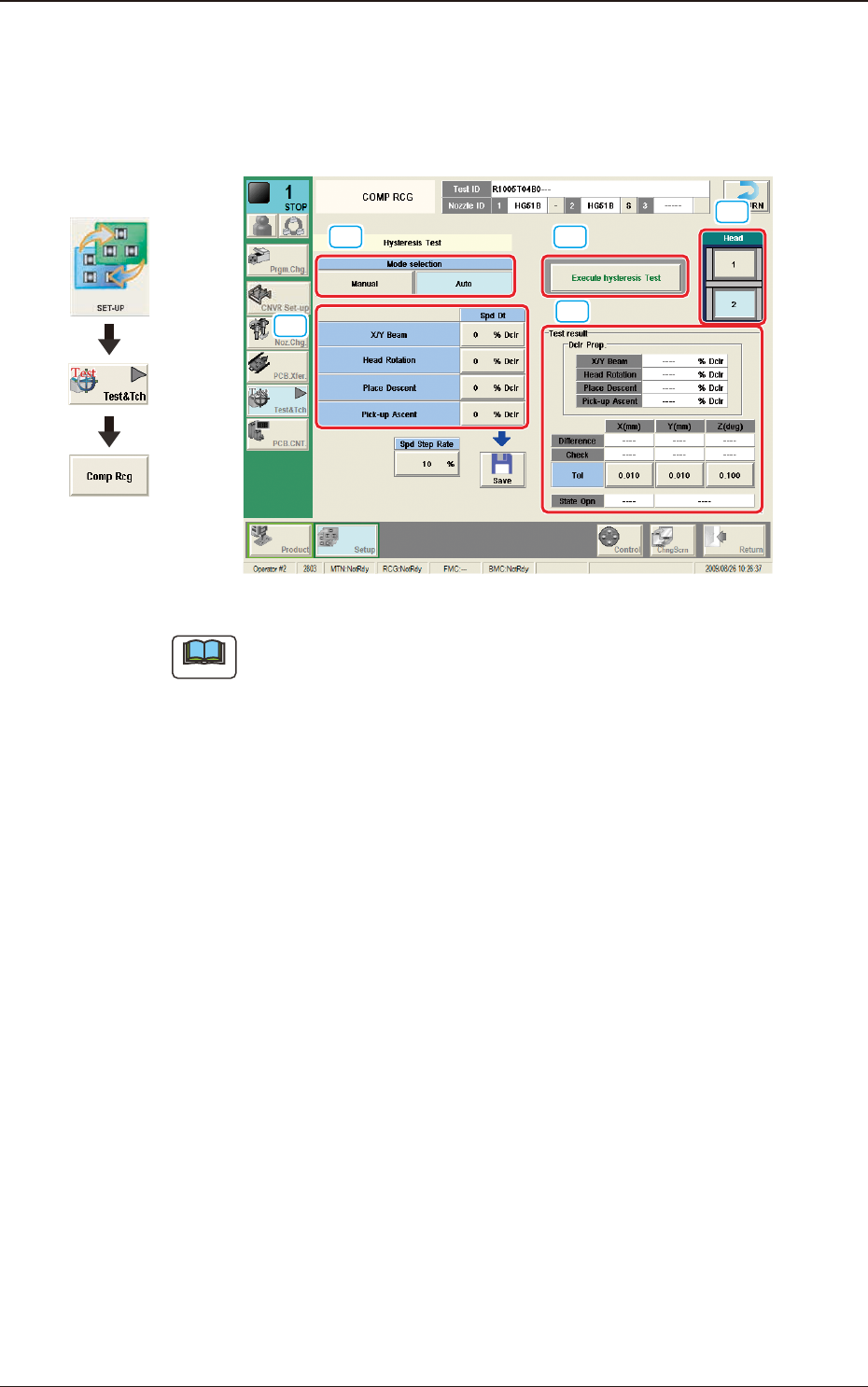
7.3.4.1 Hysteresis Test
This test supports the data settings for the beam speed reduction in the component
pick-up specied in the component library, review of the rotation speed reduction
and beam and rotation speed reduction setup.
[1] [3]
[5]
[4]
[2]
F2F55
Note
When the tab sheet is changed to the other one, the recognition window can be
conrmed.
[1] Mode Selection
Using the following buttons, the test mode is setup.
[Manual] Button
The hysteresis test is performed based on the data set in the "Hysteresis
Manual Setup" window.
[Auto] Button
When this button is selected, the hysteresis test operation procedure is
repeated with the speed increase in increments of 1% of the speed reduction
value based on the data set in the "Hysteresis Auto Setup" window.
[2] Spd Dt
The speed reduction setup values for the beam (XY), head rotation, moving
up for pick-up, and moving down for pick-up, are displayed in this pane.
Spd Step Rate
When the "Auto" mode is selected, the current speed reduction rate is
displayed in this data box.
7.3 "COMP RCG" Test Window
Graphic
Development