2OM-1751-003w_G5S.pdf - 第331页
2OM-1751 6-59 1303-001 [3] [Execute hysteresis T est] Button When this button is pressed and within 10 seconds, the [START] button on the operation panel is pressed, the hysteresis test is executed. [4] Head The buttons …
2OM-1751
6-581303-001
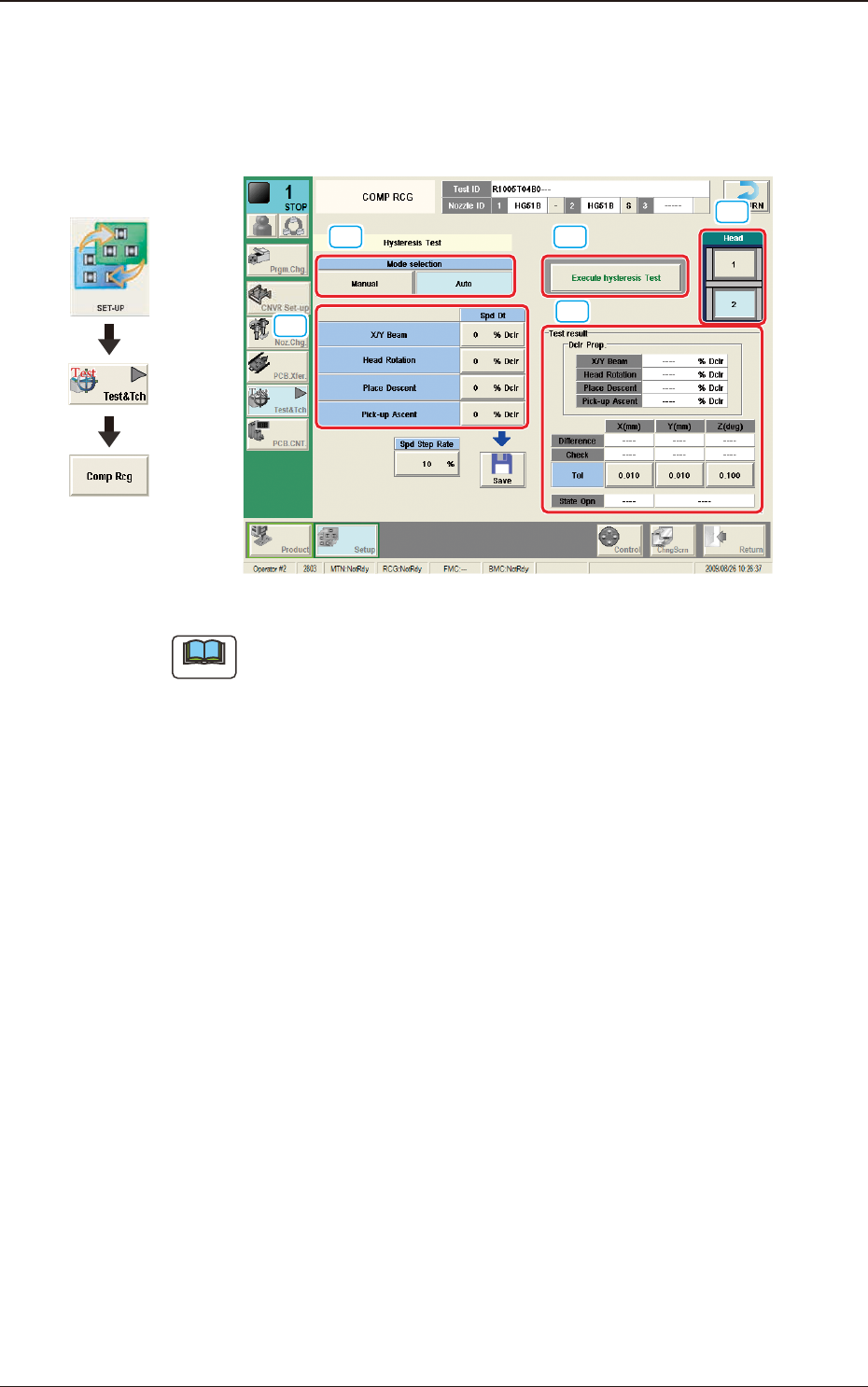
7.3.4.1 Hysteresis Test
This test supports the data settings for the beam speed reduction in the component
pick-up specied in the component library, review of the rotation speed reduction
and beam and rotation speed reduction setup.
[1] [3]
[5]
[4]
[2]
F2F55
Note
When the tab sheet is changed to the other one, the recognition window can be
conrmed.
[1] Mode Selection
Using the following buttons, the test mode is setup.
[Manual] Button
The hysteresis test is performed based on the data set in the "Hysteresis
Manual Setup" window.
[Auto] Button
When this button is selected, the hysteresis test operation procedure is
repeated with the speed increase in increments of 1% of the speed reduction
value based on the data set in the "Hysteresis Auto Setup" window.
[2] Spd Dt
The speed reduction setup values for the beam (XY), head rotation, moving
up for pick-up, and moving down for pick-up, are displayed in this pane.
Spd Step Rate
When the "Auto" mode is selected, the current speed reduction rate is
displayed in this data box.
7.3 "COMP RCG" Test Window
Graphic
Development

2OM-1751
6-591303-001
[3] [Execute hysteresis Test] Button
When this button is pressed and within 10 seconds, the [START] button on
the operation panel is pressed, the hysteresis test is executed.
[4] Head
The buttons showing each head are displayed using images. Selecting one of
these buttons, the head to be used for the hysteresis test is selected.
[5] "Test result" Group Box
In this pane, the test result is displayed.
"Dclr Prop." Group Box
The recommended values for each speed reduction setup are displayed in
these data boxes.
Difference X, Y, Z
Each deviation value is displayed in these data boxes.
Check X,Y,Z
Each determination result is displayed in these data boxes.
Tol X,Y,Z
The allowances for the deviation in X/Y direction and Angle Z direction set
in the "Hysteresis Manual Setup" window, are displayed in these text boxes.
7.3 "COMP RCG" Test Window
2OM-1751
6-601303-001
7.3.5 Component Recognition Test Execution Procedure.
There are two ways to execute the component recognition test. One is to attach the
component onto the nozzle manually and the other is to pick-up the component
automatically from each feeder. The each of these procedures is described as
follows.
•
When attaching the component onto the nozzle manually to perform the
component recognition test:
Procedure
(1) Select the test ID in the "COMP RCG" test window.
(2) Press the [Fr.] button.
(The component recognition test window will be displayed).
(3) Press the "Mnl." button for the "Pick-up mode".
Note
When the test ID is selected on the "Sel. From Comp Dt" tab sheet,
"Feeder" is selected for the "Pick-up mode".
(4) Select the head to be used for the component recognition using the button in
the "Head Sel" section.
(5) Press the [Fdr No.] button and enter the lane No., where the component can
be attached to the nozzle manually.
(6) Press the [Noz select] button to select the nozzle No. to be used for the
recognition.
(7) Press the [Fr.] button.
(The head will be moved and the operation buttons will be changed).
(8) Press the [Pick-up] button and attach the component to the nozzle at its
center position.
(9) Press the [Recog] button and within 10 seconds, press the [START] button
on the operation panel.
(10) Conrm the recognition results in the "Results" pane.
•
When the recognition result is normal, go to the step (11).
•
When the recognition result is abnormal, go to the step (12).
(11) Conrm the component condition in the "Recognition Image Display"
section.
When any error is found in the component, replace it.
When there is no error in the component, conrm the data in the test ID and
correct it.
After that, perform the component recognition test again.
7.3 "COMP RCG" Test Window