2OM-1751-003w_G5S.pdf - 第340页
2OM-1751 6-68 [12] [ ] Button This species the missing leads and balls. When you click the lead group or the ball group to be selected as an object group for missing lead or ball detection, the color of the graphic squa…
2OM-1751
6-67
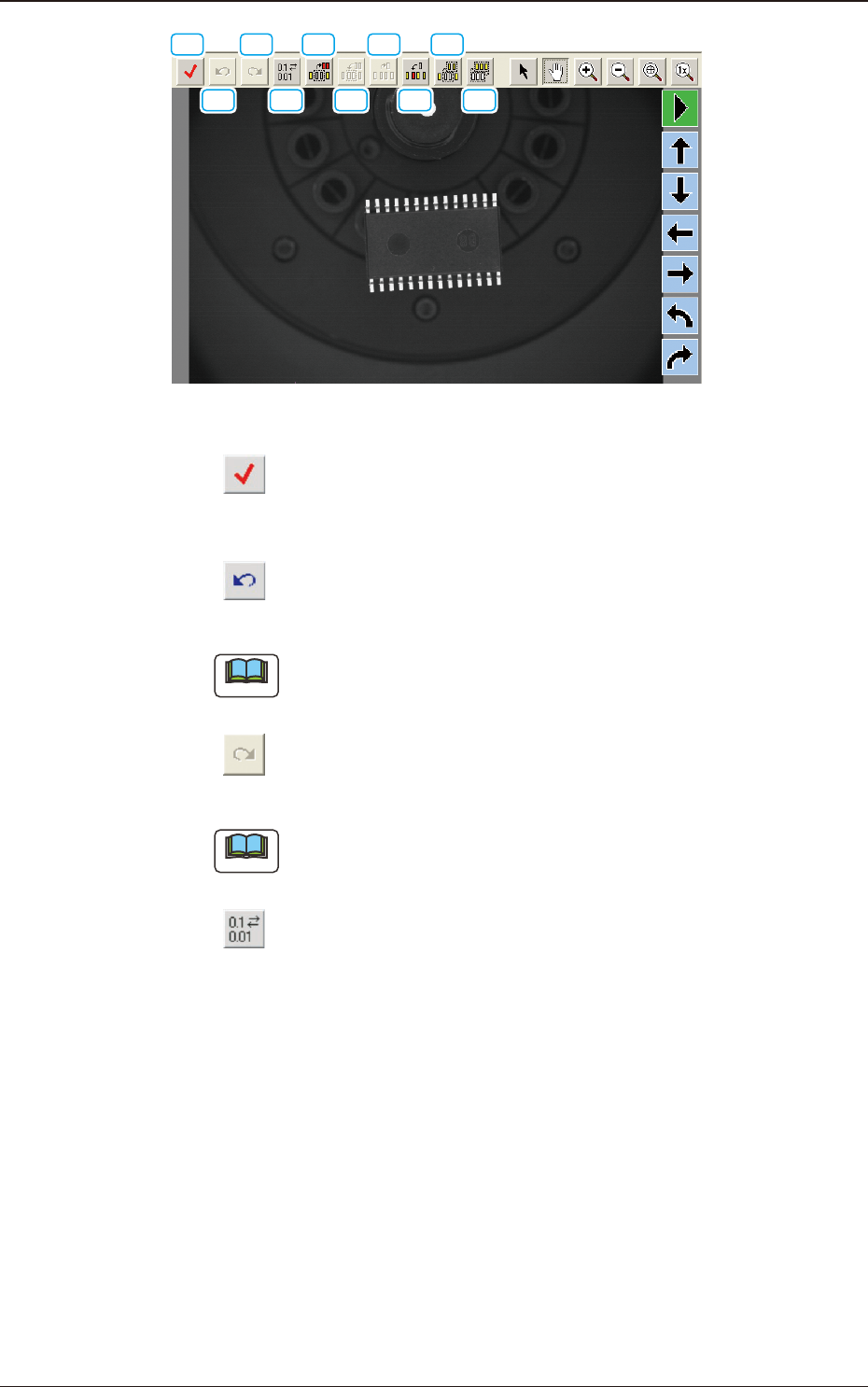
[8]
[9]
[10]
[11]
[12]
[13]
[14]
[15]
[16]
[17]
F2F59
[8] [ ] Button
This checks the created library data.
[9] [
] Button
When this button is pressed, the previous library data item is back.
Note
The component graphic image position is not returned.
[10] [ ] Button
When this button is pressed, the previous library data item is returned.
Note
The component graphic image position is not returned.
[11] [ ] Button
This opens a data round-up dialog, making it possible to round up the data
based on the specied unit of measurement.
1303-001
7.3 "COMP RCG" Test Window
2OM-1751
6-68
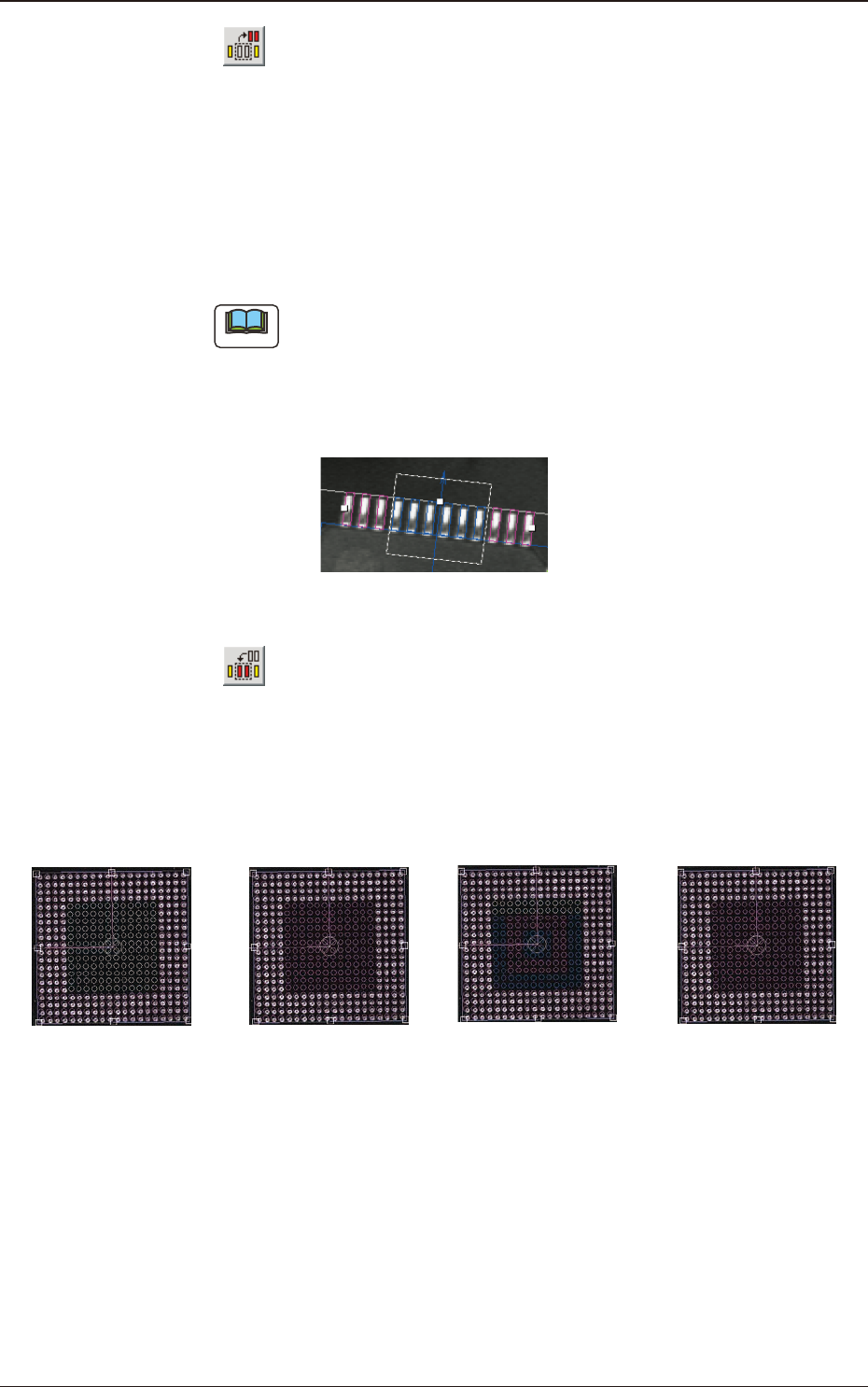
[12] [ ] Button
This species the missing leads and balls.
When you click the lead group or the ball group to be selected as an object
group for missing lead or ball detection, the color of the graphic squares
changes from "Green" to "Yellow", indicating that this button has become
valid.
After clicking the button, enclose the leaded portion to be specied as a
missing area with the track ball as shown below.
Note
When "IC (Simple)", "Connector (Simple)", or "Other Leaded (Simple)"
is selected in the "Component Shape" text box, one place can be specied
for one group. In the case of "IC (Complex)", "Connector (Complex)", or
"Other Leaded (Complex)", up to three places can be specied. In the case
of "BGA/CSP", up to forty places can be specied.
F2F60
[13] [ ] Button
This makes it possible to insert leads and balls into the lead and ball missing
areas.
The condition that validates the button is the same as [12].
For example, this button can be used effectively for such a BGA as shown
below.
→ → →
Specify the missing
area with the
[Missing] button.
Insert balls into
the missing area
with the [Insert]
button.
Specify the missing
area again with the
[Missing] button.
Insert balls again
into the missing
area with the
[Insert] button.
F2F61
1303-001
7.3 "COMP RCG" Test Window
2OM-1751
6-69
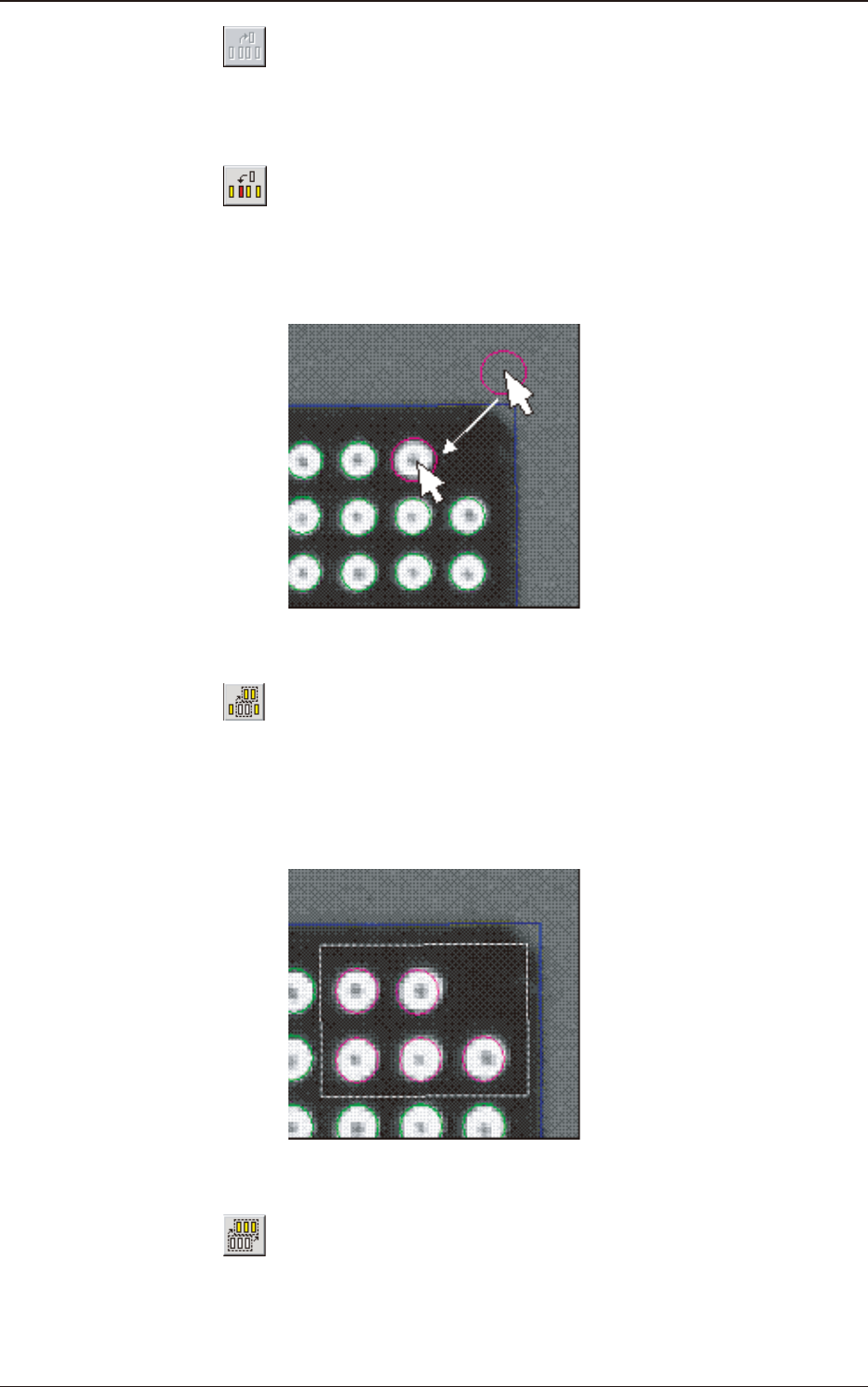
[14] [ ] Button
When selected, this button deletes one electrode.
After pressing this button, click the electrode to be deleted.
[15] [
] Button
When selected, this button inserts one electrode.
After pressing this button, click any area inside the window and drag the
pointer to the place where the electrode should be inserted.
F2F62
[16] [ ] Button
When selected, this button enables you to enclose several electrodes with a
dotted frame for the selection.
This type of selection is useful when several electrodes should be slightly
moved at a time.
F2F63
[17] [ ] Button
When selected, this button selects all electrodes.
This type of selection is useful when all electrodes should be slightly moved
from the mold center.
1303-001
7.3 "COMP RCG" Test Window