00195440-05-SG_D-Series_FSE-EN.pdf - 第277页
16 Annex (FSE) 16.4.6 Settings on SIPLACE Pro Computer 16.4 Backup of Machine D ata Without Disk Drives Student Guide SIPLACE D-Series (FSE) 277 ► In the menu Ba ckup_MachineData Properties (Backup_Maschinendaten Eigensc…
16 Annex (FSE)
16.4 Backup of Machine Data Without Disk Drives 16.4.1 Error / problem
276 Student Guide SIPLACE D-Series (FSE)
16.4
16.4 Backup of Machine Data Without Disk Drives
Backup of Machine Data Without Disk Drives
16.4.1
16.4.1 Error / problem
Error / problem
With the introduction of the CPU assembly “SMP 16-CPU086“ (BOX PC), there is no longer a disk drive
or CD/DVD burner available at the station. Machine data backup or restoration can therefore not be per-
formed with external data carriers at the station.
16.4.2
16.4.2 Backup with Data Network
Backup with Data Network
The backup or recovery of data is performed via a network, to a folder (e.g. on the SIPLACE Pro com-
puter), which the service staff have set up for you!
Select the folder which was set up for your machine, on the required computer in the SIPLACE Pro net-
work.
16.4.3
16.4.3 Backup of Machine Data on CD
Backup of Machine Data on CD
An external CD-RW drive is supplied with D and X machines. The SITEST backup function allows you
to select this CD drive for the backup. Select the CD drive shown for the station computer.
16.4.4
16.4.4 Machine Data Backup with the Fast SYSTEM Recovery Software Option
Machine Data Backup with the Fast SYSTEM Recovery Software Option
This software option enables you to store the station machine data at a computer in the network, with
appropriate comments.
16.4.6
16.4.6 Settings on SIPLACE Pro Computer
Settings on SIPLACE Pro Computer
► Log onto the SIPLACE Pro computer as administrator.
► In partition D (or C, if the hard drive only has one partition), create a new folder and name it
Backup_MachineData (Backup_Maschinendaten) .
NOTICE
German menu names shown in brackets.
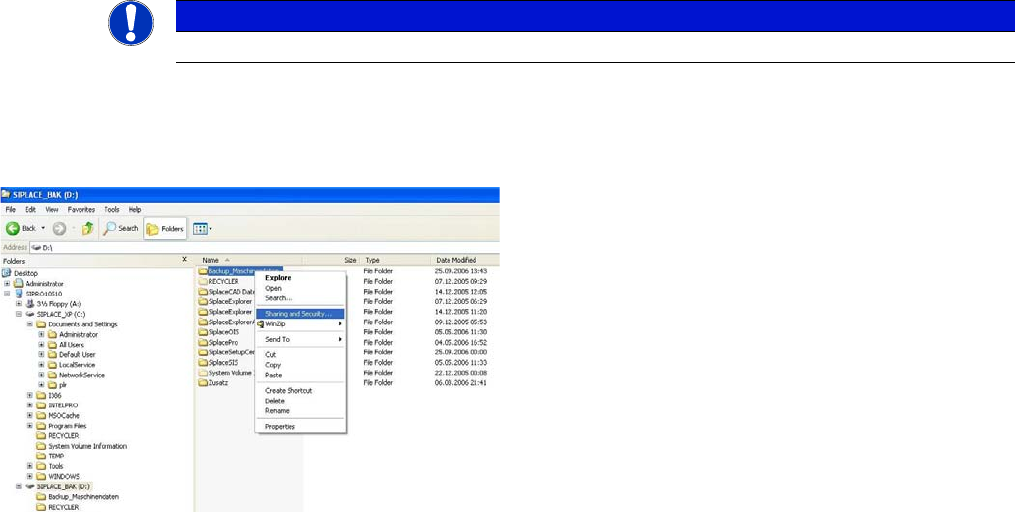
► Release this folder for the network. Right-click with
the mouse to highlight the Backup_MachineData
(Backup_Maschinendaten) folder and open the Shar-
ing and Security (Freigabe und Sicherheit)...menu:
16 Annex (FSE)
16.4.6 Settings on SIPLACE Pro Computer 16.4 Backup of Machine Data Without Disk Drives
Student Guide SIPLACE D-Series (FSE) 277
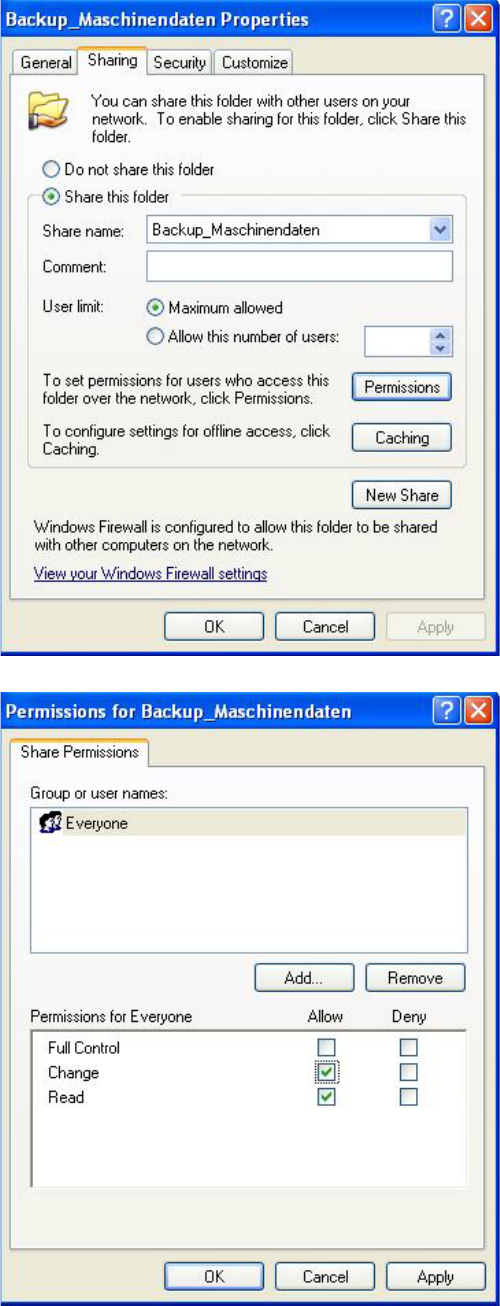
► In the menu Backup_MachineData Properties
(Backup_Maschinendaten Eigenschaften) (Proper-
tiesand the tab Sharing (Freigabe).
Press Share this folder (Diesen Ordner freigeben) to
release this folder for network access:
► Click on Permissions for Backup_MachineData (Be-
rechtigung) to set the access rights.
► In the menu Permissions for Backup_MachineData (
Permissions für Backup_Maschinendaten) select
group Everyone (Jeder) and activate the permission
Change (Ändern):
► Click twice on the OKbuttons to accept the settings.
16 Annex (FSE)
16.4 Backup of Machine Data Without Disk Drives 16.4.7 Settings at Station Computer
278 Student Guide SIPLACE D-Series (FSE)
16.4.7
16.4.7 Settings at Station Computer
Settings at Station Computer
► Switch over to the operating system at the station computer.
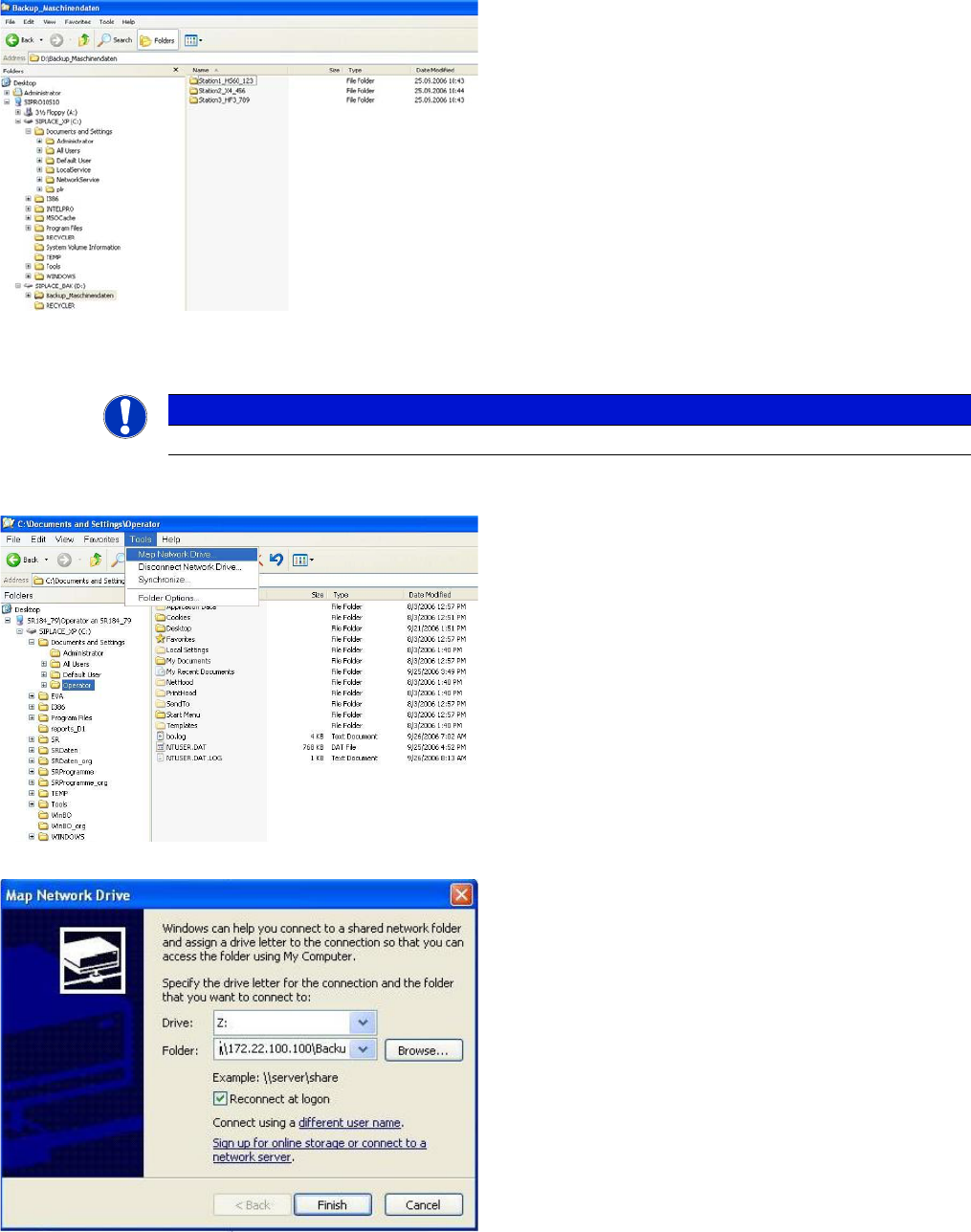
► Now go to the Backup_MachineData
(Backup_Maschinendaten) folder and create a sub-
folder for each station.
Each subfolder will be assigned the station name by
SIPLACE Pro:
NOTICE
German menu names shown in brackets.
► Select Windows Explorer → Tools (Extras) → Map
Network Drive (Netzlaufwerk verbinden) . . .:
► In the Map Network Drive (Netzlaufwerk verbinden)
You will see the line Folder: (Ordner:), with the com-
plete path for the corresponding subfolder on the
SIPLACE Pro computer, in the following format:
\\IP-Address SIPLACE Pro comput-
er\Backup_Machine Data\Name subfolder
(example: \\172.22.100.100\Backup_Machine Da-
ta\Station1_HS60_123).
The standard settings for Drive Z (Laufwerk: Z:) and
Reconnect at logon (Verbindung bei Anmelden wie-
derherstellen) will be accepted by the system.
► Click on the Terminating the Program (Beenden) but-
ton to establish the connection to the SIPLACE Pro
computer: