Oxford-100-Cryo-DRIE-SOP-in-PDF-Format.pdf - 第5页
Oxford 100 Cryo DRIE SOP Page 5 of 10 Revision 1-060810 7.2 Etching Si with a Photoresist Mask 7.2.1 Click Process button. See Figure 3, Pump Controls Page . 7.2.2 Select Chamber 1. 7.2.3 Verify that the “ignore to leran…
Oxford 100 Cryo DRIE SOP Page 4 of 10
Revision 1-060810
System
Button
Process Buttton
Load Lock
Controls
Evacuate
Stop
Vent
Main
Chamber
Controls Do
Not Touch
Load Lock
Icon
Main
Chamber
Icon
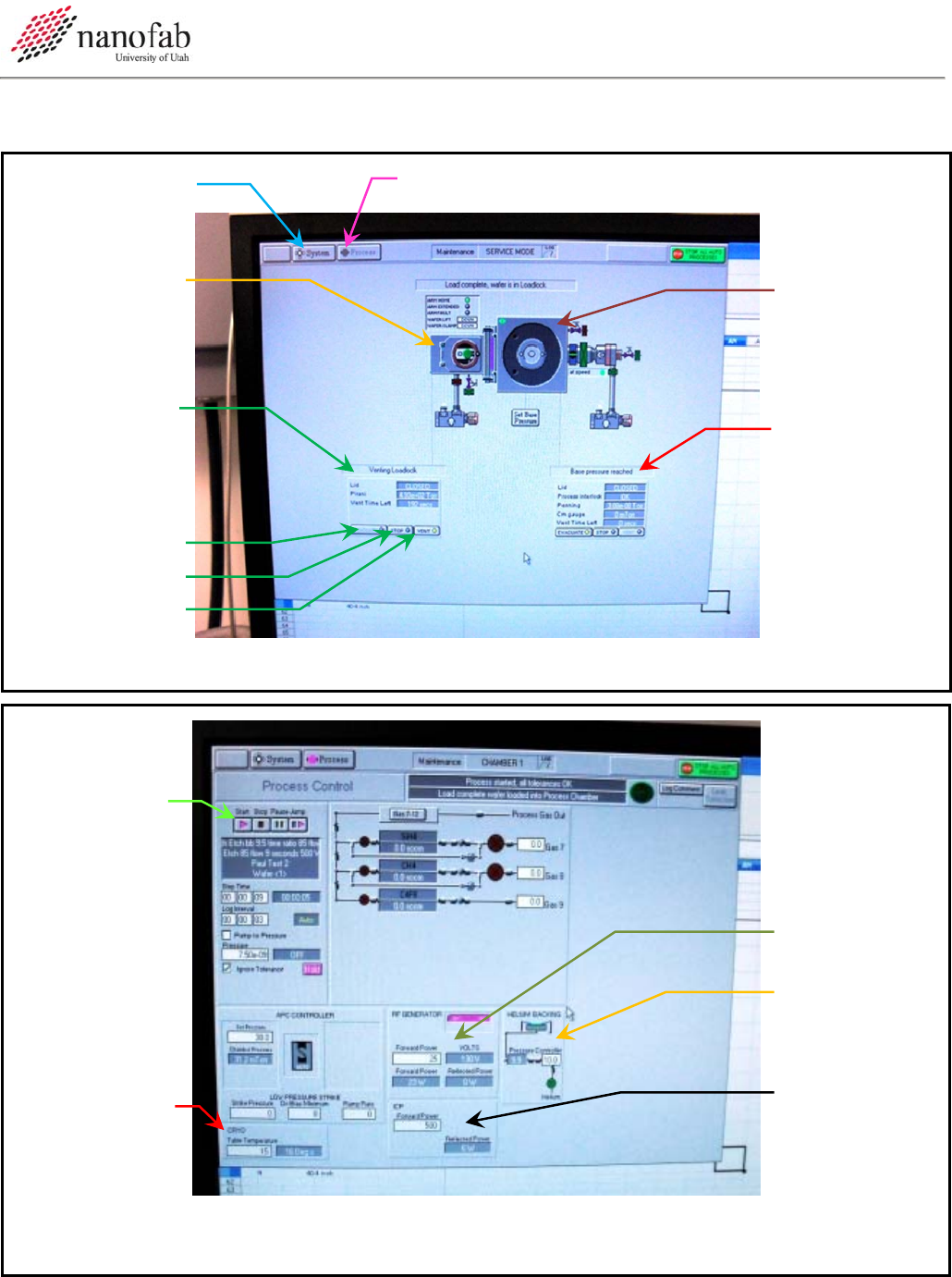
Figure 3, Pump Controls Page
Start Button
RF Power
He Backing
Pressure
ICP Power
Tem
p
erature
Figure 4, Process Controls Page

Oxford 100 Cryo DRIE SOP Page 5 of 10
Revision 1-060810
7.2 Etching Si with a Photoresist Mask
7.2.1 Click Process button. See Figure 3, Pump Controls Page.
7.2.2 Select Chamber 1.
7.2.3 Verify that the “ignore tolerances” box is checked.
7.2.4 The temperature should be -120 C. See Figure 4, Process Controls Page.
7.2.5 Allow the chamber to pump down to ~1x10^-6 T (approx. 15 min).
7.2.6 Set the run time to 20 min.
7.2.7 Set the He backing pressure to 10mT.
7.2.8 Press the Start button. See Figure 4.
7.2.9 Allow He to flow for 3 min.
7.2.10 This should give a chamber pressure of 1-5x10^-5T.
7.2.11 Set the SF6 to 34.5sccm and the O2 to 5.5sccm.
7.2.12 Press the Start button.
7.2.13 The pressure should now be 3-6mT.
7.2.14 The pressure set point should be 0mT.
7.2.15 Set your desired etch time.
7.2.16 Set the RF power to 35W and the ICP power to 500W.
7.2.17 Click the Start button to begin your process.
7.2.18 Once the plasma ignites, immediately change the RF power to 5W.
7.2.19 Click Start button.
7.2.20 If plasma does not strike, stop the process and repeat steps with a higher striking RF power.
7.3 Control the Etch Profile
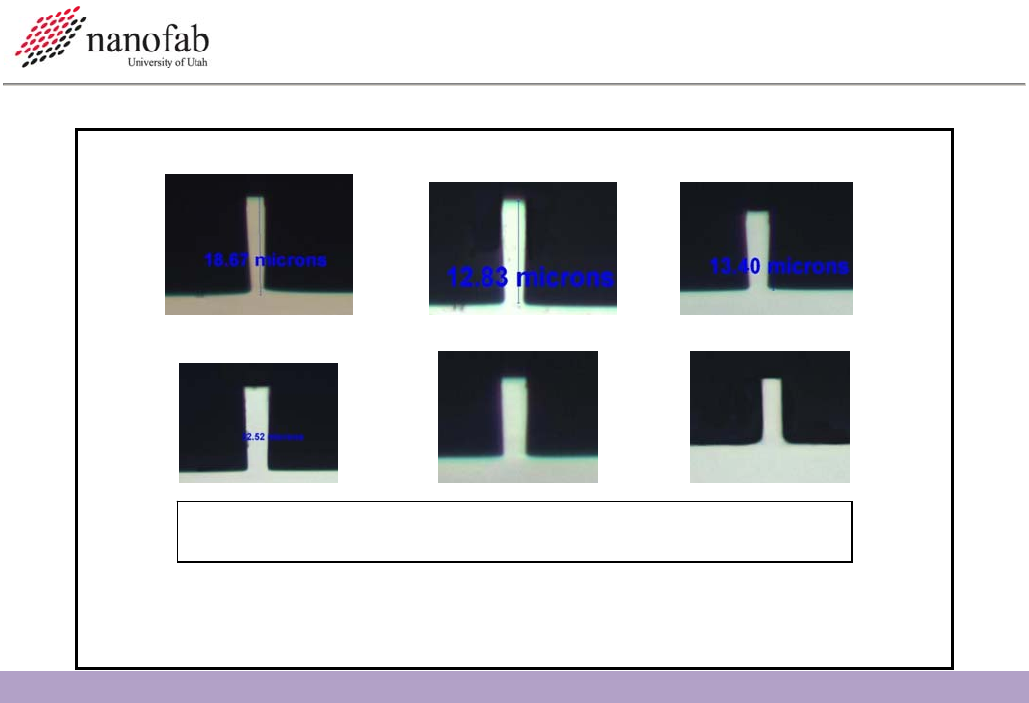
7.3.1 The etch profile can be controlled by adjusting the SF6 flow rate in the above recipe.
7.3.2 Increasing the SF6 will create a negative profile while doing the opposite creates a positive
profile. See Figure 5.
Oxford 100 Cryo DRIE SOP Page 6 of 10
Revision 1-060810
8. Shutdown Procedures
8.1 Vent Load Lock
8.1.1 Click OK when the software says “Process completed”.
8.1.2 Vent load lock.
8.1.2.1 Press stop button corresponding to the load lock mechanical pump.
8.1.2.2 Click ok when it says “Wafer has finished processing”.
8.1.2.3 Press vent button. See Figure 3.
8.1.2.4 Wait 3 min. for the load lock to vent.
8.1.3 Pull up to open load lock lid. Do not force it open, once it is vented it should open easily. If it
does not open easily, press stop, then vent, and wait 3 minutes again.
8.1.4 Press stop button to stop venting.
8.1.5 Remove wafer.
8.2 Shutdown System
8.2.1 Close valve on liquid nitrogen tank.
8.2.2 Turn off the chiller.
8.2.3 Pump down load lock.
8.2.3.1 Close load lock lid.
8.2.3.2 Select the evacuate button.
8.2.3.3 Press ‘cancel’ when software asks for ID #.
a)
b)
c)
e) f)
d)
Change in etch profile as a function of SF
6
. a) SF
6
=37, b) SF
6
=36, c) SF
6
=35, d) SF
6
=34, e)
SF
6
= 33, and f) SF
6
=32 sccm.
Figure 5, Etch Profile