OperatorManual - 第11页
Setup recipe or product offline To setup products or recipes offlin e, go to the main menu and select F ile, R eci p e/Product editor . This will bring you in the offline editor. A drop down list box containing the curre…
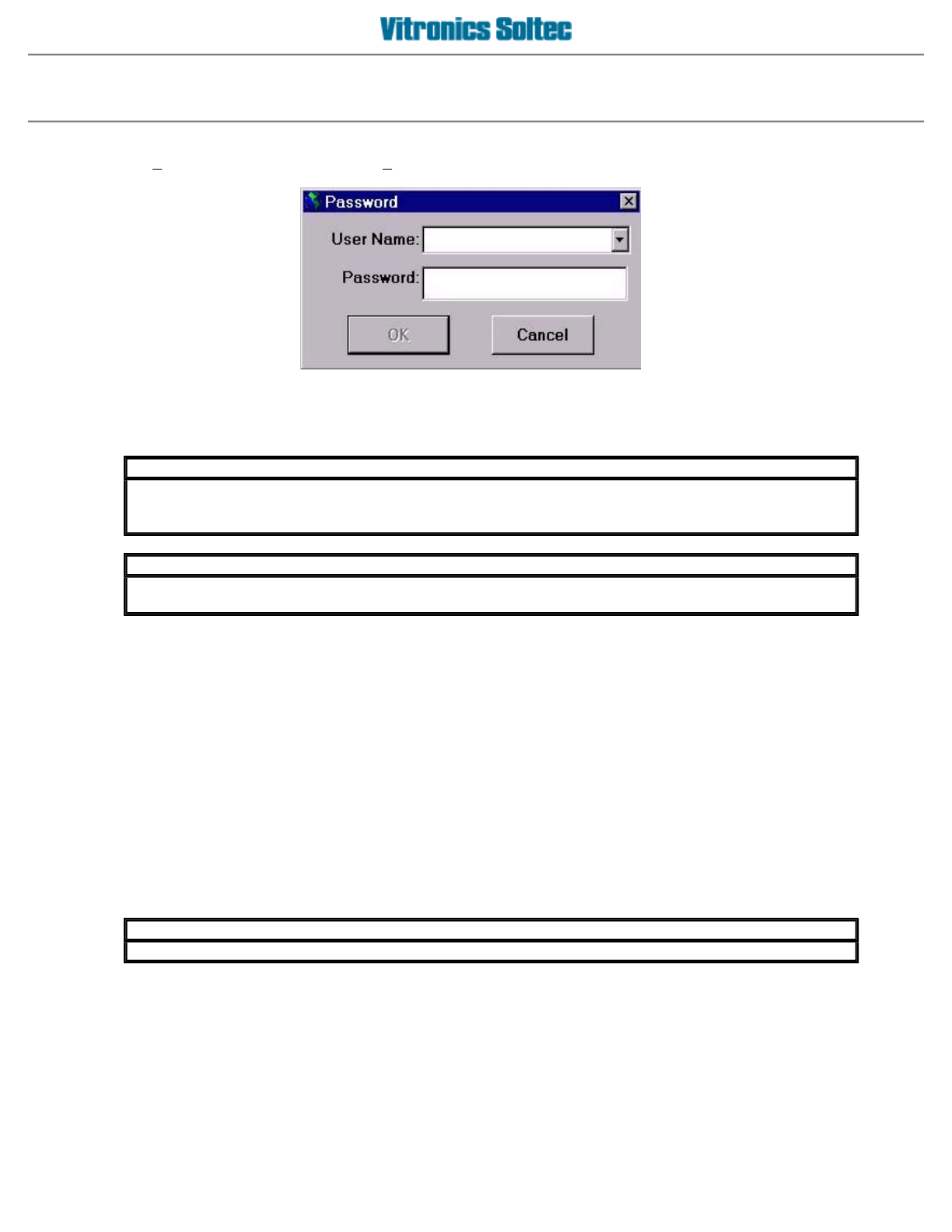
The login function
The
L
ogin option is located under the
F
ile menu.
A
s a user, you can 'login' to the system with your user name and password. Once logged in, the user has access
to the program functions that are set in their user privilege settings without requiring further password entry.
Click on the
[File][Login]
menu again to log out immediately or you will be logged out automatically after
approximately 10 minutes of mouse inactivity.
The working principle of the password system
The password system allows the creation of individual user accounts. Each user can have their own password
along with their own set of program functions (privileges) that they are allowed to access.
Nearly every program function can be setup to require or to not require a password before accessing the
function. This allows the program to be customized by configuring which program functions are available to each
user. It also allows specific program functions or all program functions to be made available to all users without
requiring a password entry.
When you create a new user account in the system, you setup a password for the user, and then setup the
user's privileges. During the setup of the privileges, you can program which functions of the program a user will
be allowed access with their password. In practice, this means that you could have one user that is only allowed
to start/stop the machine, and another user that is only allowed to reset the alarms.
The "system" user name is the 'master' user and can not be deleted. Privileges can not be changed for the
"system" user name, which has full access to all program functions, except for certain 'Vitronics-Soltec' service
mode functions.
IMPORTANT
Even if you are logged in, you can not access program functions that you are restricted from
using through your user privilege settings. The only exception applies to program functions with
p
assword control settin
g
s of no.
IMPORTANT
The current user will be automatically logged out after the mouse has not been in use for
a
pp
roximatel
y
10 minutes.
IMPORTANT
It is
p
ossible to use the same
p
assword for multi
p
le user names.
Operator manual 10 August 2003
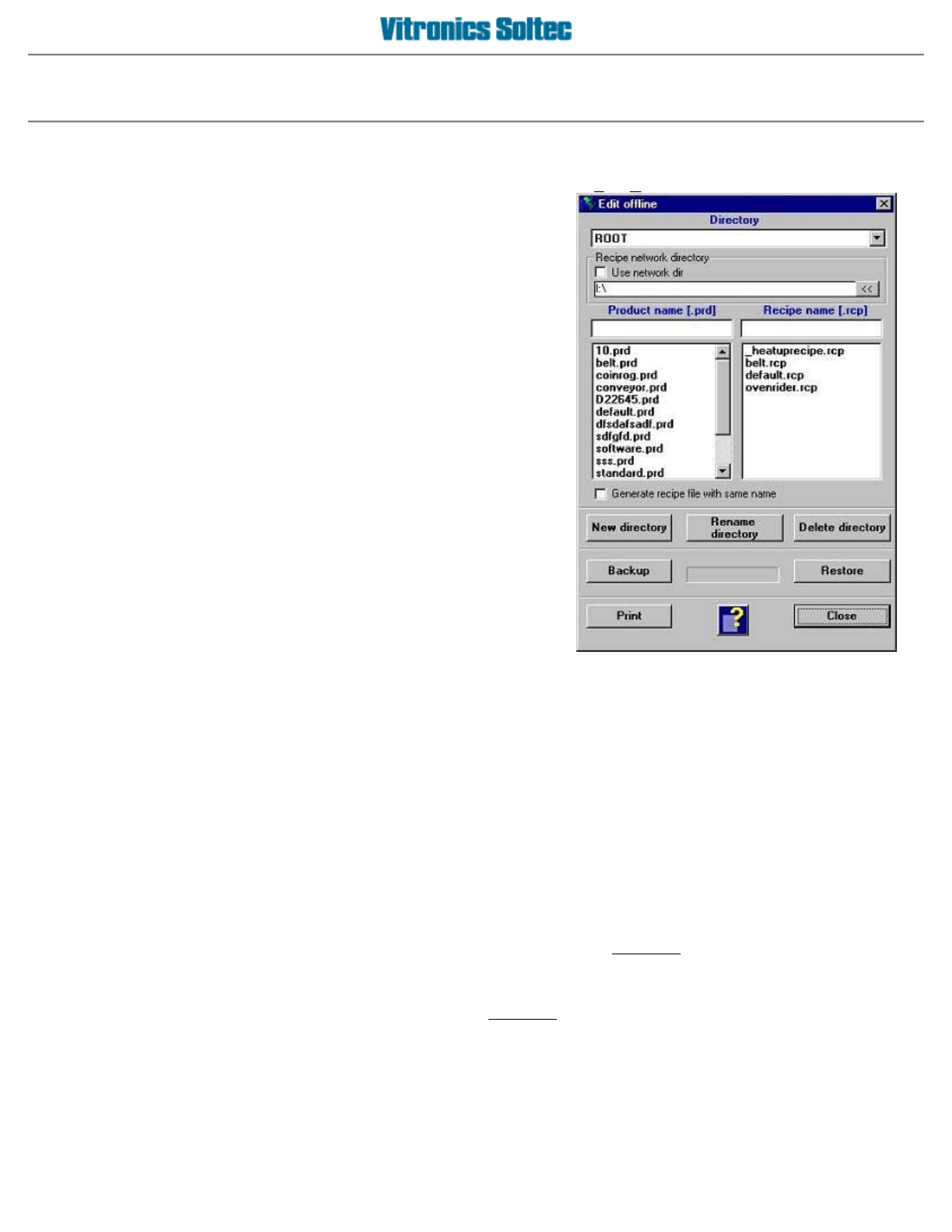
Setup recipe or product offline
To setup products or recipes offline, go to the main menu and select
F
ile, Reci
p
e/Product editor
.
This will bring you in the offline editor. A
drop down list box
containing the current directory is displayed at the top of the
dialog box.
A
t the bottom of the product/recipe editor the following
command buttons
are available:
z
New directory
- If you select this option, you will be prompted to enter a new directory name.
After a confirmation and a validity check, the new directory will be added to the directory list,
and also to the Windows registry.
z
Rename directory -
Rename the current directory.
z
Delete directory
- Delete the current directory. The directory must be empty (no products and
recipes) in order for it to be deleted.
z
Backup
- This command creates an archive copy of the
complete
product/recipe directory
structure and it's contents. The files are stored to a floppy disk using a compressed format.
z
Restore
- This command restores the
complete
product/recipe directory structure and its archive
contents from a backup floppy disk, uncompressing the files.
z
Print
- Print a complete list of all the products and recipes, per directory.
z
Close
- Close the offline editor.
Operator manual 11 August 2003
IMPORTANT
Because the oven software application uses the Windows registry to manage Directories, you
should only create/delete or rename directories through this application!
setu
p
a reci
p
e or
p
roduct OFFLINE
Below the directory box there are two
panels
which show the products and recipes that are present in the
current directory. If you right click your mouse when you are in one of the panels, a popup menu appears where
you can activate product/recipe dependent file actions. The following actions are the same for both recipe and
product files. The available actions are:
z
Edit
- If you select this option, you can view and modify the contents of the selected recipe. You
can also start the editor by double clicking the recipe you want to modify.
z
Send to Floppy (A:)
- Save a recipe to a floppy disk.
z
Copy from Floppy (A:)
- Copy a recipe from a floppy disk.
z
New
- Create a new recipe. The contents of the default recipe are used as initial values.
z
Copy as
- Creates a new recipe with the contents of the selected recipe used as initial
values.
z
Rename
- Rename the selected recipe.
z
Copy Recipe(s)
- Copy the selected recipe(s) to the clipboard.
z
Paste Recipe(s)
- Paste the selected recipe(s) from the clipboard.
z
Delete
- Delete the selected recipe(s). You will be prompted as a safety check for each file that
you want to delete.
IMPORTANT
It is possible to copy/paste products and recipes at the same time. The product list and the recipe
list each have their own clipboard. This is useful when you want to copy a set of products and
reci
p
es to a new director
y
.
Below the product/recipe panels there is a
checkbox
which will enable, the automatic creation of a new recipe
with the same name when you create a new product (if checked).
The default recipe
The default recipe has settings provided by Vitronics Soltec that can be used as a good starting point for initial
machine setup. The default recipe is located in the ROOT of the recipe directory .
Operator manual 12 August 2003