OperatorManual - 第16页
You can make the selection process faster by clicki n g the advanced button when you are in the choose recipe/product step. If you press the A dvanced button, you will enter a window with a checklist, w here you can make…
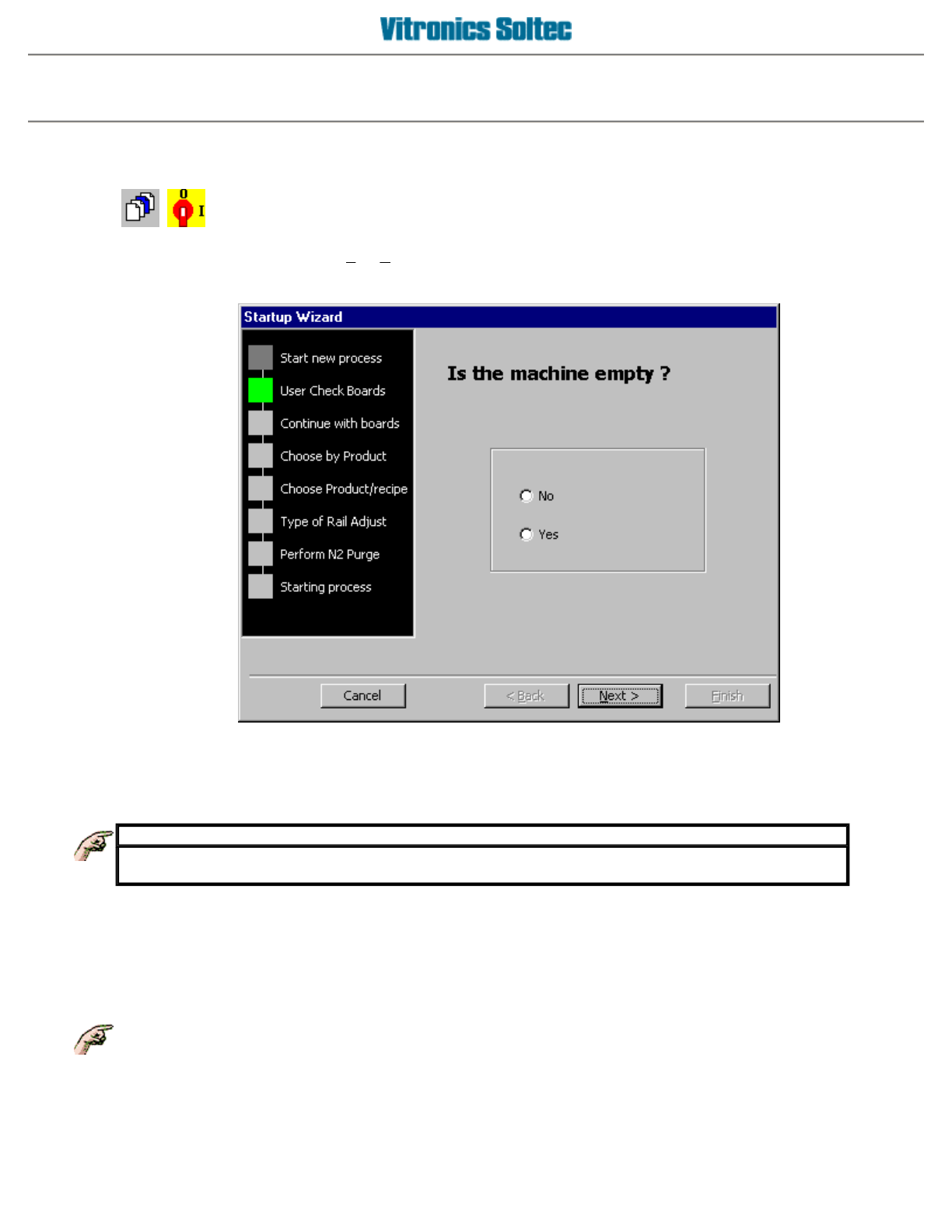
Start a process
SELECT and START a process (Product Or Recipe)
Go to the main menu and select
F
ile,
S
tart new process or click on the oven power switch.
You will enter the Startup Wizard that will guide you through the selection process.
IMPORTANT
If you decide to start the oven by selecting a recipe, the default product will be used. Board
information as described in the default
p
roduct will a
pp
l
y
.
The choosing of a recipe or product will always be the central (or only!) part of the wizard. If you are in one of the
two steps, you have the possibility to choose a recipe/product from another directory, by selecting a directory
from the drop down list box. On ovens with a rail or combination conveyor, the display will ask about adjusting
the rail width. If the answer was
YES,
the rail width can be adjusted manually using the manual selector
switches at the Off-load end of the oven.
On ovens with the "automatic rail width adjustment option", the rail width adjustment begins after the
Operator selects Start.
Operator manual 15 August 2003
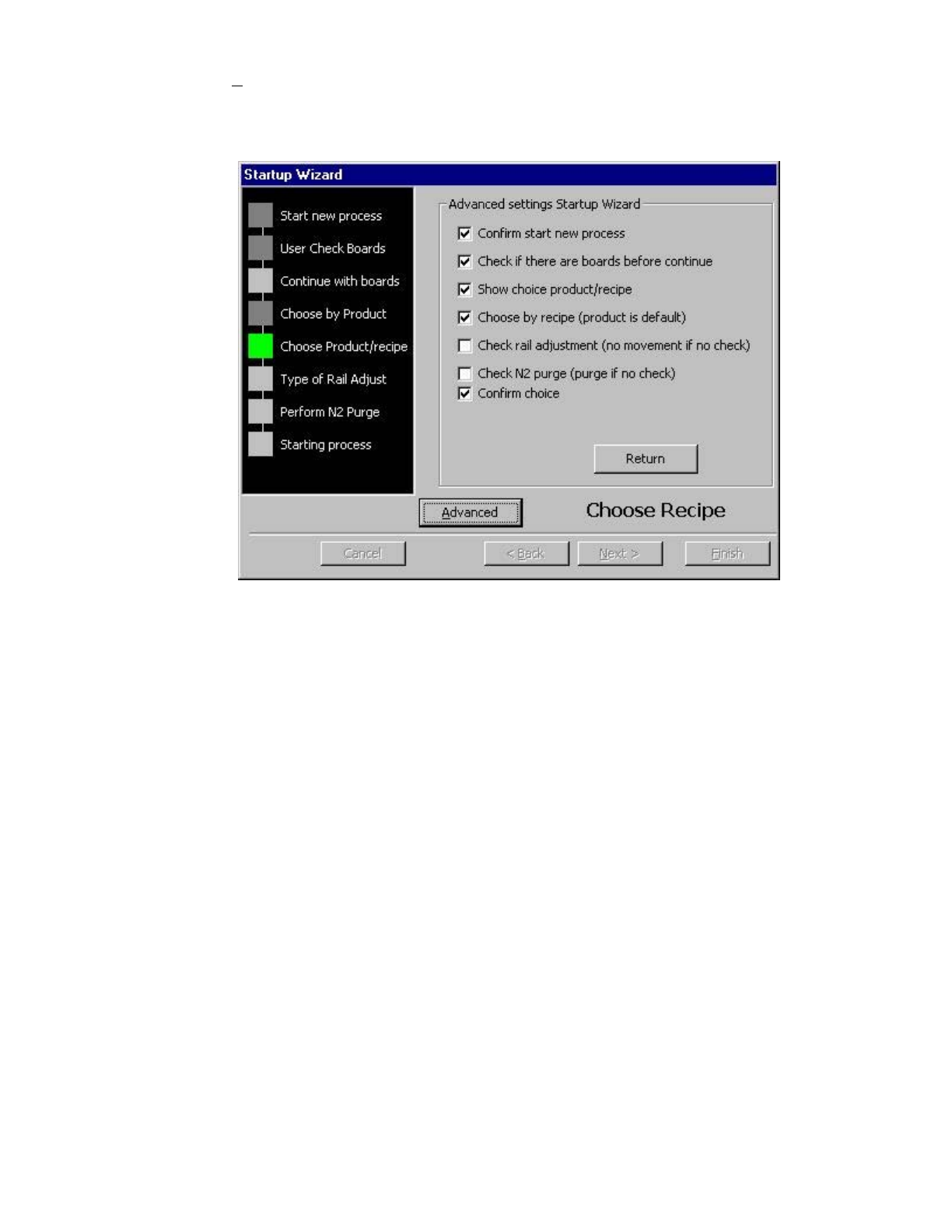
You can make the selection process faster by clicking the advanced button when you are in the choose
recipe/product step.
If you press the A
dvanced button, you will enter a window with a checklist, where you can make a choice of
steps you want to override. If a choice is unchecked, that step will be skipped.
A
special checkbox is the box
"Choose by recipe (product is default)"
. When this checkbox and the
"Show
choice product/recipe"
checkbox are unchecked, you can only select a recipe as the default choice.
Operator manual 16 August 2003
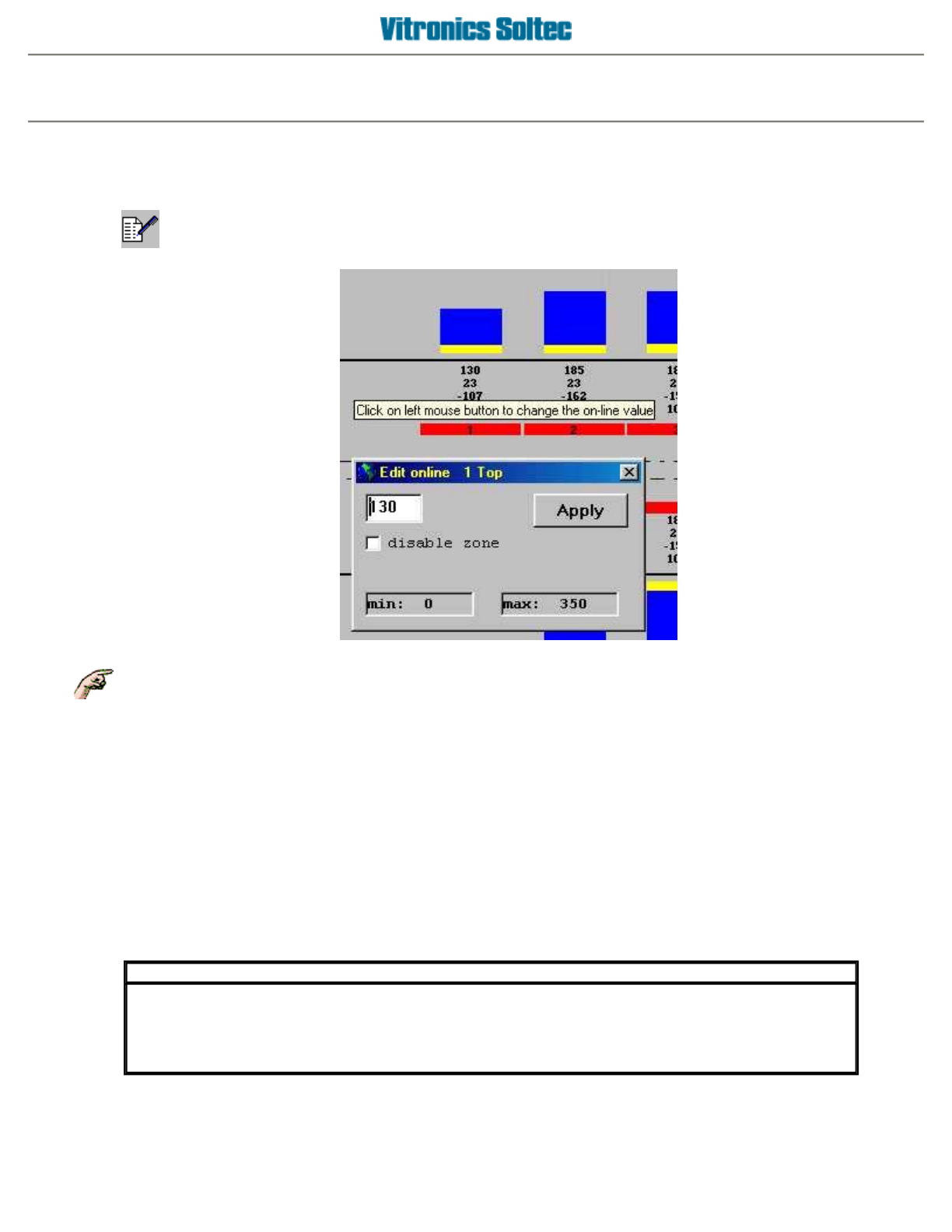
Edit online
ONLINE EDITING OF RECIPE AND PRODUCT PARAMETERS
Changes made to a running RECIPE will affect
all
PRODUCTS using that RECIPE!!
Click the
Edit online icon
on the icon bar on top of the main screen. This is the icon towards the right of the
screen with a pencil image, which toggles edit online mode on and off.
The edit online icon will appear as depressed on the screen while edit online mode is active. In edit online
mode, the mouse cursor shape changes to a pencil when moved over one of the oven parameter set points that
can be edited. Left click the mouse when the pointer shape is a pencil to open an edit window to modify the set
point at the cursor.
A
set point value can be entered in the edit window, and this value is validated against the parameter's set point
boundaries when the
Apply button
is clicked. Click the
Apply button
to validate the entered set point value. If
the entered set point value is within the parameter's set point boundaries then it is sent to the oven controller,
which modifies the current oven process. Otherwise an out of boundary error message is displayed, and the
entered value is ignored.
IMPORTANT
Set point changes made in edit online mode are only sent to the oven controller, and are
temporary until the changes are saved to a recipe file. Online changes should be saved to a recipe
file once you are satisfied with the results. A prompt message to save changes is displayed when
edit online mode is terminated and changes were made.
Operator manual 17 August 2003