80S-15贴片机.pdf - 第457页
10 Si plac e G au tom atic g lue ap plic ator SIPLA CE 80 S/80 F/G Servi ce Ma nua l Ed itio n 06 /98 10 - 24 Settings (from l eft to r ight) Reason f or sett ings Determ ine ze ro offset for a xis z1, z2, z3 Check / set…
10 Siplace G automatic glue applicator SIPLACE 80S/80F/G Service Manual
Edition 06/98
10 - 20
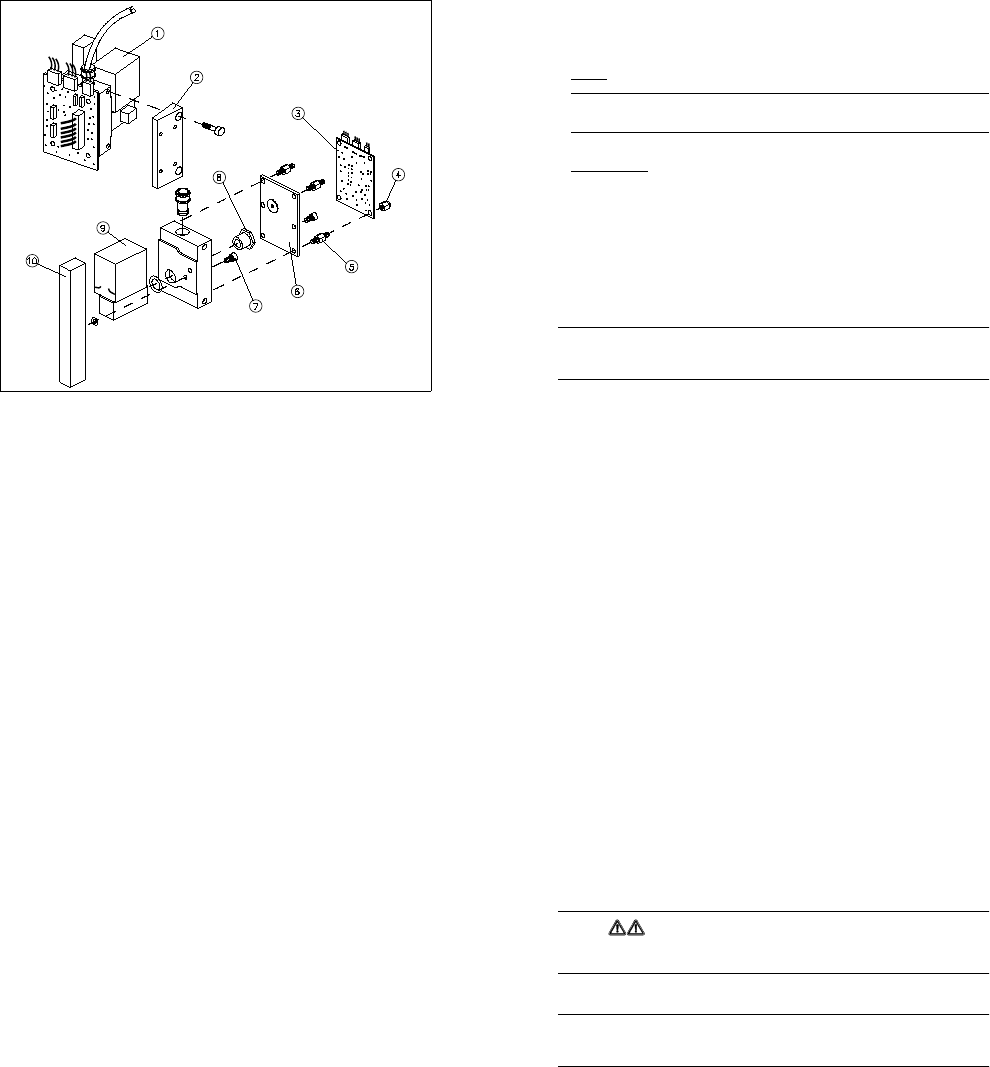
Fig. 10.2.6 Overview: Replacing the dispensing valve (glue application head 2)
Key to Fig. 10.2.6
1 Complete dispensing pressure unit
2 Separator
3 Conversion board for gluing head Y0052 (gluing head board)
4 Cap nut (4 x for fixing the gluing head board)
5 Spacer bolts
6 Cover
7 Drilled fixing screw for the dispensing pressure unit
8 Fixing screw for the air relief valves
9 Air relief valve
10 Dispensing valve
SIPLACE 80S/80F/G Service Manual 10 Siplace G automatic glue applicator
Edition 06/98
10 - 21
10.2.7.2 Installation
● Screw the new air relief valve firmly to the dispensing pressure unit. Replace the seal at the same time.
● Fit the new dispensing valve. Align it carefully against the installation marks. Screw the fixing screw with
the hole drilled through it into the hole you marked. Replace the seal at the same time.
● Replace the cover on the dispensing pressure unit. Align it carefully against the installation marks.
ALWAYS
replace the cover gasket.
PLEASE NOTE
The long threads of the spacer bolts are screwed into the dispensing pressure unit.
● Place the dispensing pressure line back on the dispensing pressure unit.
● Gluing head 2 only: Fit the separator on the dispensing pressure unit once more.
● Replace the gluing head board on the dispensing pressure unit. As you do so, carefully push the connect-
ing tube of the dispensing pressure sensor into the dispensing pressure unit. Then tighten the four cap
nuts. Do not forget the washers.
● Check the seals of the dispensing pressure unit (see Section 10.3).
● Fit the entire dispensing pressure unit on the glue application head once more.
● Reconnect the three plugs for controlling the dispensing valve/air relief valve to the gluing head board.
10.2.8 Replacing the reed switch/heat exchanger
PLEASE NOTE
On the glue application head, the heat exchanger, ribbon cable and reed switch form a single unit. Conse-
quently, the heat exchanger, ribbon cable and reed switch must all be replaced at the same time.
● Disconnect the ribbon cable of the heat exchanger from the gluing head board.
● Loosen the fixing screws (2 x M2 hexagon socket-head screws) to remove the two retaining plates from
the ribbon cable.
● Loosen the fixing screws on the heat exchanger (2 x M3 hexagon socket-head screws). Remove the heat
exchanger together with the reed switch and ribbon cable.
● Screw the new heat exchanger to the glue application head, pressing the heat exchanger down onto the
stop as you do so.
● Fit the two retaining plates on the ribbon cables. Make sure that the ribbon cable is laid correctly, so that
the z axis cannot be damaged if it moves.
● Connect the ribbon cable to the gluing head board once more.
● Carry out all the position corrections described under "Replacing the glue application head". See also the
PLEASE NOTE box in Section 10.2.3.2 "Installation".
10 Siplace G automatic glue applicator SIPLACE 80S/80F/G Service Manual
Edition 06/98
10 - 22
● Check the settings of the temperature sensors for the new heat exchangers. Adjust the temperature sen-
sor, if necessary (see Section 10.3).
● Once you have completed the settings, carry out a short functional test of the new reed switch/heat
exchanger.
SIPLACE 80S/80F/G Service Manual 10 Siplace G automatic glue applicator
Edition 06/98
10 - 23
10.3 Settings on the SIPLACE G automatic glue appli-
cator
10.3.1 Overview
This chapter describes the settings for the SIPLACE G glue application heads. Always follow the safety
instructions in Section 10.2.1 when changing the settings.
WARNING
Many of the settings are changed using the SIKLEBER test program. The SIKLEBER test program must only
be used by authorized Siemens AG personnel who have been trained in the use of the program.
The description of the settings relates to version 5.xx of the SIKLEBER test program.
PLEASE NOTE
Use the "Store MA data" function to check that the data has been saved under the name "REAL.MA". If this is
not the case, modify the file name in the "Name" menu option.
10.3.1.1 Tools required
You will need the equipment listed in this section in order to change the settings of the glue application heads.
- 1 digital multimeter (Multizet)
- 1 four-channel storage oscillograph (a two-channel storage oscillograph could also be used)
- 1 axis testing device
- 1 compressed air measuring device (digital)
- 1 belt tension measuring device
- 1 SIKLEBER test program, version 5.xx
- 1 aluminum test PCB (approximately 250 mm x 350 mm x 2 mm)
- 1 machine zero point gauge
- 1adjusting screwdriver
- 1 set of hexagon socket screw keys
- 1 x diagonal cutter, small
10 Siplace G automatic glue applicator SIPLACE 80S/80F/G Service Manual
Edition 06/98
10 - 24
Settings
(from left to right)
Reason for
settings
Determine zero offset for axis z1, z2, z3
Check / set belt tension
Check / set dynamic response of axis
Check / set temperature sensor
Check / set pressure sensor
Set jumper X12 gantry 1
Set jumper X29 gantry 1
Set ambient temperature sensor
Distance scale - scanning head 0.4 mm
±
0.05mm
Set track signals X1 axis
Set track signals Y1 axis
Replacement of motor z1, z2, z3 X X
Replacement of motor x2, y2 X X
Replacement of toothed belt x2/, y2 X X
Replacement of heat exchanger X
Replacement of DE1, DE2, DE3 X X X
Replacement of scale / scanning head X1 X X
Replacement of scale / scanning head Y1 X X
Replacement of small axis conversion board
(Y0055)
XX X
Replacement of large axis conversion board
(Y0004)
XX
SIPLACE 80S/80F/G Service Manual 10 Siplace G automatic glue applicator
Edition 06/98
10 - 25
Calibration
(from left to right)
Reason for
calibration
Calibrate mini-gantry
Calibrate PCB camera
Offset between DE3 and PCB camera
Offset between DE3 and DE1/ DE2
X2 / Y2 mapping
Calibrate machine zero point
Record travel distance X1/ Y1 axis
Calibrate position of calibrating part
Calibrate placement nest
Replacement / assembly of PCB camera X X X X
Replacement / assembly of scale / scanning head
X1/Y1
X
Replacement of dispensing unit 1/2 (DE1 / DE2) X X
Replacement of dispensing unit 3 (DE3) X X X
Replacement of motor z1, z2 X X
Replacement of motor z3 X X X
Replacement of motor x2, y2 X X X
Replacement of toothed belt x2/ y2 X X X
Replacement of heat exchanger DE1 / DE2 X X
Replacement of heat exchanger DE3 X X
Change of calibrating part position: standard/ right /
left conveyor
X
Replacement of stopper, clamping rail, fixed side of
conveyor
X
10 Siplace G automatic glue applicator SIPLACE 80S/80F/G Service Manual
Edition 06/98
10 - 26
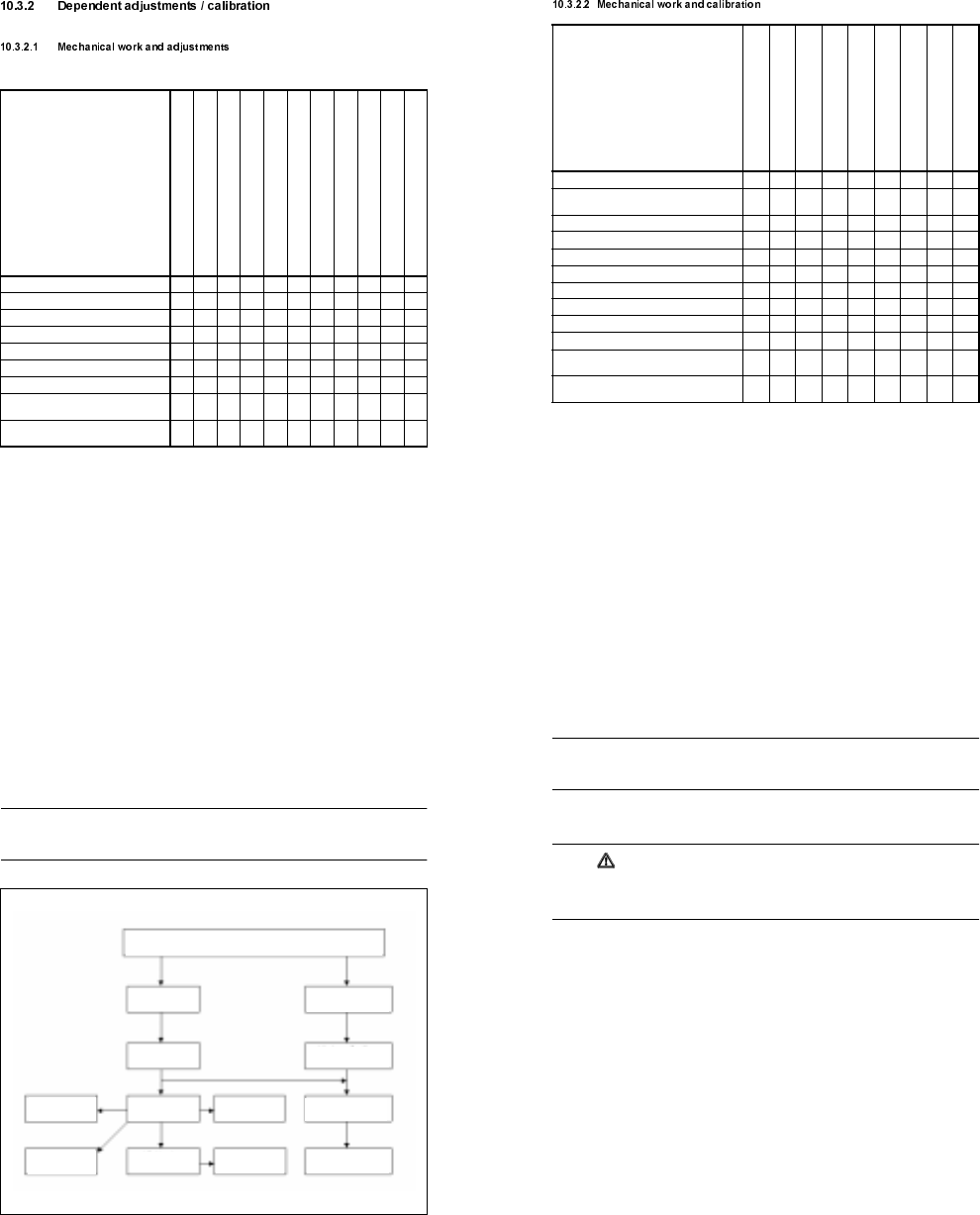
10.3.3 Adjusting the zero points
When certain components of the SIPLACE G are replaced, the machine must be measured again. Partial or
full calibration of the machine may be required. The following overview shows the order and interdependen-
cies of the individual calibration procedures (see Fig. 10.3.1). Important note: Before carrying out any calibra-
tion procedures, always check which procedures are required. For example, the PCB camera must be
calibrated before the offset between the PCB camera and glue application head 3 may be recorded.
PLEASE NOTE
The reference point for all offset calculations is the fixed glue application head 3. The machine can be mea-
sured more quickly if an aluminum test PCB is moved crosswise onto the center conveyor.
Fig. 10.3.1 Order for calibrating/setting the SIPLACE G
PCB camera
offset to head 3
Machine
zero point
Min./max. position
of X1/Y1 axes
Calibrating
the PCB camera
Automatic
width adjustment
PCB mapping
D3 mapping
Mapping of
X2/Y2 axes
Min./max. position of
X2/Y2 axes
Position of pos. cali-
bration tool
Zero point correction of Z1, Z2 and Z3 axes
Zero point correction of
X2/Y2 axes
Offset of heads 1 and 2
to head 3
SIPLACE 80S/80F/G Service Manual 10 Siplace G automatic glue applicator
Edition 06/98
10 - 27
10.3.3.1 Zero point correction for the z axes
PLEASE NOTE
The zero point correction for the z axis(es) must be carried out before all other settings. A zero point correc-
tion is always required when the cam disc is released.
● Before the reference run for the z axis, release the cam disc and then clamp it lightly. To do this, loosen the
clamping screw on the hub of the cam disc and then tighten it again manually.
CAUTION
The cam disc must be released before the reference run. In the event of a wiring error (e.g. tacho confused
with motor), the axis can run away at full speed and damage the Z axis carriages. It is also possible for the
zero reference mark to be behind the cam disc, in which case the z axis would lie against the end stop.
● Load the SIKLEBER test program. Please read the warnings at the start of this chapter.
● Connect the axis testing device to the Z axis board. On the axis testing device, select the display for the
corresponding z axis.
● Set the zero point correction for the z axis to a provisional value of 10 digits. To do this, select the "Axes"
menu, followed by "Z axis ...", then "Change axis data", then "Positions" and then "Zero point correction".
● Start a reference run for the z axis by selecting the "Run axis reference" option. Press the Return key to
start the Z axis direct-drive motor running clockwise.
● Switch the z axis off briefly and then on again at the axis board. The motor will then reverse its direction of
rotation and search for the zero pulse. Once it finds the zero pulse, the axis board will set the ACTUAL
position counter to -10 digits (negative zero point correction). The reference point has been reached when
the counter position = 0 (end signal).
● Turn the cam disc counterclockwise as far as the stop (with the nose of the cam disc lying against the top
ball bearing).
● Set the z axis to 680 digits. The cam disc can still be easily clamped.
● Switch off the servo and carefully move the cam disc until the clamping screw on the hub is easily accessi-
ble. Tighten the clamping screw with an Allen key.
● Ensure that the cam disc is aligned centrally with respect to the top and bottom ball bearings.
● If the position of the cam disc on the motor shaft does not change after you tighten the screw, the maxi-
mum travel distance is still 680 digits. Otherwise, enter the precise zero point correction in the machine
data.
● The precise zero point correction can be calculated as follows:
Formula: Actual distance - Desired distance = Difference
Figures: 656 - 680 = -24
Calculation: Prov. ZP corr. + Difference = zero point correction
10 + (-24) = -14

10 Siplace G automatic glue applicator SIPLACE 80S/80F/G Service Manual
Edition 06/98
10 - 28
● Enter the new zero point correction in the machine data. To do this, select the "Change axis data" menu,
followed by "Positions" and then "Zero point correction".
● Carry out a reference point run with the z axis.
PLEASE NOTE
The zero point correction must not exceed ± 50 digits, otherwise the axis will not find the zero pulse or will
move down too far during the reference run.
● Switch off the z axis and turn the cam disc until it reaches the end stop. If the cam disc is adjusted correctly
and if the zero point correction has been determined correctly, the following value will be obtained:
maximum travel distance: 680 digits ± 1 digit.
● Switch the z axis on again.
● Save the machine data.
● Check: the z axis must not drop after the machine is switched off.
● If necessary, carry out the zero point correction for the other two z axes.
10.3.3.2 Zero point correction for the X2/Y2 axis
● Load the SIKLEBER test program. Please read the warnings at the start of this chapter.
● Switch the machine control.
● Carry out a reference run for the three z axes.
● To do this, select the "Axes" menu followed by "Z axis ..." and then "Run axis reference".
● Select the "Gantry positions" menu.
● Select the "Calibrate" menu and then "Calibrate CP". The zero point correction and the maximum and min-
imum positions for the X2 and Y2 axes will then be calculated automatically.
● Check the maximum position of the X2 and Y2 axes. The maximum position must always be larger than
2856 digits (= travel distance 50 mm). To do this, select the "Axes" menu, followed by "X2/Y2 axis", then
"Change axis data" and "Positions".
● Save the machine data.
10.3.3.3 Calibrating the PCB camera
● Load the SIKLEBER test program. Please read the warnings at the start of this chapter.
● Carry out the full reference sequence.
● Select the "Gantry positions" menu from the SIKLEBER test program.
● Select the "Move to position" menu.
● Select the "Pos. calibration tool" menu. The camera is positioned over the position calibration tool.
● Press the ESC key to return to the main menu.
● Select the "Camera system" menu.
● Select the "Camera functions" menu.
● Select the "Calibrate camera" menu. The camera calibration routine will then run.
SIPLACE 80S/80F/G Service Manual 10 Siplace G automatic glue applicator
Edition 06/98
10 - 29
● Once the measuring procedure has ended, you can use the "Display coefficients" function to check the cal-
culated values.
● Save the calculated values to the MA data via the main menu. To do this, select the "MA data" → "Store
file" option.
● Press OK to confirm the "Save REAL.MA?" prompt.
10.3.3.4 Calibrating the offset between glue application head 3 and the PCB camera
● Set up a full glue cartridge with a 0.44 nozzle and a 0.10 spacer. Insert a glue cartridge in glue application
head 3.
● Load the SIKLEBER test program. Please read the warnings at the start of this chapter.
● Carry out the entire reference sequence.
● Select glue application head 3 by selecting the "Select head" menu and then the "Gluing head 3" option.
● Then fill the glue nozzle with adhesive. To do this, select the "Dispens. control" menu and then "Dispens.
indefinitely (apply as required)". Hold a cloth beneath the glue application head 3 and press the spacebar.
The adhesive will then be pumped out. Press the spacebar again to stop dispensing.
● After the reference run, initialize glue application head 3 with a glue characteristic curve using the "Dis-
pens. control" menu. To do this, select the "Initialize glue head" menu and then "Enter name". Enter the file
name (without an extension) of the characteristic curve of the adhesive used (e.g. H_PD86L for Heraeus
PD 86002). Then select the "Start initializing" menu.
● Introduce an aluminum test PCB crosswise into the center conveyor. To do this, select the "Functions"
menu and then "PCB transport". Use the "PCB onto input conveyor" function to move the PCB over the
sensor of the input belt and then the "PCB in - to stopper" function to move onto the center conveyor.
● Select the "Camera system" menu, followed by "Camera functions" and then offset "Camera D3".
● Select the "Start position D3" menu". Then press the arrow keys to position glue application head 3 over
the aluminum test PCB. Then press the ESC key.
● Select the "Measure offset" menu. Glue application head 3 will then apply a glue point to the test PCB. The
PCB camera will then be positioned over this glue point. The offset between the PCB camera and glue
application head 3 will be measured and calculated automatically.
● Select the "Display offset" menu. This menu lists the calculated values.
● Save the calculated values to the MA data via the main menu. To do this, select the "MA data" → "Save
file" option.
● Press OK to confirm the "Save REAL.MA?" prompt.
10.3.3.5 Calibrating the offset between glue application heads 1 and 2
and glue application head 3
● Set up three full glue cartridges, each with a 0.44 nozzle and a 0.10 spacer. Insert the glue cartridges in
glue application heads 1, 2 and 3.
● Load the SIKLEBER test program. Please read the warnings at the start of this chapter.
● Switch the control.
● Carry out the entire reference sequence.
10 Siplace G automatic glue applicator SIPLACE 80S/80F/G Service Manual
Edition 06/98
10 - 30
● Select the glue application heads. To do this, select the "Dispens. control" menu, followed by "Select head"
and then the "Gluing head 1" or "Gluing head 2" or "Gluing head 3" option.
● Then fill the glue nozzles of head 1, 2 and 3 with adhesive. To do this, select the "Dispens. control" menu,
followed by "Dispens. indefinitely (apply as required)". Hold a cloth beneath the glue application head and
press the spacebar. The adhesive is then pumped out. Press the spacebar again to stop dispensing.
● Initialize the three glue application heads with a glue characteristic curve using the "Dispens. control"
menu. To do this, select the "Initialize glue head" menu from the “Dispens. control” menu and then the
"Enter name" menu. Enter the file name (without an extension) of the characteristic curve of the adhesive
used (e.g. H_PD86L for Heraeus PD 86002). Then select the "Start initializing" menu.
● Run an aluminum test PCB (approximately 250mm x 350mm x 2mm) crosswise onto the center conveyor.
To do this, select the "Functions" menu then "PCB transport". Use the "PCB onto input conveyor" function
to move the PCB over the sensor of the input belt and then the "PCB in - to stopper" function to move it
onto the center conveyor.
● Select the "Gantry positions" menu and then "Head offset D31 - D32".
● Select the "Start position D3" menu". Then press the arrow keys to position the gantry until all three glue
application heads are over the aluminum test PCB.
● Select the "Start" menu. Glue application head 3 will then apply a glue point to the test PCB. Glue applica-
tion heads 1 and 2 will each apply two glue points (one at the minimum position and one at he maximum
position of the X2/Y2 axis).
● The PCB camera will move these glue points in order and determine the precise coordinates in relation to
DE3.
● Save the calculated values to the MA data via the main menu. To do this, select the "MA data" → "Save
file" option.
● Press OK to confirm the "Save REAL.MA?" prompt.
10.3.3.6 Mapping the X2/Y2 axes (mini-gantry mapping)
● Set up two full glue cartridges, each with a 0.44 nozzle and a 0.10 spacer. Place these glue cartridges in
glue application heads 1 and 2.
● Load the SIKLEBER test program. Please read the warnings at the start of this chapter.
● Switch the control.
● Carry out the entire reference sequence.
● Select the glue application heads by selecting "Dispens. control", "Select head" and then the "Gluing
head 1" or "Gluing head 2" option.
● Then fill the glue nozzles of heads 1 and 2 with adhesive. To do this, select the "Dispens. control" menu
and then "Dispens. indefinitely (apply as required)". Hold a cloth beneath the glue application head and
press the spacebar. The adhesive is then pumped out. Press the spacebar again to stop dispensing.
● Initialize the two glue application heads with a characteristic curve in the "Dispens. control" menu . To do
this, select the "Initialize glue head" menu and then "Enter name". Enter the file name (without an exten-
sion) of the characteristic curve of the adhesive used (e.g. H_PD86L for Heraeus PD 86002). Then select
the "Start initializing" menu.
● Introduce an aluminum test PCB onto the center conveyor by selecting the "Functions" menu, followed by
"PCB transport" and then "PCB in - to stopper". Use the "PCB onto input conveyor" function to move the
PCB over the sensor of the input belt and then use "PCB in - to stopper" to move it onto the center con-
veyor.
SIPLACE 80S/80F/G Service Manual 10 Siplace G automatic glue applicator
Edition 06/98
10 - 31
● Select the "Mapping" menu, followed by "X2/Y2 axes".
● Select the "Start position D3" menu". Then press the arrow keys to position the gantry until glue application
heads 1 and 2 are over the aluminum test PCB.
● Select the "Head 1 mapping" or "Head 2 mapping" menu.
● The selected glue application head will apply 22 glue points to the test PCB. These glue points will then be
measured by the PCB camera.
● Repeat the mapping for the other glue application head, as described above.
● Save the test points after mapping using the "Save RASTER.K1" option.
10.3.3.7 Measuring the machine zero point
● Load the SIKLEBER test program. Please read the warnings at the start of this chapter.
● Carry out the entire reference sequence.
● Lower the lifting table. Attach the machine zero point gauge (clip-on bracket) to the lifting table.
DANGER
Risk of collision! If the lifting table is raised, the mini-gantry will collide with the machine zero point gauge
when it is approached. The lifting table must therefore always be lowered when the following work is carried
out.
The machine zero point gauge must be removed after the machine zero point has been determined.
● Select the "Gantry positions" menu.
● Select the "Move to position" menu.
● Select the "Machine zero point" menu.
● Press "ALT+9" to check that the screen is in the camera scanning range.
● Press "ALT+0" to return to the menu.
● Select the "Calibrate" menu.
● Select the "Machine zero point" menu. The test program will then calculate the correct zero point correc-
tions for the X1 and Y1 axes (main axes).
● Save the calculated values to the MA data via the main menu. To do this, select the "MA data" → "Save
file" option.
● Press OK to confirm the "Save REAL.MA?" prompt.
● Remove the machine zero point gauge from the lifting table.