SU_UM_TME20822_EN.pdf - 第15页
15 Connect to equi pment a nd utilit ies Smart-UPS SMTL 220 0/3000 RMI2UC/RMI2UCNC EN T ME2 0822 – 08 /202 3 Connect to equipmen t and u t i lities • Connect t he UPS t o t he A C Mains out l et for 2 hours, f or chargin…
14
Smart-UPS SMTL 2200/3000 RMI2UC/RMI2UCNC
SmartConnect
EN TME20822 – 08/2023
SmartConnect
SmartConnect Ethernet Port allows you to monitor the health and status of your UPS
from any device connected to the Internet. Availability of features varies by terms of
use. Access the terms of use at https://smartconnect.apc.com.
Refer to "EcoStruxure™ IT SmartConnect" below for details.
EcoStruxure™ IT SmartConnect
The Web Portal allows you to remotely view the status of your UPS, receive automatic
notifications about UPS events, and firmware updates. The features vary with terms of
use. Visit smartconnect.apc.com to learn more.
By connecting this product to the Internet using the SmartConnect Ethernet port, you
are agreeing to the APC SmartConnect Terms of Use and Data Privacy Notice, as
found at smartconnect.apc.com/terms-and-privacy. The Schneider Electric Data
Privacy Policy can also be found at smartconnect.apc.com/terms-and-privacy.
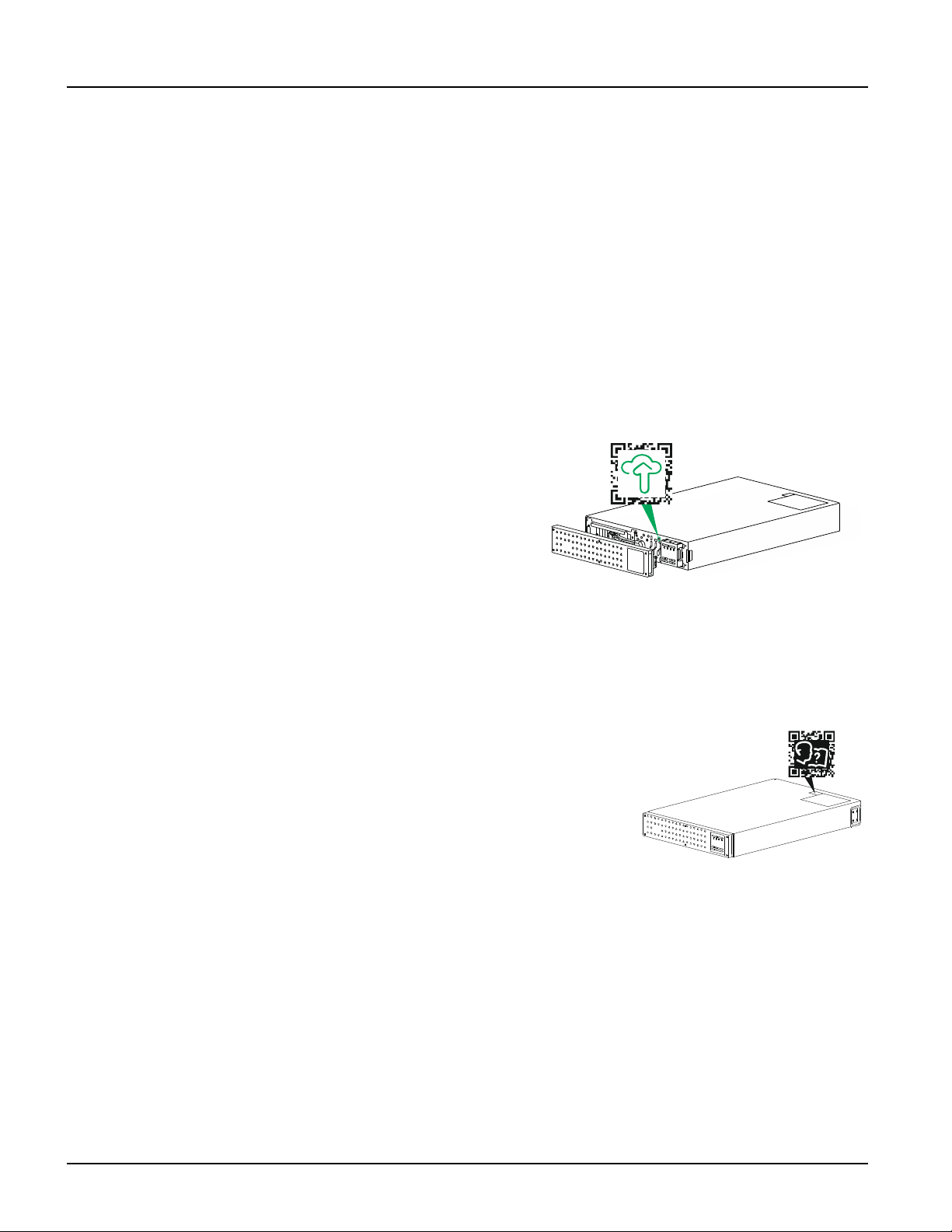
Log onto smartconnect.apc.com or
scan the QR code to begin the
registration process. The QR code is
located behind the front bezel of the
UPS.
Allow a few minutes for the Ethernet
connection to get properly
established before you can complete
the registration process.
For instructions on how to register your SmartConnect-compatible UPS, visit
smartconnect-support.apc.com.
Location of product information QR code
Location of product information QR Code is shown
in the illustration below. Scan the QR code for more
information of the product.
s
u
1
2
4
9
a
s
u
1
2
5
4
a
15
Connect to equipment and utilities
Smart-UPS SMTL 2200/3000 RMI2UC/RMI2UCNC
EN TME20822 – 08/2023
Connect to equipment and utilities
• Connect the UPS to the AC Mains outlet for 2 hours, for charging the battery, before
turning it ON for the first time.
• Upon receipt, connect the UPS to the AC Mains outlet for 2 hours to charge the
battery.
NOTE: The recommended shelf time of battery is not more than 12 months.
CAUTION
RISK OF DAMAGE TO EQUIPMENT OR PERSONNEL
• Adhere to all local and national electrical codes.
• Wiring should be performed by qualified electrician.
• Always connect the UPS to a grounded outlet.
Failure to follow these instructions can result in injury.
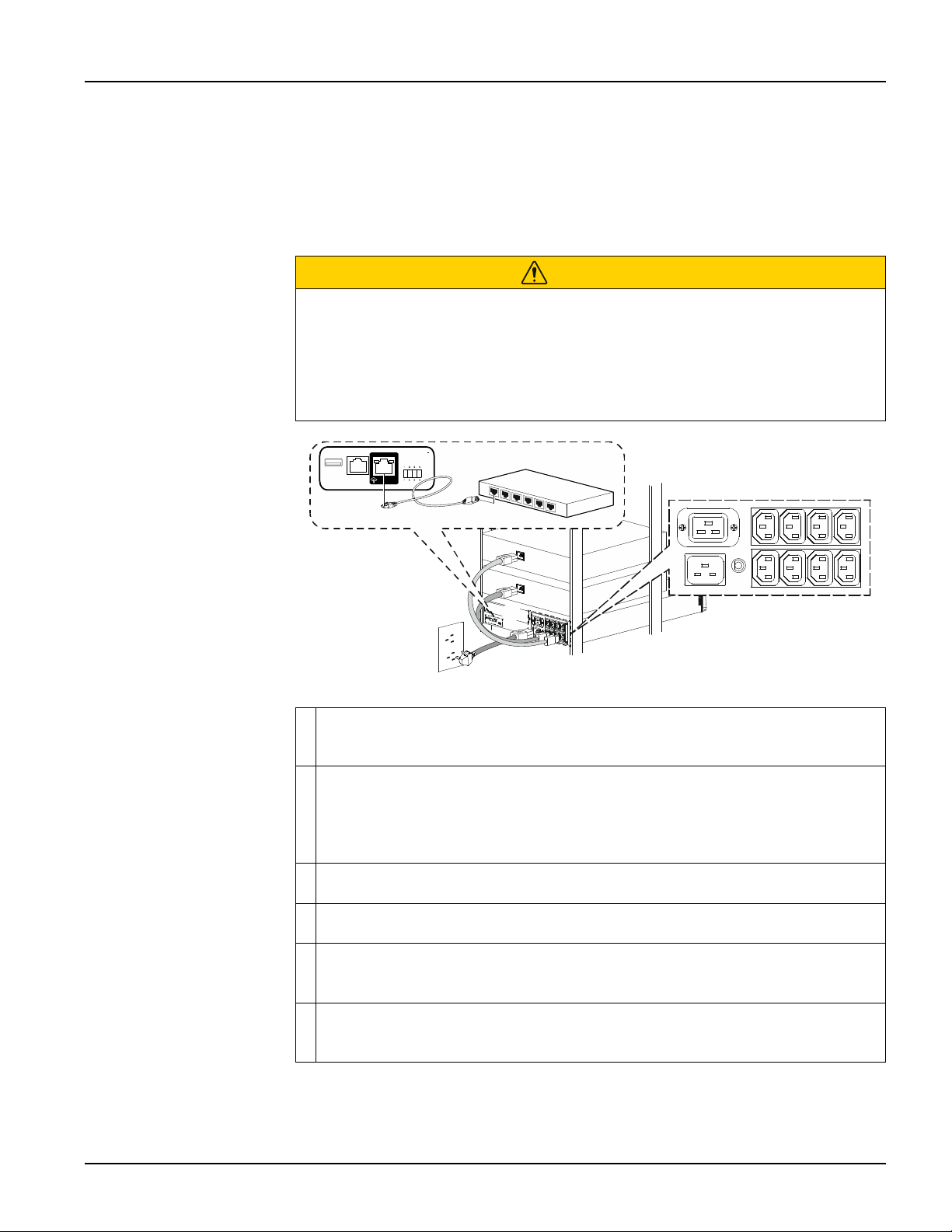
Connect equipment to the outlets in the rear of the UPS. Some models are
equipped with controlled outlet groups. Refer to “Outlet group configuration
settings” on page 23 for details on the use of controlled outlet groups.
Connect the SmartConnect Ethernet port to your nearest network switch using the
Ethernet cable provided.
NOTE: By connecting the SmartConnect Ethernet port to the internet, you are
agreeing to the APC SmartConnect Terms of Use and Data Privacy Notice, as
found at smartconnect.apc.com/terms-and-privacy.
Connect the UPS input to AC power.
NOTE: Once UPS is connected to AC power, the display will be active.
Press the
UPS ON/OFF button on the UPS display to turn ON the UPS output.
NOTE: The On-Line LED will illuminate green when the output is ON.
When the UPS is powered on for the first time, the Start Up Settings Screen will
be displayed on the LCD display. Refer to “Start up Settings” on page 16 for
details.
Log onto www.smartconnect.apc.com or scan the QR code to launch the
registration process. The website includes instructions to setup your online
account, activate your warranty and begin monitoring your UPS remotely.
LINK/ACT
NETWORK
LINK/ ACT
NET W O RK
s
u
1
3
5
8
a

16
Smart-UPS SMTL 2200/3000 RMI2UC/RMI2UCNC
Start up Settings
EN TME20822 – 08/2023
Start up Settings
When the UPS is powered on for the first time the display interface displays the Setup
Wizard to configure the start up settings. Configuration can also be performed using
PowerChute™ software.
NOTE: If the start up settings asked by the Setup Wizard are not selected completely,
turning on UPS output is inhibited. The Setup Wizard will disappear from the display if
the start up settings remain idle for 2 minutes. Pressing the
UPS ON/OFF button on the
front panel display will relaunch the Setup Wizard and allow completion of the start up
settings.
Use the
UP/DOWN buttons on the LCD display to scroll through the options and press
the
ENTER button to select the option.
Function
Factory
Default
Options Description
Language English English
French*
German*
Spanish*
Italian*
Portuguese*
Japanese*
The language for the display interface.
*Language options will vary by model.
Local
Power
Quality
Good Good
Fair
Poor
Select the quality of input AC power.
• If Good is selected, the unit will go on
battery power more often to provide the
cleanest power supply to the connected
equipment.
• If Poor is selected, the UPS will tolerate
more fluctuations in power and will go on
battery power less often.
If unsure of the local power quality, select
Good.
Menu
Type
Standard Standard
Advanced
The standard menu displays the most
commonly required menus for most users.
The advanced menus include all
parameters.
Today’s
Date
Manufacture
date
Use the
UP/DOWN buttons to enter the date,
and press the
ENTER button to complete the
setting.