SU_UM_TME20822_EN.pdf - 第17页
17 Connect a nd Ins tall M anagement So ftware Smart-UPS SMTL 220 0/3000 RMI2UC/RMI2UCNC EN T ME2 0822 – 08 /202 3 Connect and Install Manag ement Software Smart-UPS is provided with PowerChute UPS Mana gement Software f…

16
Smart-UPS SMTL 2200/3000 RMI2UC/RMI2UCNC
Start up Settings
EN TME20822 – 08/2023
Start up Settings
When the UPS is powered on for the first time the display interface displays the Setup
Wizard to configure the start up settings. Configuration can also be performed using
PowerChute™ software.
NOTE: If the start up settings asked by the Setup Wizard are not selected completely,
turning on UPS output is inhibited. The Setup Wizard will disappear from the display if
the start up settings remain idle for 2 minutes. Pressing the
UPS ON/OFF button on the
front panel display will relaunch the Setup Wizard and allow completion of the start up
settings.
Use the
UP/DOWN buttons on the LCD display to scroll through the options and press
the
ENTER button to select the option.
Function
Factory
Default
Options Description
Language English English
French*
German*
Spanish*
Italian*
Portuguese*
Japanese*
The language for the display interface.
*Language options will vary by model.
Local
Power
Quality
Good Good
Fair
Poor
Select the quality of input AC power.
• If Good is selected, the unit will go on
battery power more often to provide the
cleanest power supply to the connected
equipment.
• If Poor is selected, the UPS will tolerate
more fluctuations in power and will go on
battery power less often.
If unsure of the local power quality, select
Good.
Menu
Type
Standard Standard
Advanced
The standard menu displays the most
commonly required menus for most users.
The advanced menus include all
parameters.
Today’s
Date
Manufacture
date
Use the
UP/DOWN buttons to enter the date,
and press the
ENTER button to complete the
setting.
17
Connect and Install Management Software
Smart-UPS SMTL 2200/3000 RMI2UC/RMI2UCNC
EN TME20822 – 08/2023
Connect and Install Management Software
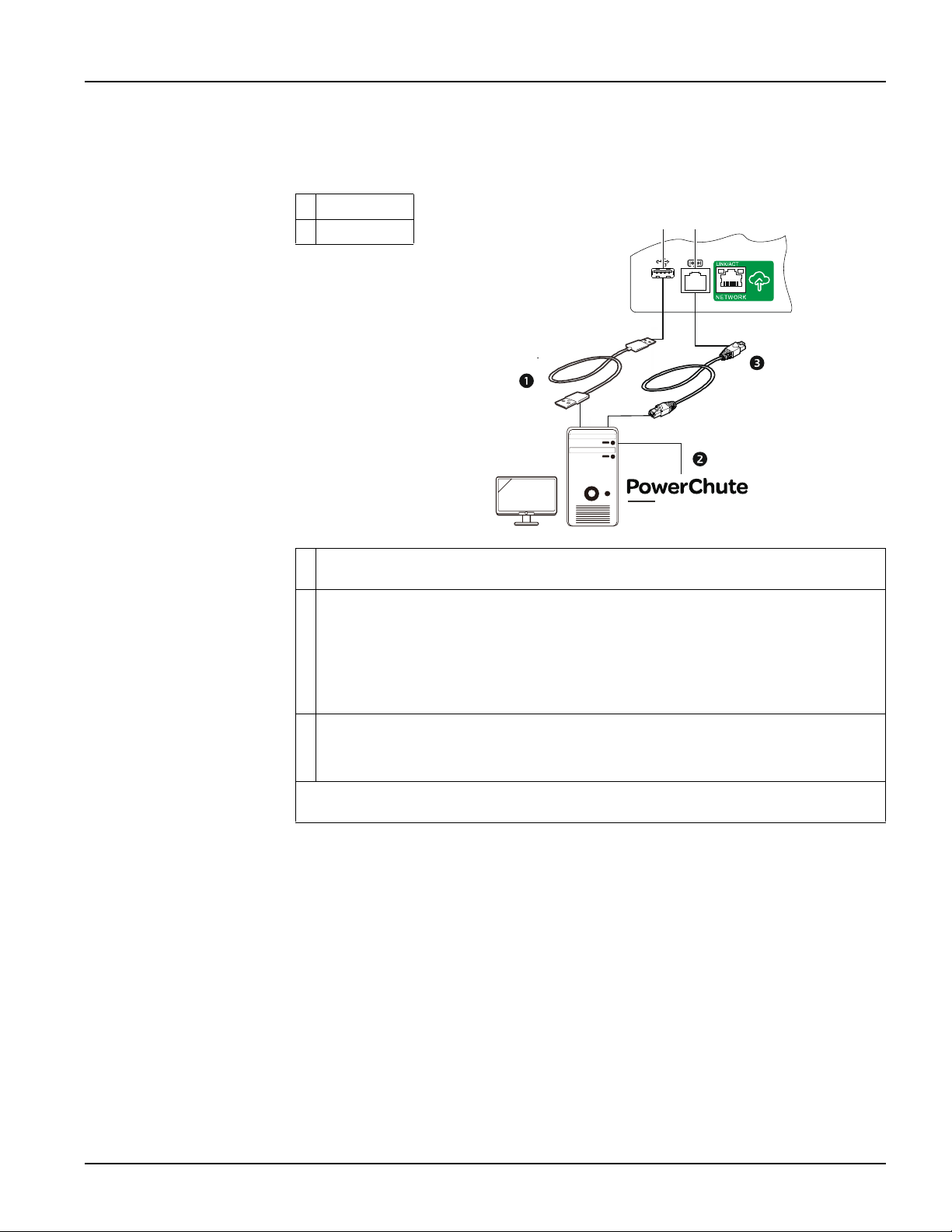
Smart-UPS is provided with PowerChute UPS Management Software for unattended
operating system shutdown, UPS monitoring, UPS control and energy reporting. The
following diagram is a representation of a typical server installation.
USB Port
Serial Port
Connect the USB cable from the rear of the UPS to the protected device such as a
server.
For a server or other device with an operating system, download and install latest
version of the PowerChute Serial Shutdown from https://www.apc.com/pcss.
PowerChute Serial Shutdown supports graceful shutdown in the event of an
extended power outage.
NOTE: PowerChute is a 64-bit only application and cannot be installed on a 32-bit
operating system.
A built-in Serial port is also available for additional communication options with
serial cable.
NOTE: Serial and USB cannot be used at the same time.
Even more communication options are available via the built-in Smartslot. Refer to
www.apc.com for more information.
TM
SERIAL SHUTDOWN
18
Smart-UPS SMTL 2200/3000 RMI2UC/RMI2UCNC
Operation
EN TME20822 – 08/2023
Operation
Using the display
These Smart-UPS models are equipped with an intuitive and configurable LCD
display. This display complements the software interface as they convey similar
information and either may be used to configure the UPS settings.
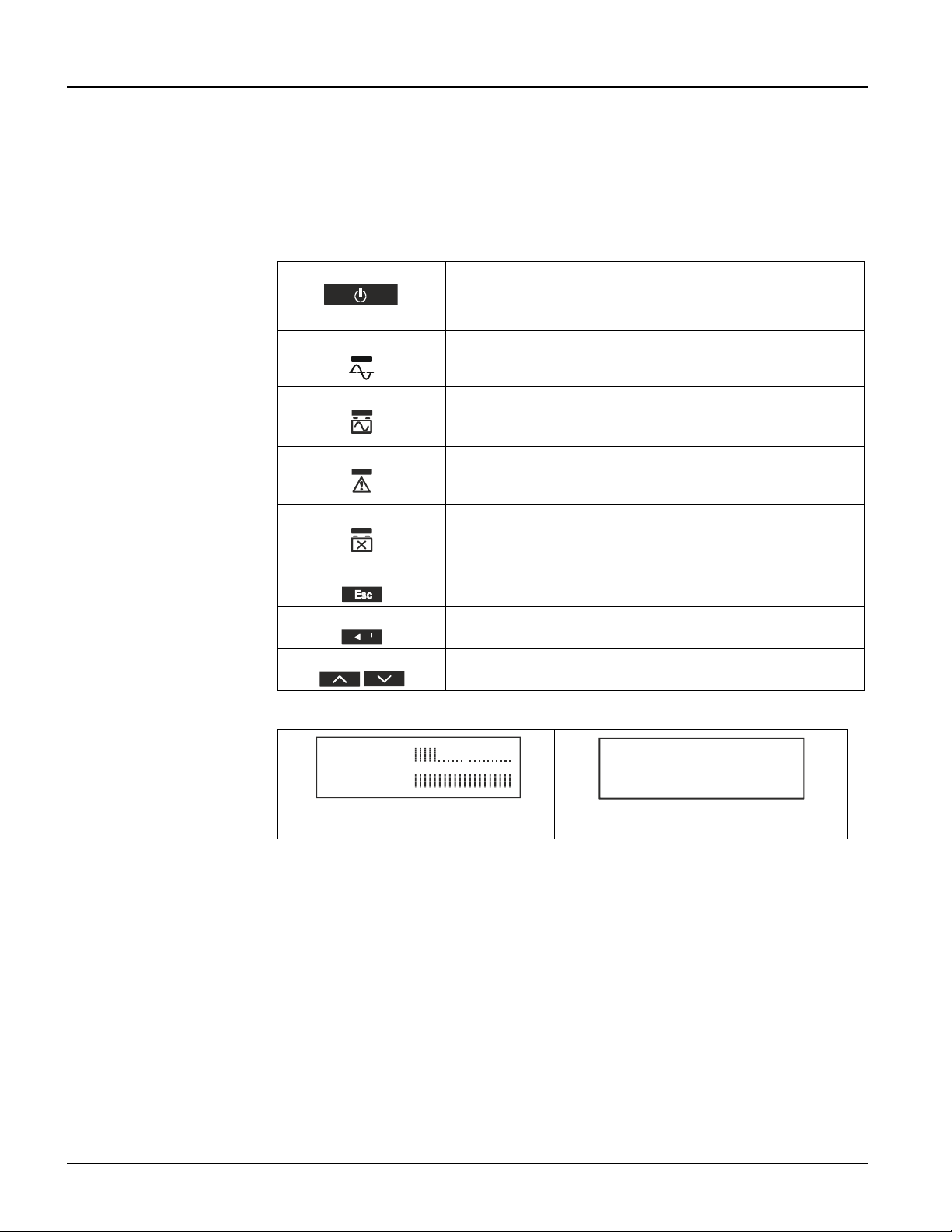
The display consists of the following keys and indicators:
The display has two main display/menu options – standard and advanced.
Note: The standard menu is the default setting and does not contain all of the menus
and attributes of the advanced menu. The advanced menu automatically scrolls
through multiple screens.
UPS ON/OFF Button This button is used to turn the UPS output power on and off.
Quick status LEDs
On-line LED The Online indicator illuminates green when UPS output is
turned on and operating on AC power.
On-battery LED The On-battery indicator illuminates orange and the unit
will continue to emit a series of short beeps indicating that
the UPS is operating on battery power.
Error detected LED The Error detected LED will illuminate red if the unit
detects an error condition. The display screen may also
indicate an error message or code.
Replace battery LED The Replace battery indicator illuminates red when the
UPS battery does not pass self test and requires
replacement.
ESCAPE key The ESCAPE key always returns the display to the previous
screen. It is used to exit the various display menus.
ENTER key The ENTER key is used to confirm a selection and/or enter a
menu.
UP/DOWN keys UP and DOWN keys are used to navigate through each menu
selection.
Standard Menu Display
Advanced Menu Display
su0983a
Load: 18%
Batt: 100%
su0984a
On Utility
Efficiency: 98%