3MAINTENANCE__O.pdf - 第132页
3.5 Offset Teaching ( 4 ) Attach the jig nozzle . ( 5 ) Select the [ SQUARE JIG ( MOVE X / Y TABLE ) ] key and press the [ MOVE ] button . • The X / Y table moves to an area under the jig nozzle . ( 6 ) Set the balancer …
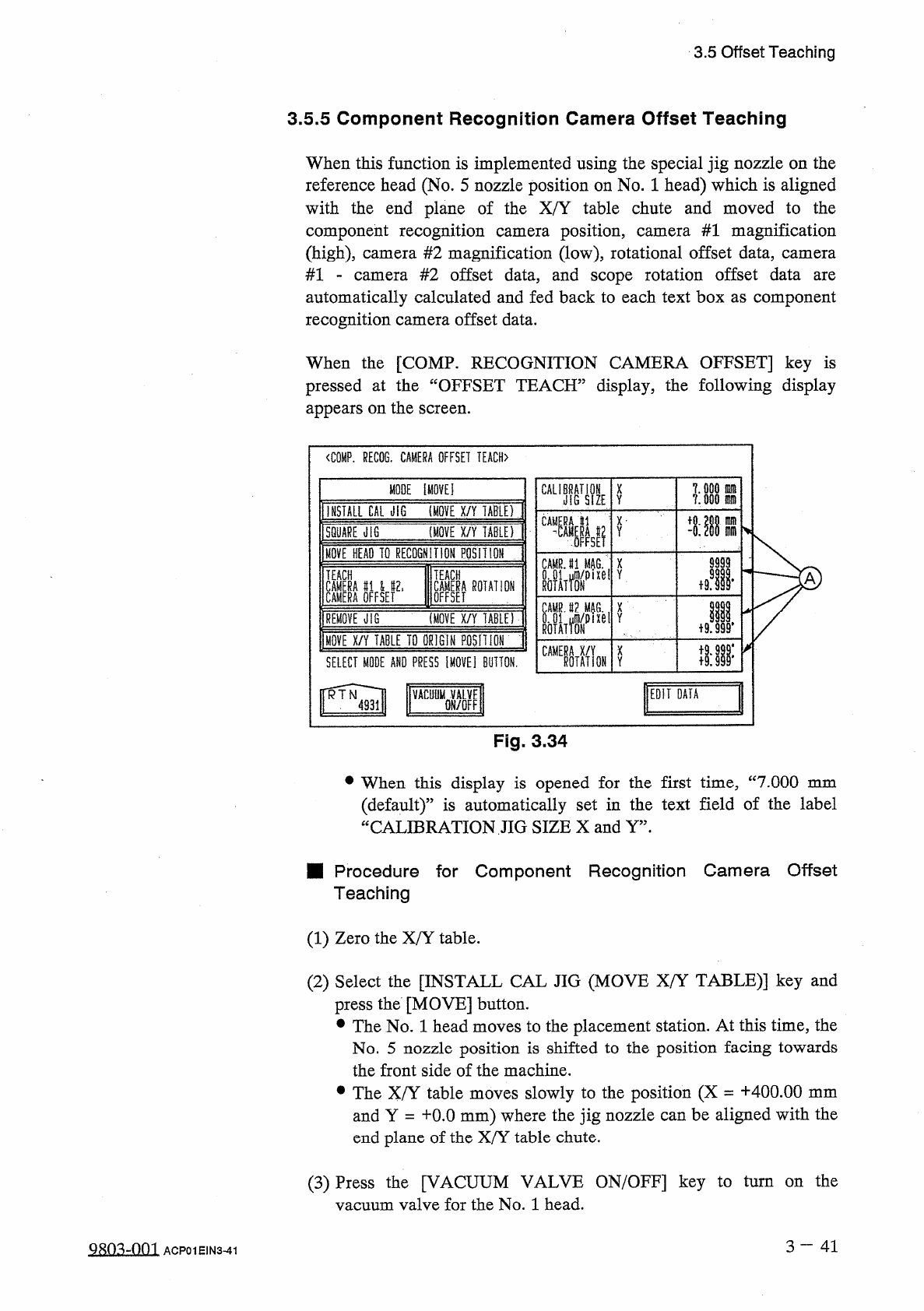
3.5
Offset
Teaching
3.5
.
5
Component
Recognition
Camera
Offset
Teaching
When
this
function
is
implemented
using
the
special
jig
nozzle
on
the
reference
head
(
No
.
5
nozzle
position
on
No
.
1
head
)
which
is
aligned
with
the
end
plane
of
the
X
/
Y
table
chute
and
moved
to
the
component
recognition
(
high
)
,
camera
#
2
magnification
(
low
)
,
rotational
offset
data
,
camera
#
2
offset
data
,
and
scope
rotation
offset
data
automatically
calculated
and
fed
back
to
each
text
box
as
component
recognition
camera
offset
data
.
position
,
camera
#
1
magnification
camera
#
1
camera
are
When
the
[
COMP
.
RECOGNITION
CAMERA
OFFSET
]
key
is
pressed
at
the
“
OFFSET
TEACH
”
display
,
the
following
display
appears
on
the
screen
.
<
C
0
MP
.
RECOG
.
CAMERA
OFFSET
TEACH
〉
MODE
Ei
CAU
;
鼎
X
Y
INSTALL
CAL
JIG
(
MOVE
X
/
Y
TABU
)
CA
®
L
m
x
-
m
(
MOVE
X
/
Y
TABLEf
Y
SQUARE
illG
m
MOVE
BEAD
TO
RECOGNITION
POSH
ION
9999
CAMRJ
1
MAG
翼
p
X
ixel
Y
m
TEACH
TEACH
A
鹋鼢瞧爛
Jl
恪
I
ROTATION
X
(
MOVE
X
/
Y
TABLE
)
REMOVE
JIG
MOVE
X
/
Y
TABLE
TD
ORIGIN
POSH
I
ON
隱
MON
X
SELECT
MODE
AND
PRESS
IMOVE
]
BUTTON
.
Y
EDIT
DATA
VACUyMQVALVE
Fig
.
3.34
•
When
this
display
is
opened
for
the
first
time
,
“
7.000
mm
(
default
)
”
is
automatically
set
in
the
text
field
of
the
label
CALIBRATION
JIG
SIZE
X
and
Y
”
.
u
■
Procedure
for
Component
Recognition
Camera
Offset
Teaching
(
1
)
Zero
the
X
/
Y
table
.
(
2
)
Select
the
[
INSTALL
CAL
JIG
(
MOVE
X
/
Y
TABLE
)
]
key
and
press
the
[
MOVE
]
button
.
•
The
No
.
1
head
moves
to
the
placement
station
.
At
this
time
,
the
No
.
5
nozzle
position
is
shifted
to
the
position
facing
towards
the
front
side
of
the
machine
.
•
The
X
/
Y
table
moves
slowly
to
the
position
(
X
=
+
400.00
mm
and
Y
=
十
0.0
mm
)
where
the
jig
nozzle
can
be
aligned
with
the
end
plane
of
the
X
/
Y
table
chute
.
(
3
)
Press
the
[
VACUUM
VALVE
ON
/
OFF
]
key
to
turn
on
the
vacuum
valve
for
the
No
.
1
head
.
3
—
4 1
9803
-
001
ACP
01
EIN
3
-
41
3.5
Offset
Teaching
(
4
)
Attach
the
jig
nozzle
.
(
5
)
Select
the
[
SQUARE
JIG
(
MOVE
X
/
Y
TABLE
)
]
key
and
press
the
[
MOVE
]
button
.
•
The
X
/
Y
table
moves
to
an
area
under
the
jig
nozzle
.
(
6
)
Set
the
balancer
to
balance
the
jig
nozzle
.
(
X
=
十
20.00
mm
and
Y
=
+
46.50
mm
)
(
7
)
Select
the
[
MOVE
HEAD
TO
RECOGNITION
POSITION
]
key
and
press
the
[
MOVE
]
button
.
•
The
head
equipped
with
the
jig
nozzle
moves
to
the
recognition
station
.
•
The
X
/
Y
table
moves
to
its
origin
.
(
8
)
Enter
the
dimensions
of
the
jig
nozzle
.
•
Press
the
[
EDIT
DATA
]
key
.
The
“
COMP
.
RECOG
.
CAMERA
OFFSET
TEACH
_
EDIT
DATA
display
appears
on
the
screen
.
Enter
parameters
in
the
data
boxes
of
the
labels
“
CALIBRATION
JIG
SIZE
X
”
and
“
CALIBRATION
JIG
SIZE
Y
”
.
(
9
)
Perform
teaching
operation
.
•
Select
the
[
TEACH
CAMERA
#
1
&
#
2
,
CAMERA
OFFSET
]
key
and
press
the
[
MOVE
]
button
.
The
jig
nozzle
is
recognized
to
automatically
calculate
offset
values
for
“
CAMR
.
#
1
MAG
.
0.01
从
m
/
pixel
”
,
“
CAMR
.
#
2
MAG
.
0.01
Um
/
pixeY
\
“
ROTATION
”
,
and
“
CAMERA
#
1
_
CAMERA
#
2
OFFSET
”
.
•
Select
the
[
TEACH
CAMERA
ROTATION
OFFSET
]
key
and
press
the
[
MOVE
]
button
.
The
motion
calibration
function
is
implemented
to
automatically
calculate
sco
•
The
parameters
(
saved
values
)
displayed
in
updated
to
automatically
calculated
values
.
ion
offset
.
pe
rotat
@
are
automatically
(
10
)
Select
the
[
REMOVE
JIG
(
MOVE
X
/
Y
TABLE
)
]
key
and
press
the
[
MOVE
]
button
.
•
The
head
equipped
with
the
jig
nozzle
moves
to
a
position
where
the
nozzle
can
be
detached
.
•
The
X
/
Y
table
moves
slowly
to
a
position
where
the
jig
nozzle
can
be
detached
.
•
Detach
the
jig
nozzle
.
(
11
)
Press
the
[
VACUUM
VALVE
ON
/
OFF
]
key
to
turn
off
the
vacuum
valve
for
the
No
.
1
head
.
(
12
)
Detach
the
jig
nozzle
and
perform
nozzle
change
operation
.
(
13
)
Select
the
[
MOVE
X
/
Y
TABLE
TO
ORIGIN
POSITION
]
key
and
press
the
[
MOVE
]
button
.
•
The
X
/
Y
table
returns
to
its
origin
.
3
一
42
9803
-
001
ACP
01
EIN
3
-
42
3.6
Device
Check
3.6
Device
Check
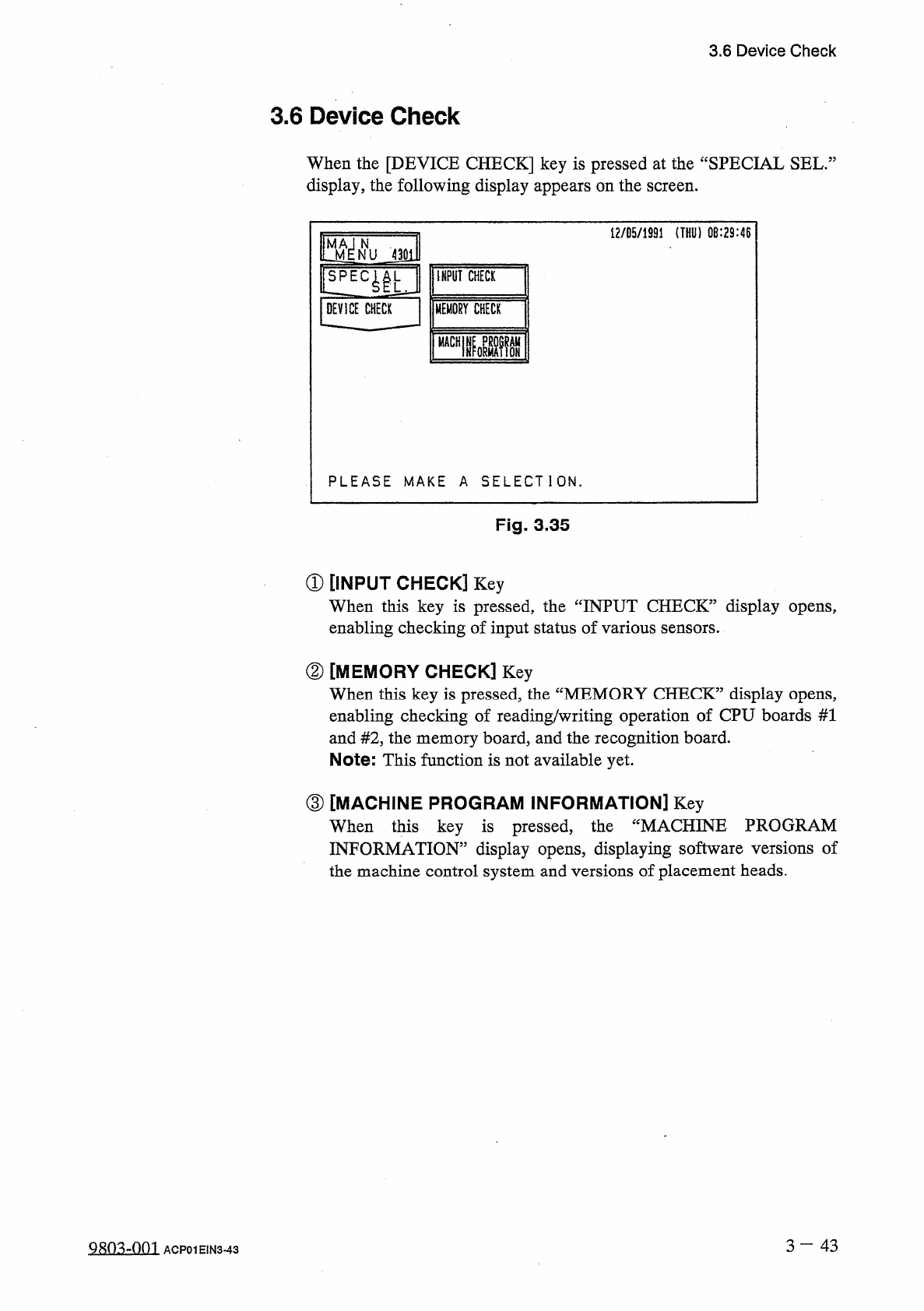
When
the
[
DEVICE
CHECK
]
key
is
pressed
at
the
“
SPECIAL
SEL
.
:
display
,
the
following
display
appears
on
the
screen
.
12
/
05
/
1991
(
THU
)
0
B
:
29
:
46
teffu
4
ml
l
!
LEC
^
U
INPUT
CHECK
jDEVICE
CHECK
|
|
MEMORY
CHECK
nmi
PLEASE
MAKE
A
SELECTION
.
Fig
.
3.35
①
[
INPUT
CHECK
]
Key
When
this
key
is
pressed
,
the
“
INPUT
CHECK
”
display
opens
,
enabling
checking
of
input
status
of
various
sensors
.
②
[
MEMORY
CHECK
]
Key
When
this
key
is
pressed
,
the
“
MEMORY
CHECK
”
display
opens
,
enabling
checking
of
reading
/
writing
operation
of
CPU
boards
#
1
and
#
2
,
the
memory
board
,
and
the
recognition
board
.
Note
:
This
function
is
not
available
yet
.
③
[
MACHINE
PROGRAM
INFORMATION
]
Key
When
this
key
is
pressed
,
INFORMATION
”
display
opens
,
displaying
software
versions
of
the
machine
control
system
and
versions
of
placement
heads
.
the
“
MACHINE
PROGRAM
3
一
43
Q
朗
4
¥
)
1
ACP
01
EIN
3
-
43