3MAINTENANCE__O.pdf - 第94页
3.4 Device Test 3.4 Device Test When the [ DEVICE TEST ] key is pressed at the “ SPECIAL SEL . display , the following display appears on the screen . 12 / 05 / 1991 ( THU ) 08 : 29 : 46 ^ M E N U 4 8 E X / Y TABLE ACCOR…
3.3
Manual
Nozzle
Bypass
3.3
Manual
Nozzle
Bypass
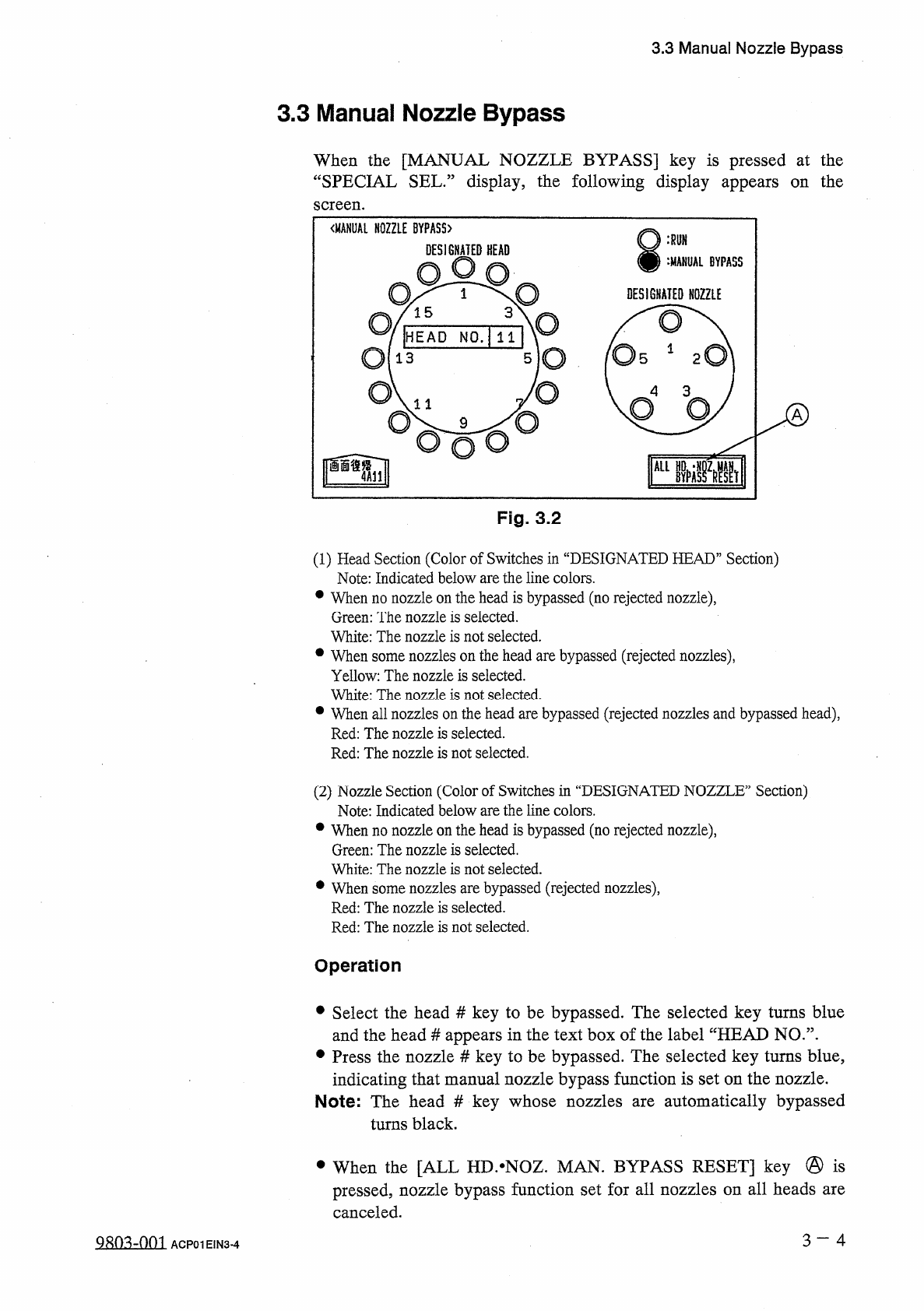
When
the
[
MANUAL
NOZZLE
BYPASS
]
key
is
pressed
at
the
“
SPECIAL
SEL
•
”
display
,
the
following
display
appears
on
the
screen
.
Fig
.
3.2
(
1
)
Head
Section
(
Color
of
Switches
in
“
DESIGNATED
HEAD
”
Section
)
Note
:
Indicated
below
are
the
line
colors
.
•
When
no
nozzle
on
the
head
is
bypassed
(
no
rejected
nozzle
)
,
Green
:
The
nozzle
is
selected
.
White
:
The
nozzle
is
not
selected
.
•
When
some
nozzles
on
the
head
are
bypassed
(
rejected
nozzles
)
,
Yellow
:
The
nozzle
is
selected
.
White
:
The
nozzle
is
not
selected
.
•
When
all
nozzles
on
the
head
are
bypassed
(
rejected
nozzles
and
bypassed
head
)
,
Red
:
The
nozzle
is
selected
.
Red
:
The
nozzle
is
not
selected
.
(
2
)
Nozzle
Section
(
Color
of
Switches
in
“
DESIGNATED
NOZZLE
”
Section
)
Note
:
Indicated
below
are
the
line
colors
.
•
When
no
nozzle
on
the
head
is
bypassed
(
no
rejected
nozzle
)
,
Green
:
The
nozzle
is
selected
.
White
:
The
nozzle
is
not
selected
.
•
When
some
nozzles
are
bypassed
(
rejected
nozzles
)
,
Red
:
The
nozzle
is
selected
.
Red
:
The
nozzle
is
not
selected
.
Operation
•
Select
the
head
#
key
to
be
bypassed
.
The
selected
key
turns
blue
and
the
head
#
appears
in
the
text
box
of
the
label
“
HEAD
NO
.
”
.
•
Press
the
nozzle
#
key
to
be
bypassed
.
The
selected
key
turns
blue
,
indicating
that
manual
nozzle
bypass
function
is
set
on
the
nozzle
.
Note
:
The
head
#
key
whose
nozzles
are
automatically
bypassed
turns
black
.
•
When
the
[
ALL
HD
.
^
NOZ
.
MAN
.
BYPASS
RESET
]
key
@
is
pressed
,
nozzle
bypass
function
set
for
all
nozzles
on
all
heads
are
canceled
.
3
-
4
g
^
-
nm
ACP
01
EIN
3
-
4
3.4
Device
Test
3.4
Device
Test
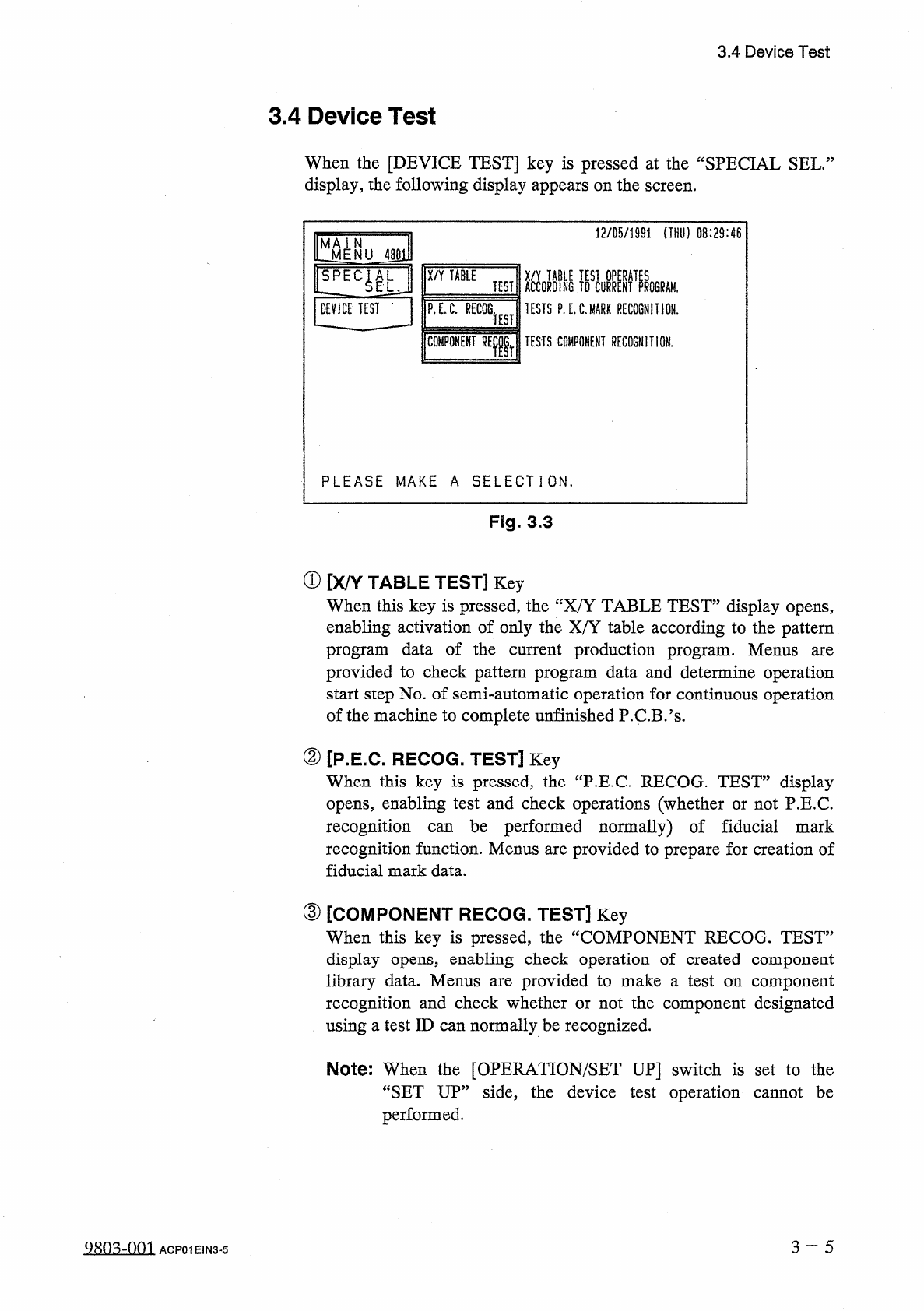
When
the
[
DEVICE
TEST
]
key
is
pressed
at
the
“
SPECIAL
SEL
.
display
,
the
following
display
appears
on
the
screen
.
12
/
05
/
1991
(
THU
)
08
:
29
:
46
^
MENU
48
E
X
/
Y
TABLE
ACCORDING
TESTS
P
.
E
.
C
.
MARK
RECOGNITION
.
TEST
!
ROGRAM
.
DEVICE
TEST
-
P
.
E
.
C
.
RECOG
.
TEST
COMPONENT
RElr
TESTS
COMPONENT
RECOGNITION
.
PLEASE
MAKE
A
SELECTION
.
Fig
.
3.3
①
[
X
/
Y
TABLE
TEST
]
Key
When
this
key
is
pressed
,
the
“
X
/
Y
TABLE
TEST
”
display
opens
,
enabling
activation
of
only
the
X
/
Y
table
according
to
the
pattern
program
data
of
the
current
production
program
.
Menus
provided
to
check
pattern
program
data
and
determine
operation
start
step
No
.
of
semi
-
automatic
operation
for
continuous
operation
of
the
machine
to
complete
unfinished
P
.
C
.
B
.
’
s
.
are
②
[
P
.
E
.
C
.
RECOG
.
TEST
]
Key
When
this
key
is
pressed
,
the
“
P
.
E
.
C
RECOG
.
TEST
”
display
opens
,
enabling
test
and
check
operations
(
whether
or
not
P
.
E
.
C
.
recognition
recognition
function
.
Menus
are
provided
to
prepare
for
creation
of
fiducial
mark
data
.
be
performed
normally
)
of
fiducial
mark
can
③
[
COMPONENT
RECOG
.
TEST
]
Key
When
this
key
is
pressed
,
the
“
COMPONENT
RECOG
.
TEST
”
display
opens
,
enabling
check
operation
of
created
component
library
data
.
Menus
recognition
and
check
whether
or
not
the
component
designated
using
a
test
ID
can
normally
be
recognized
.
provided
to
make
a
test
on
component
are
Note
:
When
the
[
OPERATION
/
SET
UP
]
switch
is
set
to
the
“
SET
UP
”
side
,
the
device
test
operation
cannot
be
performed
.
3
~
5
Q
8
n
.
^
-
nni
ACP
01
EIN
3
-
5
3.4
Device
Test
3.4
.
1
X
/
Y
Table
Test
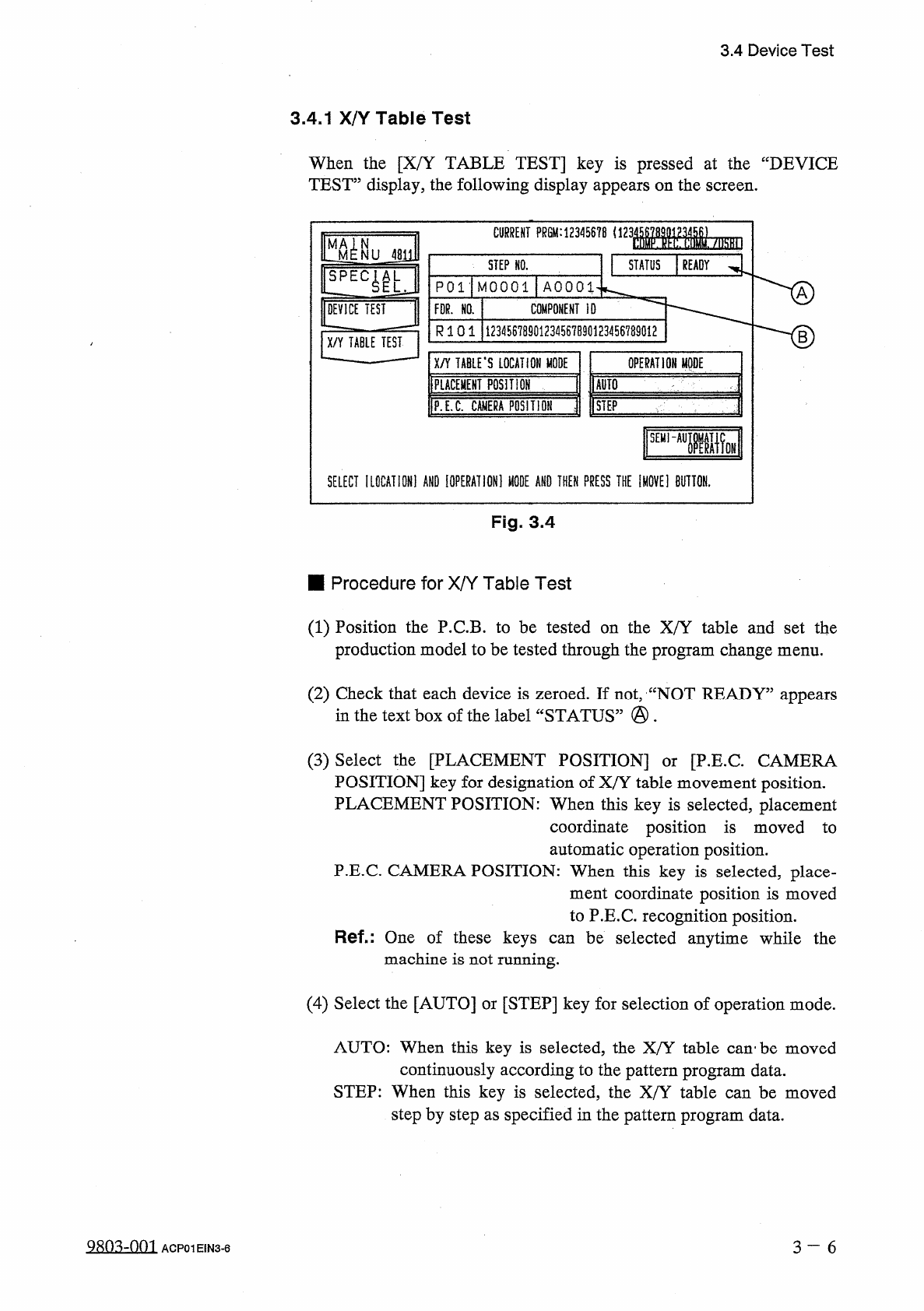
When
the
[
X
/
Y
TABLE
TEST
]
key
is
pressed
at
the
“
DEVICE
TEST
”
display
,
the
following
display
appears
on
the
screen
.
:
12
丽
8
(
123
Mbm
CURRENT
PRGM
:
STEP
NO
.
STATUS
READY
P
01
-
MOOOl
AOOOl
DEVICE
TEST
COMPONENT
ID
FDR
.
NO
.
R
1 0 1
12345678901234567890123456789012
B
X
/
Y
TABLE
TEST
X
/
Y
TABLE
'
S
LOCATION
MODE
IPLACEMEHT
posmor
OPERATION
MODE
爾
1
P
.
E
.
C
.
CMIERA
POSITIOH
j
[
STEP
'
SEHI
~
AUIiW
SELECT
IL
0
CATI
0
N
1
AND
[
OPERATION
]
«
AND
THEN
PRESS
THE
IM
0
VE
1
BUTTON
.
Fig
.
3.4
■
Procedure
for
X
/
Y
Table
Test
(
1
)
Position
the
P
.
C
.
B
.
to
be
tested
on
the
X
/
Y
table
and
set
the
production
model
to
be
tested
through
the
program
change
menu
.
(
2
)
Check
that
each
device
is
zeroed
.
If
not
,
“
NOT
READY
”
appears
in
the
text
box
of
the
label
“
STATUS
”
•
(
3
)
Select
the
[
PLACEMENT
POSITION
]
POSITION
]
key
for
designation
of
X
/
Y
table
movement
position
.
PLACEMENT
POSITION
:
When
this
key
is
selected
,
placement
coordinate
position
is
moved
to
automatic
operation
position
.
P
.
E
.
C
.
CAMERA
POSITION
:
When
this
key
is
selected
,
place
-
ment
coordinate
position
is
moved
to
P
.
E
.
C
.
recognition
position
.
Ref
-
:
One
of
these
keys
can
be
selected
anytime
while
the
machine
is
not
running
.
[
P
.
E
.
C
CAMERA
or
(
4
)
Select
the
[
AUTO
]
or
[
STEP
]
key
for
selection
of
operation
mode
.
AUTO
:
When
this
key
is
selected
,
the
X
/
Y
table
can
'
be
moved
continuously
according
to
the
pattern
program
data
.
STEP
:
When
this
key
is
selected
,
the
X
/
Y
table
can
be
moved
step
by
step
as
specified
in
the
pattern
program
data
.
2
SQ
3
ZQQ
1
3
一
6
ACP
01
EIN
3
-
6