OPERATING MANAUAL(FOR ENGINEERS) - 第101页
Page 5-5 TEACHING 5 Board Recognition T eaching 5 . Set the board to front conveyor . 6 . Press UNLOCK and T each start . • Board is carried in. 7 . Board is automatically recognized. If recognition result is A : 100, pr…
Page 5-4
Board Recognition Teaching
5-2-3 Creating Procedure
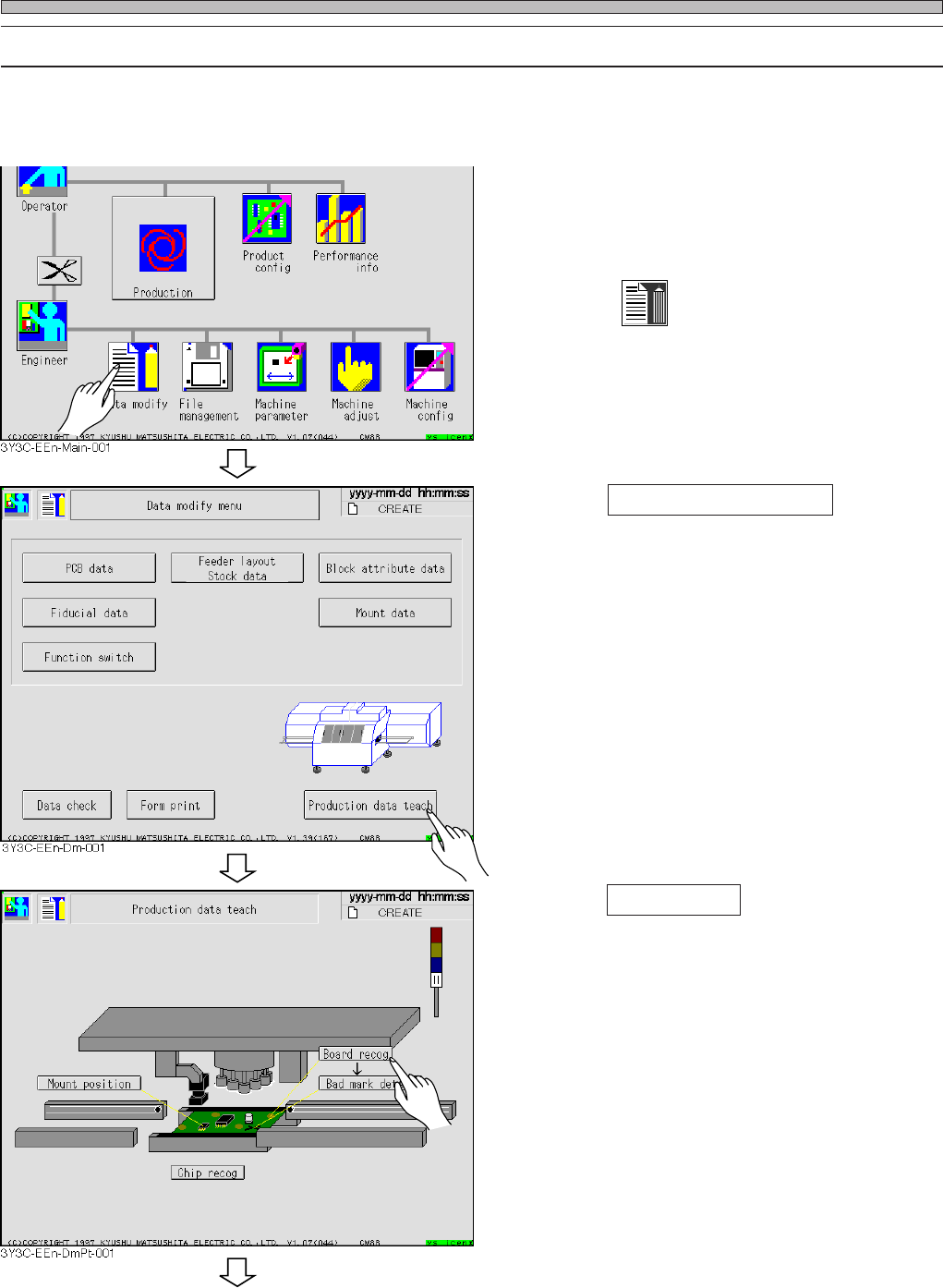
Check that “Board recognition” for the data created by PT100 is turned on before board recogni-
tion.
1. Display the main menu screen and
send the board data for changing
production board , by PT 100.
2. Press
Data modify
.
• Data modification menu screen appears.
3. Press Production data teach .
• Production data teaching screen appears.
4. Press Board recog .
• Board recognition screen appears.
3Y3C-E-EMD05-A01-00
To the next page
Page 5-5
TEACHING
5
Board Recognition Teaching
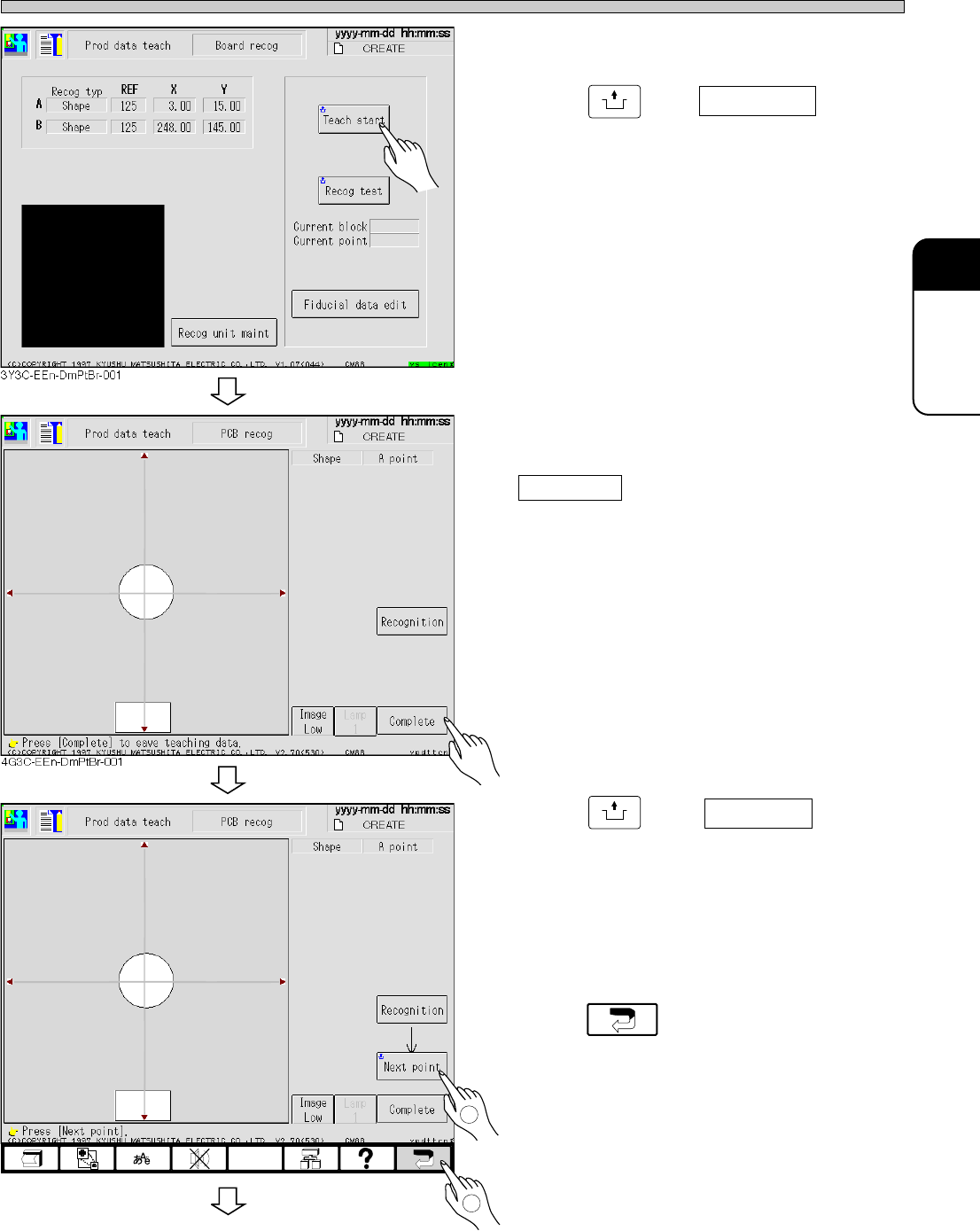
5. Set the board to front conveyor.
6. Press
UNLOCK
and Teach start .
• Board is carried in.
7. Board is automatically recognized.
If recognition result is A : 100, press
Complete .
• Data is automatically saved.
8. Press
UNLOCK
and Next point .
• Move to the next board recognition mark and
recognition is automatically carried out.
9. Repeat the procedures 7 to 8, and
after board recognition teaching,
press .
3Y3C-E-EMD05-A01-01
To the next page
1
4G3C-EEn-DmPtBr-002
2
3Y3C-086P
3Y3C-086P
Page 5-6
Board Recognition Teaching
NOTICE
When using CAD data, do not carry out data modification. It worsens mounting
accuracy.
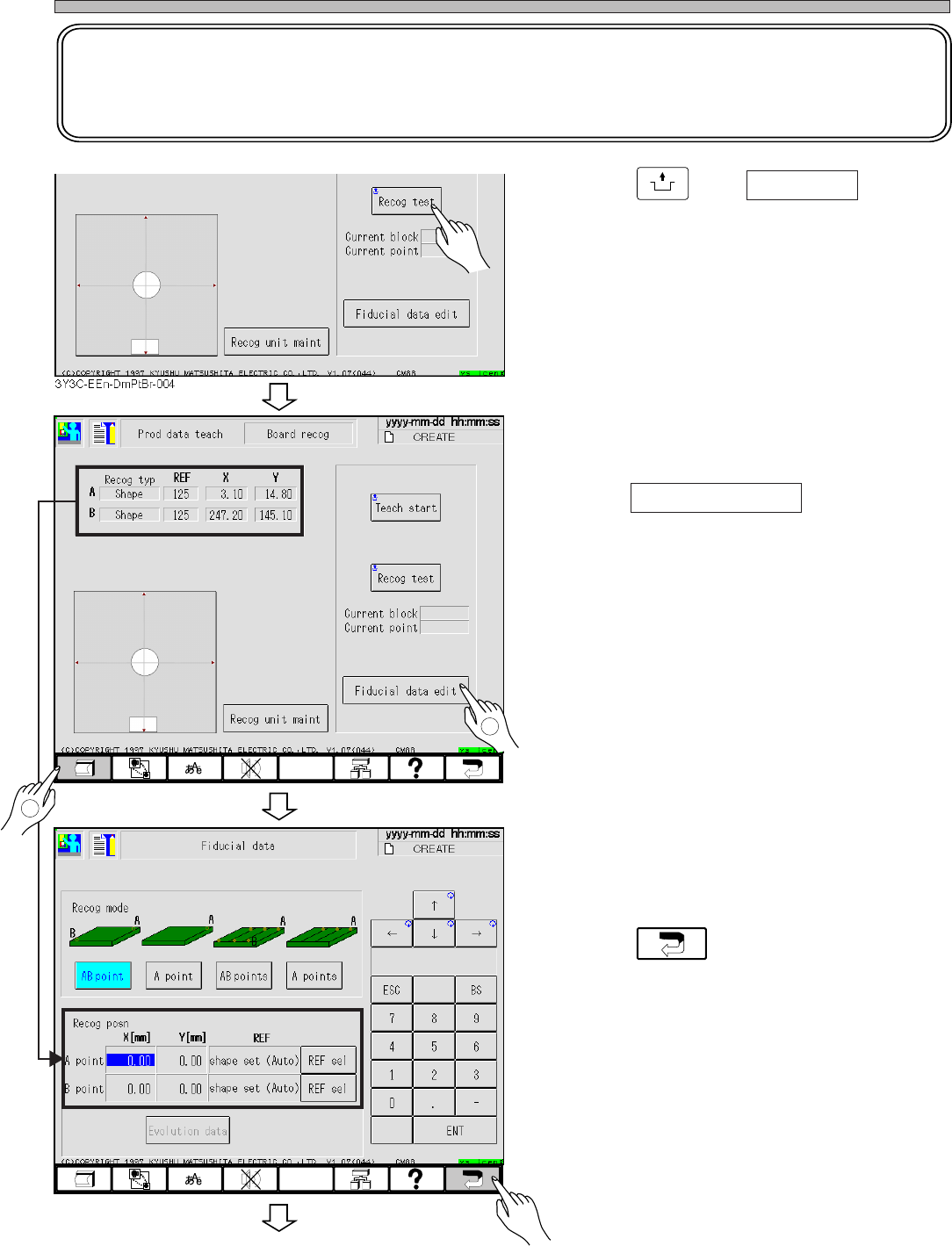
10. Press
UNLOCK
and Recog test .
• Check that the recognition is properly carried
out.
11. Print the recognition result.
12. Press Fiducial data edit .
• Board recognition data screen appears.
13. Enter the recognition result printed at
procedure 11.
14. Press .
3Y3C-E-EMD05-A01-00
To the next page
3Y3C-EEn-DmPtBr-004
3Y3C-EEn-DmFd-001
2
1
3Y3C-086P
3Y3C-086P