00198171-02_Technical_Training_FSE_TX-Series_EN.pdf - 第140页
9 Station Software Overviews 9.5 Machine Settings and Options Overview 140 Technical Training FSE SIPLACE TX-Series 01/2018 9.5 Machine Settings and Options Overview 1. Machine settings: control mode, automatic compresse…
9 Station Software Overviews
9.4 Editing a board with the station software
Technical Training FSE SIPLACE TX-Series 01/2018 139
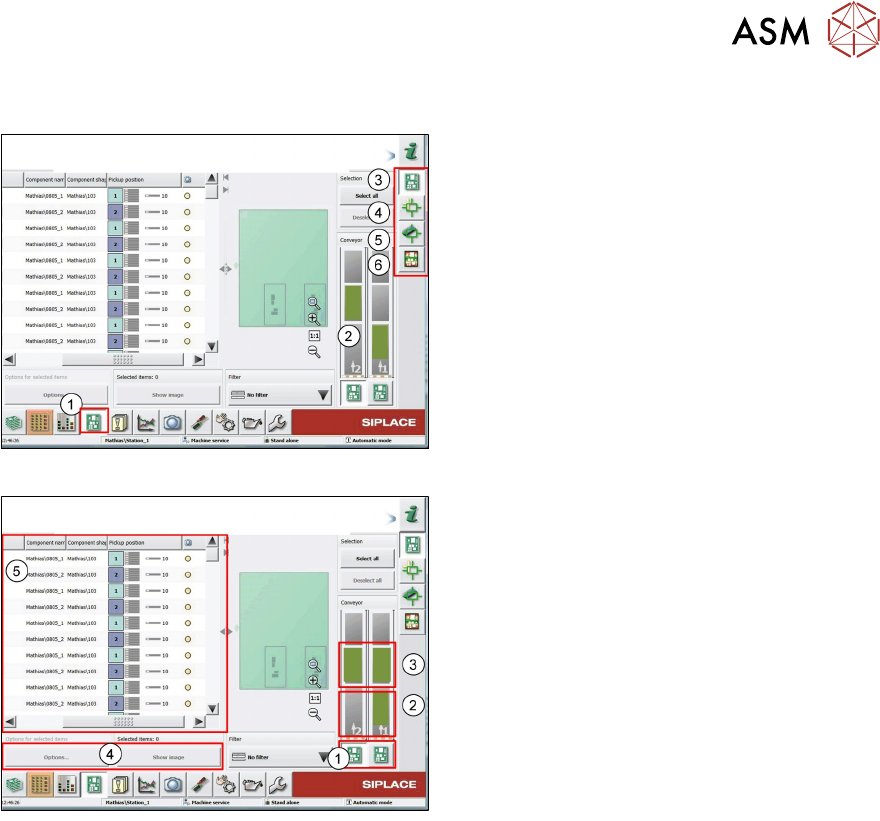
9.4 Editing a board with the station software
1. Select PCB editor to change or check
placement data
2. Active PCB
3. Display placement List skip components,
4. Check and teach fiducials
5. Check/change placement position and up-
load to SIPLACE pro Server
6. Show Board height after placement
To edit a board click on a Board image.
1. If selected all changes are effective for all
boards
2. If selected all changes are effective only
for current board
3. Setting is effective for selected board and
PCB camera can be move to this position
to check placement
4. Select position in placement list
5. Modify “options” skip or place selected
position and change when to save vision
data
9 Station Software Overviews
9.5 Machine Settings and Options Overview
140 Technical Training FSE SIPLACE TX-Series 01/2018
9.5 Machine Settings and Options Overview
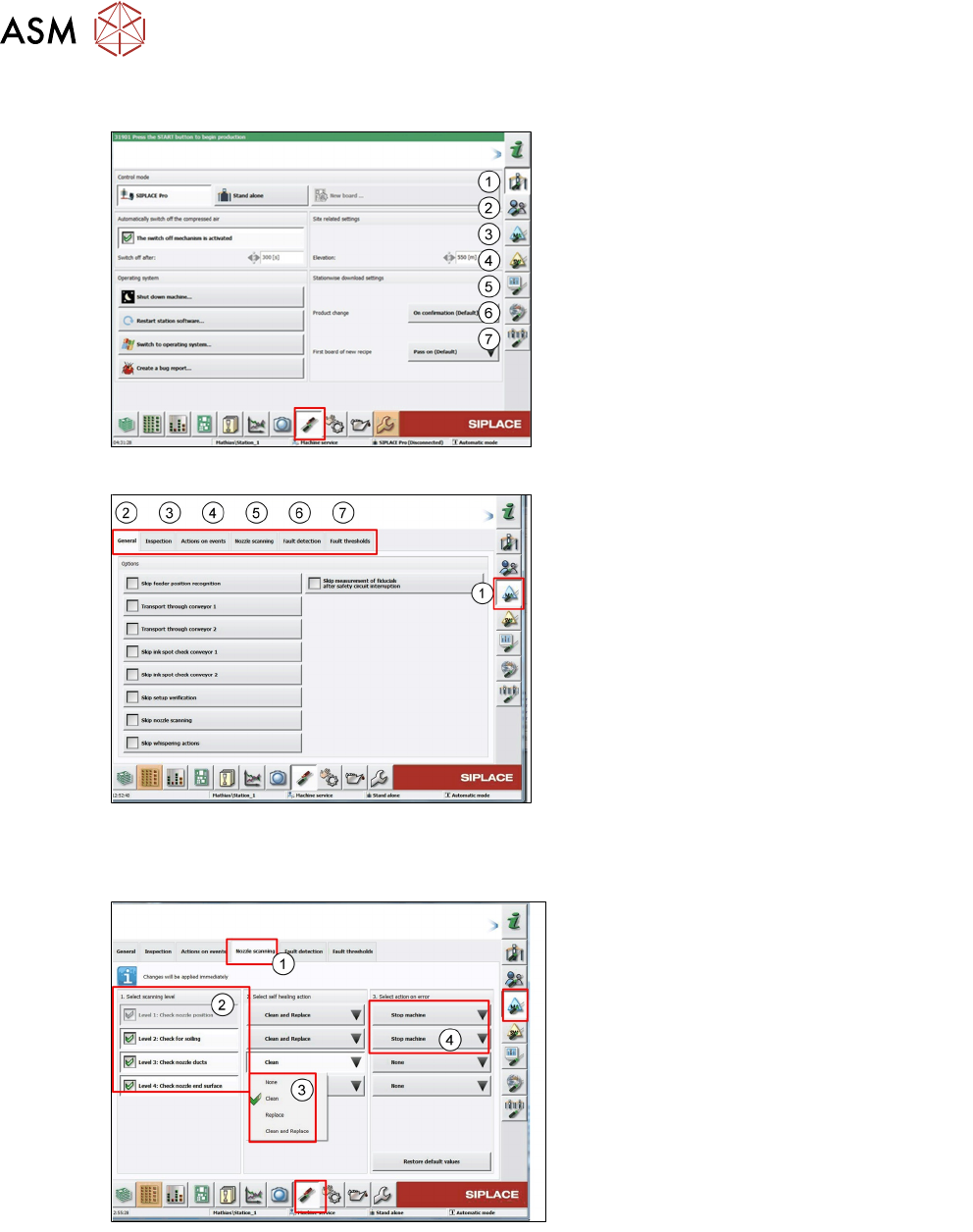
1. Machine settings: control mode, automatic
compressed air control, shut down, bug re-
port
2. User setting/access
3. Machine option setting
4. Software setting
5. GUI setting
6. Summary of connected client
7. Show neighbor machine
1. Here machine behavior for certain events
can be configured.
2. Skip functions can be activated (testing)
3. Activation of PCB inspection after place-
ment depending on machine event
4. Setting for action to be taken for set error
numbers (automatic Bug Report)
5. Configuration of nozzle scanning option
and actions to be taken in the event of a
soiled nozzle
6. Additional check and tolerance after fault
detection(automatic feeder pitch detection)
7. Threshold setting for pickup error and vis-
ion error
Example for configuring nozzle scanning op-
tion.
1. Nozzle scanning tab
2. Nozzle scanning type (level)
3. Self healing action after nozzle scan fault
4. Action after nozzle scanning error (heal-
ing action cannot repair problem)
Option selected depends on nozzle type, fact-
ory environment, production changeover fre-
quency.
9 Station Software Overviews
9.6 Machine Software Options Overview
Technical Training FSE SIPLACE TX-Series 01/2018 141
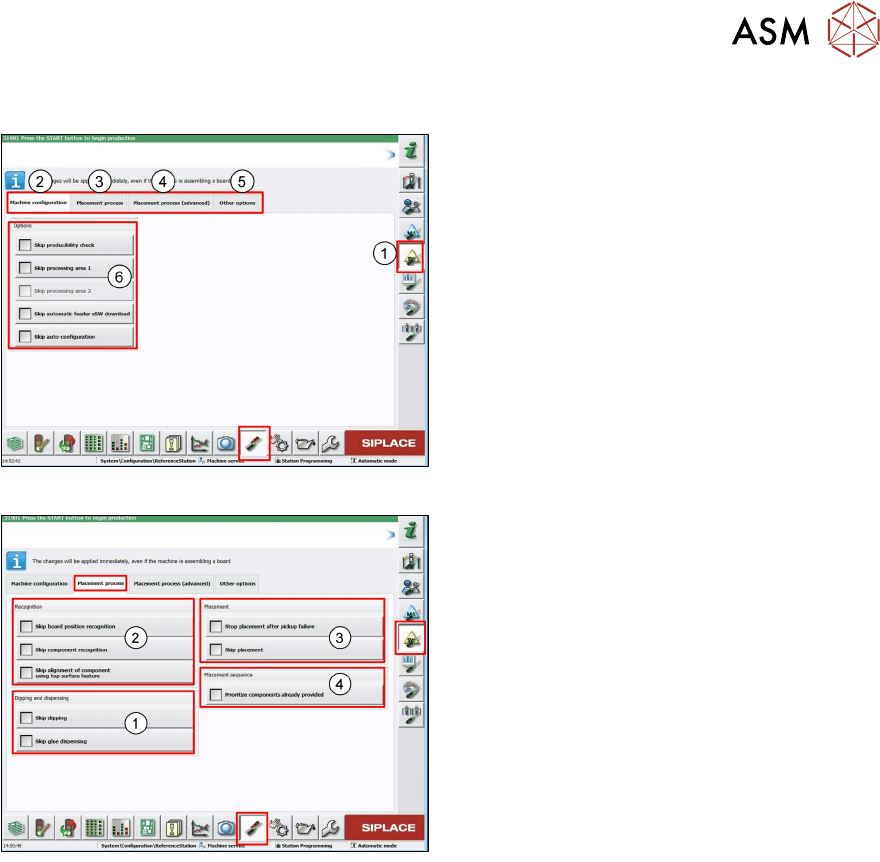
9.6 Machine Software Options Overview
1. Machine Software Options main menu
2. Configuration menu
3. Placement process (machine behavior dur-
ing placement)
4. Advanced Placement process (simulation
placement
5. Other options (deactivation machine con-
figuration checks)
6. Skip actions used mainly for test
1. Skip the dipping and glue dispensing pro-
cess
2. Skip fiducial and component recognition
with Vision system, only for test run (e.g.
board with foil), also the precise position
determination for top surface features (e.g.
LED components) can be skipped
3. Setting for placement, here you can skip
placement on the board means pass
through mode
4. Setting for prioritization of the tray