DECAN_S1_Operation_EN.pdf - 第42页
DE CAN S 1 Ope ra tio n Han db oo k 3 -23 Chap ter 3 This chapter describes the production procedure. Pr oduction Nex t Generation, Multi- Funct ional Placer Pr epara tion F or Oper atio n Ⅱ > Chec k and tea ch posi t…
DECAN S1 Operation Handbook
3-22
Chapter 3
This chapter describes the production procedure.
Production
Next Generation, Multi-Functional Placer
Preparation For Operation Ⅱ > Check and teach positions
Preparation For Operation Ⅱ
Production
3. Check pickup point
Step 1.
Check the feeder pickup position
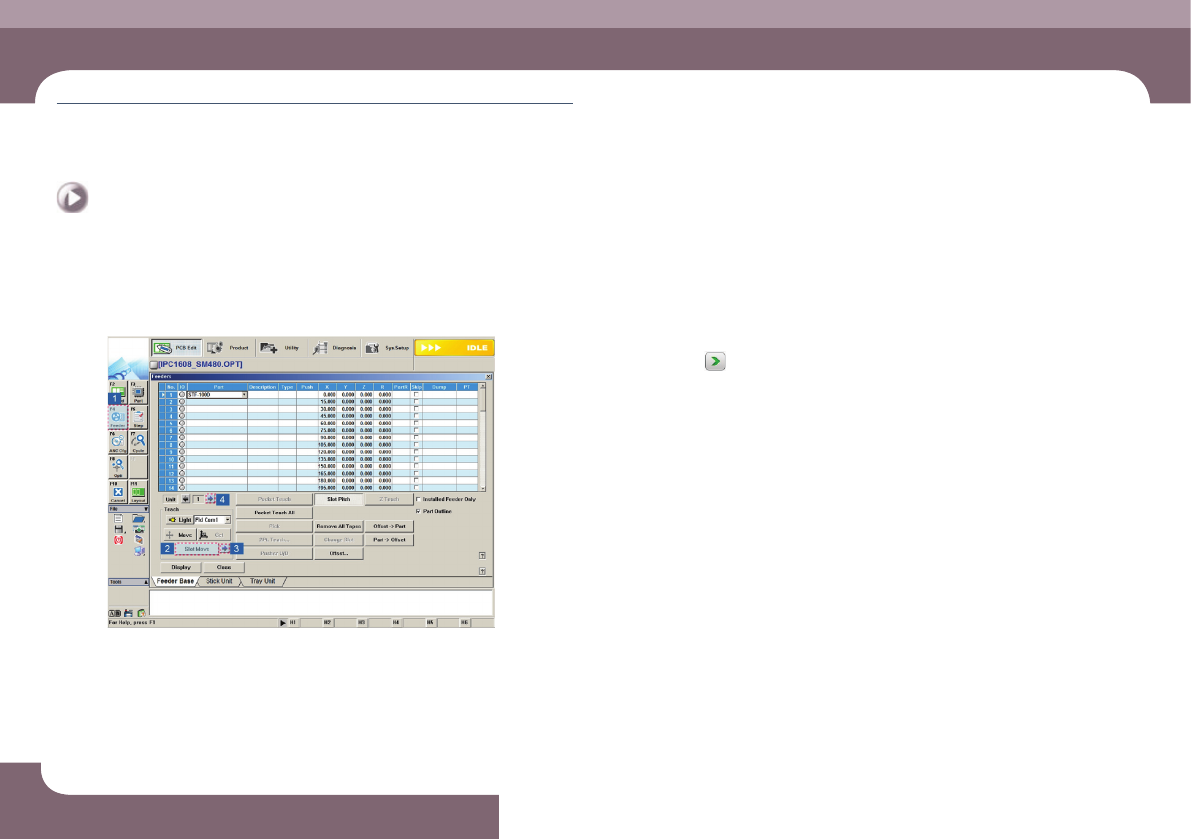
① Select the 'Feeder' submenu in the 'PCB Edit' menu.
② Select the 'Feeder' submenu
③ Click the
button to check the pickup point of the installed feeder.
④ Once the pickup point of the current feeder base has been checked, click the
arrow button in the <Unit> group to check the pickup points of the feeders
installed in other feeder bases in the same manner.
⑤ Check the pickup points of feeders other than the tape feeder
Step 2.
Teach the pickup point
If the current feeder's pickup point setup is incorrect, teach the pickup point again.
DECAN S1 Operation Handbook
3-23
Chapter 3
This chapter describes the production procedure.
Production
Next Generation, Multi-Functional Placer
Preparation For Operation Ⅱ > Check and teach positions
Preparation For Operation Ⅱ
4. Check the placement point
Step 1.
Check the placement point of the PCB
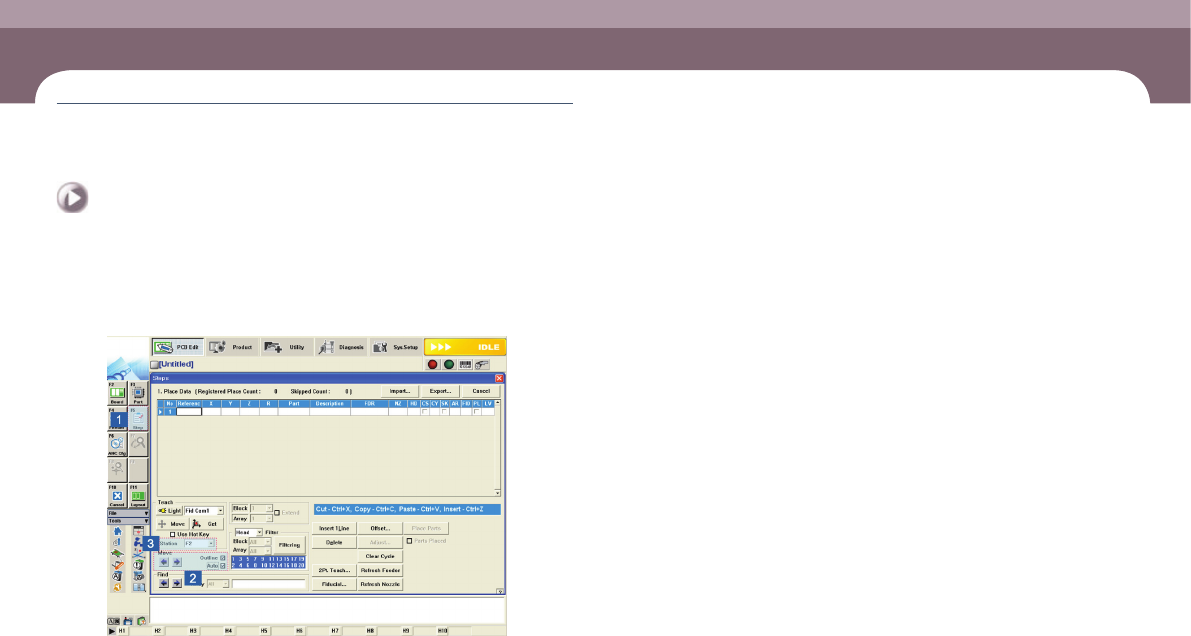
① Select the 'Step' submenu in the 'PCB Edit' menu.
② Select the <Auto> check box and click the arrow button to check the placement
position.
③ Once placement points for the current work station have been checked, click
the combo box in the <Station> group to select another work station
④ Check the placement points for other work stations in the same manner
Step 2.
Teach the placement point
If the currently set placement point is incorrect, teach it again.
DECAN S1 Operation Handbook
3-24
Chapter 3
This chapter describes the production procedure.
Production
Next Generation, Multi-Functional Placer
Production > Loading the PCB file
Production
Production
1. Loading the PCB file
Step 1.
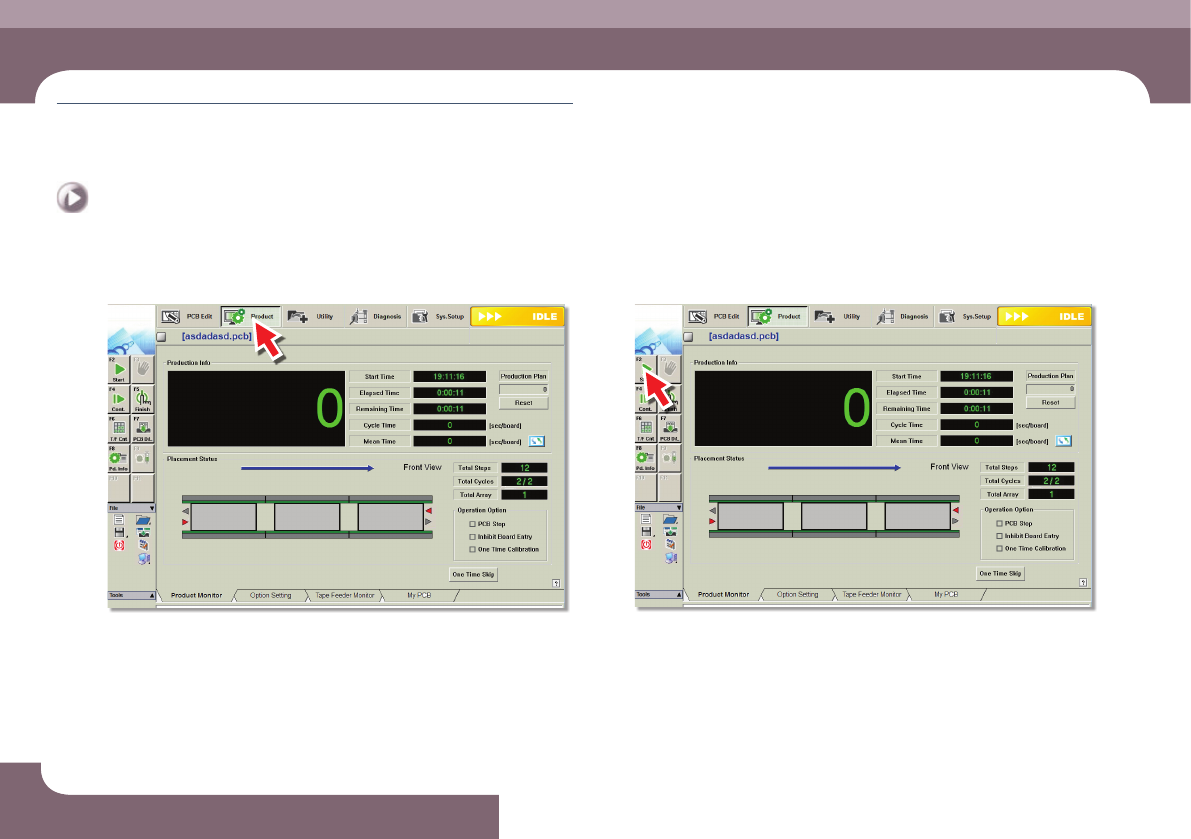
Select the 'Product' menu
ㆍ Displays the 'Product Monitor' screen.
Step 2.
Select the 'Start' submenu (F2)
ㆍ If the 'Start' submenu is selected, the PCB program is downloaded automatically.
Production