YSI_Prog_E - 第110页
2-39 2 Creating inspection pr ograms 5 Select the applicable libr ary and press the [OK] button. The "Library Selection" screen is closed, a nd the library selected for the view image is displayed in yellow. Se…
2-38
2
Creating inspection programs
2.7 Step settings
A "step" is the minimum inspection unit, and inspection details and judgment conditions are set for each step.
Combinations of steps used to inspect each parts are used as parts libraries. With inspection programs
converted from YAMAHA mounter data (YGX), parts libraries stored in the inspection machine are deployed to
mounter mounting positions. For parts to which no libraries have been deployed, it is necessary to paste the
relevant libraries from the parts library, create and register new libraries, and then deploy them.
n
NOTE
A parts library is a database to which a combination of inspection steps for each parts has been saved.
2.7.1 Pasting libraries
Paste standard libraries to parts for which libraries have not been deployed.
1
Press the [Data Edit] button and open the "Step" tab.
2
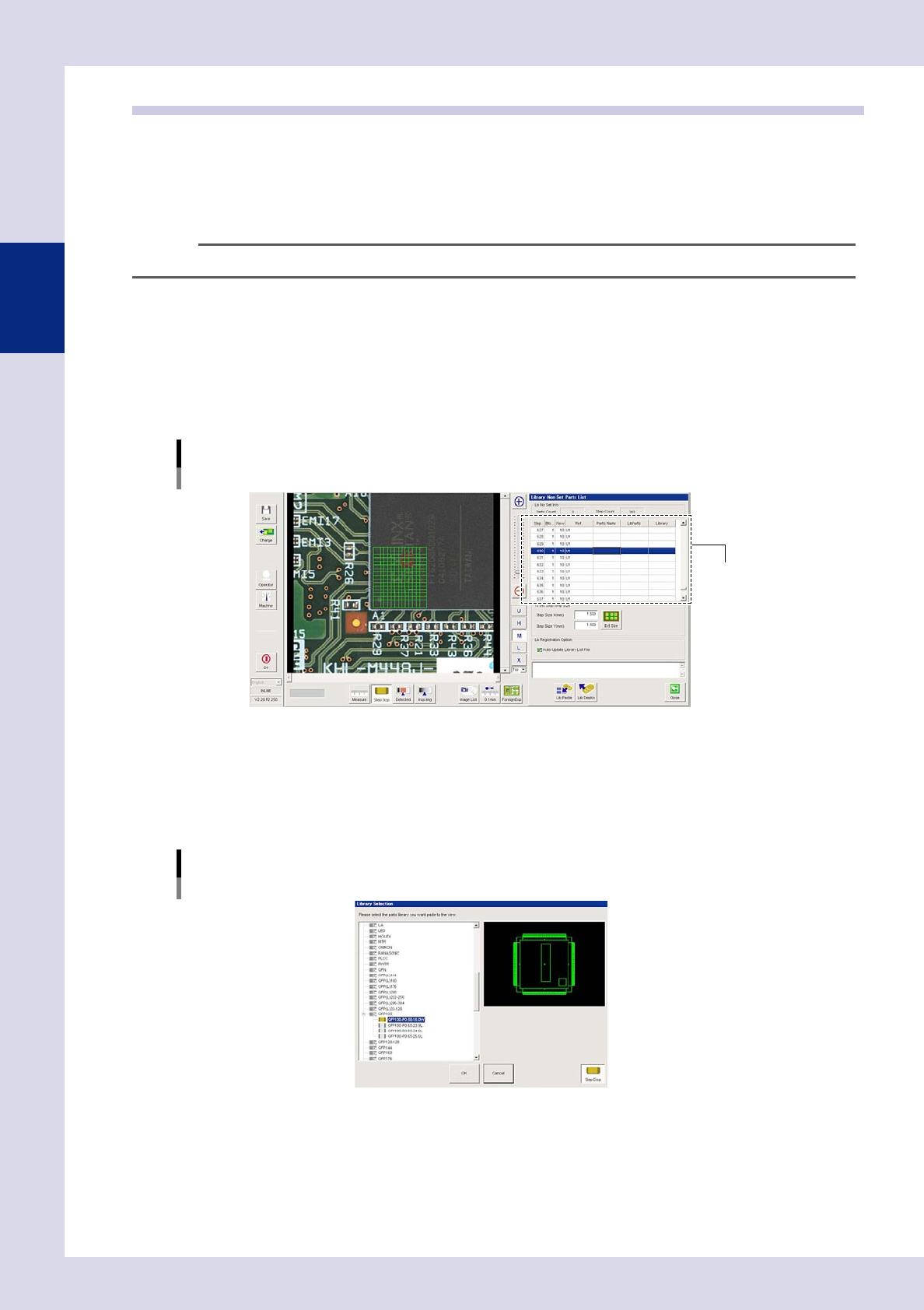
Press the [Lib Non Set] button in the "Utility" tab.
Parts for which libraries have not been deployed appear in the "Library Non Set Parts List".
Library Non Set Parts List
Parts for which libraries
have not been deployed
24238-P6-00
3
Select a part and press the [Close] button.
Move to the applicable part.
4
Press the [Paste] button at the "Tuning" tab.
A "Library Selection" screen appears.
[Library Selection] screen
24239-P6-00
2-39
2
Creating inspection programs
5
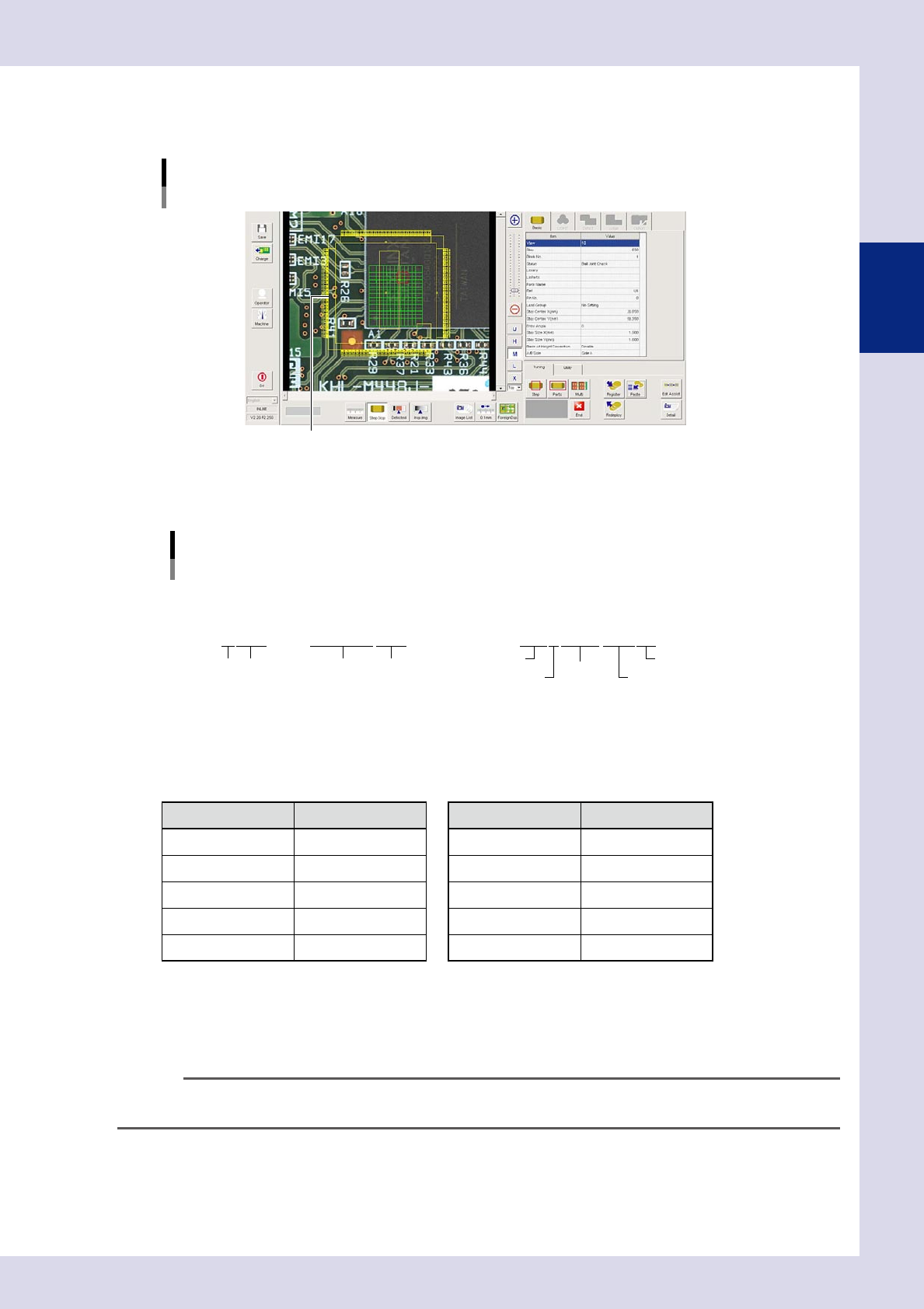
Select the applicable library and press the [OK] button.
The "Library Selection" screen is closed, and the library selected for the view image is displayed in
yellow.
Selected library display
The selected library is displayed.
24257-P6-00
If the applicable library does not exist, select a similar library. Details example names of standard library
names are described below.
R1005 TANTALC1005
SOP4-P1.27-3.5W2.9
Standard library
Lib parts name examples
Example 1: resistor, capacitor, tantalum capacitor Example 2: SOP
(4 pins, pitch: 1.27, lead opposing side width:
3.5 mm, parts body width: 2.9 mm)
Parts type
Parts type
No. of pins
Pitch
Lead opposing side width
Parts body width
Dimensions
Parts type Dimensions
23217-P6-00
• Leadopposingsidewidth(distancefromleadtiptoleadtiponotherside)
W : Square parts with leads on 2 sides or leads on 4 sides
L : Parts with leads on 4 sides, distance in longer direction
The following table shows typical codes.
Parts type Code Parts type Code
Resistor R Network resistor NR
Capacitor C Transistor TR
Mini transistor MTR Diode D
Tantalum capacitor TC Aluminum capacitor AL
Crystal XTL Integrated circuit SOP/QFP/BGA/CSP
6
Paste a library to the mounting position.
1. Move the view image library to the part step position and click.
2. A library parts setting dialog box appears. By pressing the [Yes] button, the library is pasted to the
mounting position.
TIP
If a similar library is pasted, change the parameter settings for that part and register the library. For details on the
registration method, see section 2.7.3, "Registering libraries", in this chapter.
2-40
2
Creating inspection programs
2.7.2 Step creation procedure
Create new steps for parts for which libraries have not been deployed.
The following example describes the procedure for creating steps to perform fillet solder quantity inspection.
1
Press the [Data Edit] button and open the "Step" tab.
2
Create a step.
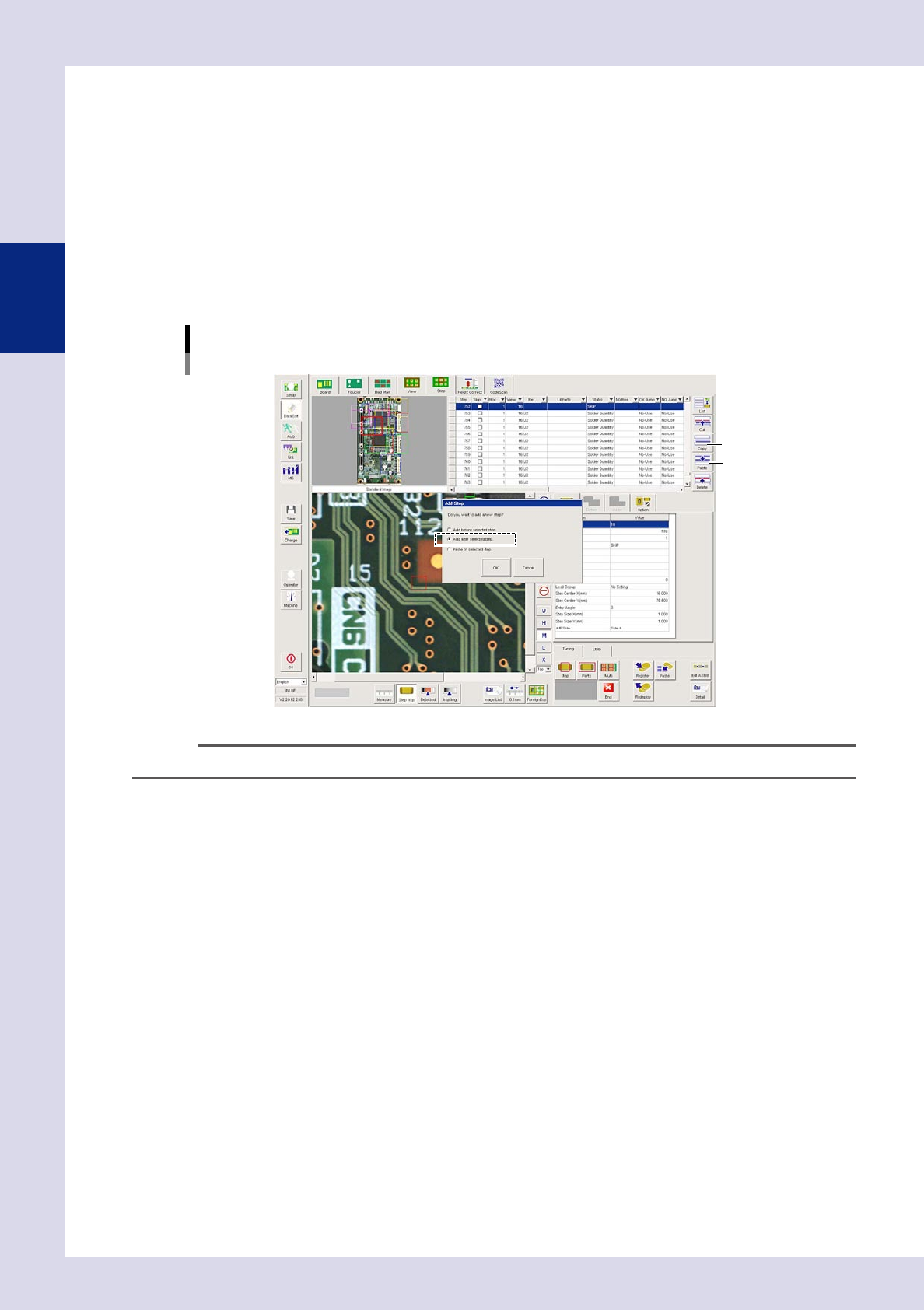
1. Select a part step and press the [Copy] button. If the part has no steps, select the last step in the
relevant view displayed in the basic information field, and then press the [Copy] button.
2. Press the [Paste] button. An "Add Step" dialog box appears. Select "Add after selected step." and
press the [OK] button.
[Data Edit] - [Step] screen
Step creation
[Copy] button
[Paste] button
24240-P6-00
TIP
If copying and pasting steps, the new step is created 0.2 mm to the lower right of an existing step.
3
Set the step frame position and size.
Enclose the object subject to inspection with a step.
Step position setting method
1. Enter the coordinates in "Step Center X, Y (mm)" in the basic parameters.
2. Double-click a step in the step image, increase the step frame thickness, and then move with the
mouse, or press the button to the left of the "Step" field in the step data list, increase the step frame
thickness, and then move with the mouse.
Step size setting method
1. Enter the coordinates in "Step Size X, Y (mm)" in the basic parameters.
2. Double-click a step in step image, increase the step frame thickness, and then drag each side or
corner with the mouse, or press the button to the left of the "Step" field in the step data list, increase
the step frame thickness, and then drag each side or corner with the mouse.