YSI_Prog_E - 第112页
2-41 2 Creating inspection pr ograms 4 In the "Basic" par ameter list, set the "Status" (inspection mode). Select the inspection mode used to inspect the objects in the created step frame. Select &quo…
2-40
2
Creating inspection programs
2.7.2 Step creation procedure
Create new steps for parts for which libraries have not been deployed.
The following example describes the procedure for creating steps to perform fillet solder quantity inspection.
1
Press the [Data Edit] button and open the "Step" tab.
2
Create a step.
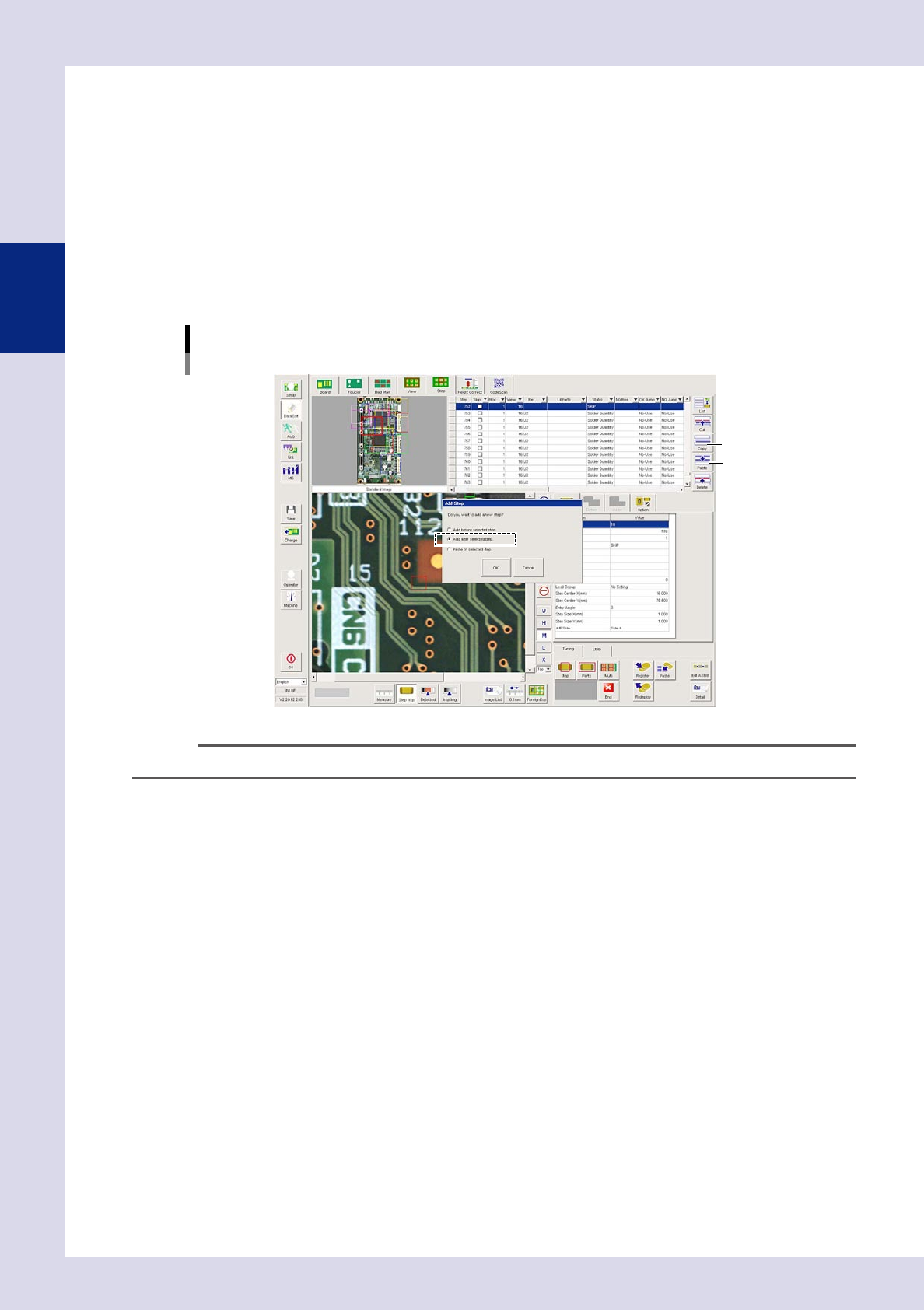
1. Select a part step and press the [Copy] button. If the part has no steps, select the last step in the
relevant view displayed in the basic information field, and then press the [Copy] button.
2. Press the [Paste] button. An "Add Step" dialog box appears. Select "Add after selected step." and
press the [OK] button.
[Data Edit] - [Step] screen
Step creation
[Copy] button
[Paste] button
24240-P6-00
TIP
If copying and pasting steps, the new step is created 0.2 mm to the lower right of an existing step.
3
Set the step frame position and size.
Enclose the object subject to inspection with a step.
Step position setting method
1. Enter the coordinates in "Step Center X, Y (mm)" in the basic parameters.
2. Double-click a step in the step image, increase the step frame thickness, and then move with the
mouse, or press the button to the left of the "Step" field in the step data list, increase the step frame
thickness, and then move with the mouse.
Step size setting method
1. Enter the coordinates in "Step Size X, Y (mm)" in the basic parameters.
2. Double-click a step in step image, increase the step frame thickness, and then drag each side or
corner with the mouse, or press the button to the left of the "Step" field in the step data list, increase
the step frame thickness, and then drag each side or corner with the mouse.
2-41
2
Creating inspection programs
4
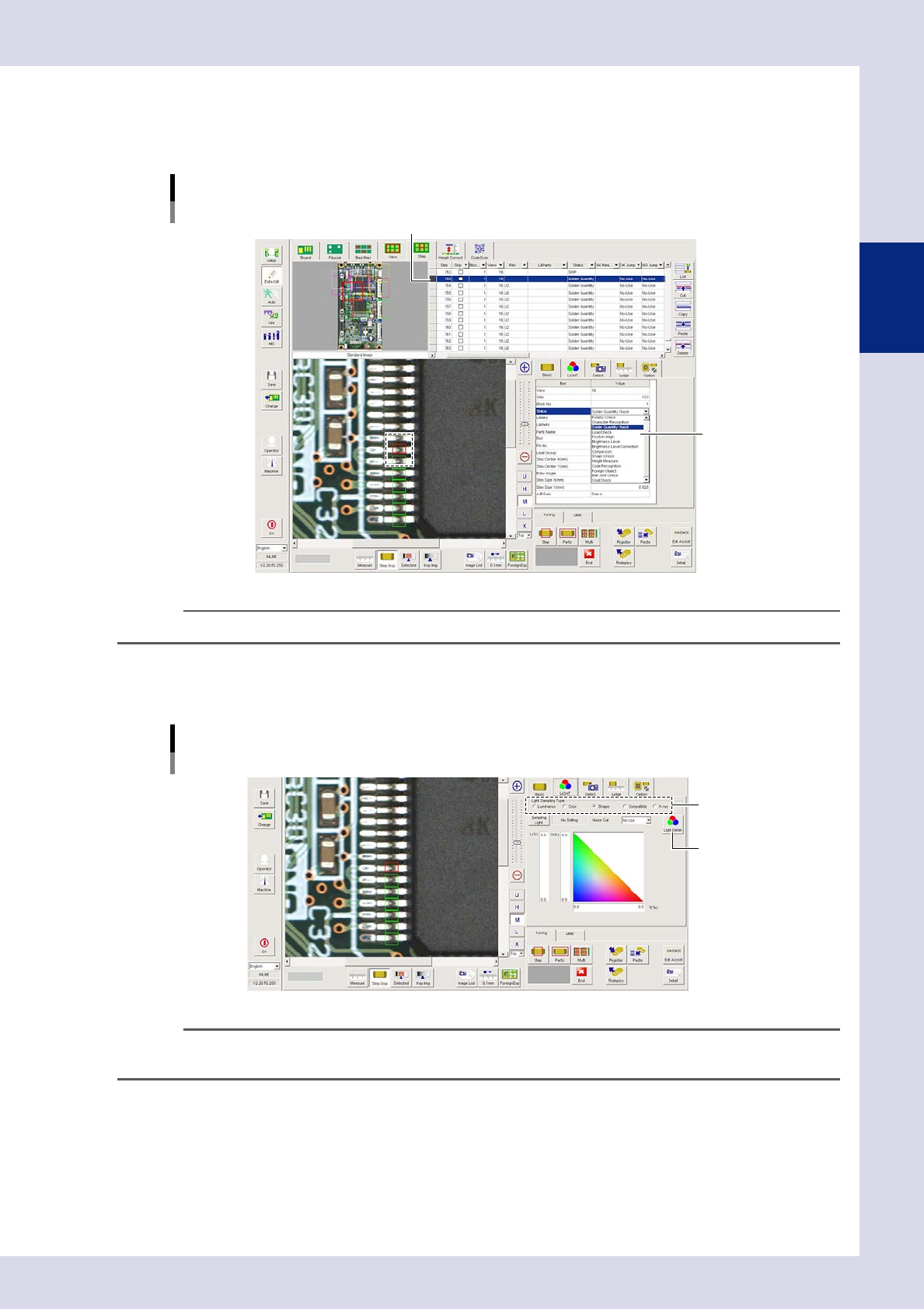
In the "Basic" parameter list, set the "Status" (inspection mode).
Select the inspection mode used to inspect the objects in the created step frame.
Select "Solder Quantity Check".
[Data Edit] - [Step] screen
Step creation
Created step
Select "Status"
(inspection mode).
24241-P6-00
TIP
For details on the inspection status and related parameters, see Chapter 4, "Inspection status", in this manual.
5
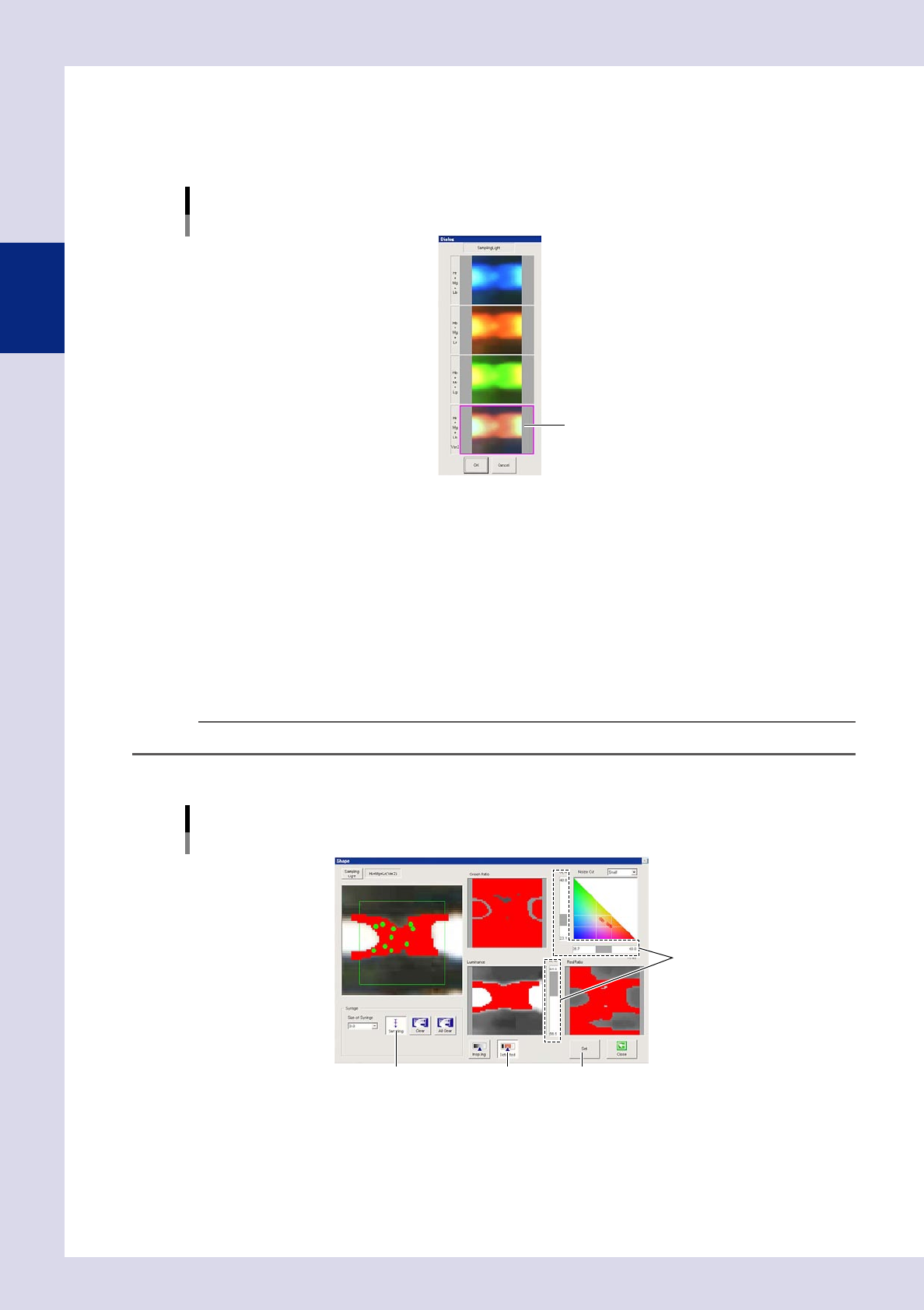
Open the "LIGHT" tab and select the "Light Sampling Type".
If inspecting the fillet solder quantity, click the "Shape" radio button.
[Data Edit] - [Step] screen
[LIGHT] tab settings
Sampling light type
[Light Detail] button
24242-P6-00
TIP
For details on the light sampling type, see Chapter 3, "2.1 Recognition method (based on light sampling type)", in this
manual.
2-42
2
Creating inspection programs
6
Select the lighting.
Select a lighting for solder fillet recognition. If inspecting the solder fillet solder quantity, press the
[Sampling Light] button to open a "Sampling Light"selection dialog box, select "Hr+Mg+Lb Ver2" from the
sampling light list, and then press the [OK] button.
Shape: [Sampling Light] - "Sampling Light" selection dialog box
Select the lighting.
24246-P6-00
7
Set the threshold value.
Set the threshold value used to show the solder fillet in red.
1. Press the [Light Detail] button to open the "Shape" screen.
2. Press the [Sampling] button, and then click the location to be detected in the upper left image. The
clicked gradient area is shown in red. Click until most of part of the fillet turns red.
3. Press the [Sampling] button again to end sampling.
4. Press the [Detected] button.
5. Adjust the three threshold slide bars to show the object to be inspected in red. The common areas
shown in red in the three images are shown in red in the upper left image.
TIP
The threshold value can also be adjusted with the threshold slide bars without performing sampling.
6. Press the [Set] button to return to the "Step" screen.
Threshold value setting: shape
[Sampling] button
Threshold slide bar
[Detected] button [Set] button
24249-P6-00