YSI_Prog_E - 第120页
2-49 2 Creating inspection pr ograms 2.7.6 Saving view images If the steps do not fit inside the view for the deploy ed library , create the view again and sa ve the image. 1 C reate the view again. Press the [Data Edit]…
2-48
2
Creating inspection programs
2.7.5 Checking libraries
Existing libraries have been set for inspection of standard parts, and therefore it may sometimes be necessary to
change the settings based on the actual inspection parts. This section describes the procedure used to perform
a test (multi-test) for deployed parts libraries.
1
Select the part for the library to be checked.
2
Press the [Multi] button at the "Tuning" tab.
A multi-test screen appears.
3
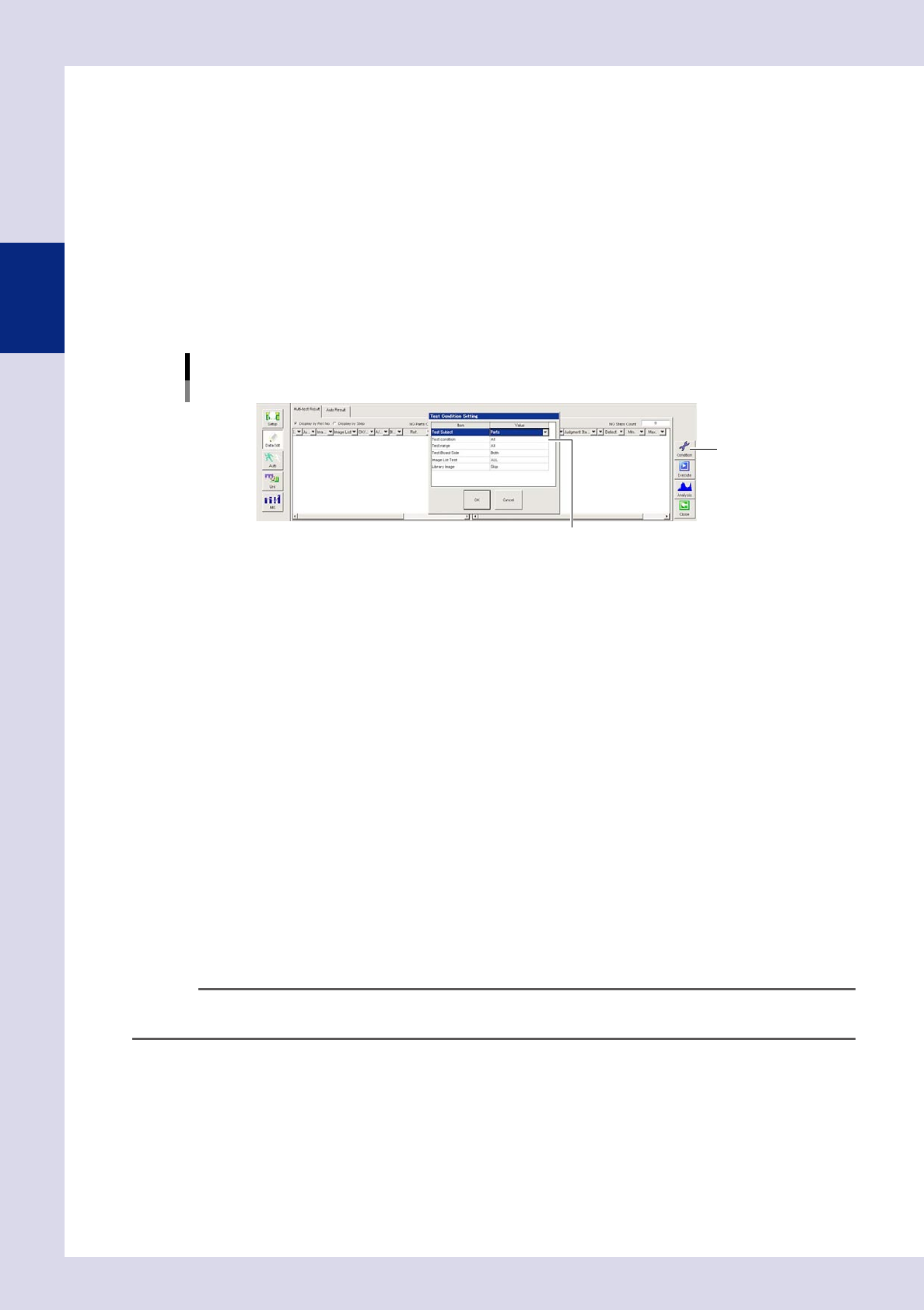
Press the [Condition] button to select the test conditions.
Select a value for each item from the drop-down lists. When selection is complete, press the [OK] button
to return to the multi-test screen.
[Multi-test] screen
Test conditions setting
[Condition] button
Select values from drop-down lists.
24254-P6-00
Test Subject
Select the test subject from Step, Inspection Status, Parts, or NG reason.
Test condition
Select from All, Same Lib Parts Name, Same Parts Name, and Same Ref. No.
Test range
Select from All, Only Piece of Board, Only Selected View, and Only Selected Parts.
Test Board side
Select Side A, Side B, or both.
Image List Test
Select from All, Skip, OK Images only, or NG Images only.
Library Image
Select from Skip, Exec OK parts , Exec NG Parts, and Exec all .
4
Press the [Execute] button.
The test results for all steps matching the selected conditions are displayed in a list.
5
Change all parameter settings.
Click steps judged to be NG, and select the relevant step. In order that the step be judged correctly,
change parameters such as step detection conditions and judgment conditions. For details on all
inspection status settings, see Chapter 4, "Inspection status", in this manual.
TIP
By pressing the [Analysis] button, a "Detect Value Graph" screen appears.
Select the "Display item" and display the test result in a graph as a reference to help with parameter correction.
2-49
2
Creating inspection programs
2.7.6 Saving view images
If the steps do not fit inside the view for the deployed library, create the view again and save the image.
1
Create the view again.
Press the [Data Edit] button, open the "View" tab, and press the "Auto Creation" function [Auto] button.
Follow the instructions in the dialog box that appears.
2
Save the view image.
Open the image list "OK Image" tab, select "Standard Image", and press the [OverWrite] button.
3
Save the created inspection program.
Press the button area [Save] button.
2-50
2
Creating inspection programs
2.8 Library details
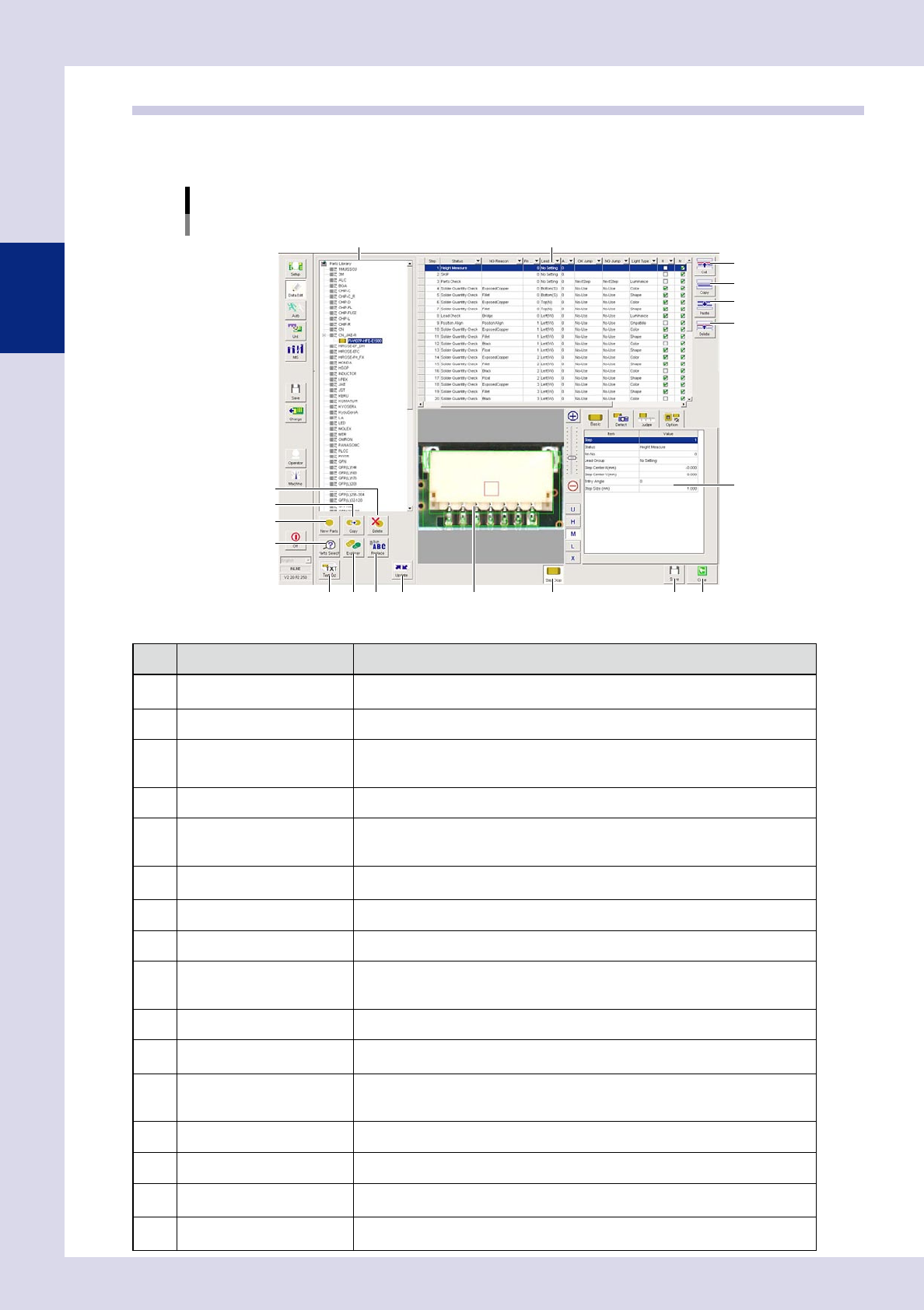
Press the [Detail] button in the [Data Edit] - [Step] screen - "Utility" tab to display a library details setting
screen. Registered library names can be changed, and libraries can be deleted or edited at this screen.
[Library details] screen
4
5
6
7
8
9
10
11 12 13 14
1 2
3
15 16
19
17 18
24255-P6-00
Item/button name Function
1 LibParts list
A list of registered Library/LibParts names is displayed. By selecting "Library",
registered "LibParts" are displayed.
2 Step list All steps for the selected library are displayed.
3 Cut
By copying rows in the selected range in the step list to the clipboard and then
pasting, these rows are deleted. The data rows below the deleted rows move up.
The cut data is kept stored until different data is cut or pasted to the clipboard.
4 Copy Copies the rows selected in the step list to the clipboard.
5 Paste
Inserts and overwrites data copied to the clipboard to the step list.
Pressing this button displays an "Add step" dialog box, allowing the add position to
be selected.
6 Delete
Deletes the row selected in the step list. The data rows below the deleted rows move
up.
7 Delete Deletes the selected library.
8 Copy Copies the selected library.
9
New Parts
By selecting the "Library" and "LibParts" name and clicking this button, a dialog
appears. By entering the "LibParts" name and clicking [Save], a "LibParts" name can
be registered for the same "Library".
10
Parts Search
Searches for the library parts name.
11 Text Out
Outputs the library in a text file.
Output destination: Machine settings\Lib Setting\Library Text Output Path
12 Explorer
A library import/export screen appears.
At this screen, libraries can be imported and exported from other folders in the same
"Library" units.
13 Replace Batch replaces library details.
14 Update Recreates the parts library list.
15 Registered parts image
An image of the "LibParts" selected in the parts library list is displayed. If no image
appears, set a board, and save the library again.
16 Step Disp
Steps for the "LibParts" selected in the parts library are displayed on the registered
parts image.