YSI_Prog_E - 第130页
3-7 3 Step screen Inspection status Item Details Character Recognition Inspection Character String Enter the character string written on the correct parts. OCR T ype Select the character type written on the correct parts…
3-6
3
Step screen
1.4 Judgment conditions parameters
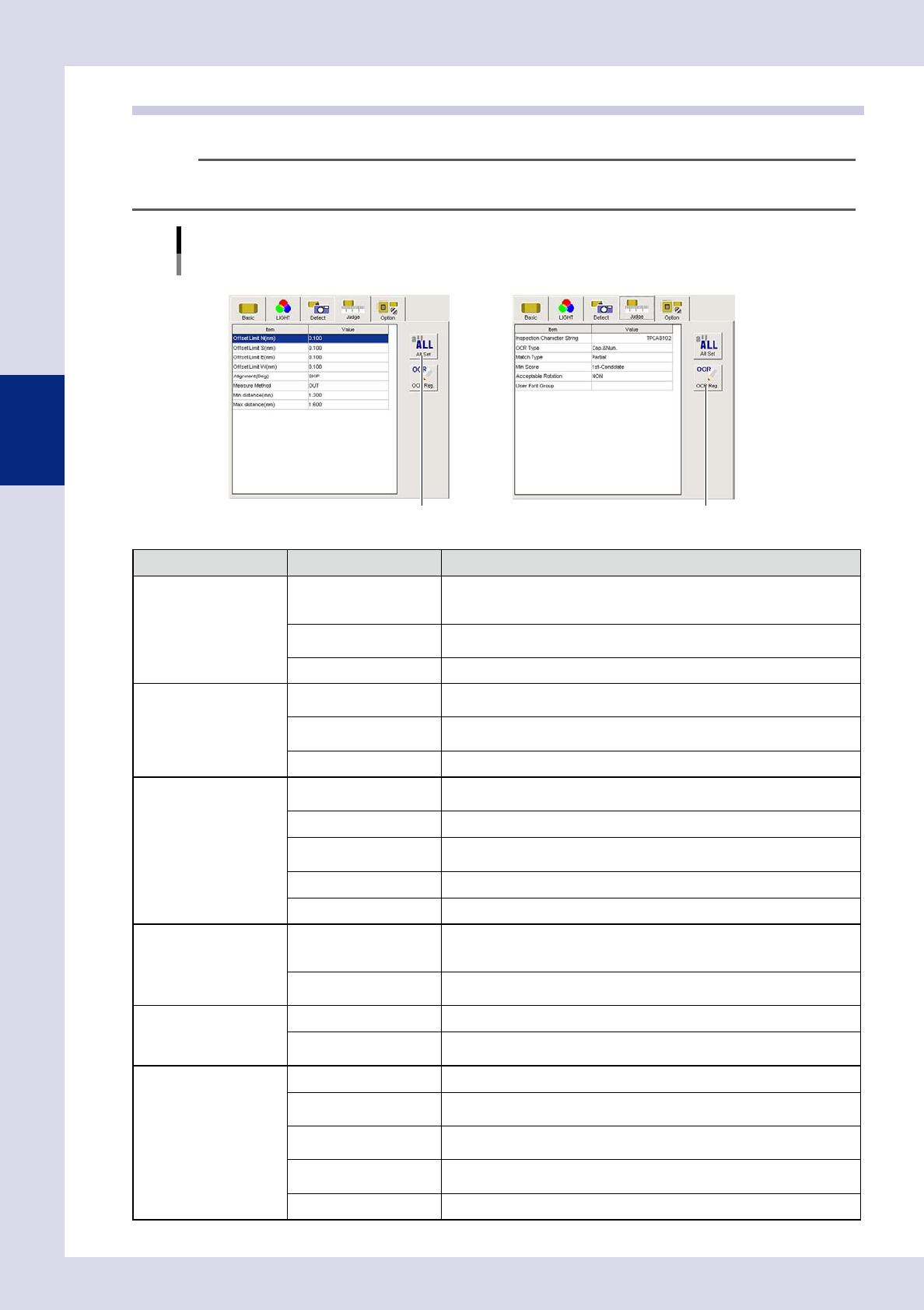
Sets parameters used to judge whether the object being inspected is OK or NG.
TIP
The displayed parameters differ depending on the inspection status. For details on parameter settings for each status,
see Chapter 4, "Inspection status", in this manual.
Judgment conditions parameters
Inspection status "Electrode Check", "Character Recognition" example
NElectrode Check
[All Set] button
NCharacter Recognition
[OCR Reg.] button
24304-P6-00
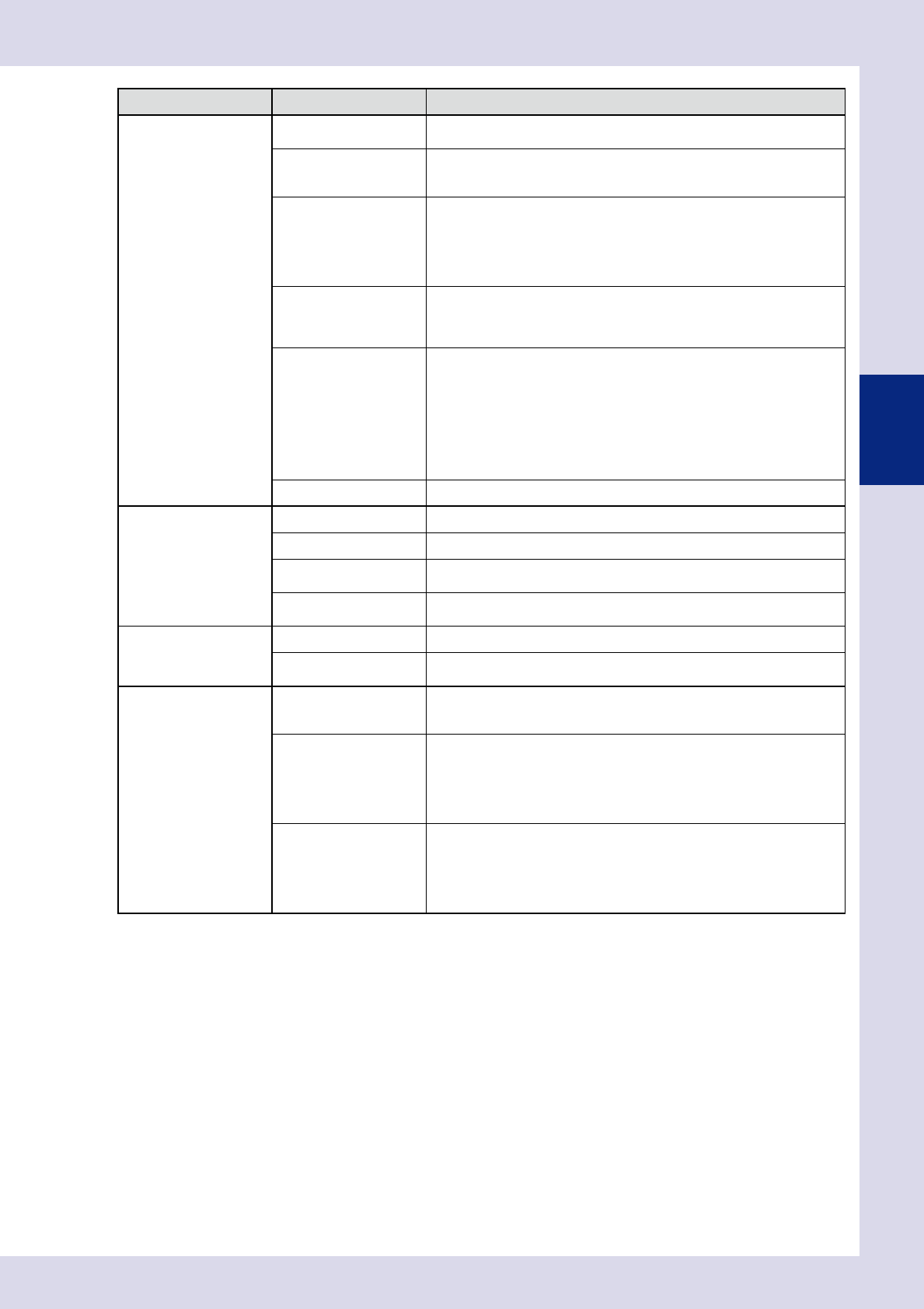
Inspection status Item Details
Parts Check
Offset Limit N - W (mm)
Sets the allowable amount that the recognized area edge may protrude from
the step frame. The detection area within this allowable amount is subject to
area calculation. Set based on the parts size and pattern design.
Min Area, Max Area (%)
Sets the percentage of the minimum and maximum area with respect to the
standard area.
Alignment (Deg) Enter the maximum tolerance angle for parts
θ
displacement inspection.
Position Align
Align Area Limit N - W
(±mm)
Enter maximum ranges for position alignment. An inspection NG result will
occur if these values are exceeded.
Min Area, Max Area (%)
Sets the percentage of the minimum and maximum area with respect to the
standard area.
Alignment (Deg) Enter the maximum tolerance angle for parts
θ
displacement inspection.
Electrode Check
Offset Limit N - W (mm)
Sets the allowable amount that the recognized area edge may protrude from
the step frame. Set based on the parts size and pattern design.
Alignment (Deg) Enter the maximum tolerance angle for chip parts
θ
displacement inspection.
Measure Method
Specifies whether to measure the electrode inner side distance or the outer
side distance.
Min distance (mm) Sets the OK parts minimum distance.
Max distance (mm) Sets the OK parts maximum distance.
Polarity Check
Offset Limit N - W (mm)
Sets the allowable amount that the recognized area edge may protrude from
the step frame. The detection area within this allowable amount is subject to
area calculation. Set based on the parts size and pattern design.
Min Area, Max Area (%)
Sets the percentage of the minimum and maximum area with respect to the
standard area.
Solder quantity check
Offset Limit N - W (mm) This should normally be set to "0".
Min Area, Max Area (%)
Sets the percentage of the minimum and maximum area with respect to the
standard area.
Lead Check
Offset Limit N - W (mm) This should normally be set to "0".
Max Accept Size X, Y
(mm)
An NG is judged if the recognized area is greater than the set value.
Pin Number Check
An NG is judged if the number of pins on the recognized object differs from
the specified number of pins.
Min Area, Max Area (%)
Sets the minimum and maximum area percentage with respect to the
standard area for the area subject to pin quantity inspection.
Lead Space Check (mm) Sets the minimum value for the distance between leads.
3-7
3
Step screen
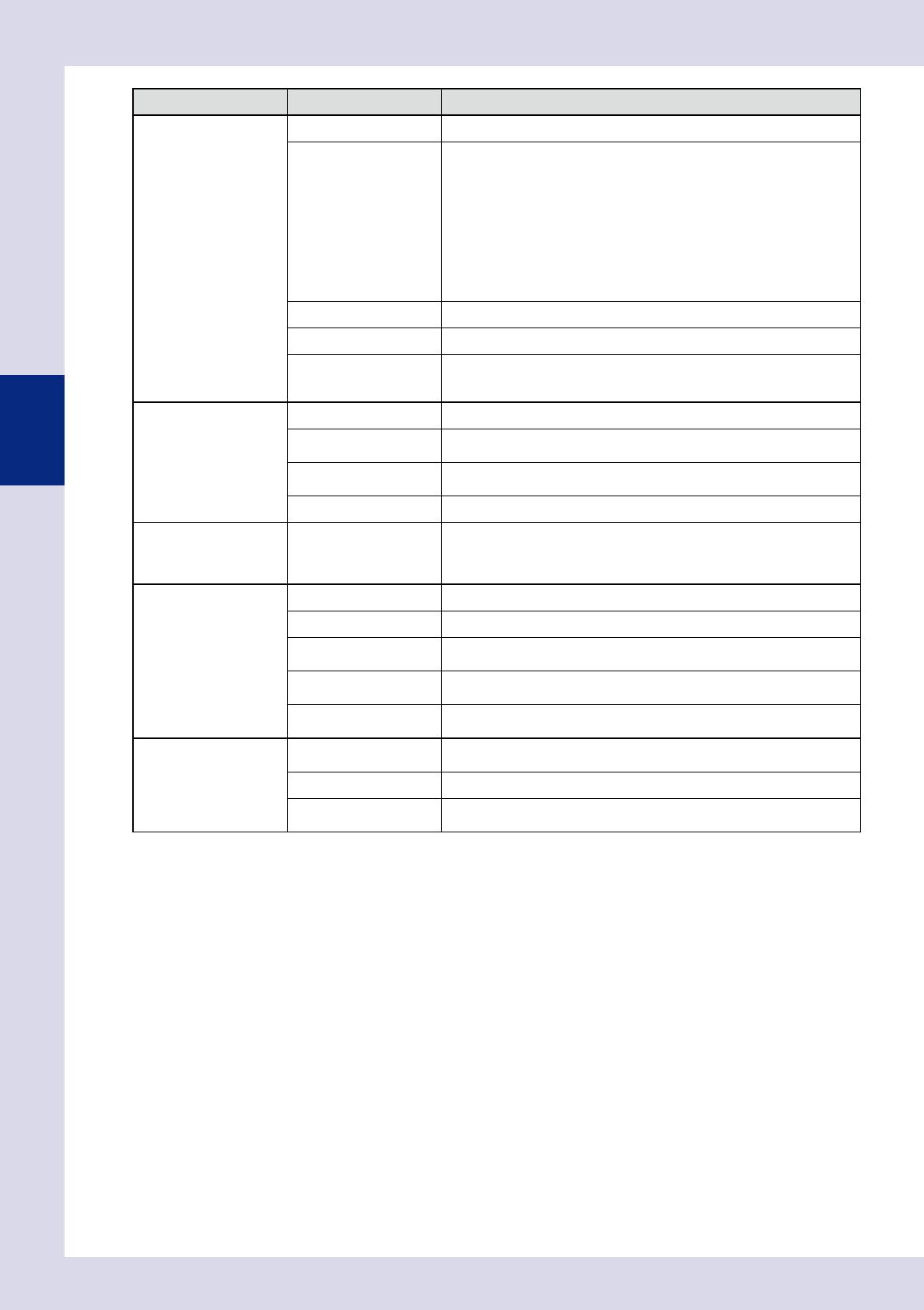
Inspection status Item Details
Character Recognition
Inspection Character
String
Enter the character string written on the correct parts.
OCR Type
Select the character type written on the correct parts from "Cap.&Num.",
"Cap.", or "Num." (alphanumeric, alphabet, numeric.) In the case of alphabet
characters, only upper case characters are recognized.
Match Type
• Complete
An OK result is judged if the recognized character string matches the
inspection character string completely.
• Partial
An OK result is judged if the recognized character string contains the
inspection character string.
Min Score
By pressing the [Detail] button following a step test, a list of recognized
characters is displayed with the recognition score for each character. Enter
the minimum recognition score. 1st-Candidate: Inspects characters with
highest score.
Acceptable Rotation
• NON
Performs inspection only at the angle registered at the "Basic" tab. This is
also used as a polarity check.
• Permit 180°
Select this setting for parts such as chip resistors where a 180° rotation
presents no problem.
• Permit All
Use to recognize the presence of an inspection character string,
regardless of the character string angle.
User Font Group Specifies the referenced font group.
Brightness level
Min Luminance Level Enter the minimum luminance level for OK parts.
Max Luminance Level Enter the maximum luminance level for OK parts.
Measure Method
(luminance level)
Selects the luminance level calculation method.
Memory No.
Selects the memory No. when performing calculation with subsequence
comparison steps.
Brightness Level
Correction
Measure Method Selects the luminance level calculation method.
Correct Level
Enter the standard luminance level. Offsets the difference between the
standard level and measured luminance level with a level correction step.
Comparison
Memory No1, 2
Specifies the luminance level steps being compared.
The luminance value for the number set at memory No. 2 is subtracted from
the luminance value for the number set at memory No. 1.
Target of Compare
• Luminance
Performs inspection with the difference in luminance between two
luminance level steps.
• Thickness
Performs a comparison with the difference in the thickness measurement
results for steps set at the memory No. settings.
Minimum, Maximum
Sets the minimum and maximum values for the OK parts luminance and
thickness.
Set between 0 and 255 if the comparison target is luminance.
(Unit: Luminance level)
Set between 0 and 2 mm if the comparison target is thickness (YSi-X).
(Unit: mm)
3-8
3
Step screen
Inspection status Item Details
Shape Check
Offset Limit N - W (mm) Set based on the parts size and pattern design.
Inspection Shape
• Size
Performs inspection by comparing the recognition area dimensions with
step dimensions.
• Circularity (roundness)
Inspects how much the detection area contour deviates from perfect
roundness.
• Convexity
Inspects the smoothness of the detection area contour.
• Aspect ratio
Inspects the percentage of the detection object vertical length relative to
the horizontal length (horizontal = 100%).
Min Match Ratio (%) Enter the minimum match ratio for OK parts.
Max Match Ratio (%) Enter the maximum match ratio for OK parts.
Tolerance X, Y (mm)
These settings are valid for the size selected at "Size". The result will be OK
if the maximum dimension of the recognition area is within the dimension for
which the tolerance has been increased or decreased for the step size.
Code Recognition
Algorithm Type Selects the code type from "Unset", "QRcode", "D-matrix", or "Barcode".
Start Data Column
Specifies the starting digits used as the ID code from the extracted character
string.
End Data Column
Specifies the ending digits used as the ID code from the extracted character
string.
Cell Number Specifies the size of the extracted characters.
Foreign Object Judge Size Condition
• Two-Side-Size
An NG result occurs if both the object size X and Y directions are NG.
• One-Side-Size
An NG result occurs if either the object size X or Y directions is NG.
Ball Joint Check
Judge Size X, Y Min. Sets the minimum size for judging foreign objects.
Judge Size X, Y Max. Sets the maximum size for judging foreign objects.
Std Area (mm
2
)
This is calculated automatically from the pad diameter based on the original
ball joint area.
Ball Radius (mm)
This is calculated automatically from the pad diameter based on the original
ball joint area.
Position Check
Sets the allowable displacement from the center of the step to the center of
the recognition area.
Void Check
Max Accept Size X, Y
(mm)
This is the maximum allowable void X direction size relative to the detected
void.
Max Void Num. Sets the number of allowable detected voids.
Max Void Occupancy (%)
Sets the allowable occupancy rate for the area of all detected voids relative
to the standard area.
[OCR Reg.] button
Registers an original character font as the character recognition font for each user. For details on the character registration
method, see section 2.2, "Registering user characters", in this chapter.
[All Set] button
Pressing this button sets the selected displacement value for other directions also.