YSI_Prog_E - 第142页
3-19 3 Step screen 3. Press the [Recog. OCR] button to display the recognition result for th e recognized characters. "OCR data registration" screen OCR recognition characters Display the recognized characters.…
3-18
3
Step screen
2.2 Registering user characters
With character recognition inspection, inspection is performed by comparing with the characters in the
"Standard character template" registered beforehand. Furthermore, this can also be used to register characters
that have not been registered in the "Standard character template". Registering characters facilitates the
recognition of characters unique to parts.
2.2.1 Registering new characters
1
Create a character recognition step.
1. Create a new step and enclose the characters to be recognized.
2. Select "Character Recognition" at "Status" in the basic parameters.
2
Open the "Judge" tab.
3
Press the [OCR Reg.] button.
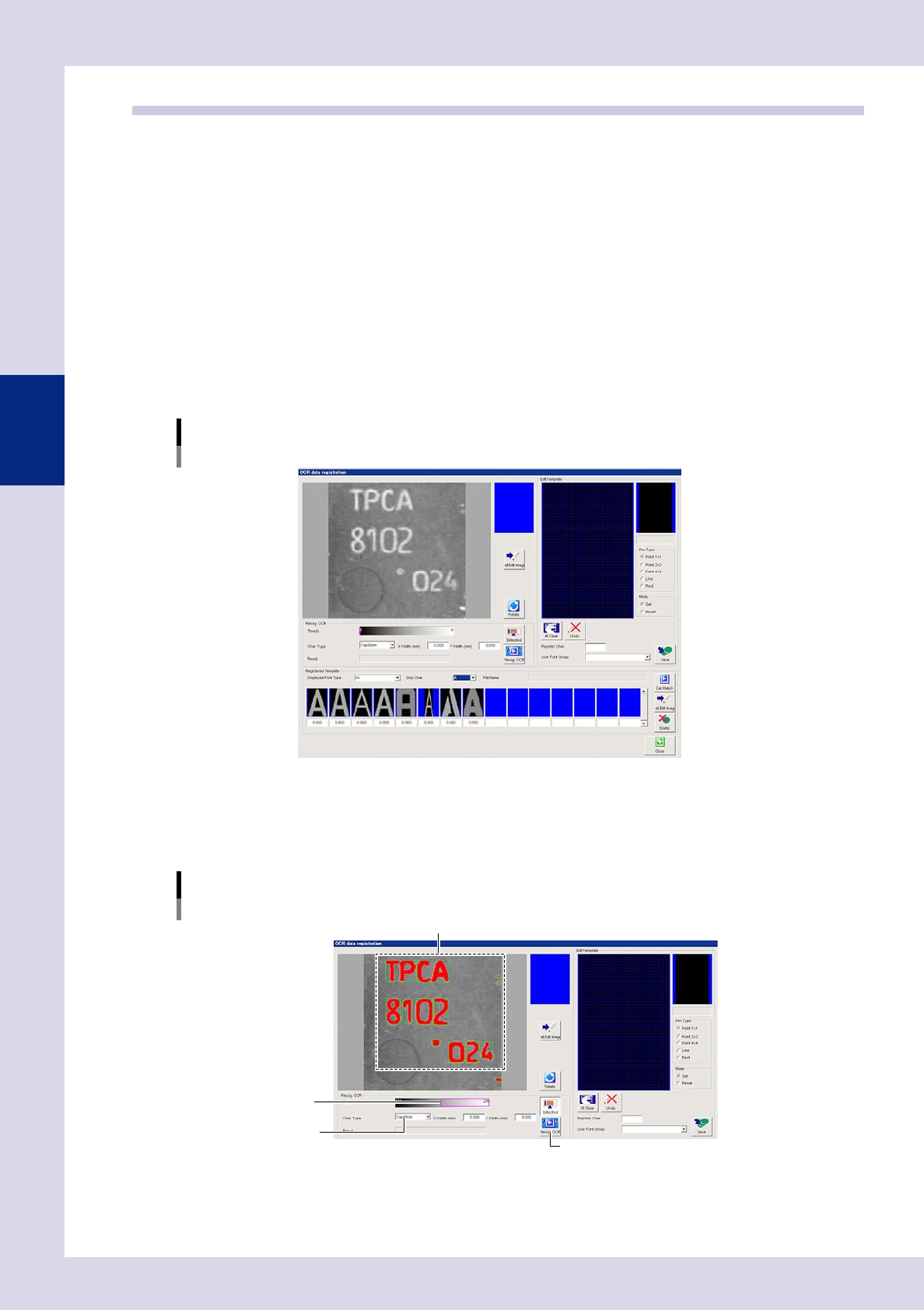
An "OCR data registration" screen appears.
"OCR data registration" screen
24317-P6-00
4
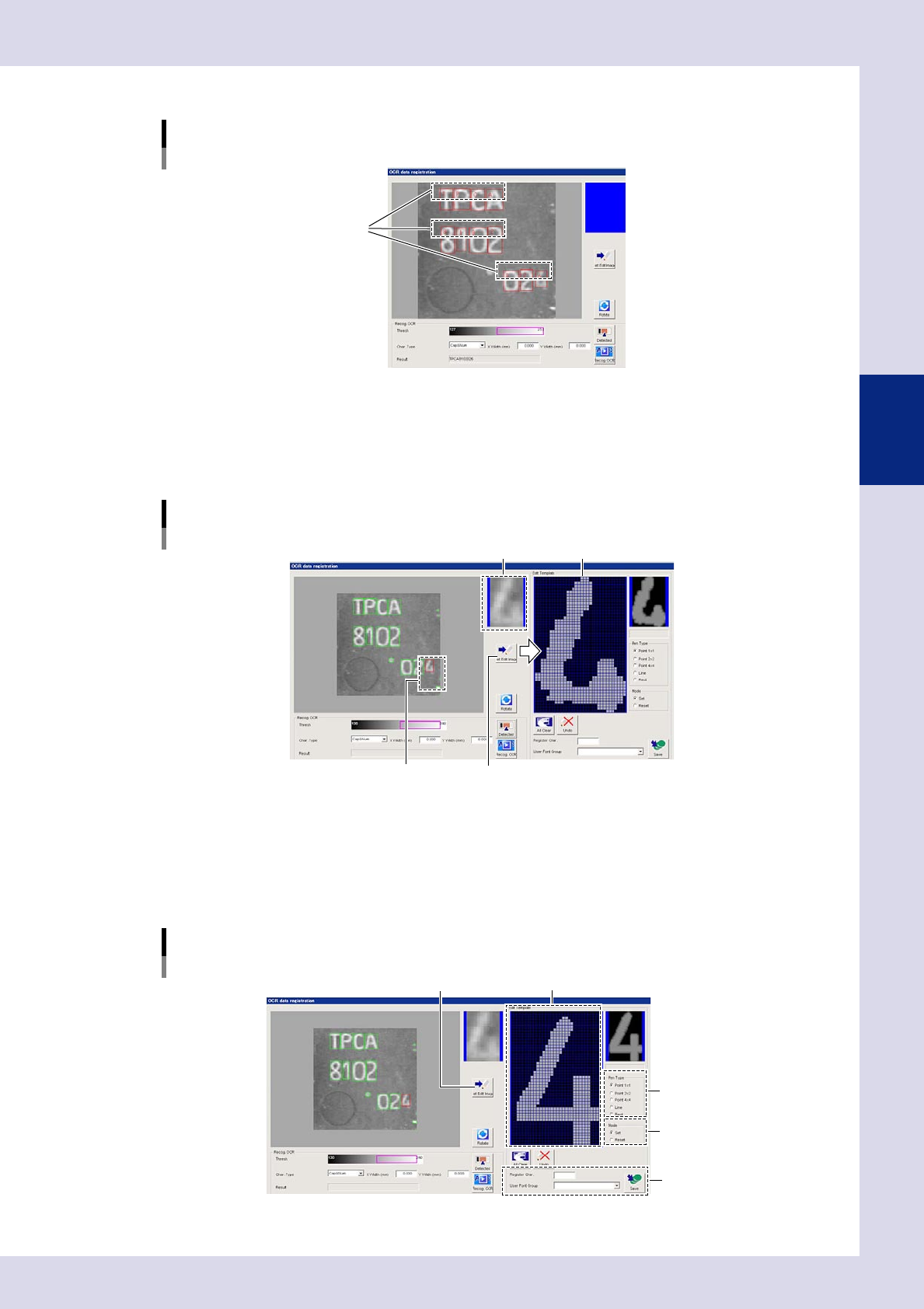
Perform OCR recognition.
1. Use the threshold slide bar to set the threshold value and show the characters in red.
2. Select the character type from "Cap.&Num.", "Cap.", or "Num." (alphanumeric, alphabet, numeric.)
"OCR data registration" screen
OCR recognition settings
Set the threshold value.
Display characters in red.
Select the character type.
[Recog.OCR] button
24318-P6-00
3-19
3
Step screen
3. Press the [Recog. OCR] button to display the recognition result for the recognized characters.
"OCR data registration" screen
OCR recognition characters
Display the recognized characters.
24319-P6-00
5
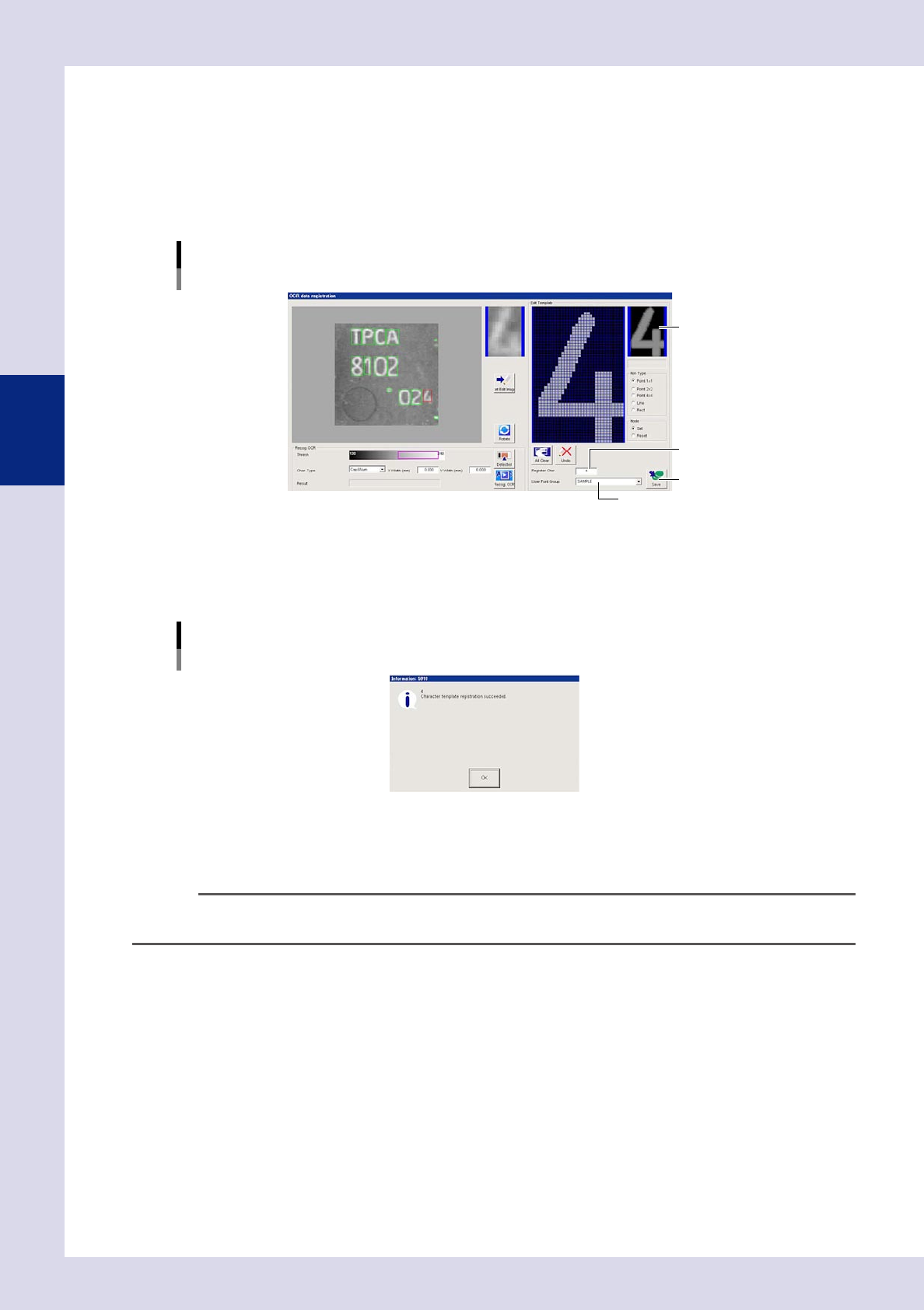
Select the characters to be registered.
1. Click the characters to be registered. If selecting multiple characters, click the detection field while
holding down the [Ctrl] key. The selected character(s) are displayed on the [Set Edit Image] button.
2. Press the [Set Edit Image] button to display the character image on the "Edit Template" screen.
"OCR data registration" screen
Character selection
Select the character(s). [Set Edit Image] button
Display the selected character(s). "Edit Template" screen
24320-P6-00
6
Correct the character image in the "Edit Template" screen.
1. Select the size and shape of the cell to be edited in the "Pen Type" field.
2. Click the cell to be edited, and arrange the character to be registered. Select either "Set" or "Reset"
in the "Mode" field. The cell that is clicked after selecting "Set" is added to the registered characters.
The cell that is clicked after selecting "Reset" is deleted from the registered characters.
"OCR data registration" screen
OCR recognition character image correction
Select the pen type.
Click a cell and arrange the character.
Select the mode.
Step 7
[Set Edit Image] button
24321-P6-00
3-20
3
Step screen
7
Register the corrected image.
1. Enter the character to be registeredin "Register Char." The characters that can be registered are as
follows.
Alphabet characters: A to Z
Numeric characters: 1 to 9
2. Specify the "User Font Group". If adding to a group that has also been registered, select from the
drop-down list. If registering a new group, enter the group name directly.
"OCR data registration" screen
Character registration
Enter the character to be registered.
Specify the group to be registered.
Display the image to be registered.
[Save] button
24322-P6-00
3. Check the image to be registered, and press the [Save] button. If registering a new group, a
confirmation dialog box appears. Follow the instructions provided. The following message appears
when registration is complete. Press the [OK] button to close the dialog box and return to the
original screen.
"OCR data registration" screen
Registration complete message
24323-P6-00
8
Press the button area [Save] button.
The image is saved to a user template.
n
NOTE
If registering a library for a part containing step data (character recognition) using a user template, the user template
is also registered in the library.