YSI_Prog_E - 第175页
4-15 4 Inspection status 3 Set the "Judge" par ameters. Open the "Judge" tab and set the following param eters. "Judge" parameters Status: Solder Quantity Check 24421-P6-00 Offset Limit N - …
4-14
4
Inspection status
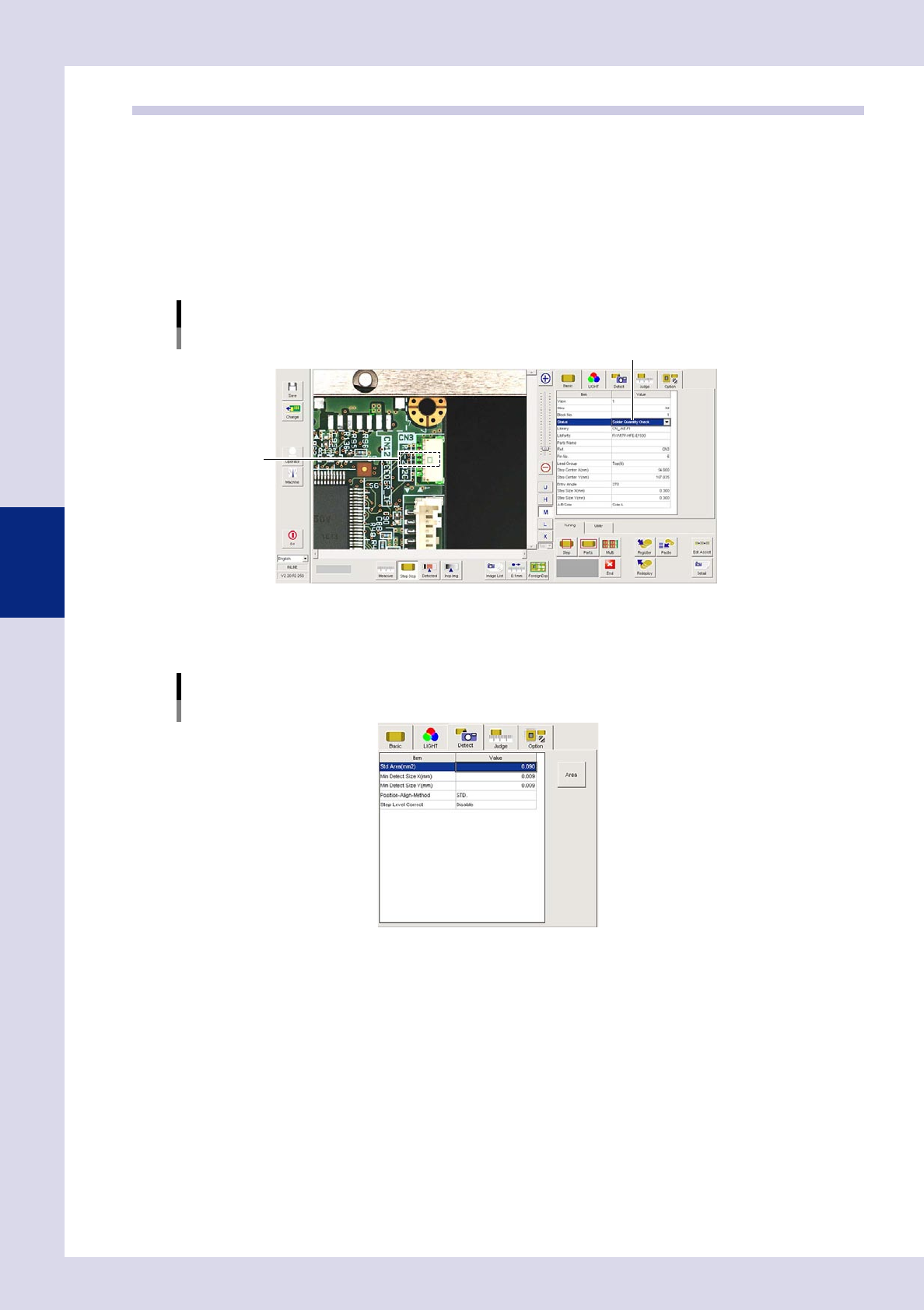
1.5 Solder Quantity Check
This inspection status is used to detect solder fillets on chip parts, and to inspect solder quantity.
1
Make a "step" setting.
1. Create a step frame.
2. Open the "Basic" tab, and set the "Status" in the basic parameters to "Solder Quantity Check".
3. Open the "LIGHT" tab, and set the light sampling type and threshold value in the lighting parameters
so that fillets are shown in red.
Sampling light type reference: Shape
Status (inspection mode)
Solder Quantity Check
Set to "Solder Quantity Check".
Step frame
24419-P6-00
2
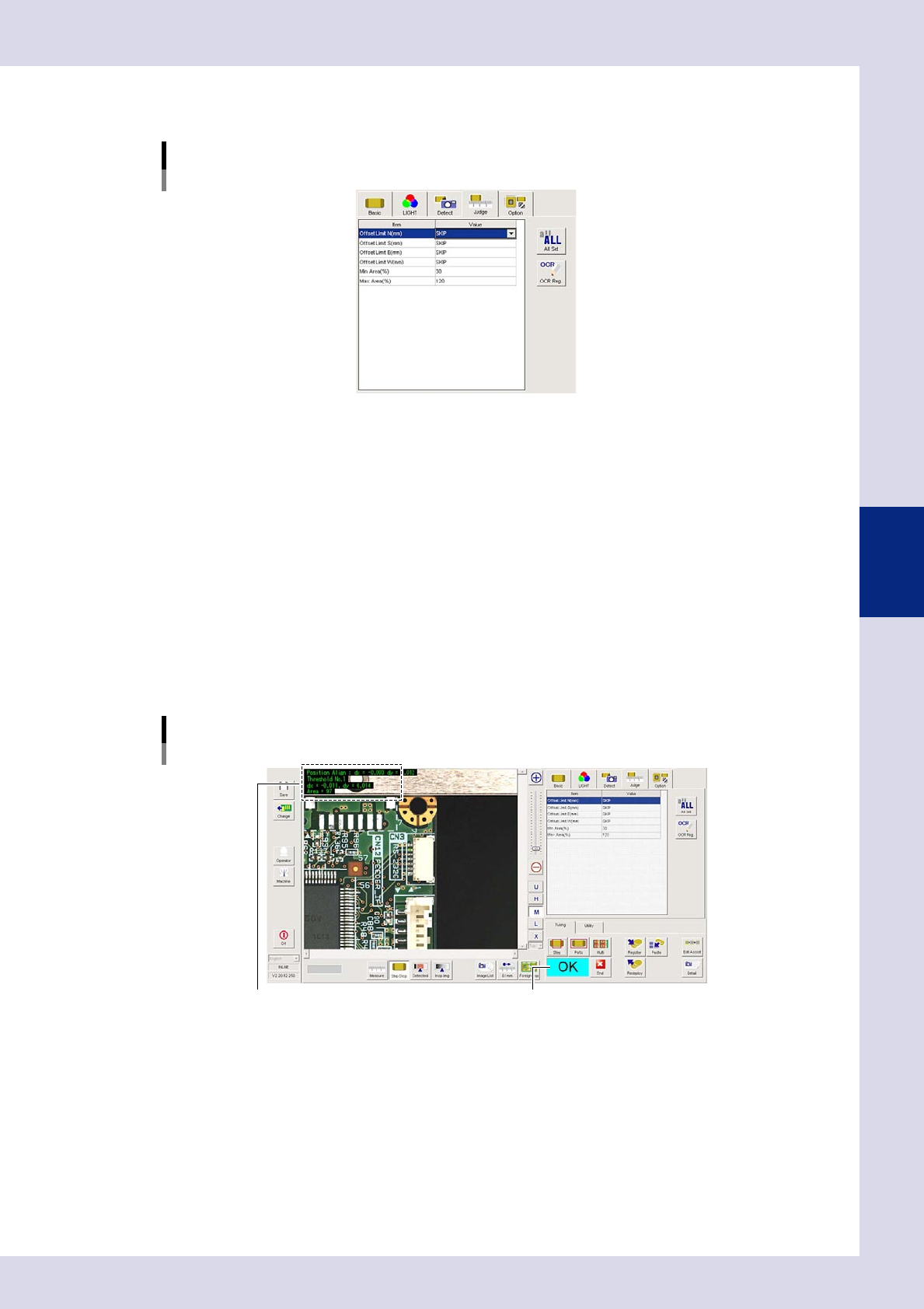
Set the "Detect" parameters.
Open the "Detect" tab and set the following parameters.
"Detect" parameters
Status: Solder Quantity Check
24420-P6-00
Minimum Detectable Size X, Y (mm)
Sets the minimum size for the solder to be inspected. For example, if the step frame is horizontally long,
set X = 0.06 and Y = 0.01, and if the step frame is vertically long, set X = 0.01 and Y = 0.06.
4-15
4
Inspection status
3
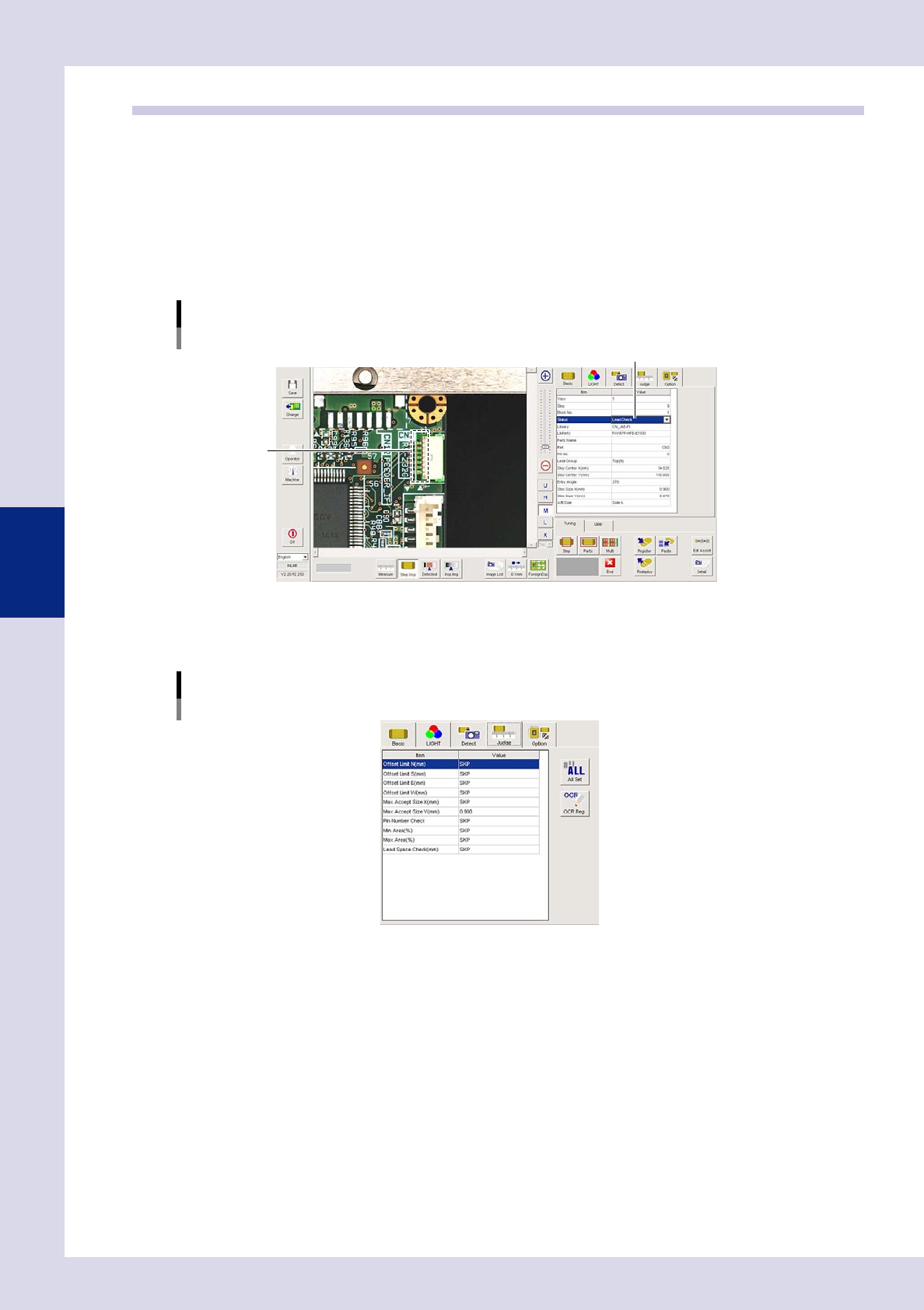
Set the "Judge" parameters.
Open the "Judge" tab and set the following parameters.
"Judge" parameters
Status: Solder Quantity Check
24421-P6-00
Offset Limit N - W (mm)
These are not normally used and should be set to "SKIP".
Min Area (%)
If the ratio of the detected area to the standard area is smaller than the value set here, then an NG
occurs.
Ref. value 30%
Max Area (%)
An NG result is judged if the ratio relative to the standard area for the detected area exceeds this
value.
Ref. value 120%
4
Perform a step test.
1. Press the [Step] button at the "Tuning" tab to perform a test for the created step.
2. Take a note of and check the detection data, and then press the [End] button.
Screen after a step test is finished
Test resultDisplays detected data.
24422-P6-00
Detected data
dx =, dy = : Amount that the step frame center deviates from the detection area center
Threshold No. : Threshold No. used for inspection
Area = : Percentage of the detected area relative to the standard area
3. If the test result is not judged correctly, review all parameters while referring to the detection data.
4-16
4
Inspection status
1.6 Lead Check
Use this inspection mode to check for solder bridges between leads or between adjacent parts.
1
Make a "step" setting.
1. Create a step frame.
2. Open the "Basic" tab, and set the "Status" in the basic parameters to "Lead Check".
3. Open the "LIGHT" tab, and set the light sampling type and threshold value in the lighting parameters
so that leads and solder are shown in red.
Sampling light type reference: Luminance
Status (Inspection mode)
Lead Check
Set to "Lead Check".
Step frame
24423-P6-00
2
Set the "Judge" parameters.
Open the "Judge" tab and set the following parameters.
"Judge" parameters
Status: Lead Check
24424-P6-00
Offset Limit N - W (mm)
This should normally be set to "SKIP".
If a value is entered, an NG result is judged if the recognized edge exceeds this value.
Pin Number Check
Select "SKIP" from the drop-down list, or enter the number of pins.
Select "SKIP".
Use to inspect bridges between leads on ICs and connectors without inspecting the number of pins.
Enter the number of inspection pins.
The number of pins is inspected. This is used to inspect bridges between leads of 3-pin or 5-pin
transistors, etc., and to inspect 180° mounting displacements. An NG test result is judged if other than
this value.