YSI_Prog_E - 第178页
4-18 4 Inspection status 6 Perform a step test again. 1. Press the [Step] button at the "T uning" tab again to per form a step test. 2. Take a n ote of and check the detection data, and then press the [End] but…
4-17
4
Inspection status
Min Area, Max Area (%)
Sets the minimum and maximum area for the OK detection area. Sets based on the value set at "Pin
Number Check". An NG test result is judged if the inspection object lies outside the range for the value
set here.
If "SKIP" is selected for "Pin Number Check"
Min Area reference value: SKIP, Max Area reference value: 100
If the number of inspection pins is entered at "Pin Number Check"
Min Area reference value: 10 to 30, Max Area reference value: 100
Lead Space Check (mm)
This parameter is not normally used and should be set to "SKIP". If using this parameter, set it to the
default setting of "0.06".
3
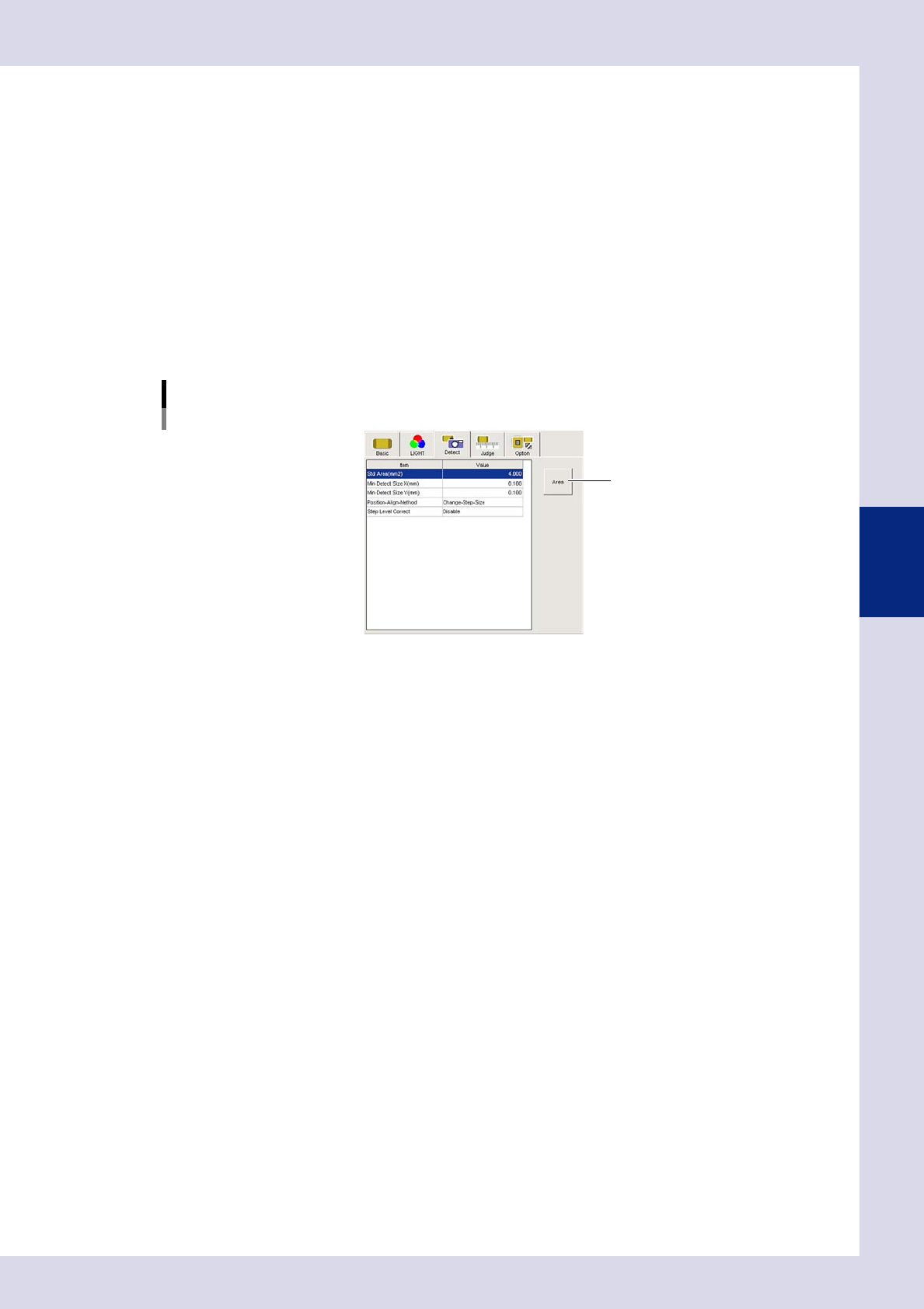
Set the "Detect" parameters.
Open the "Detect" tab and set the following parameters.
"Detect" parameters
Status: Lead Check
[基準面積]ボタン
24425-P6-00
Std Area (mm
2
)
Sets the step area. Sets based on the value set for "Pin Number Check" at the "Judge" tab.
If "Pin Number Check" is set to "SKIP", enter "4". If the number of inspection pins has not been entered,
press the [Area] button to acquire.
Min Detect Size (mm)
Enter the minimum size for the object to be inspected.
4
Perform a step test.
1. Press the [Step] button at the "Tuning" tab to perform a test for the created step.
2. When the test result appears, press the [End] button. When doing so, there is no problem if the test
result is "NG".
5
Press the [Detail] button.
The "Inspect result" dialog box opens. Press the [Auto Calculation] button. The following items in the
Judgment condition parameters are set automatically.
Maximum Acceptable Size X, Y (mm)
A value 1.5 times the maximum recognition value is set.
An NG test result is judged if the inspection object exceeds this value.
Lead Space Check (mm)
70% of the minimum recognition width is set. (only when set between leads)
An NG test result is judged if the distance between leads on the inspection object exceeds this value.
4-18
4
Inspection status
6
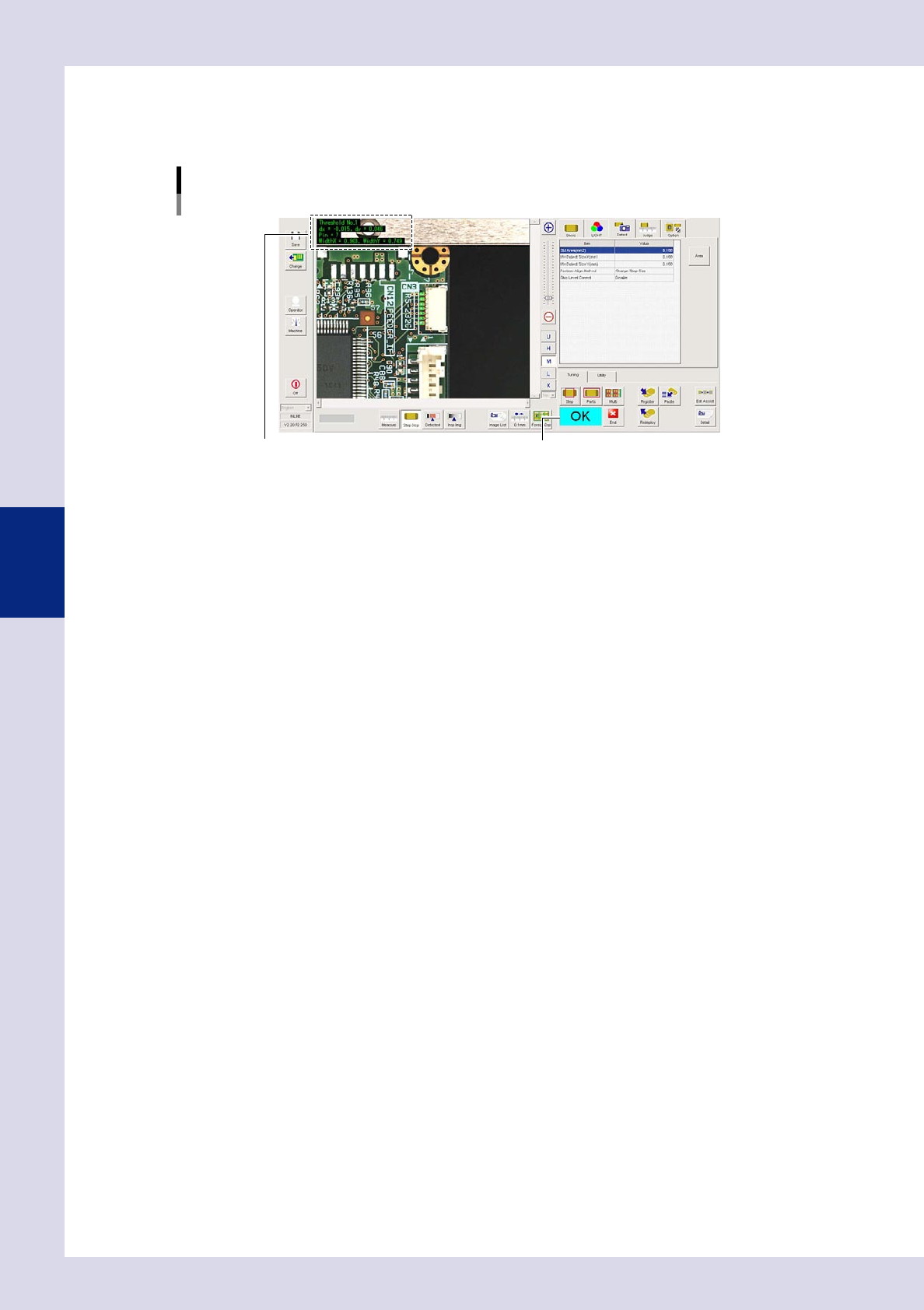
Perform a step test again.
1. Press the [Step] button at the "Tuning" tab again to perform a step test.
2. Take a note of and check the detection data, and then press the [End] button.
Screen after a step test is finished
Test resultDisplays detected data.
24426-P6-00
Detected data
Threshold No. : Threshold No. used for inspection
dx =, dy = : Amount that the step frame center deviates from the detection area center
Pin = : This is the number of detected leads.
WidthX =,WidthY = : This is the maximum detection width X and maximum detection width Y.
3. If the test result is not judged correctly, review all parameters while referring to the detection data.
4-19
4
Inspection status
1.7 Position Correction
In addition to the usual position corrections based on board fiducial marks, this inspection mode corrects the
inspection positions. The inspection step positions specified for the parts are offset by an amount equal to the
recognized positional displacement. By performing fiducial mark position correction, the inspection step
position of specified steps can be offset by an amount equal to the mark positional displacement.
1
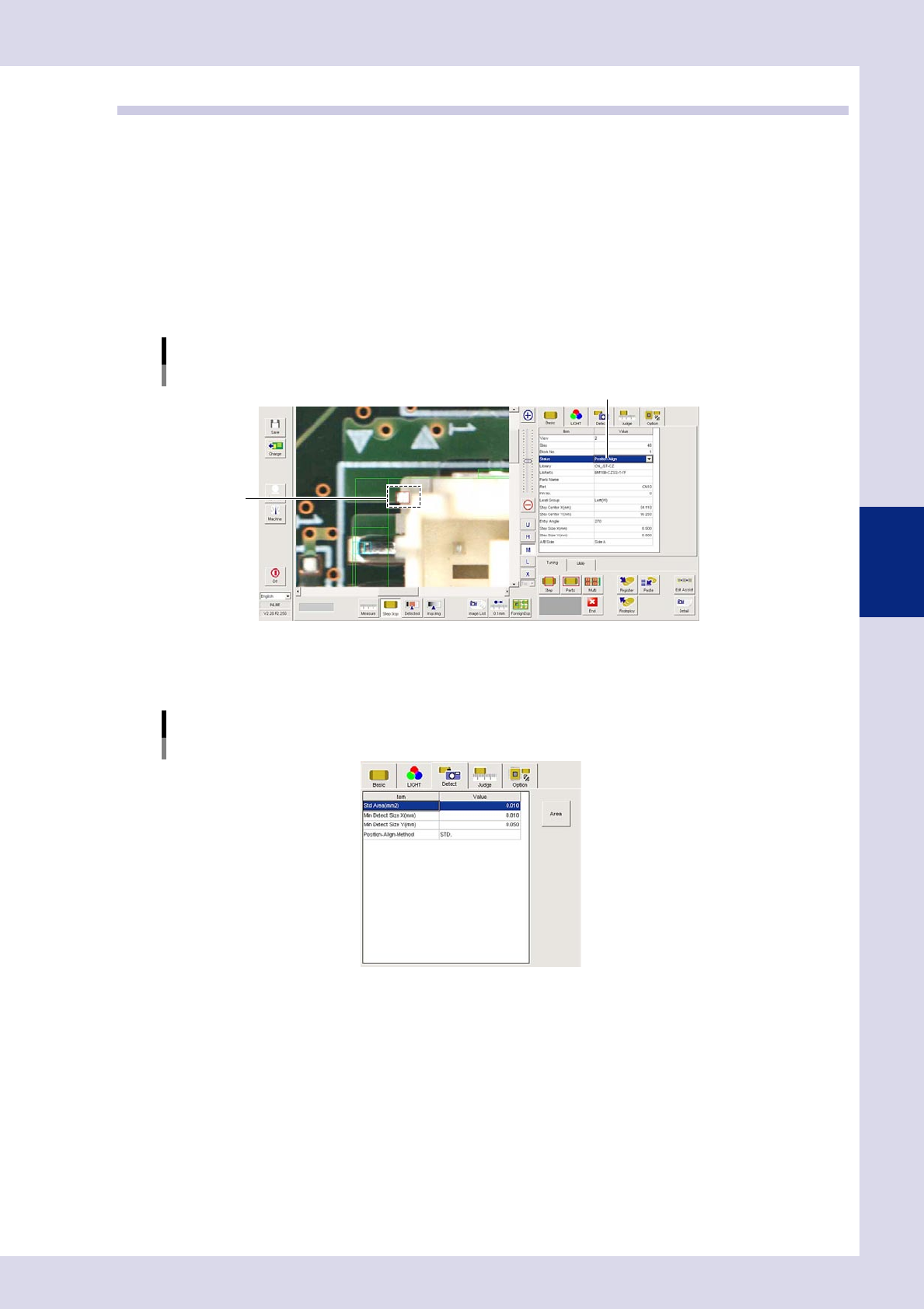
Make a "step" setting.
1. Create a step frame.
2. Open the "Basic" tab, and set the "Status" in the basic parameters to "Position Correction".
3. Open the "LIGHT" tab, and set the lighting parameters as "sampling light type" and "threshold value".
Sampling light type reference: Luminance
Status (inspection mode)
Position Correction
Set to "Position Correction".
Step frame
24427-P6-00
2
Set the "Detect" parameters.
Open the "Detect" tab and set the following parameters.
"Detect" parameters
Status: Position Correction
24428-P6-00
Minimum Detectable Size X, Y (mm)
Set the minimum inspection object size.
Enter a small value (X, Y = approx. 0.01 mm) at first. (An appropriate value is set at Step 6.)