YSI_Prog_E - 第181页
4-21 4 Inspection status 5 Perform a step test. 1. Press the [Step] button at the "T uning" tab to per form a test for the created step. 2. When the test result appears, press the [End] button. When doing so, t…
4-20
4
Inspection status
3
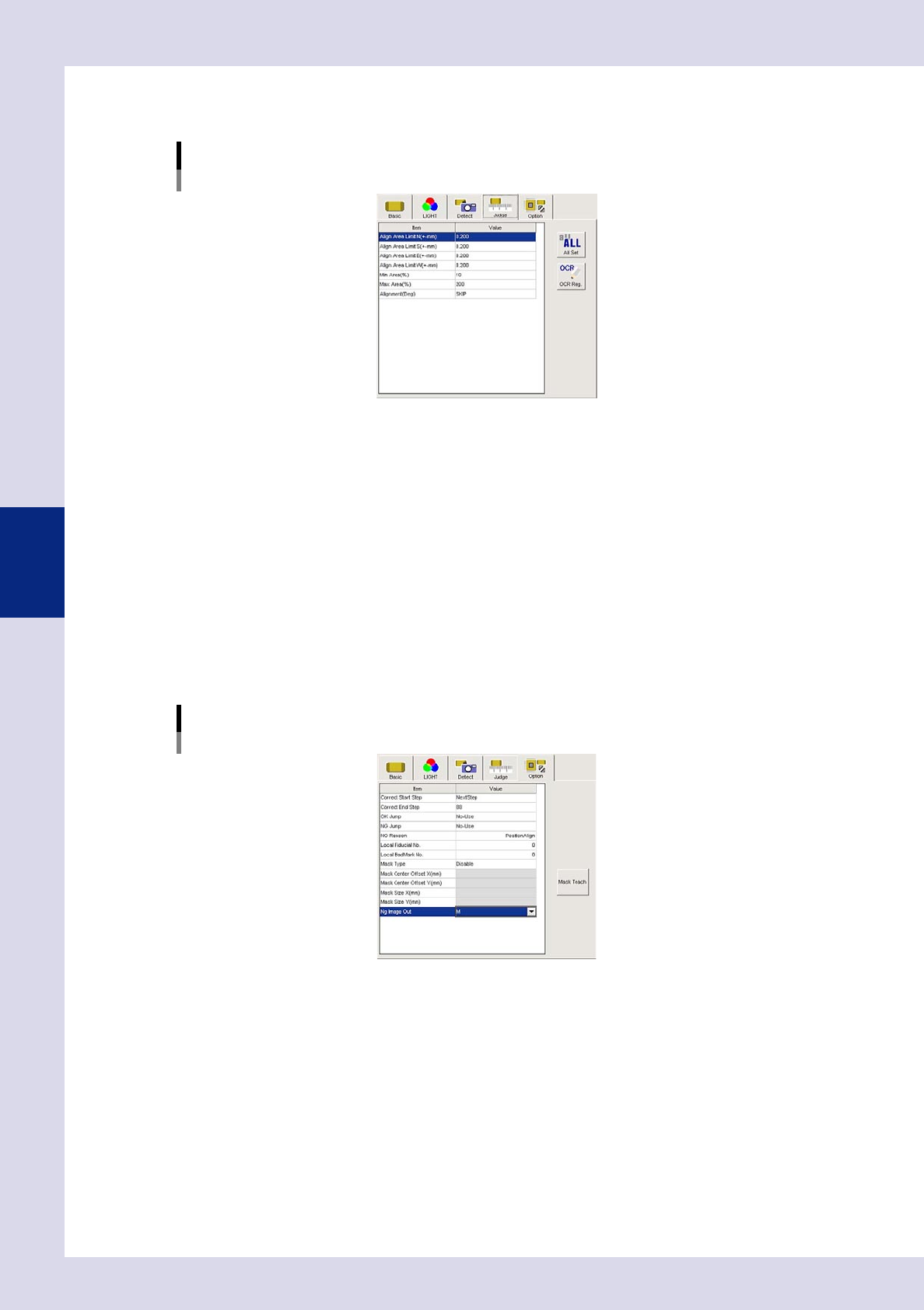
Set the "Judge" parameters.
Open the "Judge" tab and set the following parameters.
"Judge" parameters
Status: Position Correction
24429-P6-00
Position Correct Limit N - W (mm)
Set the limit amount for position correction.
If the detection position (amount of displacement) exceeds the limit, an NG result is judged, and
position correction is not performed. Set the direction to "SKIP" if not using it as a reference.
Min Area (%)
Sets the minimum area for the area standard. An NG result is judged if less than this value.
Ref. value 10%
Max Area (%)
Sets the maximum area for the area standard. An NG result is judged if less than this value.
Ref. value 200%
4
Set the "Option" parameters.
Open the "Option" tab and set the following parameters.
"Option" parameters
Status: Position Correction
Correct Start Step
The number of the first step for which position correction is performed can be selected from a drop-
down list or entered.
Correct End Step
The number of the last step for which position correction is performed can be selected from a drop-
down list or entered.
24430-P6-00
4-21
4
Inspection status
5
Perform a step test.
1. Press the [Step] button at the "Tuning" tab to perform a test for the created step.
2. When the test result appears, press the [End] button. When doing so, there is no problem if the test
result is "NG".
6
Press the [Detail] button.
The "Inspect result" dialog box opens. Press the [Auto Calculation] button. The following items in the
detection conditions parameters are set automatically.
Minimum Detectable Size X
The minimum X and Y widths for the inspection object are set.
7
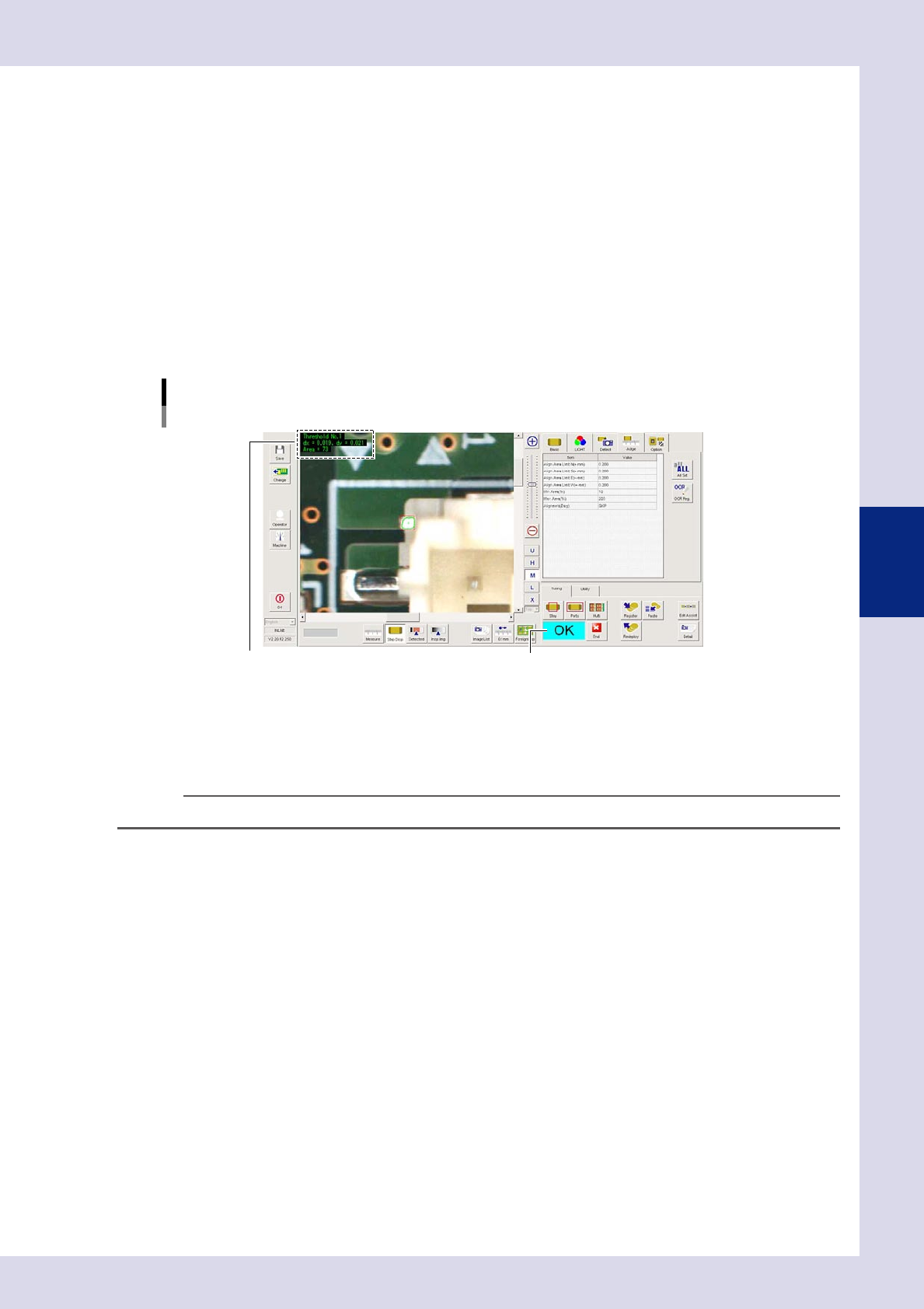
Perform a step test again.
1. Press the [Step] button at the "Tuning" tab again to perform a step test.
2. Take a note of and check the detection data, and then press the [End] button.
Screen after a step test is finished
Test resultDisplays detected data.
24431-P6-00
Detected data
Threshold No. : Threshold No. used for inspection
dx =, dy = : Amount that the step frame center deviates from the detection area center
Area = : Percentage of the detected area relative to the standard area
TIP
If dx and dy are "0", this means than the position correction limit is exceeded, so the position is not offset.
3. If the test result is not judged correctly, review all parameters while referring to the detection data.
4-22
4
Inspection status
1.8 Brightness Level
Use this inspection mode to measure the brightness level in a step frame in order to check for upside-down
parts, position deviations, and the polarity.
1
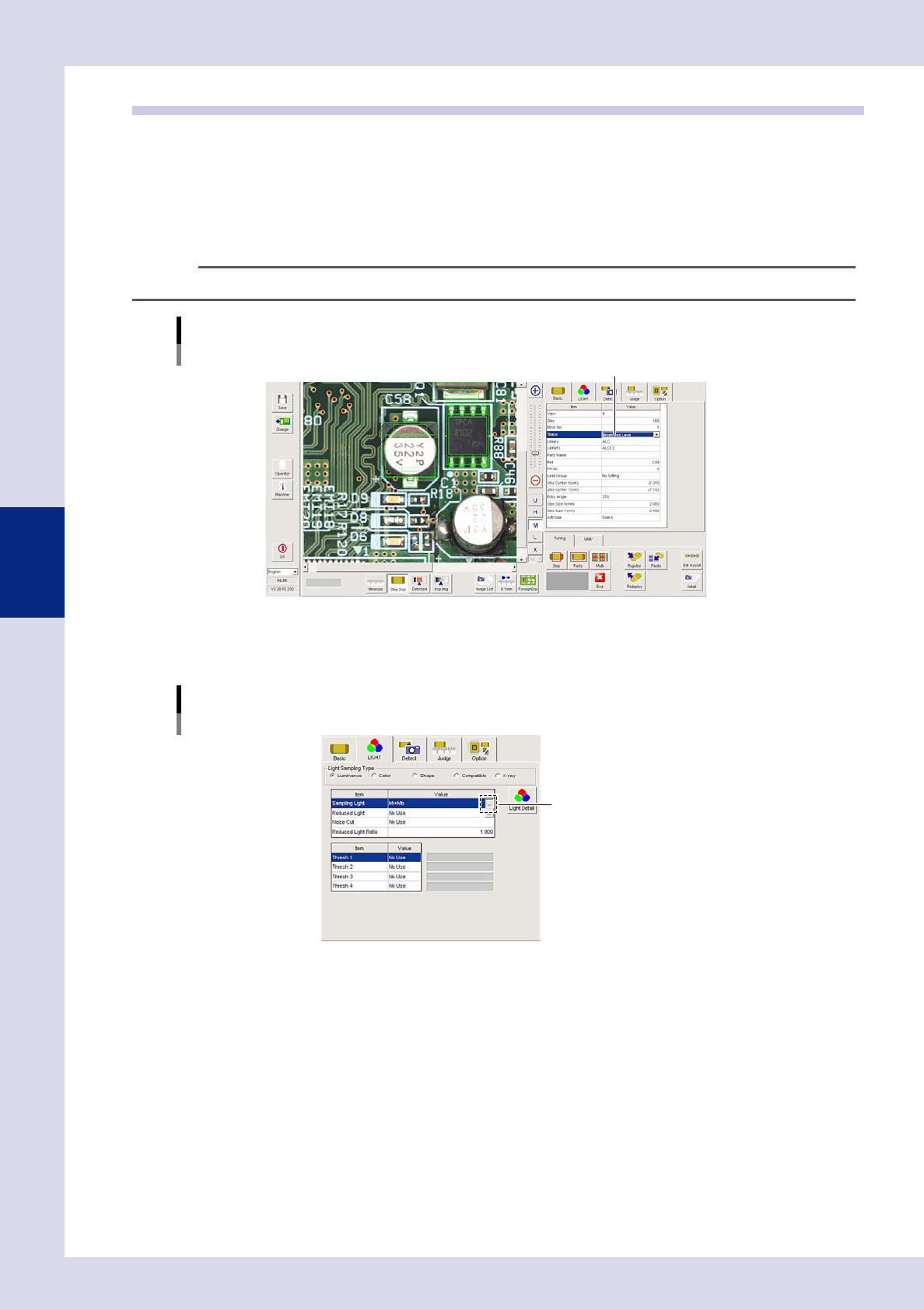
Make a "step" setting.
1. Create a step frame.
2. Open the "Basic" tab, and set the "Status" in the basic parameters to "Brightness Level".
n
NOTE
No threshold settings are required because the color image brightness is used as it is.
Status (inspection mode)
Brightness Level
Set to "Brightness Level".
24432-P6-00
2
Set the "LIGHT" parameters.
Open the "LIGHT" tab and select "Luminance" at "Light Sampling Type".
"LIGHT" parameters
Light Sampling Type : Luminance
Opens a lighting list.
24433-P6-00
Sampling light
"Mb+Lb" is normally used. Press the button to the right of the sampling light value field to open the
sampling light list, select "Mb+Lb" from the list, and then press the [OK] button.