YSI_Prog_E - 第212页
5-7 5 Inspection machine settings 1.4 Editing access levels T his section describes how to set work levels for eac h type of work. T he level can only be set b y operators with level equal to or higher than the work lev …
5-6
5
Inspection machine settings
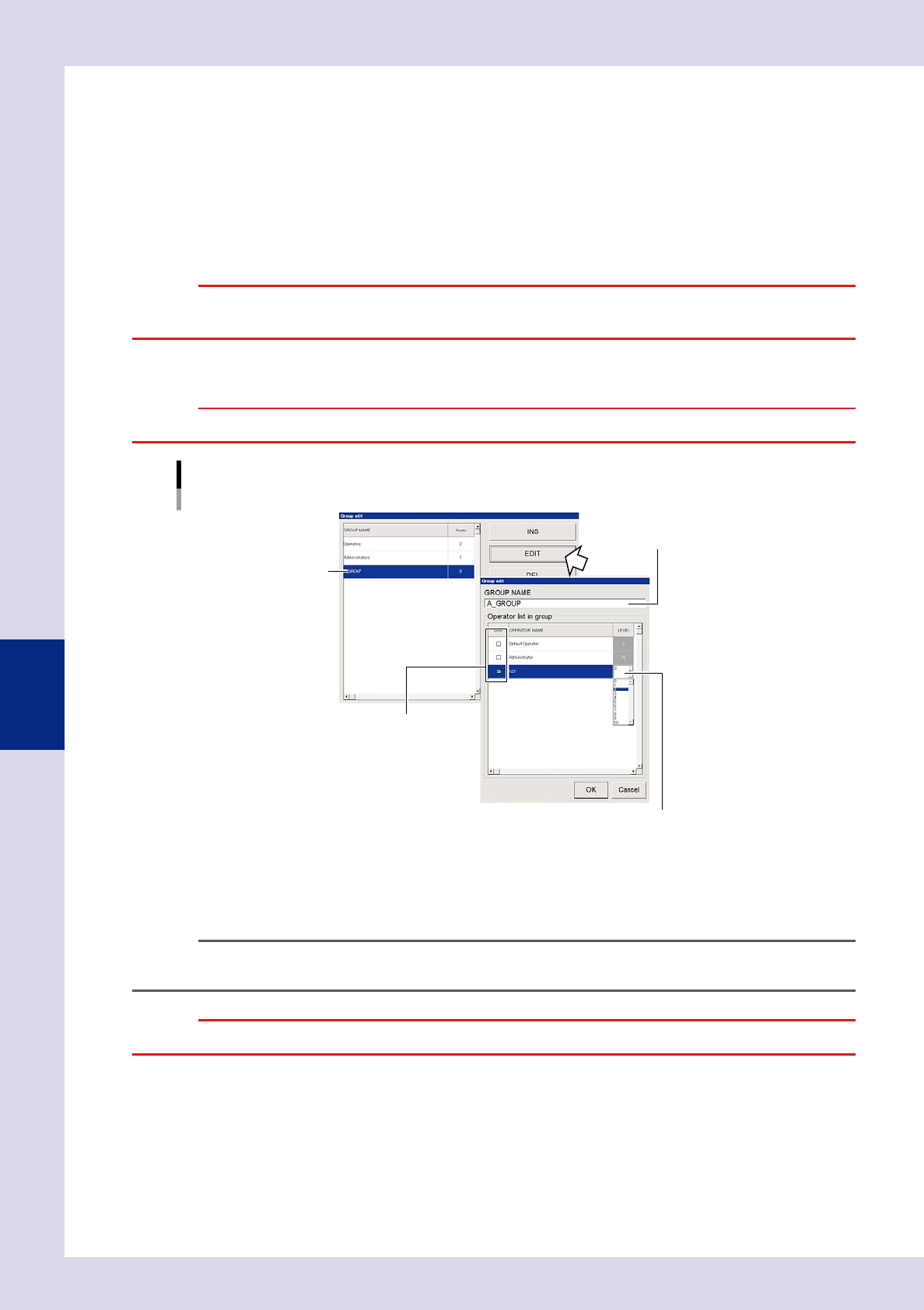
3. [EDIT] button
This section describes how to change the registered group name, operator names inside the group, and the operator level.
A list of registered operators and operators registered by default are displayed in the "EDIT OPERATOR" screen. Operators
with "Entry" check box selected belong to the selected group.
• To change the group name:
Enter a new name in the "GROUP NAME" box.
• If adding an operator to a group
Select the "Entry" check box for the operator to be added to the group. Clear the "Entry" check box for the operator to
be removed from the group. The same operator can be registered in multiple groups.
c
• To change the access level:
Click the "LEVEL" field to display a drop-down list, and select the level.
c
"Group Edit" screen
Select the group.
Enter a new name to
change the current
group name.
Select a level from the list that drops down.
Place a check mark next to
the operator you want to
add to the group.
24506-P6-00
4. [DEL] button
Use this button to delete a registered group. Select the group you want to delete and press this button. When a
confirmation dialog box appears, press the [OK] button.
n
NOTE
If an operator was only registered in the group you have deleted, that operator is automatically registered in the
"Operators" group that is registered by default.
c
5-7
5
Inspection machine settings
1.4 Editing access levels
This section describes how to set work levels for each type of work. The level can only be set by operators with
level equal to or higher than the work level.
1
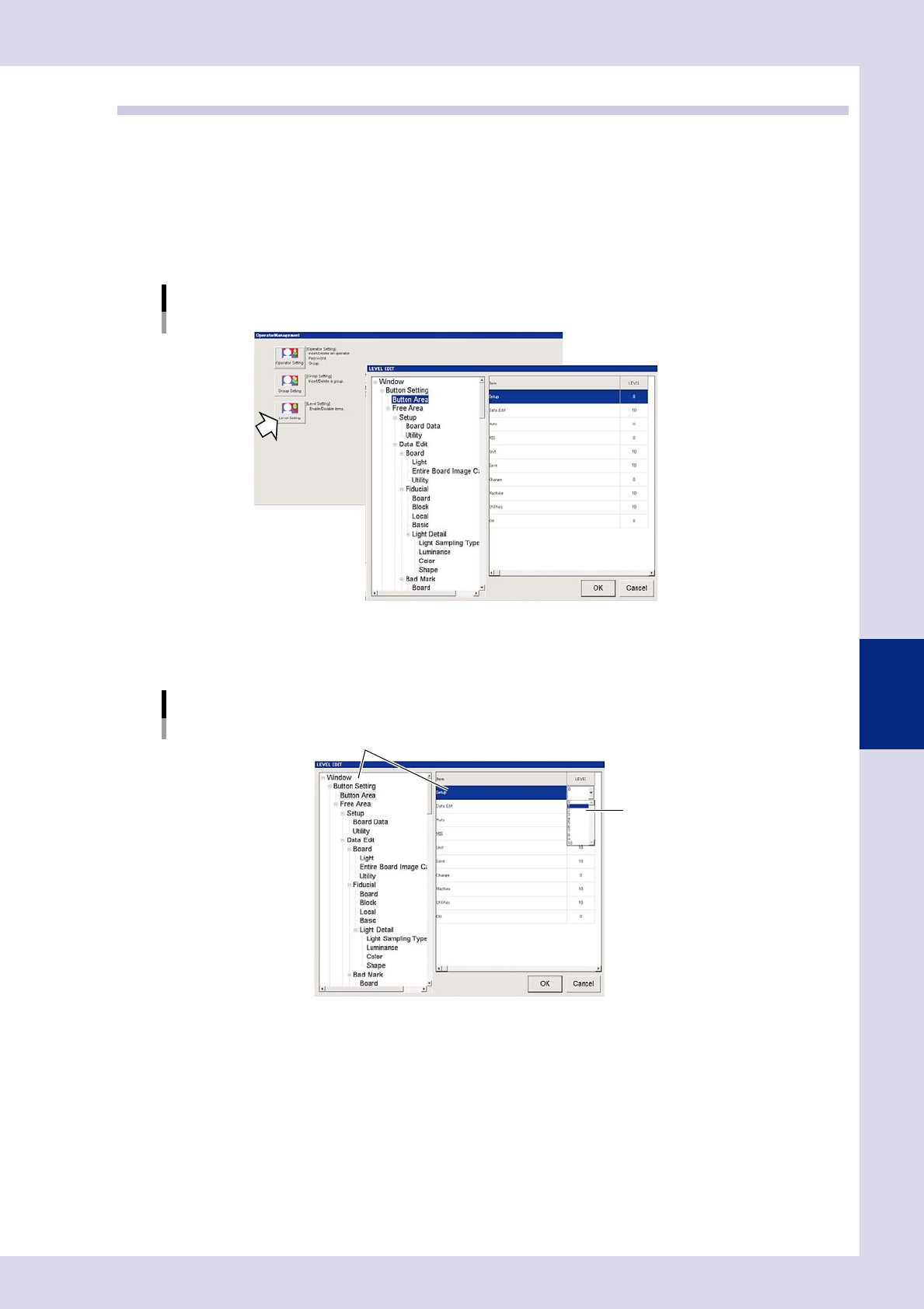
Press the [Operator Management] button on the Setup screen.
The "Operator Management" screen appears.
2
Press the [Level] button.
The "LEVEL EDIT" screen appears.
"LEVEL EDIT" screen
24507-P6-00
3
Set the level for each item.
Select the applicable item, and set the level from the "LEVEL" field drop-down list.
Editing each item
Select the level.
Select item you want to set.
24508-P6-00
4
Press the [OK] button when setting is complete.
The display returns to the [Operator Management] screen. Press the [Close] button to close the screen.
5-8
5
Inspection machine settings
2. Machine settings
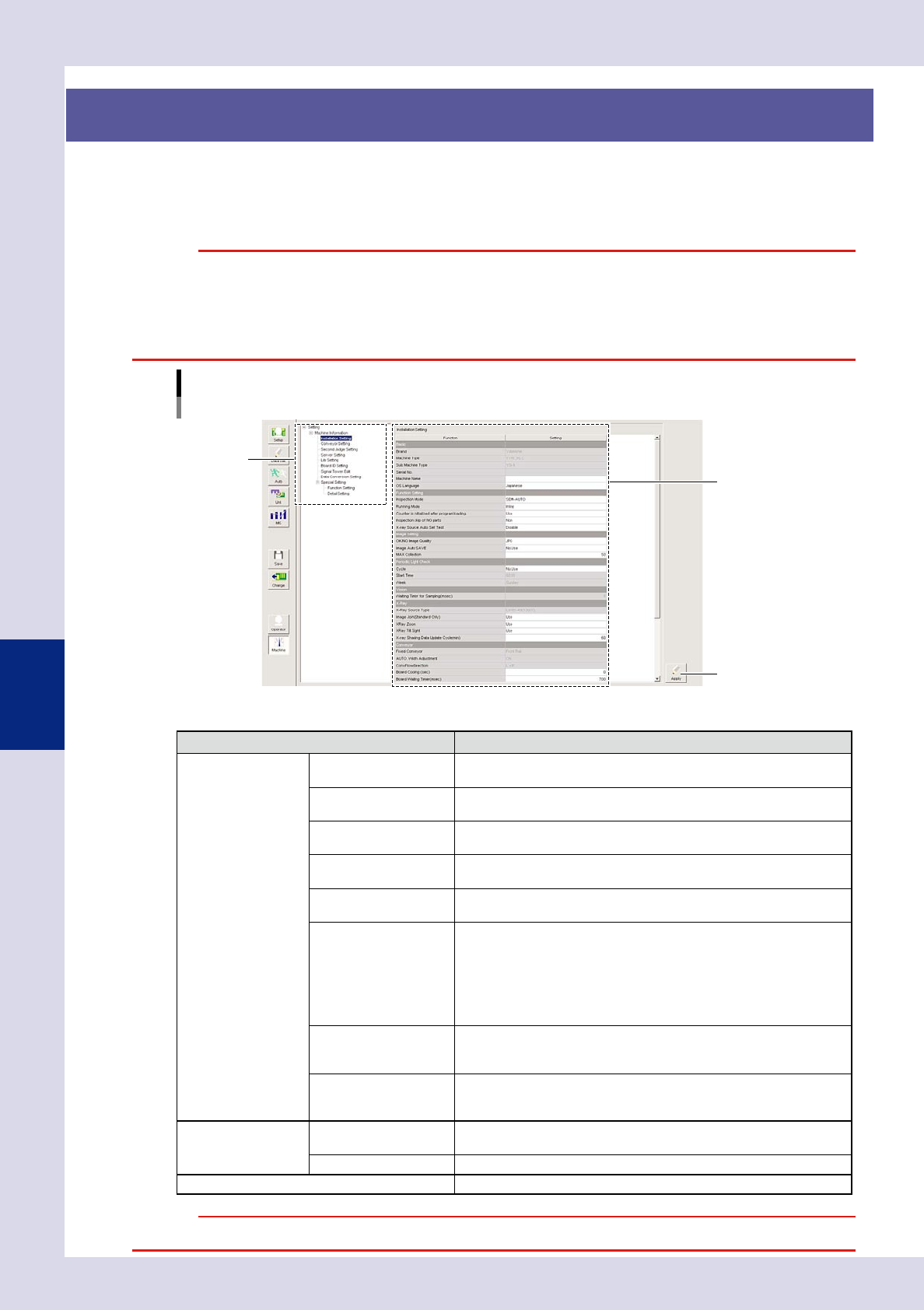
Press the [Machine] button in the button area to specify default settings for all machine functions and to
specify detailed settings. This section describes the tree view items and operation buttons in the machine
settings screen. The settings that appear when tree view items are selected are described from section 2.1,
"Installation settings".
c
"Machine settings" screen
Tree view
Setting items
[Apply] button
24509-P6-00
n
Tree view items and operation buttons
Item Details
MaChing Information Installation Setting
Specifies machine installation settings. (See 2.1, Installation settings",
in this chapter.)
Conveyor Setting
Sets the board loading and unloading positions. (See 2.2, Conveyor
transfer settings", in this chapter.)
Second Judge Setting
Specifies secondary judgment settings. NG reasons can also be edited.
(See 2.3, Secondary judgment settings", in this chapter.)
Server Setting
Specifies option software settings and data save path settings.
(See 2.4, Server settings", in this chapter.)
Lib Setting
Specifies library settings.
(See 2.5, Library settings", in this chapter.)
Board ID Setting
Specifies settings when the machine is equipped with optional Repair
Station or marking unit.
• If the machine is equipped with a Repair Station, the board ID
when transmitting inspection results is specified.
• If the machine is equipped with a marking unit, the board ID
written on the board is specified.
Refer to the respective operation manuals for details.
Signal Tower Edit
Specifies signal tower and buzzer settings based on the machine
operation and inspection status.
(See 2.6, Editing signal tower settings", in this chapter.)
Data Conversion Setting
Sets conditions when converting mount data (YGX) to inspection
machine data.
(See 2.7, Data conversion settings", in this chapter.)
Special Setting Function Setting
Special functions can be added, and the use or non-use of functions
can be specified.
Detail Setting Specifies details for special settings.
[Apply] button Press the [Apply] button to save the changed content.
c