YSI_Prog_E - 第219页
5-14 5 Inspection machine settings 2.5 Librar y settings Specifies settings relating to parts libraries. "Machine settings" screen "Setting" m "Machine Information" m "Lib Setting"…
5-13
5
Inspection machine settings
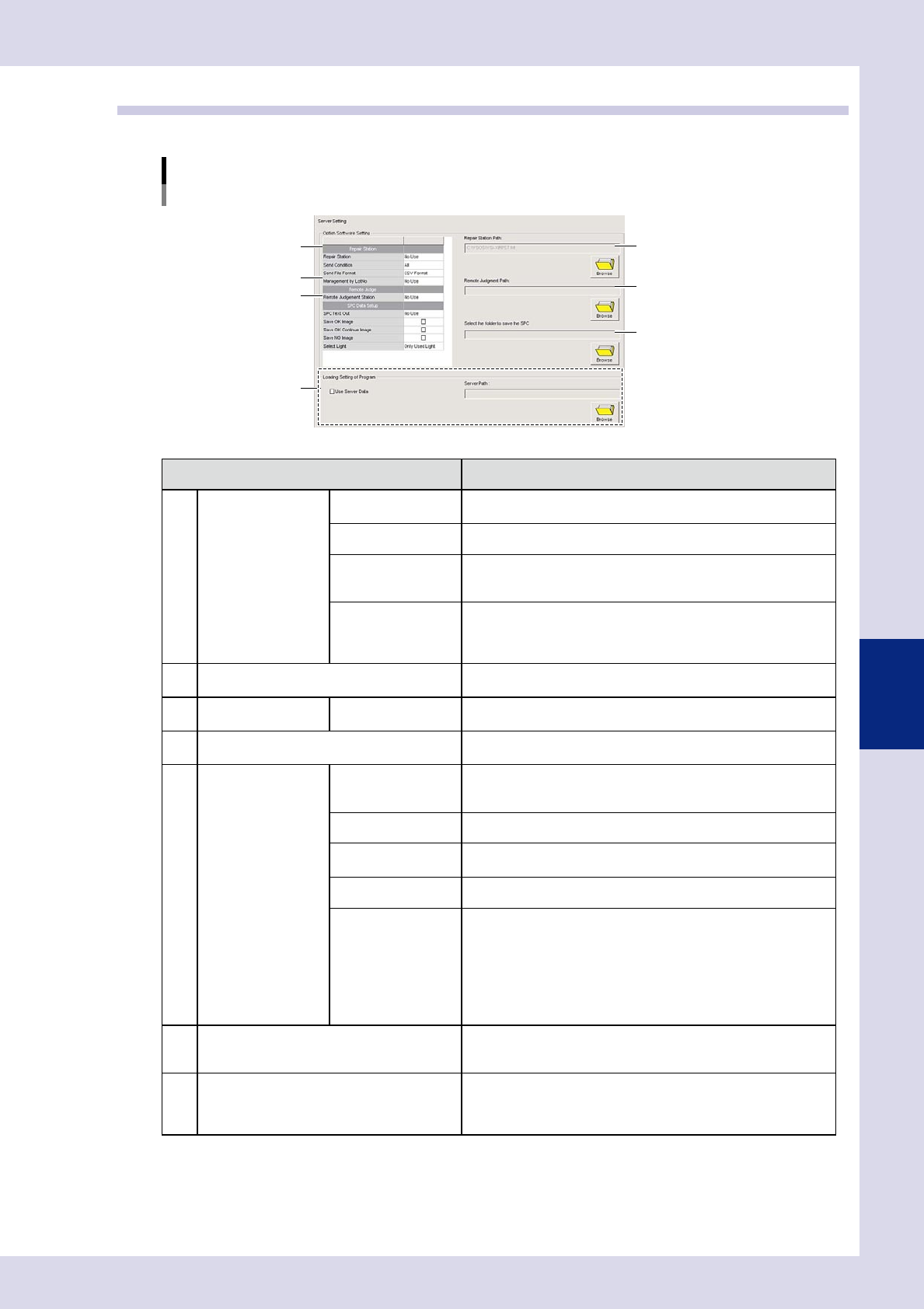
2.4 Server settings
Specifies option software settings and server path settings.
"Machine settings" screen
"Setting" m "Machine Information" m "Server Setting"
1
5
7
6
3
2
4
24514-P6-00
Item Details
1
Repair Station
(option)
*1
Repair Station Sets whether to use the Repair Station.
Send Condition Selects the data to be sent to the Repair Station.
Management by
LotNo
Sets whether to manage by lot No. By setting to "Use", data is
displayed in lot Nos. in the "Wait Judge List " used at the Repair
Station.
Notify Lot End
This is displayed when "Management by LotNo" is set to "Use".
Sets whether to notify iPro Macro (option) of the lot end. By setting
to "Use", data is gathered if receiving lot end notifications when iPro
Macro (option) is started.
2 Repair Station Path: (option)
*1
Press the [Browse] button and specify the "RPST.tdt" file located in
the folder used for storing Repair Station data.
3
Remote Judge
(option)
*2
Remote Judgment
Station
Sets whether to use remote judgment.
4 Remote Judgment Path: (option)
*2
Press the [Browse] button and specify the "RPST.tdt" file located in
the folder used for storing Repair Station data.
5 SPC Data Setup SPC Text Out
By setting to "Use", inspection results data is automatically saved to
the specified folder. Refer to "Select the folder to save the SPC" for
details on the save destination folder.
Save OK Image Select this check box to save images with "OK" inspection result.
Save OK Continue
Image
Select this check box to save images with "OK continue" inspection
result.
Save NG Image Select this check box to save images with "NG" inspection result.
Select Light
Selects the lighting used when saving images.
• Only used light
Saves images with lighting used for inspection.
• All light
Saves images with all lighting (U, H, M, L, X (YSi-X)).
• 1 light only
Saves M lighting images. If M lighting is not used, images using L
lighting are saved.
6 Select the folder to save the SPC
Set if "Use" is selected for "SPC Text Out".
Press the [Browse] button and specify the SPC data save
destination folder.
7 Loading Setting of Program
If using inspection programs saved to a location other than the
"Machine" folder, select the "Use Server Data" check box, and then
press the [Browse] button to specify the save destination folder for
inspection programs.
*1 : For details on the Repair Station, see the "Repair Station Manual" contained in the application CD.
*2 : For details on the Remote Judgment Station, see the "Remote Judgment Station Manual" contained in the
application CD.
5-14
5
Inspection machine settings
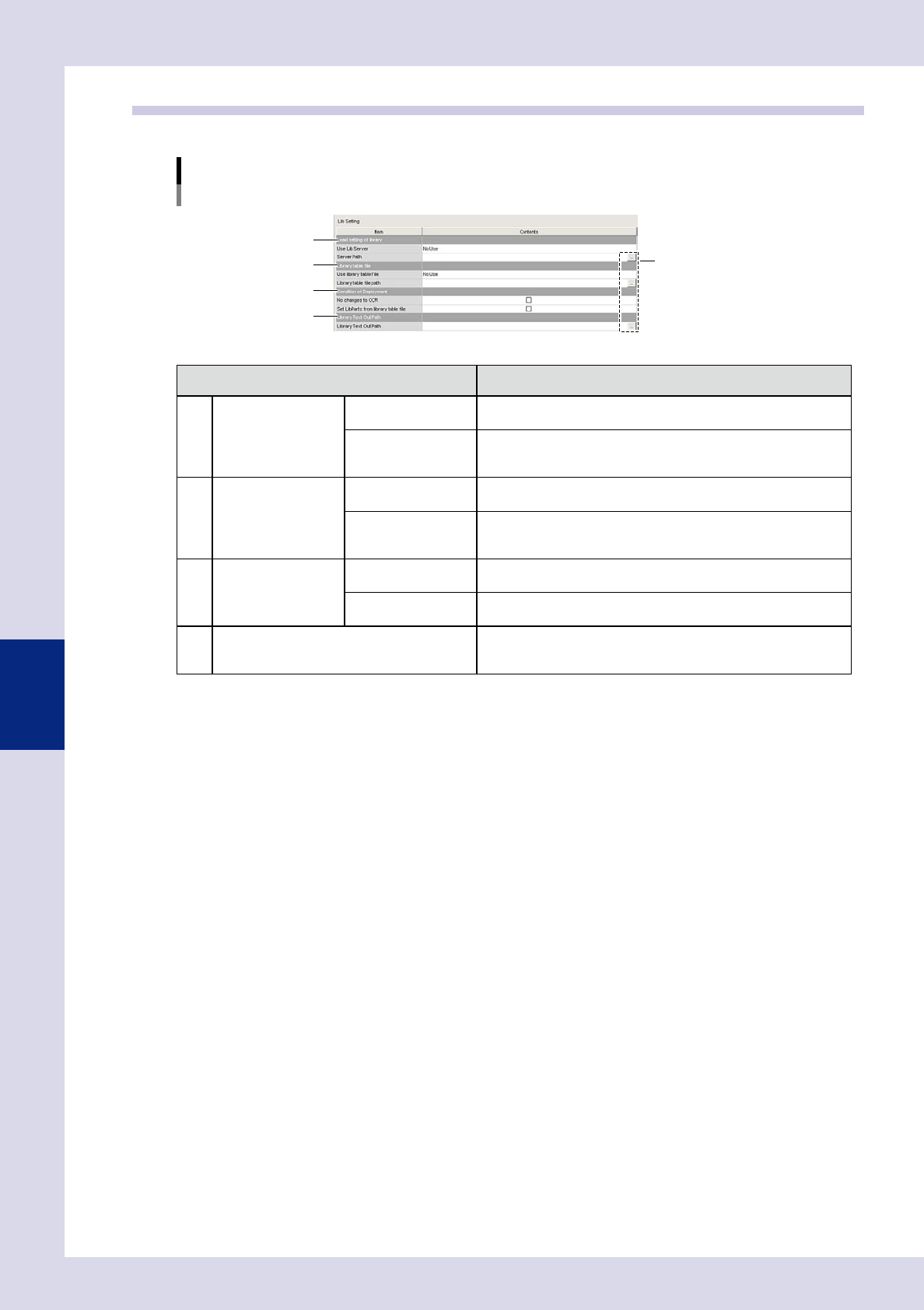
2.5 Library settings
Specifies settings relating to parts libraries.
"Machine settings" screen
"Setting" m "Machine Information" m "Lib Setting"
1
3
2
4
[Path setting] buttons
24515-P6-00
Item Details
1 Load setting of library Use Lib Server
Select "Use" if setting the library save destination to a location other
than the "Machine" folder.
Server Path
Displays the library save location when "Use" is selected for "Use
Lib Server". If wishing to change the save location or settings, press
the path setting button on the right.
2 Library table file Use library table file
If using a library table to tie together mounter parts names and Lib
parts name when converting data, select "Use".
Library table file path
Displays the library table save location referenced when "Use" is
selected for "Use library table file". If wishing to change the save
location or settings, press the path setting button on the right.
3
Condition of
Deployment
No changes to OCR
By selecting this check box, the inspection character string for
character recognition when deploying libraries is not changed.
Set LibParts from
library table file
Deploys Lib parts name from the library table when deploying
libraries.
4 Library Text Out Path
Displays the data save destination when text output button is
pressed at the library details screen. If wishing to change the save
location or settings, press the path setting button on the right.
5-15
5
Inspection machine settings
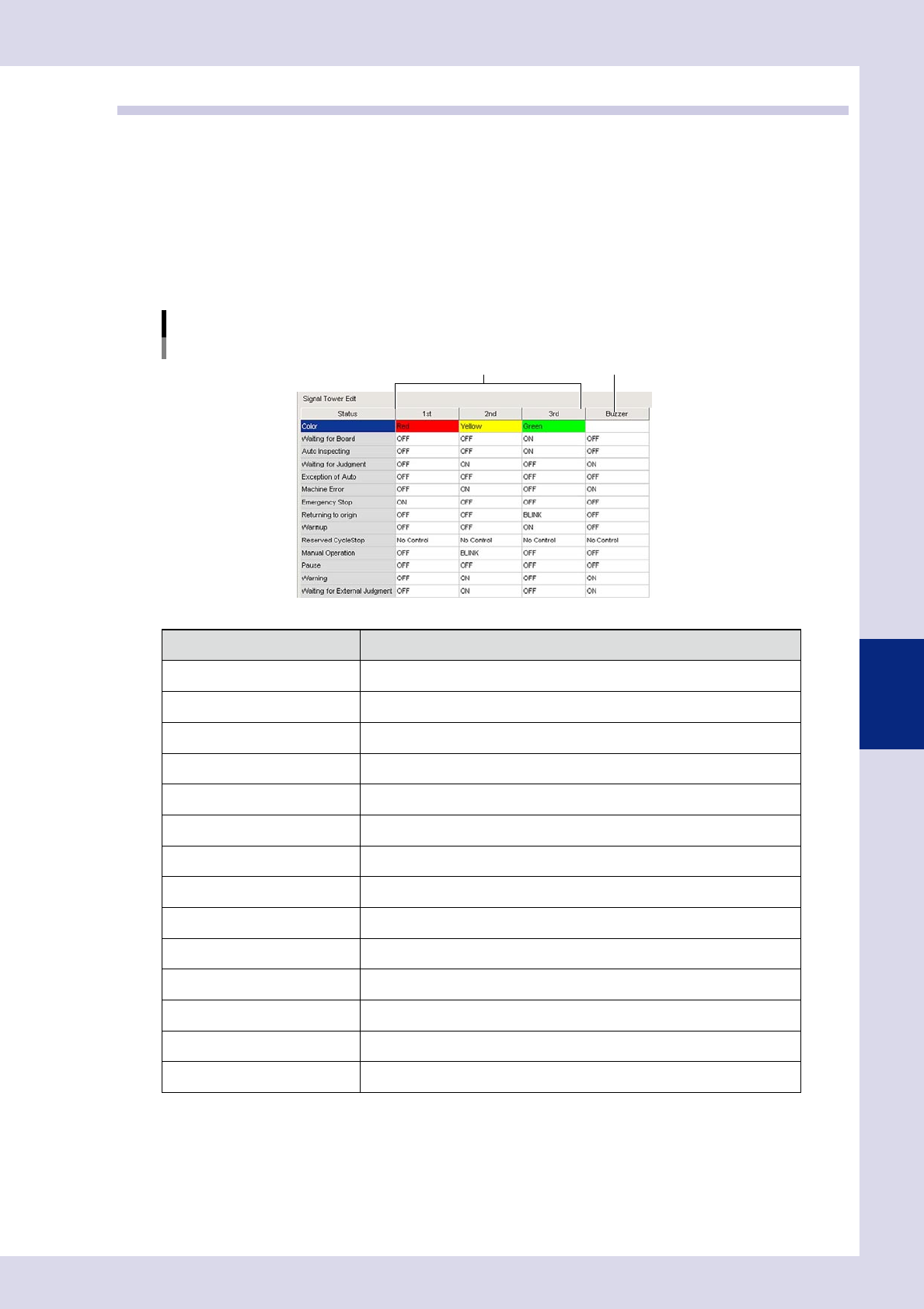
2.6 Editing signal tower settings
This section describes how to specify signal tower display settings for all machine statuses. Settings are
specified for the first lamp to the third lamp. (The signal tower lamps are arranged in order first lamp, second
lamp, third lamp, from top to bottom.)
Signal tower display settings
Signal tower display settings are specified for all machine statuses. "No Control", "OFF", "BLINK", or "ON" can be set for
each lamp. Refer to the following table for details on the items that can be set.
Buzzer settings
Buzzer ON/OFF settings are specified for all machine statuses.
"Machine settings" screen
"Setting" m "Machine Information" m "Signal Tower Edit"
Signal tower display settings Buzzer setting
24516-P6-00
Item Status
Color Lamp color display
Waiting for Board Waiting for board loading
Auto inspecting During automatic inspection
Waiting for Judgment Waiting for judgment from secondary judgment, semi-auto screen
Exception of Auto Other than automatic inspection
Machine Error During machine error
Emergency Stop Emergency stop condition
Returning to origin Returning to origin
Warmup Performing a warmup
Reserved CycleStop Awaiting cycle stop
Manual Operation During manual operation
Pause Operation paused
Warning During machine warning
Waiting for External Judgment Waiting for judgment from Remote Judgment Station (option)