YSI_Prog_E - 第60页
1-25 1 asic operation 1.8 Operator selection screen Pressing the [Operators] tab opens an "ID WINDOW" screen. T he machine operator is selected at this screen. TIP Operation items differ depending on the sele…
1-24
1
asic operation
1.7 History
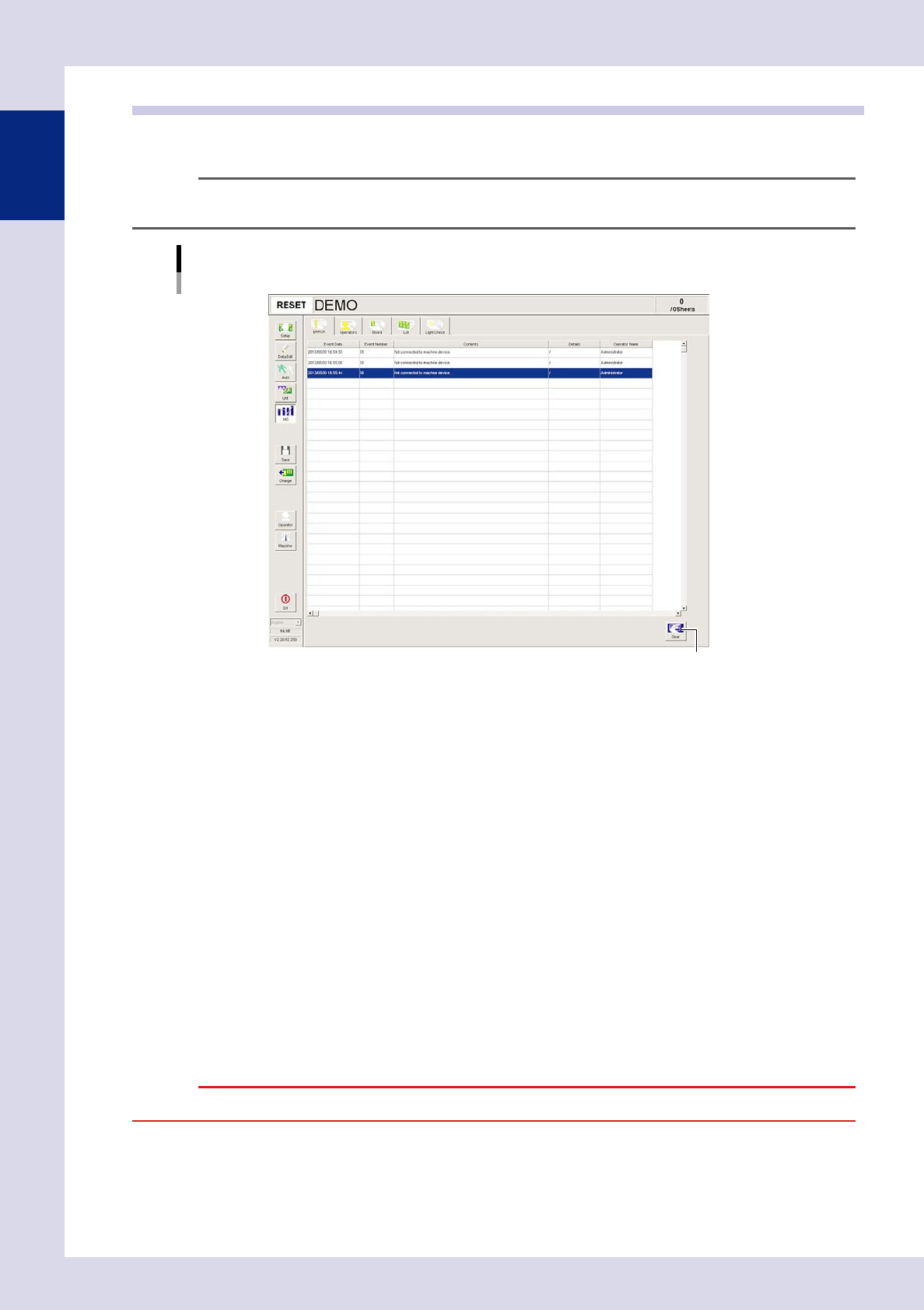
The inspection machine operating history can be displayed. Error, operator, board, lot, and light check history
can be displayed.
TIP
History for each item is displayed in up to 1,000 lines in order of date, and is deleted starting with oldest line first.
Basic operation
History
[Error] tab example
[Clear] button
24124-P6-00
Error
Displays errors that occurred at the machine or the task involved. Each error or task is displayed in a single line of data.
Operator
Displays the operator operation history. Each operation is displayed in a single line of data.
Board
Displays the inspection history. History for each board is displayed in a single line of data.
Program Log
Displays production results per lot, with one lot treaded as the interval from the loading of a program (board data) until
switching over to the next program.
One data row is used to record one lot. Up to 1000 rows can be displayed.
Light Check
The standard value is displayed in the first line, and the results when the lighting intensity check was performed are
displayed in the second line onward. Each lighting intensity check is displayed in a single line of data.
[Clear] button
Use this button to delete all log data currently displayed on the screen. Data cannot be deleted in rows.
When a confirmation dialog box appears, press the [Yes] button to delete the log data.
c
1-25
1
asic operation
1.8 Operator selection screen
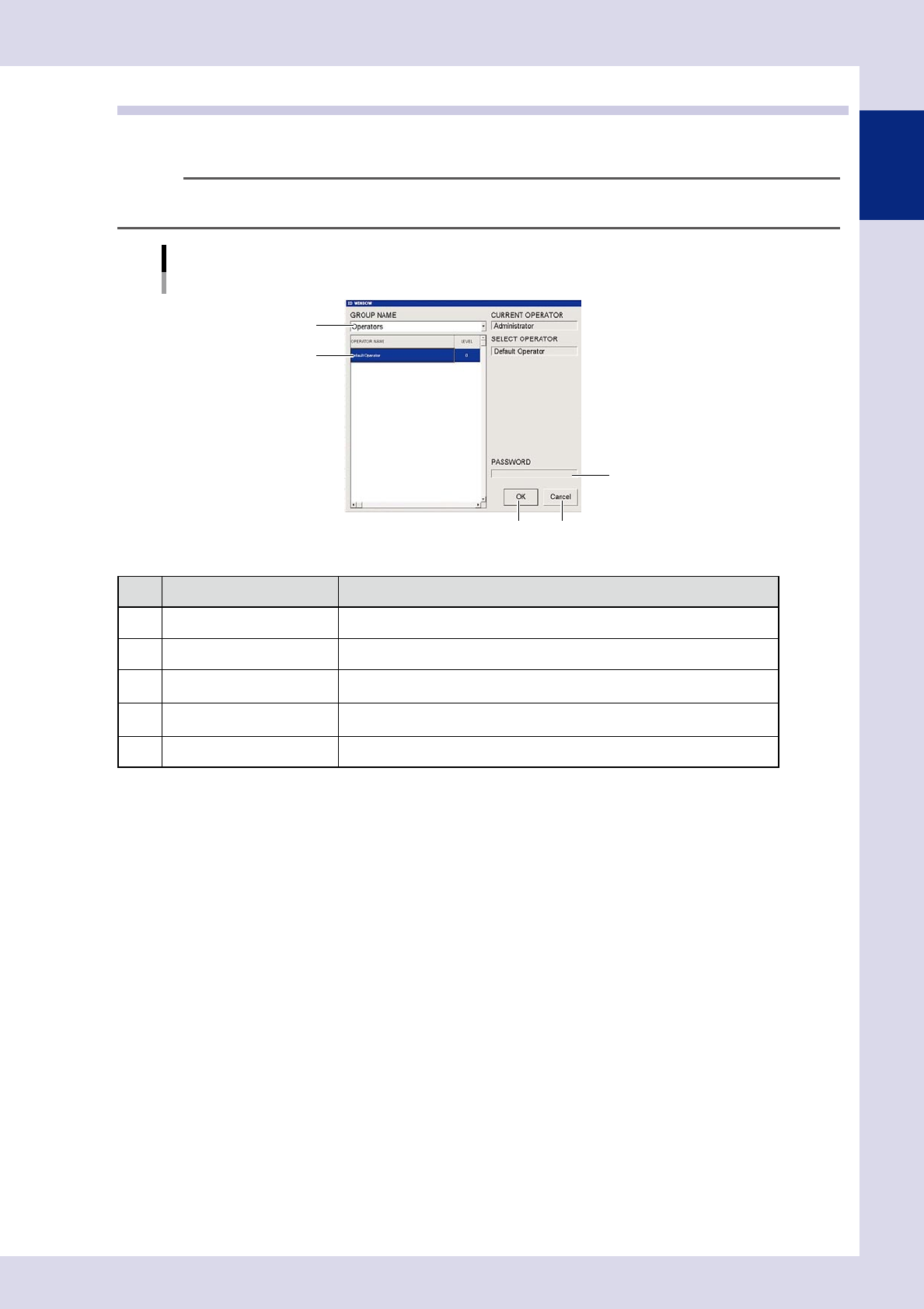
Pressing the [Operators] tab opens an "ID WINDOW" screen.
The machine operator is selected at this screen.
TIP
Operation items differ depending on the selected operator level. For details on items displayed in the "ID WINDOW"
screen, refer to Chapter 5, "1. Operator management", in this manual.
[Operator] – [ID WINDOW] screen
1
3
4 5
2
24125-P6-00
Item/button name Description
1 GROUP NAME Selects the group name for operators performing operation.
2 OPERATOR NAME Selects the name of the operator performing operation.
3 PASSWORD
Used to enter the password if one is specified for the operator performing
operation. Press the [OK] button if no password has been specified.
4 OK
The operation screen appears if the password is correct, allowing inspection
machine operation.
5 Cancel Cancels operation.
1-26
1
asic operation
2. Starting and ending inspection
2.1 Starting automatic inspection
c
Ensure to complete conveyor unit setup before starting automatic inspection.
2.1.1 Selecting inspection programs
1
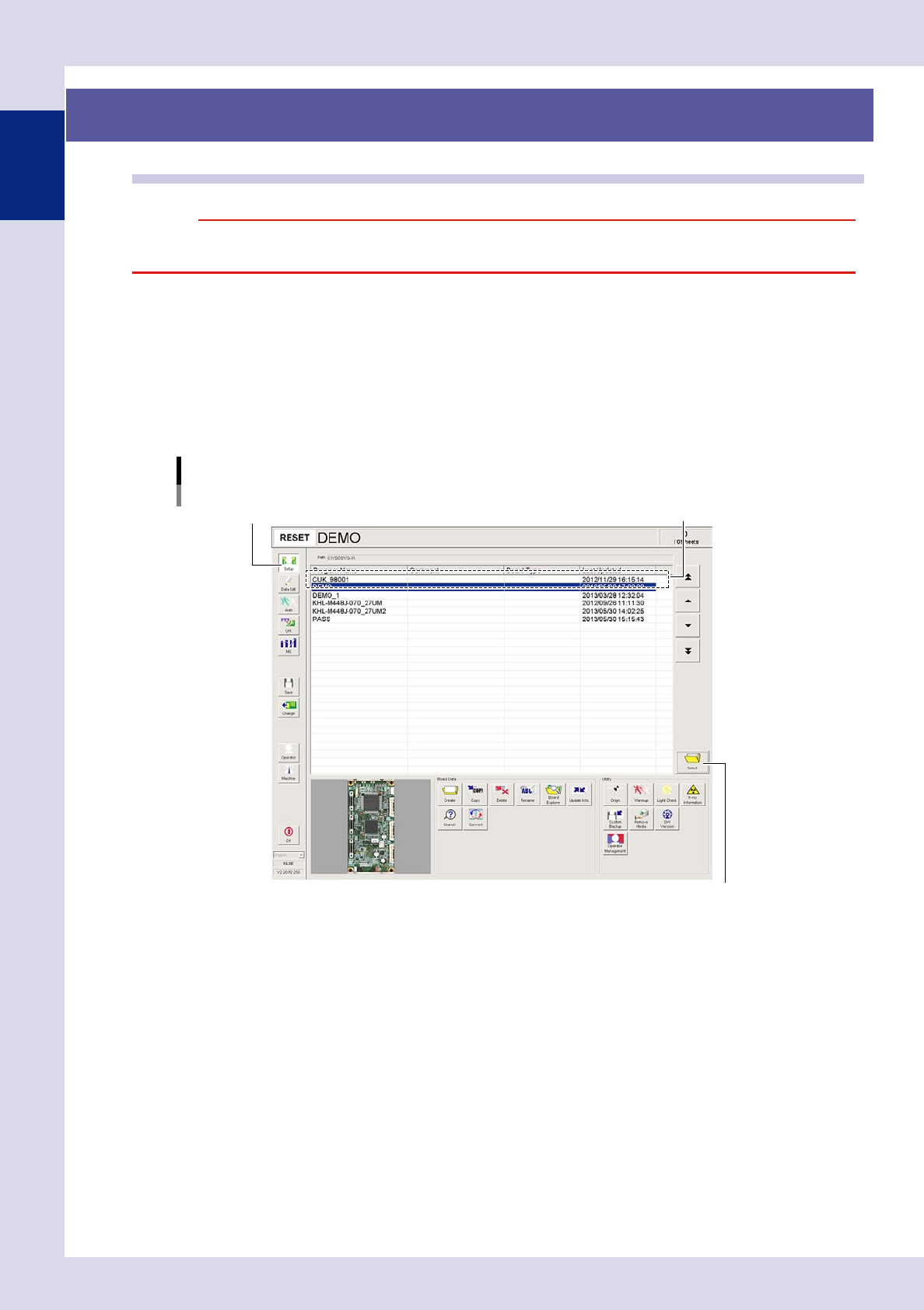
Press the [Setup] button.
The "Program Change" screen opens.
2
Load the program from the inspection program list.
To load an inspection program, either select a program from the list and press the [Select] button, or
double-click a program in the list directly.
Selecting inspection programs
YSi-X screen example
[Setup] button
[Select] button
Select the inspection program.
24126-P6-00
3
Verify the loaded inspection program.
The loaded inspection program name appears in the status area.