YSI_Prog_E - 第85页
2-14 2 Creating inspection pr ograms Item Description 4 Inspect Condition Auto Lib Deploy at Data Load If "Use" is selected, libraries are automatically deployed when the inspection program is loaded. Skip Insp…
2-13
2
Creating inspection programs
6
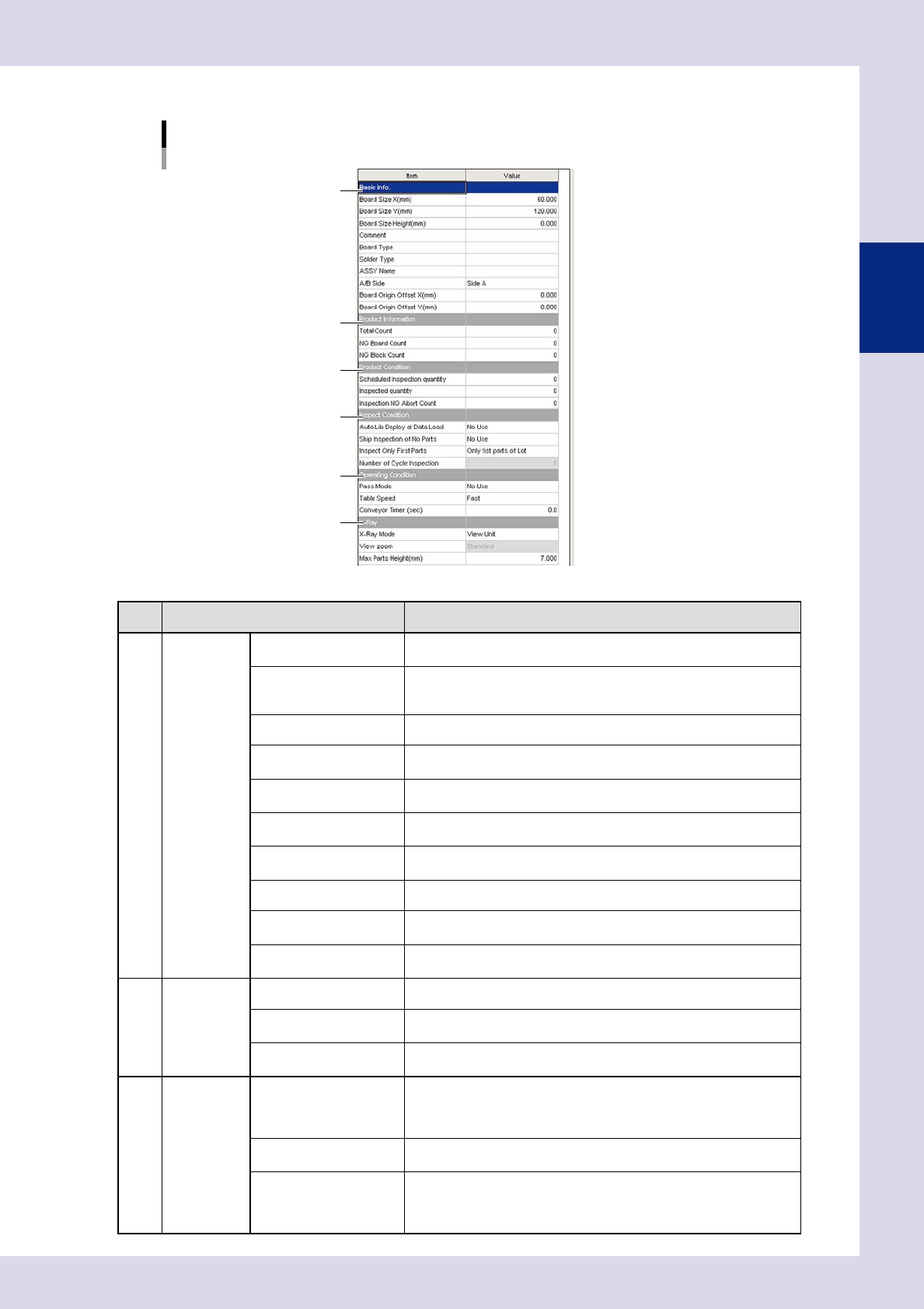
Enter board parameters as needed
Board parameter
1
2
3
4
5
6
24209-P6-00
Item Description
1 Basic Info.
Board Size X (mm)
Enter the board X direction size.
This is the board flow direction size.
Board Size Y (mm)
Enter the board Y direction size.
This is the conveyor width direction size when the board is placed on
the conveyor.
Board Size Height (mm) Enter the board thickness. This may be left blank.
Comment
Enter a comment on the board in this field. Up to 28 alphanumeric
characters can be entered. You can leave this field blank.
Board Type
Enter a comment on the board type in this field. Up to 28 alphanumeric
characters can be entered. You can leave this field blank.
Solder Type
Enter a comment on the solder in this field. Up to 28 alphanumeric
characters can be entered. You can leave this field blank.
Assy Name
Enter the ASSY name to be set for the board ID.
Enter eight single-byte alphanumeric characters. This may be left blank.
A/B Side Select the panel surface from side A and side B.
Board Origin Offset X
(mm)
Enter the board origin X direction offset amount.
Board Origin Offset Y
(mm)
Enter the board origin Y direction offset amount.
2 Product
Information
Total Count The total inspection board quantity is displayed after being initialized.
NG Board Count
The number of NG boards is displayed after selecting the inspection
program.
NG Block Count
The number of NG blocks is displayed after selecting the inspection
program.
3 Product
Condition
Scheduled Inspection
guantity
Enter the scheduled inspection quantity.
If "0" is entered, inspection is continued as long as boards are loaded.
If a value other than "0" is entered, operation stops when inspection of
the entered board quantity is complete. The next board is not loaded.
Inspected guantity
The inspection quantity is displayed after selecting the inspection
program. The default value is "0".
Inspection NG Abort
Count
When the NG inspection quantity for each board reaches the value
entered here, "Incomplete" is displayed for the inspection result, and
auto inspection is stopped. The board moves to the stop setting position
specified in "Conveyor setting" in the machine settings.
2-14
2
Creating inspection programs
Item Description
4 Inspect
Condition
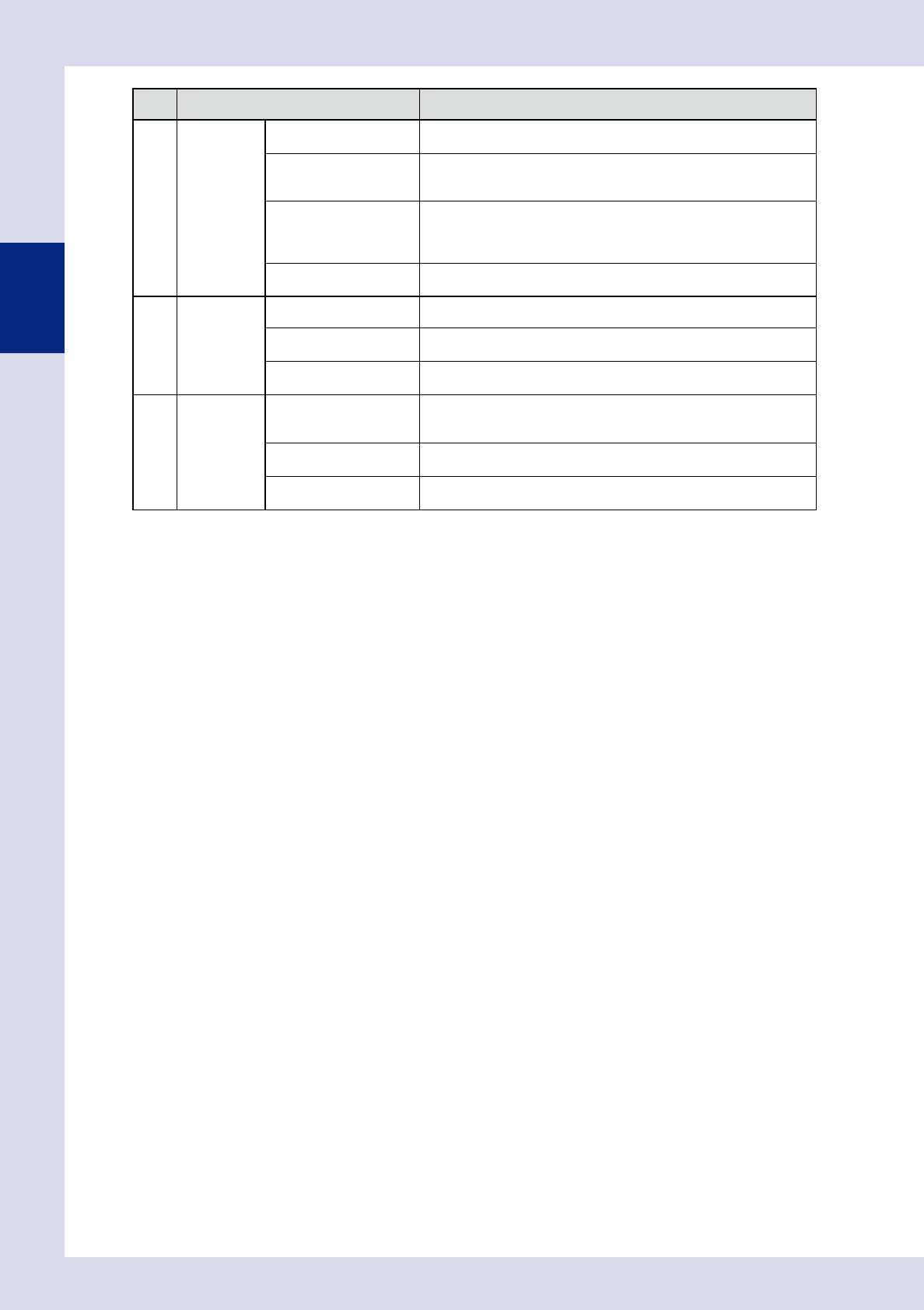
Auto Lib Deploy at Data
Load
If "Use" is selected, libraries are automatically deployed when the
inspection program is loaded.
Skip Inspection of No
Parts
If "Use" is selected, when the result of the parts check or electrode
check when performing automatic inspection is NG, inspection of
identical parts is skipped, and the next part is inspected.
Inspect Only First Parts
"Inspect Only First Parts" or "?Inspect for Each Specified Qty" can be
selected when the inspection status is "Character recognition" or
"Polarity check". Inspection is not performed for other than the specified
board. Setting is required in the "Option" tab for each step.
Number of Cycle
Inspection
This is valid if "Inspect Only First Parts" is set for "?Each Specified
Qty?". Enter the cycle quantity for boards to be inspected.
5 Operating
Condition
Pass Mode Boards are transferred without performing inspection.
Table Speed
This should normally be set to "Fast".
However, set to "Slow" for heavy boards.
Conveyor Tiner (sec)
Sets the length of time that the conveyor is rotated after the board
unloading sensor confirms that the board has been unloaded.
6 X-Ray
X-Ray Mode
Selects whether to set the X-ray inspection settings in "Board Unit" or
"View Unit".
If "Board Unit" is selected, select the "View zoom".
View zoom
This is valid if "Board Unit" is selected for "X-Ray Mode".
Select a suitable magnification for inspection from the drop-down list.
Max Parts Height (mm)
Enter the maximum height of parts mounted on the board subject to
inspection.
2-15
2
Creating inspection programs
2.4 Fiducial function
Based on the recognized position results of fiducial marks allocated to boards, the fiducial function corrects
errors that may occur from errors in machining the board outline or from the board clamping mechanism, as
well as board warp. This function is used to correct the position of the entire board by registering fiducial
marks in the lower left (or upper left) of the board as Mark 1, and marks in the upper right (or lower right) as
Mark 2. (Up to three marks can be registered.) If required, register block fiducials or local fiducials after
registering board fiducial marks.
Board fiducial mark example
Board
Mark 2
Mark 1
Mark 3
(Register if necessary)
23213-P6-00
n
Fiducial screen
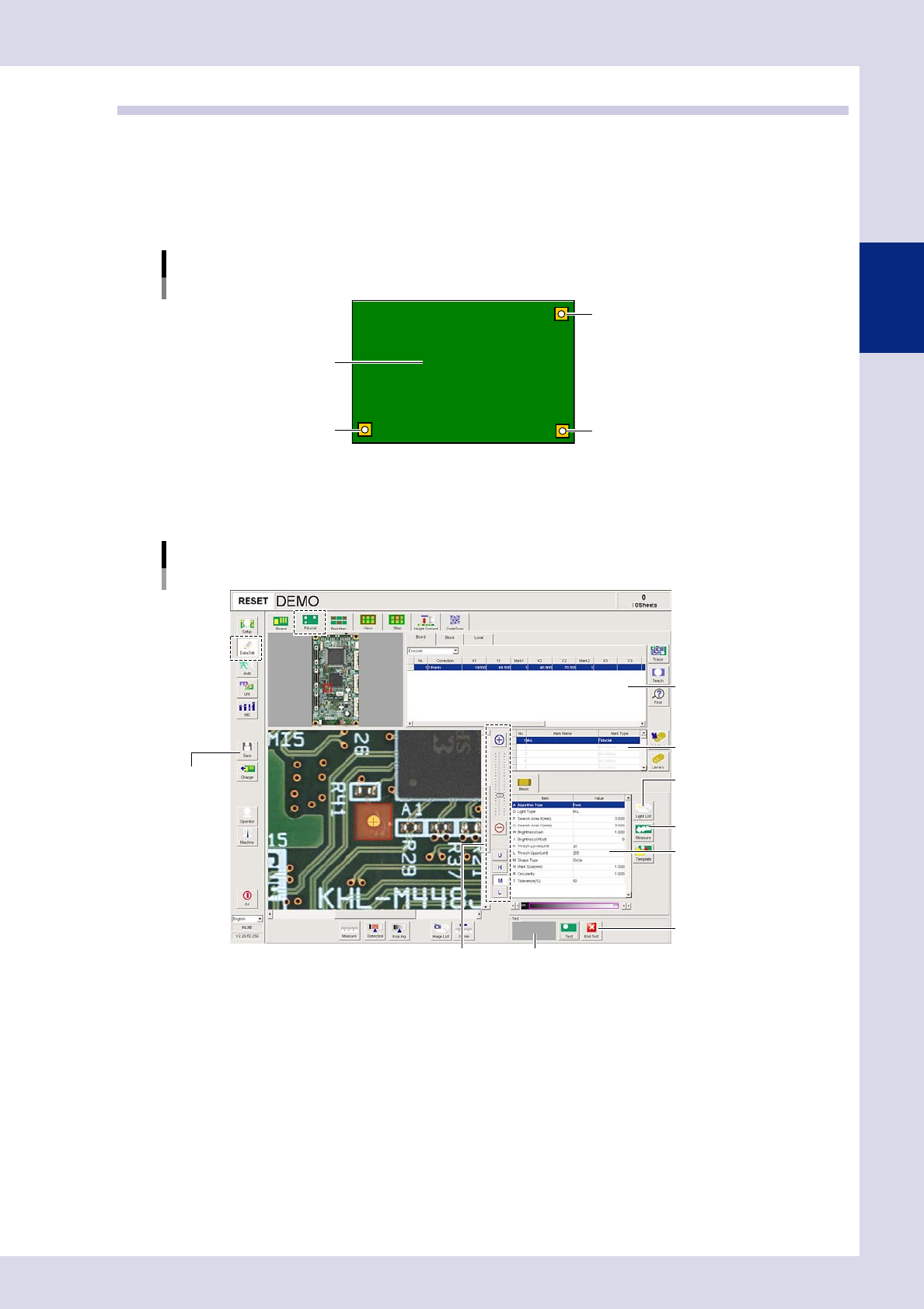
By pressing the [Data Edit] button and opening the "Fiducial" tab, the following fiducial mark setting screen appears.
[Fiducial] tab screen
Basic parameters
[Measure] button
[End Test] button
Threshold slide bar Recognition results
[Save] button
[Light List] button
Mark list
Mark data list
24210-P6-00